Website profiles · Technology insights · Alternatives

blaze.today

Text Blaze saves you hours of work by eliminating repetitive work with customizable snippets and dynamic templates that work on any app or website.

Paid content
Visit website
Profile views 10 Outbound visits 2 Normal
Text Blaze: Snippets and Templates for Chrome Full homepage screenshot

At a glance

Category
Productivity
Language
English
Paid-content signal
Paid contentObserved
Registered
2016
Hosting
Google LLCInferred
HTTPS certificate trusted
PassedObserved
Last updated

Website review

This review may include AI-generated content and is not individually verified. Domain, certificate and other facts come from the observed data on this page.

What is Text Blaze?

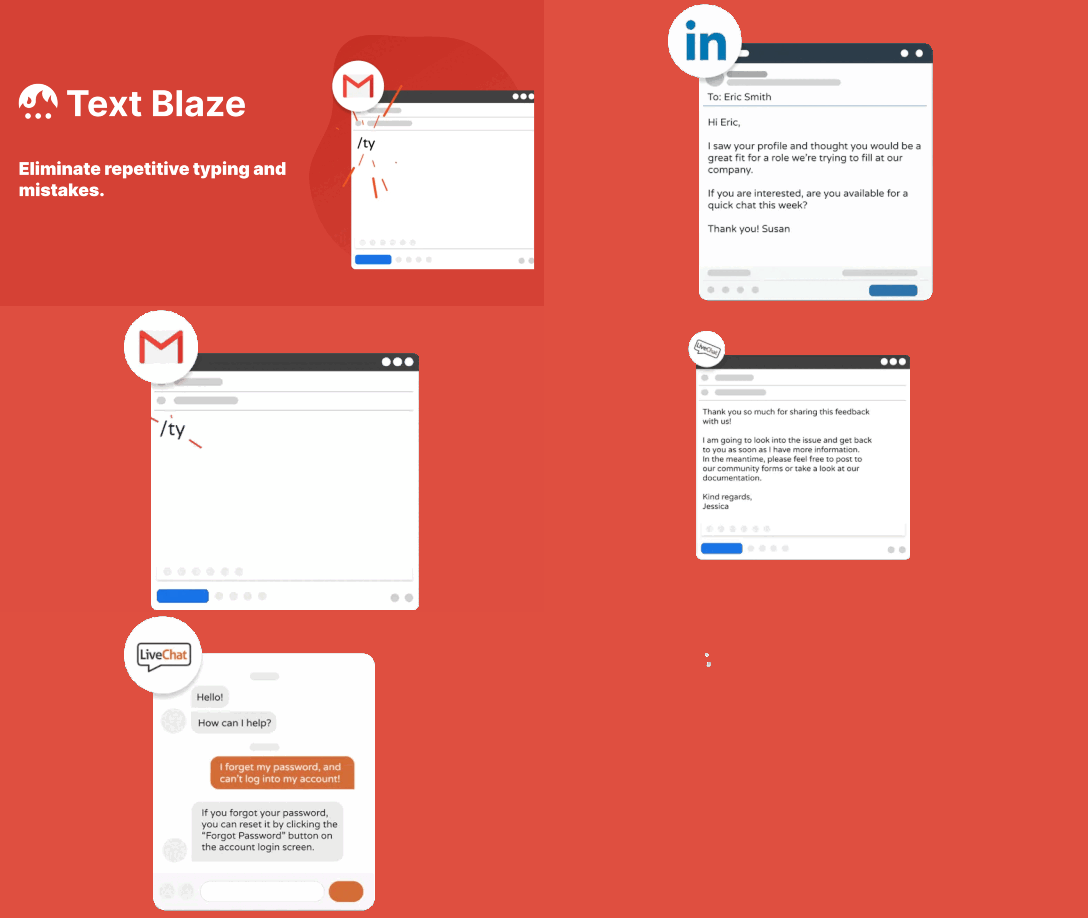
Text Blaze is a text-expansion tool that runs mainly as a Chrome extension (with macOS and Windows apps). You save frequently used text as a snippet, assign it a short trigger such as /ty, and typing that trigger inserts the full text into whatever field you're in — Gmail, Google Docs, LinkedIn, Salesforce, and other sites. The pitch is simple: stop retyping the same replies, addresses, and templates, and cut both the time and the typos.

What it actually does

  • Snippets with shortcuts: store any block of text and expand it from a keyword you choose.
  • Dynamic templates: the page describes forms, formulas, and integrations, so a snippet can prompt you for details or pull in computed values rather than being fixed text.
  • Sharing and collaboration: snippets can be shared with colleagues and update for everyone when edited.
  • Cross-app reach: it works inside websites and apps rather than only in one program, which is the main reason people pick it over a single-app template feature.

Who gets the most out of it

Support and sales teams answering the same questions, recruiters and account managers sending similar outreach, and anyone pasting addresses, disclaimers, or checklists dozens of times a day. If you type the same paragraph once a week, the setup cost probably isn't worth it; if you type it ten times a day, it is.

A concrete example

A support agent creates /refund that expands into a refund policy paragraph, then a dynamic version that asks for the order number and inserts it. Instead of switching to a notes file, copying, and pasting, they type six characters in the reply box they're already using.

Trade-offs to weigh

  • Shortcuts can collide with normal typing or with other extensions' triggers, so pick a prefix you don't use naturally.
  • Shared snippets are only as good as their maintenance — stale team templates spread as fast as good ones.
  • Expansion inside every site means mistakes can propagate widely, so test new dynamic templates before sharing them.

Next step: install the extension, create one snippet for the message you send most often, and use it for a day. If it saves you real keystrokes, build out a small set before investing in dynamic templates or team sharing.

How do I create a snippet in Text Blaze?

You create a snippet by saving a piece of text, giving it a short trigger, and then typing that trigger wherever you want the text to appear. Text Blaze runs as a Chrome extension (plus macOS and Windows apps), so the same shortcut works across Gmail, Google Docs, LinkedIn, Salesforce, and other sites rather than being tied to one app.

The basic steps

  1. Open the Text Blaze dashboard. The page points to a "Go to Dashboard" option after you add the extension.
  2. Create a new snippet. Paste or type the full text you keep repeating — a thank-you reply, a support answer, an address block, a meeting link.
  3. Assign a shortcut. Text Blaze's own example is /ty for a thank-you sentence. Use something you won't type by accident and won't forget.
  4. Save it.
  5. Test it in a real field. Click into a Gmail compose window or a Google Docs page, type the shortcut, and the snippet text should replace it.

A concrete example

Suppose you answer the same onboarding question several times a day. Save the whole reply as a snippet with the shortcut /onboard. The next time the question arrives, you type six characters instead of three paragraphs, then edit the name or date before sending.

Where snippets go beyond plain text

Text Blaze describes its templates as dynamic: forms, formulas, and integrations with other sites can fill in values or pull in information, so one snippet can produce different output depending on what you enter. It also supports sharing snippets with colleagues, with updates propagating to everyone who has them. Those features are the reason to move past a browser's built-in text replacement, which handles static phrases only.

Choosing a shortcut scheme

Approach Good for Watch out for
Slash prefix (/ty) Keeping triggers visually distinct from normal words Sites that hijack / for their own command menus
Short letter combo (;sig) Fast typing, low collision risk Remembering many similar codes
Word-like trigger Triggers you'll type rarely Accidental expansion mid-sentence

Start with one or two snippets for the messages you send most often, confirm they expand correctly in each app you use, then add more. If the same text needs different details each time — a client name, a ticket number — set it up as a dynamic template rather than a fixed snippet.

Can I use Text Blaze on multiple devices and platforms?

Yes. Text Blaze is built to work across devices and platforms, not just inside one browser. According to the product page, it runs as a Chrome extension as well as a macOS app and a Windows app, and the page notes that it “works across devices.” So a snippet you create on your laptop can be available when you move to another supported setup.

What that looks like in practice

  • You save a piece of text as a snippet and give it a shortcut, such as /ty for a thank-you sentence.
  • You type that shortcut wherever you are typing, and the snippet expands in place.
  • The page says it works in Gmail, Google Docs, LinkedIn, Salesforce, and other apps and websites in Chrome.
  • Snippets are stored in your Text Blaze account, which is what makes cross-device access possible.

Practical scenario: A support agent writes the same refund policy reply ten times a day. They create one snippet on their work Windows laptop, then use the same shortcut on their home Mac or in Chrome on a different machine without rebuilding it.

Decision criteria

  • If you work only in Chrome on one computer, the extension alone may be enough.
  • If you split time between Windows and macOS, or between a desktop and a laptop, the desktop apps plus account sync matter more.
  • If your team shares canned responses, the page’s sharing and collaboration features are the relevant part.

Next step: Install it on your main device, create one snippet, then open Text Blaze on your second device and confirm the snippet appears before you rely on it for daily work. For plans and device limits, check Text Blaze directly, since availability can differ by plan.

How does Text Blaze handle sharing snippets with my team?

Text Blaze treats snippets as shareable templates rather than private macros. Once you have created a snippet, you can share it with colleagues; the shared copy stays linked to the original, so when you improve the snippet, everyone who has it sees the update. The page also notes that collaborators can edit shared snippets together.

In practice, that means a small team can maintain one approved reply, checklist or email template instead of several drifting personal versions. A support lead, for example, could keep a set of standard responses current for the whole queue without resending files or reposting text in a chat tool.

Two trade-offs are worth deciding on before you roll this out:

  • Central ownership: linked updates are convenient, but someone needs to be responsible for reviewing changes so a shared snippet does not silently become outdated or wrong.
  • Scope: decide which snippets should be personal shortcuts and which should be team-wide. Not every time-saver needs to be shared.

If your team already works in Chrome-based tools such as Gmail, Google Docs, LinkedIn or Salesforce, the sharing model fits naturally because the snippets work in those apps. For a related approach to shared text expansion, see TextExpander.

A useful next step: pick one high-frequency message your team repeats, create it as a snippet, share it with two colleagues, then edit it once and confirm the change appears for them. That single test tells you whether the collaboration model matches how your team actually works.

What are dynamic templates and how do they work in Text Blaze?

Dynamic templates are Text Blaze snippets that do more than insert fixed text. Instead of storing one static block of copy, a dynamic template can prompt you for input, calculate or transform values with formulas, and pull in data from other services. The result is a reusable mini-form or mini-app that produces a different, correctly filled-in result each time you run it.

How they work in practice

  1. You save a snippet and give it a shortcut, the same as any Text Blaze snippet.
  2. When you type the shortcut in Chrome, the template can present a small form — for example a name, a date, or a choice from a list.
  3. Formulas and integrations fill in the rest: combining fields, formatting dates, or fetching values from connected tools.
  4. The finished text is inserted wherever your cursor is, in whatever app or site you are using.

Text Blaze describes this as working across Gmail, Google Docs, LinkedIn, Salesforce and other sites, so the same template can serve you in several tools rather than being locked to one.

When dynamic templates earn their keep

  • Recurring messages where only a few details change: client follow-ups, interview confirmations, support replies.
  • Documents that need consistent structure but variable content, such as proposals or meeting notes.
  • Workflows that currently involve copying values between two tools by hand.

A simple static snippet is the better choice when the text never changes — a signature block, a standard link, a canned greeting. Dynamic templates add setup effort, so reserve them for content you rewrite often and get wrong when you rush.

Try this next

Pick your single most repeated message this week. If it contains more than one detail that changes each time, rebuild it as a dynamic template with a form field for each variable; if it does not, keep it as a plain snippet. Text Blaze's own materials note that its heaviest users report saving over 28 hours a month, which reflects high-volume, template-driven work rather than occasional use. You can compare plan tiers at Text Blaze before committing to heavier automation.

Is Text Blaze free or does it have paid plans?

Text Blaze is free to start, and it also has paid plans. The free version is the entry point: you add the Chrome extension (or the macOS/Windows app), save snippets, assign shortcuts, and insert them in apps like Gmail, Google Docs, LinkedIn and Salesforce. That covers the core repetitive-typing use case for an individual.

Paid plans exist for people who outgrow that. The page links to a pricing page, and the features it highlights beyond basic snippets are dynamic templates (forms, formulas, integrations), plus sharing and collaboration so colleagues can reuse and jointly edit snippets. Those are the natural reasons to pay: more automation, shared team libraries and centralized updates.

How to decide

If you mainly need to… Free is usually enough Consider a paid plan when…
Insert canned replies, signatures, code blocks Yes —
Use shortcuts across many websites Yes —
Build fill-in forms and dynamic fields Limited You rely on them daily
Share snippets with a team — Multiple people need the same, always-current text

Next step: check the current plan limits on the official pricing page before committing, since the free tier's caps (snippet count, dynamic features, sharing) determine whether it fits you. If you only type a handful of repeated responses, start free; if an entire team needs synced templates, evaluate the paid tiers.

Related questions

More questions →
What Can an Amazon Seller Browser Extension Actually Do for Your Listings?

An Amazon seller browser extension is a small piece of software that runs inside Chrome, Edge, or Firefox and adds information or shortcuts directly onto Amazon pages you already visit. In practice, it can overlay demand and competition data on a product page, pull quick numbers while you browse a niche, flag missing or weak listing elements, and save you from switching between tabs. What it cannot do is replace a full listing engineering or growth platform: extensions are lightweight, page-level helpers, while serious listing work — keyword architecture, AI-readiness, bulk optimization, and performance tracking over time — needs a dedicated toolset. The useful question is not "extension or platform" but "which jobs belong to each."

What a browser extension typically does well

Most seller extensions cluster around a few repeatable, on-page tasks. If your workflow involves a lot of browsing, these are where the time savings are real.

On-page data overlays

While you're on a product detail page, the extension can display estimated sales, revenue, review velocity, seller count, and price history in a panel next to the listing. This turns "open a separate research tab and paste the ASIN" into "read the number where you already are." For quick sanity checks on a competitor or a potential product, that's a genuine speed gain.

Quick product and niche research

Extensions often let you scan a search results page and see metrics for every listing at once, or export a batch of ASINs. This is useful for early filtering: you can spot which results have thin review counts, unstable pricing, or a dominant seller, and decide which few are worth deeper analysis.

Listing checks and basic audits

Some extensions highlight on-page elements — title length, bullet presence, image count, whether A+ content appears, whether key fields look empty. This is a fast visual audit, not a scoring system. It tells you what's there, not whether your listing is engineered to match how Amazon discovery works now.

Convenience features

Coupon and deal finders, price-drop alerts, review-request shortcuts, and quick links to seller tools fall into this bucket. They're small quality-of-life wins rather than strategy.

Where extensions fall short

This is the part sellers most often underestimate. An extension sees the page in front of you; it doesn't hold your catalog, your history, or your strategy.

Job Browser extension Full listing/growth platform
On-page competitor snapshot Yes, fast Yes, often deeper
Keyword architecture across a listing No Yes
AI-readiness / discovery optimization Rarely Core function
Bulk edits across many ASINs No Yes
Tracking your own listings over time Limited Yes
Historical trend and seasonality Usually shallow Yes
Team workflows and permissions No Yes

The pattern: extensions are read-and-react tools for pages you're already on. Platforms are build-and-manage tools for your own catalog. If your bottleneck is "I need to know if this niche is worth entering," an extension helps. If your bottleneck is "my listings aren't converting or aren't being surfaced the way Amazon discovery now works," an extension won't fix that — you need listing engineering, not a data overlay.

Scenarios: when an extension earns its place

  • Early product research. You're scanning dozens of search pages a day. An overlay that shows demand and competition inline saves hours of tab-switching. Worth it.
  • Competitor spot-checks. You want a fast read on a rival's pricing and review momentum before a pricing decision. An extension gives you that in seconds.
  • Quick listing sanity checks. You're about to publish and want to confirm images, bullets, and title are all present. A visual audit extension is handy.
  • Ongoing listing optimization. You need to align titles, bullets, and backend terms with how Amazon's discovery systems interpret intent, and to keep that consistent across a catalog. This is platform territory — an extension can't hold or apply that structure.
  • Scaling a catalog. Once you're managing many ASINs, bulk operations, version history, and team access matter more than any single-page overlay.

What to check before installing any extension

Extensions can read the pages you visit, and some request broad permissions. Before you install:

  1. Read the permission list. Does it need access to all sites, or only Amazon domains? Broader access than the job requires is a yellow flag.
  2. Check what data leaves your browser. Does it send your browsing or seller data to a server? Is that disclosed?
  3. Confirm the vendor. Prefer extensions from established sellers/tool providers with a real product behind them, not anonymous one-off add-ons.
  4. Test on a non-critical account first. If it touches your Seller Central session, verify behavior before relying on it.
  5. Know the exit. Can you disable it cleanly, and does uninstalling remove stored data?

How to decide if it fits your stage

Ask three questions:

  • Is my main pain "I browse a lot and want data inline"? An extension is likely worth it.
  • Is my main pain "my listings underperform and I need to engineer them properly"? Skip the extension-first mindset; look at a listing/growth platform.
  • Am I managing more than a handful of ASINs? You'll outgrow page-level tools quickly; extensions become a supplement, not the system.

A practical setup for many sellers is both: an extension for fast on-page research, and a dedicated platform for the listing work that actually moves rankings and conversion. ZonGuru, for example, positions its toolset around listing engineering and AI-readiness rather than page overlays — the kind of work an extension structurally can't do. If you want to see where a full platform picks up, its pricing page outlines the options, and there's a free trial to test the workflow before committing.

The short version: a browser extension is a fast, cheap way to see more while you browse. It is not a listing strategy. Use it for the browsing jobs, and bring in a real platform for the engineering jobs — that division is what keeps your time and your listings both working.

What Are Text Blaze Dynamic Templates and Sharing Features?

Text Blaze dynamic templates let a snippet do more than paste fixed text: they can include forms, dynamic formulas, and integrations with other sites, so one shortcut can produce different output depending on what you enter or what the template calculates. Sharing features let you send those snippets to colleagues, keep everyone on the same version automatically, and edit them together. Both capabilities are part of the same Chrome extension, macOS app, or Windows app described on blaze.today.

What makes a template "dynamic"

A plain snippet is static: you type a shortcut such as /ty and the same thank-you sentence appears every time. A dynamic template adds logic on top of that shortcut. According to the site, dynamic templates cover three building blocks:

  • Forms — the template can prompt you for input instead of hard-coding every value.
  • Dynamic formulas — the template can compute or transform content rather than repeating it verbatim.
  • Integrations with other sites — the template can pull in or work with data from other services.

The stated purpose is to "reduce the number of tools you juggle." In practice, that means a task you would otherwise do by opening a second app, copying something, and pasting it back can sometimes be folded into the snippet itself.

A concrete way to think about it

Suppose you repeatedly send a status update that includes a date, a client name, and a calculated deadline. A static snippet would force you to edit those three fields by hand each time. A dynamic template can ask for the client name through a form, compute the deadline with a formula, and insert both into the surrounding text — all from the same shortcut you already type.

Sharing and collaboration

Once a snippet exists, Text Blaze lets you share it with colleagues. The site describes two behaviors that matter for teams:

Behavior What it means for you
Improvements update immediately When you edit a shared snippet, colleagues see the updated version without re-sharing it
Collaborative editing Multiple people can edit the same snippets together

The practical effect is version control by default: there is one shared copy that stays current, rather than several people maintaining their own near-duplicate snippets that drift apart over time.

Where dynamic templates and sharing fit in the workflow

Text Blaze works as a Chrome extension, a macOS app, or a Windows app, and the site says snippets function in Gmail, Google Docs, LinkedIn, Salesforce, and other apps and websites. So the same dynamic template and the same shared snippet can be triggered wherever you already type, rather than only inside one tool.

The site also reports usage claims — top users saving over 28 hours per month, 7 billion characters typed per month, and an 11x average productivity increase when a snippet is used — based on stated assumptions of 200 characters per minute typing speed and a $30 value per hour saved, with "top users" defined as the top 10% of Text Blaze usage. Treat these as the vendor's own figures under those assumptions, not as a guarantee for your situation.

Getting to the dynamic and sharing features

  1. Install first. Add Text Blaze as a Chrome extension, or install the macOS or Windows app. The site presents the extension download as free.
  2. Create a basic snippet. Save a piece of text you repeat often and assign it a shortcut — the site's example is /ty for a thank-you sentence.
  3. Test the shortcut. Type it in a supported app or website and confirm the text is substituted.
  4. Add dynamic behavior. Once the static version works, extend it with a form, a formula, or an integration so it adapts instead of repeating.
  5. Share it. Send the snippet to colleagues; later edits propagate to them automatically, and you can edit together.

If you only need to paste the same block of text, a static snippet is enough and the dynamic layer adds no value. Dynamic templates and sharing earn their place when the content varies per use or when several people need the same, always-current version.

Which Apps and Platforms Does Text Blaze Work With?

Text Blaze runs as a Chrome extension and as dedicated macOS and Windows apps, and it inserts snippets in any text field you can type in — including Gmail, Google Docs, LinkedIn, and Salesforce. If your work happens in a browser or a desktop app where you type repetitive text, it can reach that text field. The one condition worth checking before you commit: browser coverage is stated for Chrome, so if you live in a different browser, confirm support before building out a snippet library.

Where Text Blaze runs

Platform How it works What it's for
Chrome extension Installed into Chrome Snippet insertion anywhere you type in Chrome
macOS app Installed as a desktop app Same snippet workflow outside the browser
Windows app Installed as a desktop app Same snippet workflow outside the browser

The site describes Text Blaze as "the most versatile way to speed up typing on Chrome," and its setup instructions list the Chrome extension, macOS app, and Windows app as the three ways to get started. Adding it is described as taking only a few clicks.

Which apps and sites it works in

Text Blaze is not limited to a list of supported integrations. The mechanism is substitution at the cursor: you type a shortcut, and the snippet text replaces it wherever you are. The site names Gmail, Google Docs, LinkedIn, and Salesforce as examples, then adds "wherever else you may be."

That matters for how you evaluate it. You don't need a native integration for each tool — you need a text field. Common places this covers:

  • Email and chat — Gmail, plus any webmail or messaging client you type in
  • Documents — Google Docs and similar editors
  • CRM and sales tools — Salesforce is the named example
  • Social and professional networks — LinkedIn is the named example
  • Internal tools — anything with a text input, since there's no per-app integration to wait for

Cross-device use

One Chrome Web Store reviewer, Jay K., notes that it is a "time saver and best of all works across devices." That aligns with the platform list: the same snippets are available whether you're working in Chrome or in the macOS or Windows app, rather than being locked to one machine.

What this means for your decision

Text Blaze fits you if your repetitive typing happens in browser-based tools or desktop apps with text fields, and you want one snippet library that follows you across Chrome, macOS, and Windows.

Check first if you work primarily outside Chrome in another browser — the extension is described specifically for Chrome, so verify your browser is covered before investing time in building snippets.

The practical test is small: install it, save one phrase you type often (the site's example is /ty for a thank-you sentence), and type that shortcut in the app you use most. If the text appears, the coverage question is answered for your workflow.

How to Get Started with Text Blaze

Text Blaze is a text-expansion tool that replaces short triggers you type with longer saved text. You can start by installing it as a Chrome extension, a macOS app, or a Windows app, then save any text as a snippet with a shortcut (for example, /ty for a thank-you sentence). Typing that shortcut in a supported app or website inserts the snippet. The basic extension is described as free to add, and you can manage your snippets from a dashboard.

What you need before you start

  • A supported install target: Chrome, macOS, or Windows.
  • A decision about which shortcut style you want to use. The site suggests using whatever feels natural, such as /ty.
  • A list of text you repeat often. This is the raw material for your first snippets.

Step 1: Install Text Blaze

Text Blaze works as a Chrome extension, a macOS app, or a Windows app. According to the site, it only takes a few clicks to get started.

  1. Choose your platform: Chrome extension, macOS app, or Windows app.
  2. Add or download it for that platform.
  3. Confirm it is active in the app or browser where you plan to type.

Expected result: Text Blaze is available to insert snippets wherever you type in the supported environment.

Step 2: Create your first snippet

A snippet is any block of text you save and assign a shortcut to.

  1. Open Text Blaze and create a new snippet.
  2. Paste or type the text you want to reuse. For example, a thank-you sentence.
  3. Give it a shortcut. The site's example is /ty for a thank you sentence.
  4. Save the snippet.

Expected result: The snippet is stored and tied to the shortcut you chose.

Choosing a shortcut

Use whatever feels natural for your shortcuts. Shortcuts like /ty are easy to remember because they resemble the words they replace. Avoid a shortcut that collides with text you type normally.

Step 3: Use the snippet

  1. Go to any app or website where you type.
  2. Type the shortcut, for example /ty.
  3. The snippet text is substituted for the shortcut.

Text Blaze works on Gmail, Google Docs, LinkedIn, Salesforce, and other apps and websites you use in Chrome.

Expected result: The shortcut is replaced by your saved text in place, without switching tools.

Step 4: Manage snippets from the dashboard

The site points to a dashboard for managing your work. Use it to review, edit, and organize the snippets you have created. This is also where you would go to adjust a snippet after you notice the wording needs to change.

What you can do after the basics

Once your first snippets work, Text Blaze supports more than static text replacement:

  • Dynamic templates: forms, dynamic formulas, and integrations with other sites, so a single snippet can adapt to different inputs.
  • Sharing and collaboration: share snippets with colleagues; they update immediately with any improvements you make, and you can edit them together.

These features are useful when your repeated text varies by recipient, product, or context, or when a team needs one shared source of truth for common responses.

Common sticking points

  • Shortcut does not expand: confirm Text Blaze is installed and active on the platform you are using, and that you typed the exact shortcut you saved.
  • Shortcut conflicts with normal typing: pick a trigger that is unlikely to appear in ordinary text, such as one starting with /.
  • Snippet needs to change often: edit it in the dashboard rather than creating duplicates, so every use stays consistent.
  • Team use: use sharing and collaboration instead of sending text files around, since shared snippets update automatically.

Is this the right starting point for you?

Text Blaze fits tasks where you type the same or similar text repeatedly across apps and websites, such as support replies, sales follow-ups, or documentation. It is less useful if your text is almost never repeated or if you cannot install an extension or desktop app in your environment. Start with one or two high-frequency snippets; if they save you time, expand into dynamic templates and sharing.

What Is Text Blaze and What Does It Do?

Text Blaze is a text-expansion tool that replaces short typed shortcuts with saved snippets of text. It runs as a Chrome extension, a macOS app, or a Windows app, and it works inside other apps and websites rather than in a separate window. If you repeatedly type the same replies, links, or blocks of text, it removes that typing. It is not a general writing assistant or a document editor; its job is inserting text you have already prepared.

How it works

The mechanism is a shortcut-to-snippet substitution:

  1. Save text as a snippet and assign a shortcut. Any text you repeat can become a snippet. The site's own example is /ty for a thank-you sentence.
  2. Type the shortcut where you are working. The snippet text is substituted for the shortcut in place.
  3. Use it across apps. Text Blaze states it works on Gmail, Google Docs, LinkedIn, Salesforce, and "wherever else you may be" in Chrome.

The shortcut is yours to choose, so the system adapts to whatever pattern you already type rather than requiring a fixed command set.

What it does beyond plain text

Two features go past simple find-and-replace:

  • Dynamic templates. Text Blaze describes forms, dynamic formulas, and integrations with other sites. In practice this means a snippet can prompt you for input or pull in changing values instead of inserting identical static text every time.
  • Sharing and collaboration. Snippets can be shared with colleagues, update immediately when you improve them, and can be edited together.

Who it is for

Text Blaze fits work where the same language recurs: support replies, sales outreach, recruiting messages, note templates, or any role that lives in a browser. The site reports 800,000+ users, a Chrome Web Store rating based on 1,800+ reviews, and a claim that top users save over 28 hours per month. Those figures come from Text Blaze's own page and rest on stated assumptions (200 characters per minute typing speed, a $30 value per hour saved, and "top users" defined as the top 10% by usage), so treat them as vendor-reported estimates rather than independent measurements.

What to check before adopting it

  • Platform coverage. The Chrome extension covers browser-based work. If your typing happens mainly in desktop apps outside the browser, the macOS or Windows app is the relevant option.
  • Plan limits. Text Blaze has a pricing page, and the homepage promotes a free extension download. Free-tier feature limits and paid-tier pricing are not specified in the material here, so check the plans page directly before assuming a feature is included.
  • Team use. If colleagues need the same snippets, the sharing and collaboration features matter more than personal shortcut speed.

The fastest way to judge it is to pick one sentence you type several times a day, save it as a snippet, and use the shortcut for a day. If the substitution feels natural in your actual apps, the rest of the feature set is worth exploring.

Website Overview

An established domain and managed infrastructure suggest continuity of operations and may support dependable delivery, although neither guarantees service quality. Page metadata, canonical configuration and social previews work together to provide more consistent search and sharing presentation.

Domain and Registration

Registered in 2016, this domain has about 9 years of history. That suggests continuity, although ownership and purpose may have changed. Transfer-protection status is present, helping reduce the risk of unauthorized domain transfers. The registrar is Squarespace Domains II LLC, a widely used domain service provider. The domain uses the common .today extension, which is not an independent safety signal.

DNS and Email

Nameservers are provided by Google Cloud DNS, indicating managed DNS hosting. MX records point to the Google Workspace email service. No CNAME was found; the observed records resolve directly to addresses. SPF and DMARC are configured. DKIM status is unknown. TXT records include verification markers for Google. Such markers may also remain after a service stops being used.

TLS and Certificates

The certificate uses an RSA 4096-bit public key, offering broad client compatibility. The server supplied a complete certificate chain. No organization name is present in the certificate; the available fields are consistent with domain validation. The certificate was issued by Let's Encrypt, commonly associated with automated certificate services. The certificate's total validity is about 89 days, consistent with a short renewal cycle.

HTTP and Browser Security

The response lacks these common security headers: HSTS, CSP, X-Content-Type-Options, Referrer-Policy, clickjacking protection. No X-Powered-By header was found, reducing one common source of backend fingerprinting information. No obvious internal addresses or debug information were found in the headers. No explicit CDN or WAF marker was found in the response headers. No CORS permission header was found, so browsers normally restrict cross-origin script access.

Technology Stack Analysis

The public page identifies Google Analytics without precise versions, leaving fewer clues for version-specific scanning.

Search and Social Sharing

The Generator tag identifies Hugo 0.83.1, making the publishing system easier to fingerprint. Twitter Card metadata is configured. JSON-LD includes Product or Offer data, potentially supporting eligible product search features. The title has 45 characters, within a common display range. A meta description is present, with 147 characters.

Hosting and Email

DNSGoogle Cloud DNS
HostingGoogle LLC
EmailGoogle Workspace
Approximate IP geolocation (inferred; a CDN or proxy may differ from the origin server) United States flagNorth Charleston, South Carolina, United States Inferred 35.185.44.232

Registration details

RDAP / WHOIS

RegistrarSquarespace Domains II LLC
Registered2016-10-23
Expires2026-10-23
Domain statusclient delete prohibited、client transfer prohibited
Nameserversns-cloud-e1.googledomains.com、ns-cloud-e2.googledomains.com、ns-cloud-e3.googledomains.com、ns-cloud-e4.googledomains.com
DNSSECunsigned

DNS records

DNS

TypeNameValueTTLPriority
Ablaze.today35.185.44.23214400—
MXblaze.todayalt1.aspmx.l.google.com1440010
MXblaze.todayalt2.aspmx.l.google.com1440010
MXblaze.todayalt3.aspmx.l.google.com1440010
MXblaze.todayalt4.aspmx.l.google.com1440010
MXblaze.todayaspmx.l.google.com1440010
NSblaze.todayns-cloud-e1.googledomains.com21600—
NSblaze.todayns-cloud-e2.googledomains.com21600—
NSblaze.todayns-cloud-e3.googledomains.com21600—
NSblaze.todayns-cloud-e4.googledomains.com21600—
TXTblaze.todayglobalsign-domain-verification=5fXa9fyTh2TGGJLecfTzulMtQT0OAXUMsliCjB-vIm14400—
TXTblaze.todaygoogle-site-verification=RcD-P7pzi9cCXQEF4it_rIh6w3EuitfX1NP7De4fBXQ14400—
TXTblaze.todaygoogle-site-verification=RsmPXqAZWpIchy5mlc4JObe-gOFNxea2W-CPiDAnB6E14400—
TXTblaze.todayv=spf1 include:_spf.firebasemail.com ~all14400—
DMARC_dmarc.blaze.todayv=DMARC1; p=quarantine; adkim=r; aspf=r; rua=mailto:[email protected];14400—

TLS and certificates

TLS / SSL

AssessmentNormal configuration
Supported protocolsTLSv1.2、TLSv1.3
Negotiated protocolTLSv1.3
Certificate subjectblaze.today
IssuerLet's Encrypt
Valid until2026-11-17T19:02 · Remaining when checked: 50 days
Verification detailsCertificate trust: Passed · Hostname match: Passed

HTTP response headers

HTTP

HeaderValue
content-typetext/html; charset=utf-8
cache-controlmax-age=600
permissions-policyinterest-cohort=()

Identified technologies

Google Analytics

Pages, Search and Sharing

Meta descriptionText Blaze saves you hours of work by eliminating repetitive work with customizable snippets and dynamic templates that work on any app or website.
Canonical URLhttps://blaze.today/
LanguageEnglish (default)
Twitter Cardsummary_large_image

No robots.txt found

User reviews (0)

  • No reviews yet.