Website profiles · Technology insights · Alternatives

clinked.com

Clinked gives clients, teams and partners one secure place to share files, manage projects and stay connected, all under your brand.

Paid content
Visit website
Profile views 0 Outbound visits 0 Normal
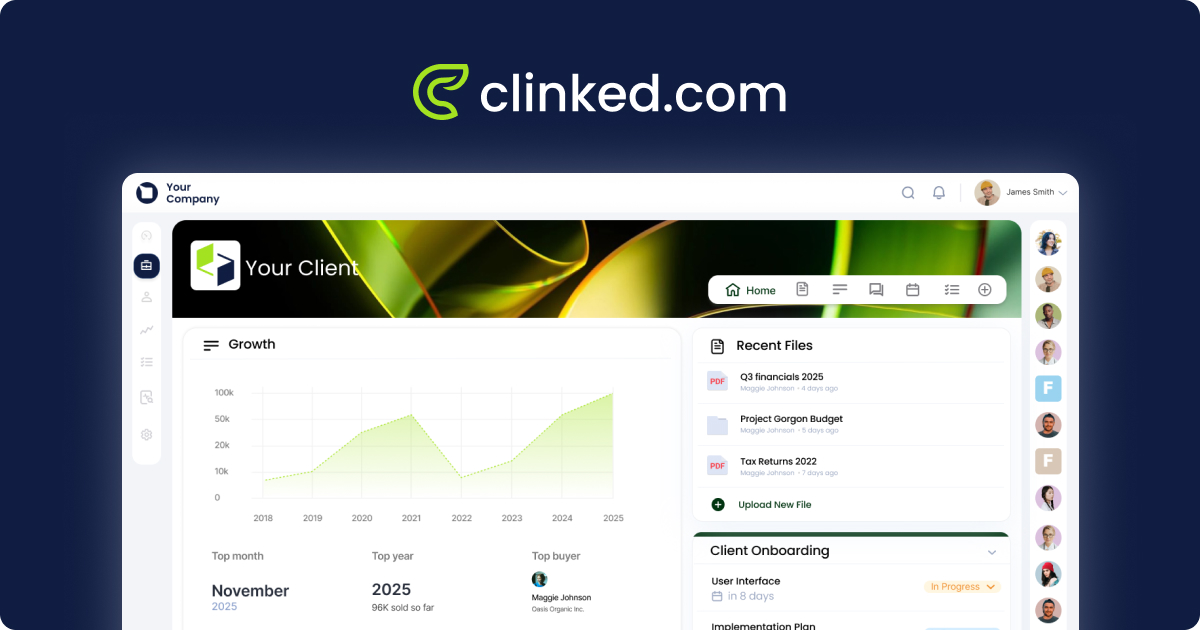
Clinked Full homepage screenshot

At a glance

Category
Productivity
Language
English
Paid-content signal
Paid contentObserved
Registered
2009
Hosting
CloudflareInferred
HTTPS certificate trusted
PassedObserved
Last updated

Website review

This review may include AI-generated content and is not individually verified. Domain, certificate and other facts come from the observed data on this page.

What is Clinked?

Clinked is a secure, white-label collaboration platform for businesses that need to work with clients, teams and partners in one branded space. Rather than scattering files, conversations, tasks and approvals across email and separate tools, it brings them together in shared workspaces that carry your own logo, colours and domain.

What it is used for

  • Client portals: a branded space where clients see files, conversations, tasks and approvals together, reducing back-and-forth email.
  • File management and document approvals: files are organised, shared with access controls, and the latest version stays easy to find.
  • Project management: tasks and deadlines are assigned and tracked so everyone knows the next step.
  • Virtual data rooms: a controlled environment for confidential documents in due diligence and transactions such as M&A or private equity deals.
  • Custom portals: tailored changes to interface, integrations or features, which the site notes requires an Enterprise subscription plus a separate build cost.

Who it suits

It fits professional services firms, agencies and deal teams that want client-facing collaboration to look like their own business rather than a third-party tool. The white-label branding, own-domain access and branded mobile app matter most to organisations where the client experience is part of the service. Teams that mainly need internal task tracking will find the client-portal and data-room framing heavier than necessary.

Trade-offs to weigh

Branding and control come with setup effort: domain configuration, branding across workspaces, and deciding access rules take planning before launch. The custom portal option adds cost and a build cycle, so it makes sense only when standard configuration genuinely falls short. Security features such as encryption in transit and at rest, access controls and audit trails are described on the site, but the specific hosting options and plan requirements should be checked against your own compliance needs.

As a next step, list the two or three workflows you most want to move out of email—for example client file sharing or deal document review—and confirm during a trial that those work end to end under your branding before committing.

How does Clinked's white-label branding help my business present a professional client portal?

Clinked's white-label branding makes the client portal look like your own service rather than a third-party tool. According to the site, you can apply your logo and colours to workspaces, use your own domain, and brand email notifications and the mobile app, so clients see your business at every touchpoint. Access controls let you decide who sees which shared work, which matters when different clients or partners use the same platform.

Where branding pays off in practice

  • Client onboarding: A new client logging into a portal under your domain, with your logo, treats it as part of your service. That reduces the "what is this tool?" friction that generic portals create.
  • Confidential work: For due diligence or deal rooms, a branded, access-controlled space signals that the environment is deliberate and managed, not improvised.
  • Consistency across touchpoints: Branded email notifications and the mobile app keep the experience coherent when clients check updates on their phones.

The trade-off is that branding does not replace portal design or content discipline. A branded space still needs clear file structures, sensible task lists and defined approval steps; Clinked provides the container, but you choose what goes in it. Custom Portal work, which the site says requires an Enterprise subscription plus a separate build cost, is only worth considering if standard branding and configuration fall short.

A practical next step

Map one client journey (kickoff, document exchange, approval, close-out) and check that each step works inside a branded workspace with your domain and access rules. If a step needs interface changes or integrations beyond native options and Zapier, that is the signal to evaluate the Custom Portal path rather than assume branding alone covers it.

How can I control who sees and accesses the files I share with clients in Clinked?

Clinked handles this through role-based access controls and audit trails, plus branding options that keep the client-facing view consistent. According to the site, it encrypts information in transit and at rest, lets you manage who can see and work with shared content, and records activity in audit trails (Clinked). The practical approach is to define access at the workspace or portal level first, then narrow it per file or folder.

A workable setup for client file sharing

  1. Create a dedicated client workspace or portal rather than sharing from a general team area. The site describes branded client portals as a space for files, conversations, tasks and approvals together, which keeps each client's material separated by design.
  2. Assign roles by function. Give the client contact a role that allows viewing and commenting on deliverables but not editing source files; keep upload and edit rights with your internal team.
  3. Apply per-file or per-folder permissions for sensitive items such as contracts or pricing sheets, so access isn't inherited by everyone in the workspace.
  4. Use a virtual data room for confidential material. Clinked positions this for controlled document sharing, due diligence and transactions like M&A and private equity deals — a stricter environment than an everyday client portal.
  5. Review audit trails periodically. Activity records let you confirm who opened or changed a file, which matters when a client disputes what they received.
  6. Turn on the mobile app deliberately. It lets teams and clients upload files, review updates, approve work and comment on projects remotely; decide whether client-side mobile access fits your confidentiality policy before enabling it.

Choosing between the three options

Option Best for Trade-off
Client Portal Ongoing client collaboration on files, tasks and approvals Broadest access; needs disciplined per-file permissions
Virtual Data Room Confidential sharing, due diligence, deal work More controlled, but heavier for routine updates
Custom Portal Firms needing interface, integration or feature changes Requires an Enterprise subscription plus a separate build cost, per the site

A concrete scenario

An accountancy firm shares quarterly statements with 40 clients. Each client gets their own branded portal with view-and-comment rights; the firm's preparers hold edit rights; signed engagement letters sit in a folder restricted to the partner and the client's director. Audit trails answer the inevitable "I never received that" query.

A useful next step is to map your file types into three tiers — routine, sensitive, confidential — and assign each tier a default permission level before you invite any client. For the underlying controls, see Clinked's security page; if your clients already work inside Microsoft 365, compare permission models with Microsoft SharePoint before committing, since mismatched expectations cause most sharing mistakes.

What is the difference between Clinked's Client Portal, Custom Portal and Virtual Data Room options?

Clinked's three options differ mainly in how much tailoring you get and how tightly access is controlled, not in the underlying collaboration features. All three are built on the same platform—files, conversations, tasks and approvals in branded spaces—so the choice comes down to audience and confidentiality.

How the options compare

Option What it is Best for Main trade-off
Client Portal A branded space for everyday client collaboration, with files, conversations, tasks and approvals together Ongoing client work where you want fewer emails and one shared place Standard configuration; you brand it but don't reshape it
Custom Portal A tailored solution on Clinked's core platform, with changes to interface, integrations or features Businesses whose workflows don't fit the standard portal Requires an Enterprise subscription plus a separate build cost, per the site
Virtual Data Room A controlled environment for confidential document sharing, due diligence and transactions such as M&A and private equity deals Deal teams, advisers and counterparties exchanging sensitive documents Built for controlled disclosure rather than day-to-day collaboration

Choosing between them

Start with the relationship, not the feature list. If you're running an ongoing engagement—an accountancy firm sharing monthly reports, an agency tracking approvals—the Client Portal fits, because its value is keeping clients in the loop in one branded place. If your process has a shape the standard portal can't express (a specific approval chain, a particular integration), the Custom Portal is the route, but budget for the build cost and Enterprise tier the site describes. If the work is a transaction with a defined audience and a closing date, the Virtual Data Room's access controls and audit trails matter more than collaboration features.

A practical next step: list who needs access, for how long, and what they must be able to do. If the answer is "clients, indefinitely, comment and approve," choose the Client Portal. If it's "a changing set of parties, for a few weeks, read and review," the Virtual Data Room is the closer fit. Across all three, branding, your own domain, email notifications and mobile access are part of the offering, and the site notes encryption in transit and at rest plus audit trails—worth confirming against your own security requirements before committing.

How much does Clinked cost and is there a free trial available?

Clinked's page does not list specific prices, so I can't give you a figure. What it does show is that a free trial exists: the site's pricing signals reference "free trial," and the "Get Started" and "Pricing" links lead to pricing pages where current plans and trial terms are set out. Treat any number you see quoted elsewhere as unverified until you confirm it on Clinked's own pricing page.

What the page does say about cost structure

  • Plan tiers are implied, not priced. The site describes distinct offerings — Client Portal, Custom Portal and Virtual Data Room — which suggests you choose by use case rather than a single flat seat price.
  • Custom Portal carries extra cost. The page states plainly that a Custom Portal requires an Enterprise subscription plus a separate build cost. That is the one concrete pricing fact on the page, and it matters if you need interface changes, integrations or bespoke features.
  • Features are bundled by plan. Branding (logo, colours, custom domain), branded file sharing, white-label mobile app and security controls such as encryption, access controls and audit trails are presented as capabilities to check against your plan, not as universal inclusions.

How to decide

If you are a professional-services firm wanting a branded client space for files, conversations, tasks and approvals, start the free trial on the Client Portal tier and test the branded experience with one real client. If you need modified workflows or integrations, ask for Enterprise pricing and a build estimate together — the build cost is separate and can dominate the total. If your need is confidential document sharing for due diligence or a transaction, evaluate the Virtual Data Room tier against its access controls and audit trails rather than the general collaboration plans.

The practical next step is to confirm three things before committing: the per-user or per-workspace basis of billing, what the trial includes and how long it runs, and whether branding and the mobile app sit in your intended tier or cost extra.

How can I integrate Clinked with the tools my business already uses, like file storage and document signing?

Clinked supports integration in two main ways: native connectors for file storage, document signing and embedded content, and broader connections through Zapier. The page also notes that deeper changes to integrations can be built as part of a Custom Portal, which requires an Enterprise subscription plus a separate build cost.

Native integrations

  • File storage: Connect Clinked to the storage tools your business already relies on, so files can stay where they are while appearing in your Clinked workspaces.
  • Document signing: Link a signing tool so approvals and signatures happen alongside the document, rather than in a separate email thread.
  • Embedded content: Pull outside content into Clinked spaces instead of switching between tabs.

Zapier connections

For tools without a native connector, Zapier can bridge Clinked to the rest of your stack. This suits common triggers such as a new file, a task update or a client action that should notify another system. Expect simpler, event-based connections here rather than deep two-way syncing.

Choosing between them

Need Better fit
Files should remain in your existing storage Native file storage integration
Signatures tied to documents in a client workspace Native document signing
A tool with no native connector Zapier
Custom interface or feature changes Custom Portal (Enterprise plus build cost)

A practical next step

List the tools your team opens daily, then mark each as "must stay in place" or "can move into Clinked." Tools in the first group are integration candidates; tools in the second may not need connecting at all. For a client-facing example: a small advisory firm could keep documents in its existing storage, connect its signing tool so engagement letters are approved inside the branded client portal, and use Zapier to post task updates into its chat tool. Before committing, confirm which native integrations exist for your specific providers and review the security, hosting and plan requirements that apply to your business, since access controls and audit trails matter most when client files are involved.

Related questions

More questions →
Does Aldersgate United Methodist Church Have a Mobile App?

As of the information available on the church's website, Aldersgate United Methodist Church in Wichita, Kansas does not advertise a dedicated mobile app. The site presents itself as the primary online hub for the congregation, with its mission of "Making Disciples of Jesus Christ for the Transformation of the World" front and center. If a mobile app exists, it is not prominently featured on the homepage. The most reliable way to confirm is to contact the church office directly or check the website for any new announcements.

That said, "no app advertised" is not the same as "no app at all." Churches sometimes launch apps quietly, link them only in weekly bulletins, or roll them out through a congregation-wide email. This article explains what a church mobile app usually includes, how to verify whether Aldersgate has one, and how to stay connected in the meantime.

What a Church Mobile App Typically Offers

Most church apps are built around a handful of core functions. If Aldersgate launches or already operates one, you can reasonably expect some combination of the following:

  • Sermons and worship — audio or video of past services, sometimes with notes or discussion questions.
  • Events calendar — worship times, Bible studies, youth group meetings, outreach days, and seasonal services.
  • Giving — online donations via credit card, debit card, or bank transfer, often with recurring gift options.
  • Prayer requests — a form or feed where members can submit and pray for needs.
  • Groups and ministries — sign-ups, rosters, and communication for small groups, choirs, or volunteer teams.
  • Push notifications — reminders for services, weather cancellations, or special announcements.
  • Connection cards — a digital way for first-time visitors to share contact information.

Not every app includes all of these. Some churches use a general-purpose platform that bundles them together; others rely on separate tools for giving and communication.

How to Check Whether Aldersgate Has an App

Because app availability changes and the website may not always reflect the latest tools, verify through more than one channel:

  1. Search the website. Look for a menu item labeled "App," "Mobile," "Connect," or "Media." Check the footer, too, since app links are sometimes placed there.
  2. Search your phone's app store. Try terms like "Aldersgate United Methodist," "Aldersgate Wichita," or "Aldersgate Church." Be careful to match the correct city and denomination, since other churches share the Aldersgate name.
  3. Call or email the church office. This is the fastest way to get a definitive answer. Ask specifically: "Do we have a mobile app, and if so, what is it called and where do I download it?"
  4. Ask an usher or greeter on Sunday. They often know about new tools before they appear online.
  5. Check the weekly bulletin or newsletter. App launches are frequently announced there first.

If you find an app, confirm it is officially affiliated with the church before entering any personal or payment information.

If There Is No App: Other Ways to Stay Connected

A dedicated app is convenient, but it is not the only way to remain plugged into church life. These alternatives cover most of what an app would do:

Need Alternative
Worship times and location Church website homepage
Sermons Website media page, podcast, or social media
Events Website calendar, bulletin, or email newsletter
Giving Online giving link on the website, or giving during service
Prayer requests Email, phone call, or prayer chain
Announcements Email newsletter, social media, or Sunday bulletin

For a first-time visitor, the simplest starting point is the website's contact page: send a message introducing yourself and ask how the church prefers to communicate. For a long-time member, the church office can add you to the email list or connect you with the right ministry leader.

A Practical Checklist for Getting Connected

Use this sequence whether or not an app exists:

  1. Visit the church website and note the worship times and address.
  2. Find the "Contact" or "About" page and save the office phone number and email.
  3. Sign up for the email newsletter if a sign-up form is available.
  4. Follow the church on any social media accounts linked from the site.
  5. Ask the office directly about a mobile app, online giving, and prayer request channels.
  6. If an app is confirmed, download it, create an account, and enable notifications for the updates you want.

A Note on Accuracy

App availability, features, and download links can change at any time, and a website may lag behind those changes. Nothing in this article should be treated as a guarantee that Aldersgate United Methodist Church does or does not currently offer an app. Treat the church office as the authoritative source, and confirm details before relying on any tool for giving or personal information.

If you are a member or visitor hoping for an app, it is also reasonable to ask the church whether one is planned. Congregations often gauge interest before investing in a new platform, and a simple question can move the conversation forward.

What Is Project Management and How Do You Actually Run a Project?

Project management is the discipline of planning, executing, and closing a temporary effort that produces a specific outcome—distinct from ongoing operations, which repeat indefinitely. You "run" a project by moving it through five phases (initiation, planning, execution, monitoring, closure), maintaining four core artifacts (scope, schedule, budget, risk register), and choosing a methodology (waterfall, agile, or hybrid) that matches how much uncertainty you face. This guide explains each piece and where projects typically break.

Project vs. operations: the line that matters

A project has a defined start and end, a unique deliverable, and a temporary team. Operations are continuous and repeatable—processing payroll, running a support desk, maintaining a production line.

The distinction changes how you manage:

Dimension Project Operations
Duration Temporary, ends at delivery Ongoing
Output Unique deliverable Consistent, repeatable service
Success measure Delivered on scope, time, budget Stable throughput and quality
Team Assembled, then disbanded Stable, role-based
Change Expected and managed Minimized

If the work never "finishes," you are managing operations and should use process-improvement methods instead of project controls.

The five phases, and what each produces

Initiation

Define why the project exists and who owns it. Outputs: a project charter (problem, goal, sponsor, high-level constraints) and a stakeholder list. Without a named sponsor with authority to remove blockers, projects stall at the first conflict.

Planning

Turn the goal into a workable plan. Outputs: scope statement, work breakdown structure (WBS), schedule, budget, resource plan, and risk register. Planning is where scope creep is prevented—or invited—by how precisely you define what is out of scope.

Execution

The team does the work. Your job shifts to coordination: assigning tasks, unblocking people, and keeping communication flowing. Most of the project manager's time is spent here.

Monitoring and controlling

Runs alongside execution. You compare actual progress against the plan and correct course. Outputs: status reports, change requests, updated risk register. This is not a separate phase in time—it is a parallel activity.

Closure

Deliver, get formal acceptance, release the team, and capture lessons learned. Skipping closure means the next project repeats the same mistakes.

The four artifacts that hold a project together

  • Scope — what is included and explicitly excluded. The WBS decomposes scope into deliverable-sized chunks.
  • Schedule — tasks, dependencies, durations, and milestones. Critical-path tasks have zero slack; delay them and the whole project slips.
  • Budget — estimated cost by category, with contingency for known risks.
  • Risk register — each risk with likelihood, impact, owner, and a response (avoid, mitigate, transfer, accept).

A change to any one of these usually affects the others. That relationship is the "triple constraint": scope, time, and cost trade off against each other, with quality as the outcome.

Waterfall, agile, or hybrid: pick by uncertainty

Methodology Best when Weakness
Waterfall Requirements are stable and known; regulatory or contractual gates Poor at absorbing change late
Agile Requirements will evolve; frequent feedback is available Harder to forecast fixed cost/date
Hybrid Some phases are fixed (compliance), others exploratory Requires discipline to avoid the worst of both

Choose waterfall when change is expensive and requirements are clear. Choose agile when you can deliver in increments and learn as you go. Choose hybrid when a fixed milestone (e.g., a compliance review) must coexist with iterative build work.

Documenting current state and keeping people aligned

Before you can plan change, you need a shared picture of how things work today. Teams often map the current state—processes, systems, dependencies—so that everyone, including new contributors, works from the same reference. Lucid positions its capabilities around documenting the current state of a business and keeping people and AI agents aligned as work moves forward, which fits the "shared reference" problem that derails projects when it is missing.

Practically, alignment requires:

  • One source of truth for status, not five.
  • A visible owner for every open risk and decision.
  • A cadence (daily standup, weekly review) that matches the project's pace.

Where projects actually fail

  • No sponsor authority — decisions stall; escalate early or the project drifts.
  • Vague scope — "improve the portal" becomes infinite. Write exclusions.
  • Optimistic estimates — no contingency, no buffer on critical-path tasks.
  • Silent risks — a register nobody updates is decoration.
  • No closure — lessons lost, team not released, benefits never measured.

Troubleshoot by returning to the artifact that is weakest: if dates keep slipping, re-examine dependencies and estimates; if scope keeps growing, reassert the change-control process; if the team is confused, the problem is usually communication cadence, not effort.

Getting started

Pick your methodology based on uncertainty, write a one-page charter, build a WBS before a schedule, and keep a live risk register. If you need a shared place to document current state and keep contributors aligned, Lucid offers a free sign-up and published pricing for its charting plans—check the current terms on its pricing page before committing a team.

How Do Enterprise Teams Adopt Specialist AI Agents Without Disrupting Existing Workflows?

Enterprise teams can adopt specialist AI agents without disruption by starting with one narrow, high-volume workflow, running it as a bounded pilot with human review, measuring against a baseline, and only then expanding. The key is to treat agents as new team members with defined scopes rather than as a replacement for existing tools or a sweeping platform migration. This article explains what specialist agents are, where they fit across common team functions, and a phased approach you can follow.

What Makes an Agent "Specialist" Rather Than General-Purpose

A general-purpose assistant responds to open-ended prompts across many topics. A specialist agent is scoped to one job: it has a defined goal, a limited set of tools and data sources, and a clear definition of "done."

That scoping matters for enterprise teams for three practical reasons:

  • Predictability. A narrow agent produces more consistent outputs, which makes it easier to review and trust.
  • Permission control. You can grant access only to the systems that specific task needs, rather than broad data access.
  • Measurable value. When an agent owns one workflow, you can compare its output against a manual baseline.

A useful rule of thumb: if you cannot describe the agent's job in one sentence with a clear input and output, it is still too broad to deploy safely.

Mapping Team Functions to Agent Use Cases

Most enterprise teams have a handful of repetitive, rules-plus-judgment tasks that are good first candidates. The table below shows typical starting points.

Team Candidate agent task Why it fits
Sales Research and enrich inbound leads before handoff High volume, structured output, easy to verify
Customer success Draft responses to common account questions Repetitive, benefits from consistency
Marketing Repurpose long-form content into channel variants Clear brief, reviewable drafts
HR Screen and summarize applications against criteria High volume, needs audit trail
Operations Triage and route incoming requests Rule-based with clear routing logic

Notice that none of these replace a person's judgment. They compress the repetitive portion so the human spends time on exceptions and decisions.

A Phased Adoption Approach: Pilot, Measure, Expand

Phase 1: Pick one workflow and define success

Choose a task that is high-volume, low-risk, and currently a bottleneck. Write down:

  • The current process, step by step
  • The baseline metric (time per task, volume per week, error rate)
  • What "good output" looks like, with two or three examples
  • Who reviews the agent's work

Phase 2: Run a bounded pilot

Keep the agent inside the existing workflow rather than beside it. For example, the agent drafts; the human sends. Set a review gate so nothing leaves the team unreviewed. Run for a fixed period, such as four to six weeks, with a small group.

Phase 3: Measure against the baseline

Compare the same metrics you recorded in Phase 1. Look for time saved, consistency gained, and — importantly — where the agent failed. Failures tell you whether the scope was right.

Phase 4: Expand deliberately

Only widen scope after the pilot shows a clear, repeatable gain. Expand in one of two directions: more volume of the same task, or an adjacent task with the same data and review pattern. Avoid expanding into a new function and a new data source at the same time.

Handling Workflow Integration Concerns

Data access

Give each agent the minimum access its task requires. Prefer read access plus a single write action over broad permissions. Document which systems it touches so security and IT can review.

Handoffs

Define exactly where the agent stops and a human begins. A simple handoff rule works well: the agent completes the task and flags anything outside its defined scope for a person. Ambiguous handoffs are the most common source of friction.

Human oversight

Decide the review level up front:

  • Full review for anything customer-facing or high-stakes
  • Spot check for internal, low-risk outputs
  • Exception-only review once the agent has a track record

Start stricter than you think you need, then relax as evidence accumulates.

How Roles and Responsibilities Shift

Adopting agents rarely removes roles; it redistributes effort. Expect these shifts:

  • Reviewers become editors. People spend less time producing first drafts and more time improving and approving them.
  • Process owners become agent owners. Someone needs to maintain the agent's instructions, examples, and scope as the business changes.
  • New quality checks appear. Teams need a lightweight way to catch drift — for example, a weekly sample review.

Be explicit about who owns the agent after launch. An unowned agent degrades quietly.

Practical Criteria for Choosing Where to Start

Score candidate workflows against these questions:

  1. Volume: Does it happen often enough to matter?
  2. Risk: What is the cost of a wrong output, and can a human catch it?
  3. Structure: Is the input and output reasonably consistent?
  4. Baseline: Can you measure the current state today?
  5. Ownership: Is there a person who will own the agent after launch?

A workflow that scores well on all five is a strong first pilot. A high-volume task with no clear owner is a poor start, no matter how repetitive it is.

A Simple Pilot Template

You can copy this structure to scope your first agent:

  • Task: [one sentence]
  • Current baseline: [time/volume/error rate]
  • Agent scope: [what it does, what it does not do]
  • Data access: [systems, read/write]
  • Handoff rule: [when it escalates to a human]
  • Review level: [full / spot / exception]
  • Owner: [name]
  • Pilot length: [weeks]
  • Success metric: [target]

Bottom Line

Disruption comes from adopting too much at once, not from agents themselves. Start with one scoped task, keep humans in the loop, measure against a real baseline, and expand only when the evidence supports it. Platforms built around specialist agents — such as Relevance AI, which offers agents for sales, customer success, marketing, and HR — are designed for exactly this kind of task-by-task rollout, so you can add capability without rebuilding your team's existing processes.

What Is the Difference Between Clinked's Client Portal, Custom Portal and Virtual Data Room?

Clinked offers three distinct solutions under one secure, white-label platform: Client Portal for everyday client collaboration, Custom Portal for tailored Enterprise builds (requiring an Enterprise subscription plus a separate build cost), and Virtual Data Room for confidential document sharing and transactions such as M&A and private equity deals. Choose based on whether you need routine collaboration, a customized platform, or controlled access to sensitive documents.

Quick Comparison

Dimension Client Portal Custom Portal Virtual Data Room
Primary use Everyday client collaboration Tailored solution on Clinked's core platform Confidential document sharing and due diligence
Typical scenario Files, conversations, tasks and approvals in one branded space Interface, integration or feature changes to fit specific requirements M&A, private equity deals, transactions
Customization Branded workspace with logo and colors Changes to interface, integrations or features Controlled environment with access controls and audit trails
Plan requirement Not specified in available materials Enterprise subscription plus separate build cost Plan requirements vary; review security features and hosting options
Access control Manage who can access shared work Manage who can access shared work Strict access controls; audit trails record activity

Client Portal: Everyday Client Collaboration

The Client Portal is a branded space that brings files, conversations, tasks and approvals together for day-to-day client work. It suits businesses that want to keep clients in the loop with fewer emails and less time on calls, while making the latest file version easy to find.

Choose it when: your main need is routine collaboration — sharing files securely, assigning tasks with deadlines, and keeping communication in one place under your brand.

Custom Portal: Tailored Enterprise Build

The Custom Portal is a tailored solution built on Clinked's core platform, with changes to the interface, integrations or features. Per Clinked's site, it requires an Enterprise subscription plus a separate build cost.

Choose it when: your requirements go beyond standard configuration — for example, you need specific interface changes or integrations that the core platform doesn't offer out of the box — and you have the budget for a custom build.

Virtual Data Room: Confidential Document Sharing

The Virtual Data Room is a controlled environment for confidential document sharing, due diligence and transactions such as M&A and private equity deals. Clinked encrypts information in transit and at rest, access controls manage who can see and work with shared content, and audit trails record activity.

Choose it when: you're handling sensitive documents where access control and activity records matter — deal rooms, due diligence, or transaction workflows.

Shared Foundations Across All Three

All solutions sit on the same secure, white-label platform, so several capabilities apply regardless of which you pick:

  • Branding: logo, colors, your own domain, branded email notifications and mobile access.
  • Security: encryption in transit and at rest, access controls, and audit trails.
  • Mobile: the Clinked app lets teams and clients upload files, review updates, approve work and comment on projects.
  • Integrations: native integrations for files, document signing and embedded content, plus connections through Zapier.

How to Decide

  1. Map your core task. Routine client work → Client Portal. Sensitive documents and transactions → Virtual Data Room. Requirements the standard platform can't meet → Custom Portal.
  2. Check plan requirements. Custom Portal explicitly requires an Enterprise subscription plus a separate build cost. For the Virtual Data Room, review the security features, hosting options and plan requirements that apply to your business.
  3. Confirm branding and access needs. All options support white-label branding and access controls; verify the specifics for your chosen solution before committing.

For current pricing and plan details, see Clinked's pricing page.

What Security and Access Controls Does Clinked Provide?

Clinked encrypts information in transit and at rest, lets you control who can see and work with shared content, and records activity in audit trails. These three controls apply across its client portal, custom portal and virtual data room offerings. The right fit depends on how much control your work requires: a client portal for everyday collaboration, a virtual data room for confidential transactions, or a custom build for tailored requirements.

The three core controls

Encryption in transit and at rest

Clinked states that it encrypts information both while it moves between users and systems (in transit) and while it is stored (at rest). For practical purposes, this means files, conversations and approvals are protected both during upload/download and while sitting in your workspace. If your security review requires specifics — cipher suites, key management, hosting region — Clinked directs you to review its security features, hosting options and plan requirements, since these can vary by business.

Access controls over shared content

Clinked's stated purpose for access controls is managing "who can see and work with shared content." In a branded workspace shared with clients, teams and partners, this is the mechanism that keeps one client's files separate from another's and limits editing or approval rights to the right people. The platform also offers a dedicated Virtual Data Room — described as "a controlled environment for confidential document sharing, due diligence and transactions such as M&A and private equity deals" — which is the option to choose when access restriction is the primary requirement rather than a secondary one.

Audit trails

Clinked records activity in audit trails, giving you a log of what happened in shared spaces. This supports internal review and client-facing accountability: you can show when documents were accessed or actions taken. The site does not publish the granularity or retention period of these logs, so confirm that detail against your plan during a trial or sales conversation.

Matching the control level to the use case

Requirement Clinked option What the site says
Everyday client collaboration with files, conversations, tasks and approvals Client Portal "A branded space for everyday client collaboration"
Confidential document sharing, due diligence, M&A and private equity deals Virtual Data Room "A controlled environment for confidential document sharing"
Interface, integration or feature changes beyond the standard platform Custom Portal "Requires an Enterprise subscription plus a separate build cost"

All three sit on the same core platform, so encryption, access controls and audit trails are presented as platform-level capabilities rather than add-ons. The difference is the degree of restriction and customization around them.

What to verify before committing

The site's security page is the authoritative source for the details that matter in a procurement review. Before deciding, confirm:

  • Hosting options — where data is stored, if residency matters to you.
  • Plan requirements — which security features are included at your tier; the site explicitly ties some security review items to plan level.
  • Audit trail specifics — what events are logged and for how long.
  • Access control granularity — whether permissions are set per user, per group or per folder, and whether you can restrict download or approval rights separately.

A trial is the most direct way to test access controls: create a workspace, invite a test user with limited rights, and check that they cannot see or act on content outside their scope. Clinked's pricing page lists a free trial among its options; confirm current terms there, as plan details and pricing are not fully specified in the available materials.

Where this fits

If your question is whether Clinked meets a baseline security bar — encrypted storage and transfer, controlled sharing, and activity logging — the site answers yes on all three. If your question is whether it meets a specific compliance regime or contractual security standard, the site does not make those claims, and you should take the hosting and plan details from Clinked's security page into your own review process.

Website Overview

An established domain and managed infrastructure suggest continuity of operations and may support dependable delivery, although neither guarantees service quality. Page metadata, canonical configuration and social previews work together to provide more consistent search and sharing presentation.

Domain and Registration

Registered in 2009, this domain has about 16 years of history. That suggests continuity, although ownership and purpose may have changed. Transfer-protection status is present, helping reduce the risk of unauthorized domain transfers. The domain uses the common .com extension, which is not an independent safety signal.

DNS and Email

The lowest TTL is 60 seconds, supporting rapid record changes at the cost of more frequent lookups. Nameservers are provided by Amazon Route 53, indicating managed DNS hosting. MX records point to the Google Workspace email service. SPF and DMARC are configured. DKIM status is unknown. TXT records include verification markers for Google, Meta, Microsoft. Such markers may also remain after a service stops being used.

TLS and Certificates

The public key uses EC with 256 bits. The server supplied a complete certificate chain. No organization name is present in the certificate; the available fields are consistent with domain validation. The certificate was issued within the Google Trust Services cloud or CDN ecosystem. The certificate's total validity is about 90 days, consistent with a short renewal cycle.

HTTP and Browser Security

The response lacks these common security headers: CSP, X-Content-Type-Options, Referrer-Policy, Permissions-Policy, clickjacking protection. No X-Powered-By header was found, reducing one common source of backend fingerprinting information. The cf-ray response header indicates a CDN or caching proxy in the delivery path. No obvious internal addresses or debug information were found in the headers. The Server header identifies cloudflare without an exact version.

Technology Stack Analysis

The public page identifies Webflow, HubSpot CMS, Google Tag Manager, Cloudflare without precise versions, leaving fewer clues for version-specific scanning.

Search and Social Sharing

Twitter Card metadata is configured. JSON-LD includes Organization data, helping describe the organization as an entity. The title has 39 characters, within a common display range. A meta description is present, with 132 characters. The observed directives allow indexing and link following.

Hosting and Email

DNSAmazon Route 53
HostingCloudflare
EmailGoogle Workspace
Approximate IP geolocation (inferred; a CDN or proxy may differ from the origin server) United States flagUnited States Inferred 198.202.211.1

Registration details

RDAP / WHOIS

RegistrarName.com, Inc.
Registered2009-11-21
Expires2029-11-21
Domain statusclient transfer prohibited
Nameserversns-1438.awsdns-51.org、ns-1585.awsdns-06.co.uk、ns-316.awsdns-39.com、ns-664.awsdns-19.net
DNSSECunsigned

DNS records

DNS

TypeNameValueTTLPriority
Acdn.webflow.com198.202.211.1300—
AAAAcdn.webflow.com2620:cb:2000::1300—
MXclinked.comaspmx.l.google.com9001
MXclinked.comalt1.aspmx.l.google.com9005
MXclinked.comalt2.aspmx.l.google.com9005
MXclinked.comalt3.aspmx.l.google.com90010
MXclinked.comalt4.aspmx.l.google.com90010
NSclinked.comns-1438.awsdns-51.org172800—
NSclinked.comns-1585.awsdns-06.co.uk172800—
NSclinked.comns-316.awsdns-39.com172800—
NSclinked.comns-664.awsdns-19.net172800—
TXTclinked.comMS=BDCD85062FE516E73E7A555F571F39BD541330B5900—
TXTclinked.comfacebook-domain-verification=nux78y3f8zabfgbyky3osu2rboyvhf900—
TXTclinked.comgoogle-site-verification=SrT1b7XygbaIfetpz1B_xidt7zQYbvs1yIR5FavCuX8900—
TXTclinked.comgoogle-site-verification=dztkPITx7RVZILHPu0qf6JQO5yZ60LTeg-iGVzy_4Nc900—
TXTclinked.comgoogle-site-verification=iRdpPAMYVxVqRosMmS9vpJKJrSgG4QWbbAR9cgFzjIg900—
TXTclinked.comgoogle-site-verification=p411JvHn6nkPoQ2vfIIgh2x445y7LJn71H1Ks9HHZgA900—
TXTclinked.comv=spf1 include:amazonses.com include:2474032.spf01.hubspotemail.net include:_spf.google.com ~all900—
CNAMEwww.clinked.comcdn.webflow.com60—
DMARC_dmarc.clinked.comv=DMARC1; p=reject; rua=mailto:[email protected]; pct=90; sp=none300—

TLS and certificates

TLS / SSL

AssessmentNormal configuration
Supported protocolsTLSv1.2、TLSv1.3
Negotiated protocolTLSv1.3
Certificate subjectwww.clinked.com
IssuerGoogle Trust Services
Valid until2026-12-12T14:43 · Remaining when checked: 53 days
Verification detailsCertificate trust: Passed · Hostname match: Passed

HTTP response headers

HTTP

HeaderValue
content-typetext/html; charset=utf-8
servercloudflare
strict-transport-securitymax-age=31536000

Identified technologies

WebflowHubSpot CMSGoogle Tag ManagerCloudflare

Pages, Search and Sharing

Meta descriptionClinked gives clients, teams and partners one secure place to share files, manage projects and stay connected, all under your brand.
Canonical URLhttps://www.clinked.com
LanguageEnglish (default)
Twitter Cardsummary_large_image

No rules found

User reviews (0)

  • No reviews yet.