

 Visit website
 Updated: 2026-10-03 11:47
 Language: English (default)
 Access: Normal
 Profile views 1
  Outbound visits 0
 Website Review
What is ComicsFlow?
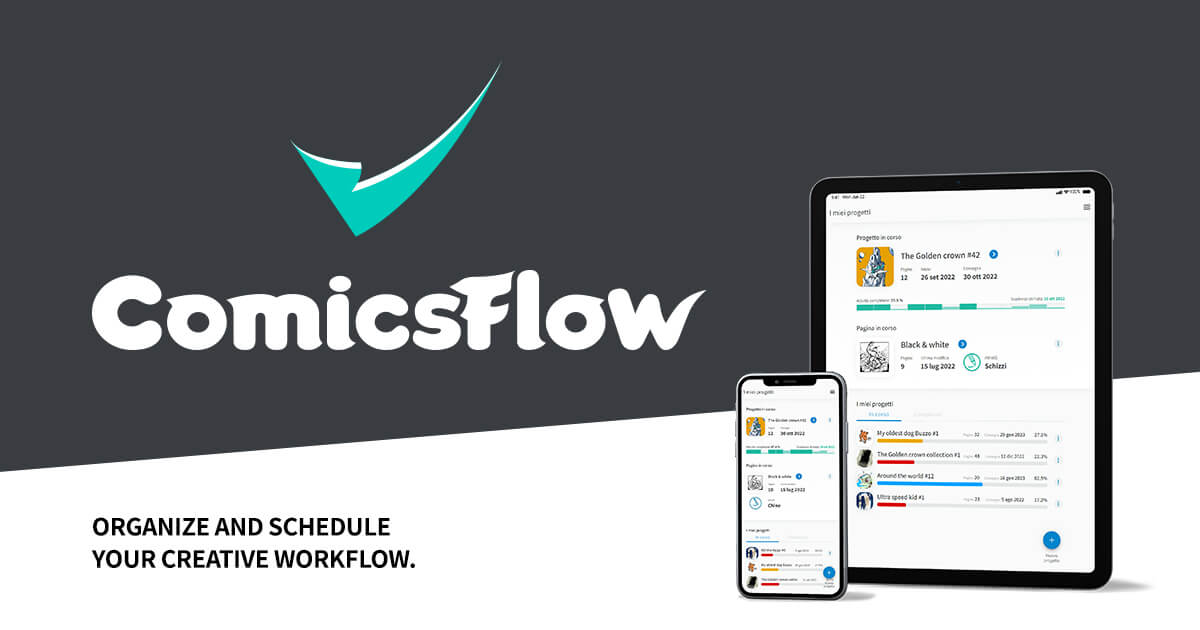
ComicsFlow is a planning and scheduling tool for comics and illustration work. It is aimed at artists — manga, American-comic and manhwa creators, plus illustrators generally — who currently track projects across spreadsheets, to-do lists and other apps that were not built for drawing work. The pitch on its page is straightforward: organize and schedule your creative workflow, plan faster, and spend more time drawing. It also advertises a public beta, so it is an early-stage product rather than a long-established one.
What it appears to do
- Set up a project from preset models (manga, American comics, and others) or build a custom structure.
- Schedule work and check progress at a glance.
- Upload activity pictures and view a preview, so progress can be tracked visually rather than only as checkboxes.
Who it suits
A solo mangaka juggling several chapters, or a small comics team splitting pencils, inks and lettering, is the natural fit: someone with recurring page-based tasks and deadlines who wants one place to see what is due. If you only need a plain task list, a general-purpose tool is probably enough, and the trade-off of adopting a niche app is that you depend on a small product — worth weighing while it is still in beta.
A practical next step
Take one current project and list its repeating stages (script, thumbnails, pencils, inks, colors, letters). Then check whether ComicsFlow's models match that shape or whether you would need a custom setup — that tells you quickly whether it saves time or just moves your spreadsheet somewhere else.
For broader context on the craft and industry, The Beat covers comics news, and Cartoon Brew covers animation and illustration.
How does ComicsFlow help me schedule my comic or manga projects?
ComicsFlow is built around one idea: replace spreadsheets and scattered to-do lists with a single schedule for your art projects. You create a project, then work inside it rather than juggling separate tools.
From the page evidence, the scheduling workflow looks like this:
- Create a project and pick a starting model — manga, American comics, or a custom structure you define yourself.
- Plan tasks against that structure, so the plan reflects how comics are actually made rather than a generic task list.
- Check progress quickly, so you can see where the project stands without digging through notes.
- Upload activity pictures and view a preview, which lets you keep visual references or work-in-progress shots attached to the project.
The practical benefit is the split between planning and drawing. The stated aim is "plan faster, focus on drawing" — the schedule absorbs the administrative overhead so your working time goes to pages.
A concrete scenario: you are drawing a short manga chapter with a deadline. Instead of a spreadsheet with rows for script, thumbnails, pencils, inks, tones and lettering, you set those stages up once in ComicsFlow, assign them across your available days, and then check the progress view each morning to see what is due. If a stage slips, you adjust the schedule rather than rebuilding the spreadsheet.
Two trade-offs worth weighing. First, a fixed model such as manga or American comics is fast to start with but may not match an unusual workflow — that is what the custom project option is for, so test it early. Second, ComicsFlow is in public beta, so treat it as a tool to trial on a live project before moving a long-running series into it.
Next step: create one small project — a single chapter or a short strip — using the model closest to your style, and run it for a week. If the progress view answers "what do I draw today?" without extra notes, the tool is doing its job. For comparison, general project boards like Trello or Notion can hold a comic schedule, but you build the comic-specific structure yourself; dedicated art tools such as Clip Studio Paint focus on drawing rather than scheduling.
Can I use ComicsFlow for art styles other than manga and American comics?
Yes. ComicsFlow is built around project templates, and its own description lists manga, American comics and manhwa among the starting models — but it also lets you create your own model, so the template list is a starting point rather than a limit. The scheduling, progress-tracking and activity-preview features are about workflow, not about drawing style, so they apply just as well to webtoon episodes, children's book spreads, editorial illustration, character commissions or a personal daily-sketch habit.
H3 What the templates actually change
Choosing "manga" or "American comics" mainly pre-fills the structure of a project — the stages and task types you would typically work through. If your process differs, building a custom model is the more accurate route.
| Your situation | Practical choice |
|---|---|
| Style matches a listed template closely | Start from that template, rename stages to fit your habits |
| Style is unrelated (e.g. watercolour, pixel art, concept art) | Create your own model from scratch |
| Mixed workload across several styles | One project per style or per client, so progress stays readable |
| Solo hobbyist with a loose routine | Keep the model minimal; too many stages becomes upkeep |
H3 A concrete example
Say you illustrate a 40-page children's book in gouache. You would build a custom model with stages like thumbnails, roughs, colour studies, final spreads, revisions and print checks, then schedule each spread as its own activity. The progress view then tells you whether you are ahead or behind before the deadline, which is the same benefit a mangaka gets from a chapter-based template.
H3 Trade-offs to weigh
A custom model takes a few minutes to set up and is only as good as the stages you define; a ready-made template is faster but may push you into steps you do not use. If your work is heavily collaborative or involves a publisher's own approval chain, check whether the activity and preview features match how you actually hand work over before committing.
Next step: open the beta, create one small test project in your real style, and run it for a single piece. If the stages fit without renaming half of them, the tool suits your workflow. If you want to compare approaches first, general project tools such as Trello or Notion handle custom pipelines too, though neither is aimed at illustrators specifically.
How do I upload and preview activity pictures in ComicsFlow?
ComicsFlow describes itself as a scheduling and workflow tool for comic, manga and illustration projects, and its page lists "Upload activities pics, look at the preview" among its features. That means the upload-and-preview step is treated as part of your project activity flow: you attach images to an activity, then view them before or after logging the work.
What the page supports
- Activities are the unit you work with, so a picture is uploaded in the context of a specific activity rather than into a general gallery.
- A preview is shown, so you can confirm the image matches the activity before it becomes part of your progress record.
- Because projects can follow models such as manga, American comics or a custom structure, the same upload step works across those project types.
A concrete scenario
A mangaka finishes page 12 of a chapter and wants the studio lead to see the inked version. Inside the day's activity for that page, they upload the scan. The preview lets them check it is the correct file and the correct page number before saving, so the progress log stays accurate rather than accumulating mislabelled images.
Practical criteria for using it well
- Name files before uploading, since a preview helps you verify but does not rename anything for you.
- Upload at the activity level that matches how you report progress, so previews stay meaningful when you review a week or a chapter.
- If you also coordinate with writers or editors, check whether they can see previews without editing the activity; ComicsFlow's public beta means collaboration details may still be settling.
Next step
Open a project, create or select the activity you are working on, and look for the image upload control within that activity. If the preview appears before saving, use it as your confirmation step; if the flow differs from what the page suggests, treat the beta as the reason and rely on what the app actually shows you.
For broader context on managing art projects, general project tools such as Trello or Notion can hold reference images, but they are not built around comic scheduling the way ComicsFlow aims to be.
Is ComicsFlow free to use during the public beta?
The page invites visitors to "JOIN OUR PUBLIC BETA NOW!" and describes ComicsFlow as a scheduling and project-management tool for comic and illustration work. It does not state that beta access is free, and no pricing information appears on the page. So treat "free during beta" as unconfirmed rather than assumed.
If you are weighing it up, a practical next step is to sign up only after checking the terms shown at the point of registration, or contact the team directly and ask three things:
- Whether beta access costs anything
- What happens to your projects when the beta ends
- Whether your data can be exported if you stop using it
ComicsFlow is aimed at people producing serialized or project-based art — manga, American comics, manhwa, illustration — who currently juggle spreadsheets and to-do lists. For a single short project, those tools may be enough; for ongoing series with multiple stages and collaborators, a dedicated scheduler can be worth the switch. If you want a broader view of how comic creators organize and publish their work, ComicsFlow is the product in question, while Tapas and WEBTOON show how finished serialized work is distributed to readers.
How can I track my drawing progress in ComicsFlow?
ComicsFlow is built around project-based progress tracking rather than a generic task list. According to the site, you create a project by choosing a model — manga, American comics, or your own custom setup — and the app then handles scheduling and progress visibility for that project. The stated goals are to help you "plan faster, focus on drawing" and to "quickly check your progress," so progress tracking is meant to be a quick glance, not a reporting chore.
In practice, that means tracking happens at three levels:
- Project level — each comic, manga or illustration project is its own container, so progress is measured per work rather than across everything at once.
- Task/activity level — individual drawing activities are what you complete and check off, which is what feeds the overall progress figure.
- Visual level — the site mentions uploading activity pictures and viewing a preview, so you can attach images of what you drew and see them alongside the task.
H3: A realistic workflow
- Create the project and pick the closest model (manga, American comics, or custom).
- Break the work into activities small enough to finish in a session — a page, a panel, a character sheet.
- Upload a picture of the result when you complete an activity, so the preview shows actual output rather than just a tick.
- Check the progress view at the start of each session to decide what to draw next.
H3: Where it fits and where it doesn't ComicsFlow suits solo artists and small creative teams who lose time juggling spreadsheets and to-do apps, and who want scheduling and progress in one place. If your main need is detailed time tracking, invoicing or client approvals, a general project tool or a studio management platform will cover more ground — ComicsFlow's focus is the drawing workflow itself.
H3: Next step Start with one live project rather than migrating everything. Pick the model closest to your format, add only the activities you can realistically finish this week, and use the progress view for a few sessions. If the preview-and-check rhythm matches how you already work, expand from there; if it adds steps without saving you planning time, keep it to a single project as a trial.
For a broader look at how comic creators structure production schedules, ComicsFlow itself is the reference point for the app's own feature set.
 Hosting and Email
 Hosting
 Fastly
 Location
 United States
 Pages, Search and Sharing




 All bots
 Registration details

 Identified technologies
User reviews (0)