
 简体中文
简体中文 English
Website review
This review may include AI-generated content and is not individually verified. Domain, certificate and other facts come from the observed data on this page.
What is ComicsMaker?
ComicsMaker is a browser-based AI comic generator: it turns text prompts into comic strips, manga and webtoons, and also presents itself as a comic book creator. Per its own page description, it is offered as a free online comic maker, and the site runs as a JavaScript web app, so you use it in the browser rather than installing anything. The available page evidence is limited to that description, so details such as style controls, panel layout options, export formats and any paid tiers can't be confirmed here.
Who it suits
- Hobbyists and first-time makers who want a quick strip for a joke, a social post or a short gag without drawing skills.
- Writers and teachers who want to visualise a script, storyboard an idea or make classroom material.
- Small creators testing a concept before committing time to a full comic or commissioned art.
It is a weaker fit if you need precise panel-by-panel control, consistent characters across many pages, or print-ready files; for that work, a traditional tool plus an artist usually gives more control.
A practical next step
Take one short scene, three to five panels, and run it through the generator to see how closely the output matches your intent. Judge it on character consistency across panels, text legibility in speech bubbles and how much re-prompting each panel needs. If you want a comparison point, mainstream AI image tools such as OpenAI and Adobe can generate individual panels that you then assemble yourself, which trades speed for control.
How do I create a comic strip from scratch using ComicsMaker's AI?
ComicsMaker is built for generating comic strips from a text prompt rather than drawing panels by hand. Based on its own description, it is an AI comic generator that produces comic strips, manga and webtoons online, so the natural starting point is to describe the scene you want and let the tool assemble the panels.
A practical first-strip workflow
- Write a short premise before you open the tool. One sentence of setup, one conflict, one punchline. A strip usually needs a clear turn between the first and last panel, and AI generation follows a tight script better than a vague idea.
- Draft panel-by-panel prompts. For each panel, note who is in frame, what they are doing, and the mood. Keep character descriptions identical across panels so the cast stays recognizable.
- Generate, then review for continuity. Check faces, clothing and setting between panels; regenerate individual panels rather than the whole strip when only one is off.
- Add dialogue last. Short lines fit speech bubbles better than long sentences; trim each line to what a character could say in one breath.
- Export and test at reading size. View the strip on a phone screen, since that is where most webtoon and social comic readers will see it.
Choosing between formats
| Format | Best for | Trade-off |
|---|---|---|
| Comic strip | Gag humor, social posts, quick reads | Few panels, so pacing must be tight |
| Manga-style pages | Character-driven stories | More panels means more continuity to check |
| Webtoon (vertical) | Mobile readers, serialized stories | Requires deliberate vertical pacing and spacing |
A concrete scenario
A small business owner wants a three-panel strip for a social post about a common customer question. They write the setup, the misunderstanding and the resolution as three prompts, keep the same two characters described identically, generate, then replace any panel where a character's appearance drifts. That review step matters more than prompt cleverness: consistency across panels is where AI comic tools usually need a human hand.
As a next step, start with a single three-panel strip before attempting a longer story, so you learn how the tool interprets your character and style descriptions. For general comic-making references and format conventions, ComicsMaker is the product itself; broader craft guidance is available from wikiHow.
Can I use ComicsMaker to make manga or webtoons in specific art styles?
ComicsMaker is presented as an AI comic generator that covers manga and webtoons alongside comic strips and comic books, so yes—making manga or webtoon-style work is within its stated scope. The site's own description names manga and webtoons as supported outputs rather than only Western-style comic strips.
What that means in practice depends on what you need from "specific art styles." A typical reader scenario: someone writing a short vertical-scroll webtoon wants a consistent look across panels—same character faces, same line weight, same shading—more than they want a single striking image. Style control is exactly where AI comic tools are usually tested, so judge the tool on consistency across a sequence, not on one sample panel.
How to check style fit before committing
- Generate the same short scene in two or three candidate styles and compare character consistency between panels.
- Test a vertical, scrolling-friendly layout if webtoons are the goal; panel flow matters as much as rendering.
- Test a right-to-left reading order and expressive close-ups if manga is the goal.
- Check whether you can adjust a single panel without regenerating the whole page.
If your project leans toward detailed, illustration-heavy manga, also compare with a broader AI image tool such as Midjourney, which is often used for stylized character art but is not built around comic page layout. For hand-drawn control over style, a dedicated drawing app like Clip Studio Paint remains the reference for manga and webtoon production, with AI tools used for drafts or backgrounds.
As a next step, pick one two-page test scene, run it through ComicsMaker in your target style, and decide based on character consistency and panel editing—the two things that most affect whether a serialized manga or webtoon stays usable.
Is ComicsMaker free to use, and what are the limitations of the free version?
ComicsMaker's own page doesn't publish a pricing or free-tier breakdown, so the free/paid limits can't be confirmed from the site itself. The page description does present it as a "free comic maker online," which suggests free use is at least part of the offer, but the page content is JavaScript-only and shows no plan details, credit limits, or watermark rules. Treat "free" as a starting point to verify, not a settled fact.
What to check before relying on it
- Export limits: whether free output carries a watermark or is capped at low resolution.
- Generation credits: how many strips/images you get per day or month, and whether they reset.
- Commercial use: whether free-tier comics can be published or sold.
- Style and format access: whether manga, webtoon, or multi-panel layouts sit behind a paid tier.
Practical scenario
A teacher making a one-off four-panel strip for a class handout has very different needs from a webtoon creator producing weekly episodes. The first can tolerate a watermark and a daily cap; the second needs clean exports, consistent characters, and clear commercial rights. Test ComicsMaker with one short strip first and inspect the exported file for watermarks and resolution before committing a project to it.
For comparison on free-tier terms, check how established tools state their limits, such as Canva and Pixton, both of which publish plan details openly.
What are the copyright and commercial usage rights for comics I generate with ComicsMaker?
ComicsMaker's site does not state its copyright or commercial usage terms in the information available; the page only shows a JavaScript app shell with no visible licensing, terms or FAQ text. So there is no confirmed answer to whether you own or can sell generated comics.
What to check before using outputs commercially
- Terms of Service and any "Ownership" or "Commercial Use" clause: look for explicit language on who holds rights to generated images and whether paid versus free tiers differ.
- Input rights: confirm you must own or have permission for any characters, scripts or reference images you upload.
- Model and style limits: many generators restrict mimicking living artists or protected characters; check whether ComicsMaker says anything similar.
- Record-keeping: save the terms version and date you agreed to, plus your generation history, in case of a later dispute.
Practical scenarios
- A self-published webtoon or zine: treat outputs as unusable for sale until written terms confirm commercial rights.
- Internal marketing or a pitch deck: lower risk, but still check whether attribution is required.
- Client work: you would need to pass rights to the client, which requires ComicsMaker to grant them to you first.
Decision criterion
If the terms remain silent or ambiguous after you review them, contact ComicsMaker directly and ask in writing whether you may sell, modify and redistribute generated comics, and whether free-tier outputs differ from paid ones. General advice, not a statement about this product: silence in terms usually favors caution, so get confirmation before commercial release. For comparison, established tools such as OpenAI publish usage policies that show what explicit commercial-use language looks like.
How does ComicsMaker compare to hiring an artist or using other comic creation tools for a short project?
For a short project, ComicsMaker suits fast, low-stakes drafts and simple strips; hiring an artist wins when you need distinctive characters, precise storytelling or print-ready art. The site itself is a browser app that bills itself as an AI comic generator for strips, manga and webtoons, so treat it as a way to produce panels quickly from prompts rather than a full illustration studio.
Where each option fits
- ComicsMaker (AI generation): Best for a one-off gag strip, a moodboard of visual directions, a social post or a quick internal explainer. You trade control and consistency for speed and low cost. Expect to iterate on prompts, and check that recurring characters stay recognisable across panels.
- Hiring an artist: Best when the comic carries your brand, needs readable lettering and panel flow, or must match a house style. You get judgement about pacing and expression that a generator won't supply, at the cost of time, briefing effort and a higher fee.
- Other comic tools: General design apps give you full manual layout control but no auto-art; dedicated AI comic sites vary in style range and export options. Compare on character consistency and export format before committing.
A quick comparison
| Need | ComicsMaker | Hiring an artist | General design tool |
|---|---|---|---|
| Speed to first draft | Very fast | Days to weeks | Moderate (manual) |
| Character consistency | Prompt-dependent | High | Manual |
| Storytelling and lettering craft | Limited | Strong | Depends on you |
| Cost for one short piece | Low | Higher | Low (time cost) |
| Best for | Drafts, simple strips | Branded or print work | Full layout control |
Practical next step
Sketch your strip's beats and character notes first, then generate a rough version in ComicsMaker to test the concept. If the result needs polished art or reliable recurring characters, use the draft as a brief for an artist. For broader style comparisons, see Canva and Comic Life alongside the AI options.
 Cloudflare
 Vercel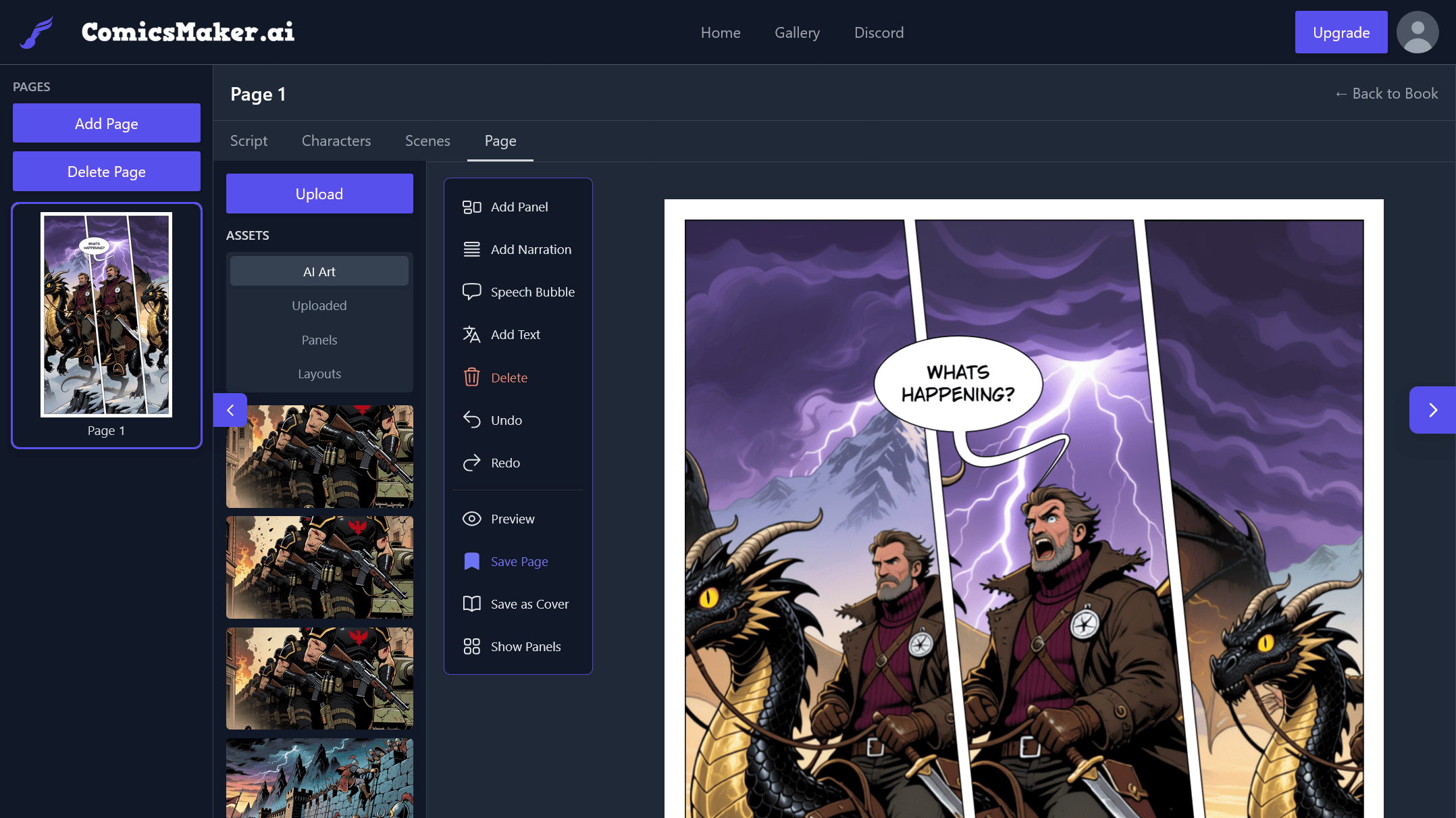

User reviews (0)