
 简体中文
简体中文 English
Website review
This review may include AI-generated content and is not individually verified. Domain, certificate and other facts come from the observed data on this page.
What is Gemini Omni?
Gemini Omni is a multimodal AI video generator and editor that works through conversation rather than a timeline. You describe what you want — a scene, a camera move, a background change — and it produces or modifies video from any mix of text, images, video, and audio inputs.
What it does
- Text to video: Describe the scene, camera motion, and action in a prompt and generate a clip.
- Reference-driven creation: Feed in an image, text, video, or audio reference and fuse them into one cohesive output (the site highlights a "Multi-Image Fusion" option).
- Chat-based editing and remix: Ask for changes in plain language — swap a background, shift a camera angle, alter a character's action — and get instant variations of an existing clip.
- Consistency tools: Character and scene consistency features are aimed at keeping a subject or setting stable across shots.
- Real-world grounding: The pitch is that it combines physics understanding with history, science, and cultural context, which matters most when you need a clip to read as believable rather than merely photoreal.
Who it suits
| You are | Why it fits | Trade-off |
|---|---|---|
| A marketer or solo creator | Fast concept clips and variations without editing software | Less frame-level control than a timeline editor |
| A storyteller or educator | Grounding in real-world context for factual or historical scenes | You still need to verify accuracy yourself |
| An experienced editor | Quick rough cuts and remixes to iterate on | Finer grading and compositing likely happen elsewhere |
Practical next step
If you have a specific shot in mind, start with one reference image plus a short prompt describing camera motion, then iterate through chat rather than rewriting the whole prompt. A free trial is offered, so test one real project end to end before committing — that tells you more about output quality and consistency than any feature list. See Gemini Omni.
How do I create a video from a text prompt with Gemini Omni?
Describe the scene in the prompt box, attach any reference images you want it to follow, then generate and refine by chatting. Gemini Omni is built around conversation rather than a timeline editor: you type what you want, and you keep typing to change it.
A workable first pass
- Open the creation area and choose the text-to-video path.
- Write the prompt as three parts: subject and action, setting and lighting, camera behaviour. For example: "a lone cyclist crossing a rain-slicked bridge at dusk, warm streetlights, slow tracking shot from behind."
- Attach reference assets if you have them — a character photo, a style frame, or a clip whose motion you like. The page presents reference-driven generation as a core capability, including combining several images into one cohesive output.
- Generate, then treat the result as a draft. Follow-up messages are where most of the work happens: ask for a background change, a different camera angle, or an altered character action, and the tool revises the existing video rather than starting over.
- Use remix-style prompts when you want variations of the same clip — same scene, different pacing or framing.
What to decide before you start
| Your situation | Sensible approach |
|---|---|
| Clear visual idea, no assets | Text-only prompt, keep it to one scene and one camera move |
| Existing character or brand look | Attach reference images first so consistency carries through |
| Iterating on a near-final clip | Skip full regeneration; request targeted edits in chat |
| Exploring options | Generate several short variations before committing to length |
Practical notes
Short, specific prompts outperform long descriptive paragraphs, because the conversational follow-ups give you precise control anyway. Change one thing per message — background, then camera, then action — so you can tell which instruction caused which result. If a generation drifts from your reference, re-attach the asset in the same message as the correction.
Gemini Omni is presented as powered by Google DeepMind models and offers a free trial alongside paid pricing, so a low-commitment first test is straightforward. Check the current terms on Gemini Omni before relying on it for a client project. If you want to compare approaches, Google DeepMind publishes background on the underlying model family.
Next step: write one prompt using the subject/setting/camera structure, generate it, then send a single edit instruction and see how closely the revision tracks your intent.
How does the Remix feature let me make variations of an existing video?
The Remix feature works through conversation: you describe the variation you want in plain text, and Gemini Omni produces an altered version of the existing video. The page's own examples are things like "change the background to night" and "add dramatic camera zoom," which shows the pattern — you name the element to change and the change itself, rather than rebuilding the video on a timeline.
What that looks like in practice
- You start from a video you already have, so the subject, framing and motion carry over.
- Each prompt produces a variation, so you can branch off several versions of the same clip instead of re-shooting or re-generating from scratch.
- Because the tool accepts text, images, video and audio together, you can also point at a reference — an image or another clip — and ask for the remix to follow it. The site calls this "Reference anything" and "Multi-Image Fusion," and it is the main reason remixing can keep a character or scene looking consistent across variations.
A realistic scenario
Say you have a short product clip and need versions for different campaigns. You keep the original and prompt for a night-time background, then a tighter camera push, then a different character action. You end up with a small set of clips that share the same underlying footage and performance, which is usually easier to keep coherent than generating each one separately.
How to decide if it fits your work
Remix is most useful when you want many close variants of one clip — A/B ad cuts, mood or lighting alternatives, quick storyboard explorations. It is less suited to changes that alter the fundamental structure of a scene, and conversational editing generally gives you less frame-level precision than a timeline editor. If your job needs exact cuts, keyframes or audio sync, treat Remix as a fast first pass and finish elsewhere.
Next step: take one existing clip, write three single-change prompts, and compare the results side by side. If the variations stay on-model and the changes land where you asked, the feature is doing its job. You can start from the free trial on Gemini Omni and check Pricing before committing to heavier use.
Can Gemini Omni keep my character and scene consistent across multiple shots?
Yes — that is one of the main things Gemini Omni is built around. Its page lists "Character & Scene Consistency" as a core capability, and the workflow is designed so you describe what should stay the same rather than rebuilding it each time. The stated approach is conversational: you generate a shot, then ask for changes in plain language (for example, swapping a background or adding a camera move) while keeping the same character and setting.
How to actually get consistency
- Anchor with a reference image. The page emphasises "Reference anything" — image, text, video or audio — and a "Multi-Image Fusion" option. A clear image of your character is the strongest anchor.
- Lock the details in words. State age, hair, clothing, colours, lighting and location in the prompt, then reuse that same phrasing in later shots.
- Edit rather than regenerate. Use the chat-based editing and Remix features to alter one element at a time instead of starting a fresh generation, which is where drift usually creeps in.
- Keep one scene per thread. Long, mixed conversations tend to blur details across unrelated shots.
Where it will still struggle
Consistency is a tendency, not a guarantee. Expect drift in extreme angles, heavy motion, or when a character leaves frame and returns. Faces, small accessories and background props are the usual weak points.
A practical test
Before committing to a full project, run a three-shot trial: a wide establishing shot, a medium shot of the character, and a close-up. If the clothing, hair and room layout hold across all three, the tool fits your workflow. If not, tighten your reference image and prompt wording before scaling up.
For pricing and free-trial details, check Gemini Omni.
How does the free trial work and what does pricing look like after it ends?
The free trial is the entry point: the site offers a "Start Creating Free Trial" action rather than a permanent free tier, and a separate Pricing page exists for paid plans. Nothing on the page states the trial's length, generation limits, watermark rules, or what a paid plan costs.
What is confirmed
- Trial exists: a free trial is offered as the main call to action for new users.
- Paid plans exist: the site links to a Pricing page, so expect a subscription or credit purchase after the trial.
- No numbers published here: trial duration, credit amounts, resolution caps, commercial-use rights, and price points are not visible in the supplied page content.
How to check the real terms
- Open the Pricing page linked from the site and look for the trial's end date, credit allowance, and whether unused credits roll over.
- Check whether exports during the trial carry a watermark or are limited to a lower resolution — this matters if you plan to publish the result.
- Confirm commercial rights: many generators restrict monetized use to paid tiers.
- Note the cancellation and refund policy before entering payment details.
A practical scenario
Suppose you want a 30-second product clip from a reference image. Use the trial to test one thing only: whether the character and background stay consistent across several shots, since the page emphasizes character and scene consistency and conversational remixing. If consistency holds and the export is watermark-free, the paid tier is worth pricing out; if not, the trial has already told you what you need to know.
Decision criteria
- Trial-to-paid fit: if your typical project needs more generations than the trial allows, price the smallest paid tier per finished video, not per month.
- Workflow fit: the value proposition here is chat-based editing and remixing instead of timeline software, so compare against how you currently revise footage.
- Alternatives if the pricing page is unclear: Runway and OpenAI publish clearer plan structures for comparable video and multimodal work, which can serve as a benchmark.
Start with the Pricing page, then run a single consistency test before committing.
How is Gemini Omni different from traditional timeline-based video editing software?
Gemini Omni replaces the timeline with a chat box. Instead of arranging clips, keyframes and layers on a track, you describe the change you want — the site's own examples are "change the background to night" or "add dramatic camera zoom" — and the system applies it. Traditional editors like Premiere Pro or DaVinci Resolve give you direct, frame-accurate control; Gemini Omni gives you intent-level control, which is faster to express but less precise to pin down.
The bigger difference is where the material comes from. Gemini Omni is built around generating and remixing rather than assembling footage you already shot: it accepts text, images, video and audio as references and combines them into one output, and its Remix feature produces variations of an existing video from a text prompt. A timeline editor assumes you have the footage and need to cut it; Gemini Omni assumes you may not have the footage at all.
H3 Where each approach wins
| Task | Gemini Omni | Timeline software |
|---|---|---|
| Swapping a background or restyling a scene | Describe it in chat | Masking, rotoscoping, tracking |
| Frame-accurate cuts, audio sync, colour grading | Not the focus | Core strength |
| Producing variations of one clip quickly | Prompt-based remix | Manual re-edit each time |
| Consistent characters across shots | Claimed as a feature | Depends on your footage and skill |
| Working from existing rushes | Possible as reference input | Native workflow |
H3 Who it suits
If you are a solo creator, marketer or storyteller who thinks in descriptions rather than edit points — and who does not want to learn a nonlinear editor — the conversational model removes the steepest part of the learning curve. If you are cutting a client project with locked audio, delivery specs and a director's notes, a timeline remains the safer tool; you need to see and adjust individual frames, and "regenerate it" is not an acceptable answer when a cut is two frames late.
The practical middle ground is to treat them as stages, not rivals: generate or remix concept footage conversationally, then finish in a timeline editor where precision matters.
H3 A concrete test before committing
Take one short clip and one still image, and try a single change you would normally do by hand — a background swap, say. Time how long the prompt route takes and judge whether the result is close enough to use. If it is, Gemini Omni is worth a place in your workflow; if you find yourself wanting to nudge one element by a few frames, keep the timeline for that job. The site offers a free trial, so this costs you an afternoon rather than a subscription.
For a fuller picture of what conversational editing looks like in practice, see Gemini Omni.
 Cloudflare
 Vercel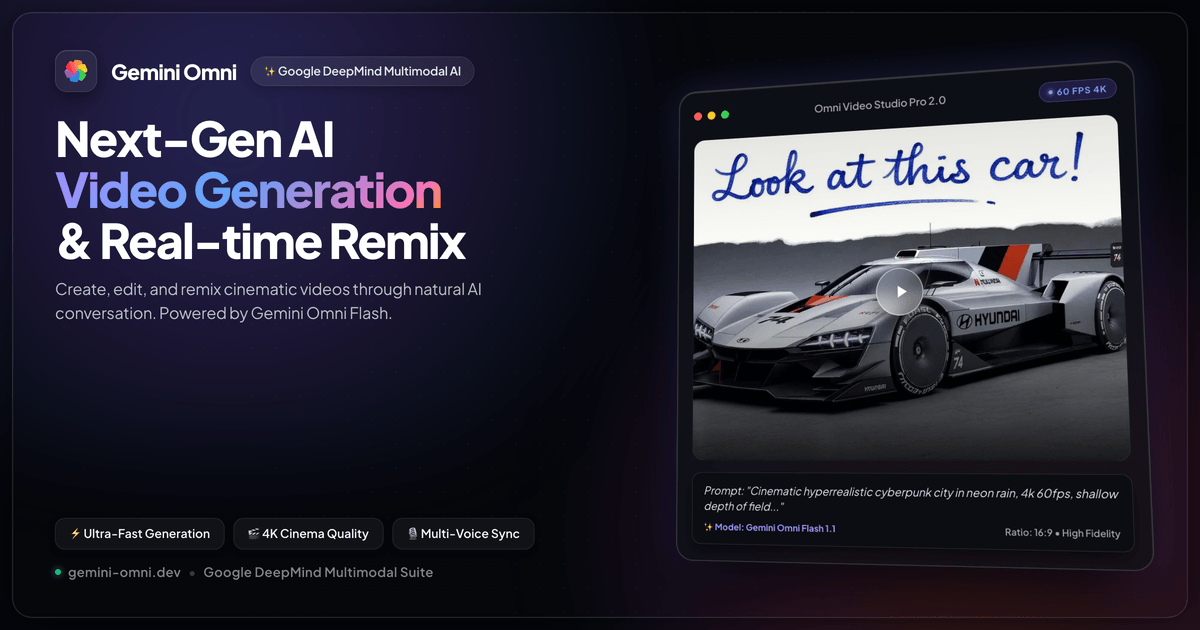

User reviews (0)