

 Visit website
 Updated: 2026-09-24 01:40
 Language: English (default)
 Access: Normal
 Profile views 1
  Outbound visits 0
 Website Review
What is Genshin Impact Interactive World Map?
The Genshin Impact Interactive World Map is a browser-based map of Teyvat that overlays collectible and activity locations on the game world. It is made for players who want to find things efficiently instead of wandering, and it supports search and progress tracking, including saving progress to the cloud.
What you can do with it
- Locate items and activities across the map, such as chests, puzzles, and resource nodes.
- Search for a specific target rather than scanning the whole map manually.
- Filter by category so the map shows only what you care about at that moment.
- Mark items as collected to track exploration progress.
- Save progress to the cloud so your markers persist between sessions.
Who it suits
- Completionists working region by region, who need a checklist that stays consistent.
- Material farmers who want a quick route to a specific resource.
- Returning players catching up on areas they missed.
- Players who dislike video guides, because a map lets you move at your own pace.
Trade-offs to expect
- Spoilers: showing every chest and puzzle can remove the discovery element. Some players prefer to enable only the categories they need.
- Manual upkeep: you generally mark things yourself, so the map is only as accurate as your bookkeeping.
- Overlap with the game: the official in-game map covers basic navigation; a third-party map adds filtering, search, and cross-region tracking.
- Performance: a dense map with many markers can feel heavy in the browser.
A practical way to use it
Pick one region, enable only two or three categories (for example, chests and local specialties), clear them in a single session, then mark them done. This keeps the map readable and makes progress visible without turning exploration into a spreadsheet.
For an alternative with a similar purpose, see Map Genie.
How do I track my chest and puzzle exploration progress on the map?
Tracking chests and puzzles on the Genshin Impact Interactive World Map is done by marking each find on the map itself: you click an icon once you've collected or solved it, and the map keeps a running count of what you've marked versus what remains in an area. The site describes this as an interactive, searchable map covering chests, puzzles, guides and resources, with progress saved to the cloud for free.
A practical workflow
- Filter first. Use the search/filter options to show only chests, only puzzles, or one region at a time. A cluttered map is the main reason people lose track.
- Work in small zones. Clear one sub-area (a camp, a cliff, a cave cluster) and mark everything before moving on. This makes the count meaningful rather than approximate.
- Mark as you go, not later. Marking after a long session from memory is where most progress records break down.
- Check the remaining count per region. The value of this kind of map is the "what's left" number, not the total.
What cloud saving actually changes
The site's stated feature is that progress saves to the cloud for free. In practice that matters if you play on more than one device or clear browser data often — otherwise your marks live only in that browser. If you play on a single device and rarely clear storage, local tracking would feel identical.
Trade-offs to weigh
| Approach | Strength | Weakness |
|---|---|---|
| Interactive map with manual marking | Precise per-item tracking, filterable by type | Requires discipline; you must mark every find |
| In-game exploration percentage | No effort, official | Doesn't tell you which chest or puzzle is missing |
| Written or spreadsheet checklist | Fully under your control | Slow, no visual location context |
The manual-map method wins when you're hunting the last few items in a region; the in-game percentage is enough when you're just broadly exploring.
A concrete scenario
Suppose you're finishing Liyue and the in-game counter sits at 96%. Switch the map filter to chests only, hide everything you've already marked, and work through the remaining pins zone by zone. Puzzles often gate chests, so if a chest pin sits somewhere you can't reach, check whether an unmarked puzzle nearby is the reason.
Useful companion references
For puzzle solutions and chest-type explanations, the map's own guide entries are the natural first stop. For broader written walkthroughs, Genshin Impact Wiki is widely used, and HoYoLAB hosts official community guides and discussion.
Next step: open the map, apply a chest-only filter for one region, and mark your current position before you start moving — that single habit is what keeps the count accurate.
Can I save my map progress to the cloud and access it on another device?
Yes. The map is built around cloud saving, so your exploration progress is tied to your account rather than to one browser or machine. Log in on a second device and the markers you have already ticked should be there.
The main trade-off is that cloud saving only works while you are signed in. If you open the map as a guest, or clear cookies without logging back in, any progress recorded in that session stays local to that device and may not merge cleanly with your account later.
H3 Practical scenario You start hunting chests on a desktop in the evening, marking each one as collected. The next day you continue on a phone or laptop while travelling. Because the state lives on the server, you pick up exactly where you left off instead of re-ticking hundreds of pins.
H3 Decision criteria
- Use the account login if you play across more than one device.
- Stay signed in on each device before you start marking anything.
- If you only ever use one browser and never clear its data, local state may feel sufficient, but it is the riskier habit.
- Treat the cloud save as the source of truth and avoid maintaining two separate checklists.
H3 Useful companions For cross-checking what a pin actually refers to, the community-maintained Genshin Impact Wiki documents chest types and puzzle mechanics, and HoYoLAB hosts official news and player tools. Neither replaces the map's tracking, but both help you confirm whether a marker is worth the detour.
Next step: log in once, mark a single test pin, then open the map on a second device to confirm the sync before you commit hours of tracking to it.
How do I filter the map to show only specific resources like ores or local specialties?
Filtering in the Genshin Impact Interactive World Map is done through its on-screen category and search controls rather than by typing a query into the map itself. The site describes itself as an "interactive, searchable map" where you can find chests, puzzles, guides and resource locations, and it includes progress tracking with free cloud saving. In practice, that means you narrow the visible pins by toggling resource categories on and off, then use the search box to jump to a named item or location.
A practical way to filter for ores or local specialties
- Open the map and look for the layer/category panel, usually a list of icon groups (chests, puzzles, resources, enemies, and so on).
- Turn off the groups you don't need so the map shows fewer pins.
- Expand the resources group and enable only the subtypes you want, such as ore nodes or regional specialties.
- Use the search field to type an item name if you want a single resource instead of a whole category.
- Zoom in before judging a cluster; dense areas can hide pins until you get closer.
Reader scenario
Suppose you are farming Crystal Chunks for weapon ascension and also need a batch of a region's local specialty for a character. Instead of leaving every pin on and scrolling a cluttered map, enable only the ore category and the specialty category for the region you are in. You get a short, walkable route rather than a screen full of unrelated markers.
Trade-offs to expect
- Fewer active categories make routes easier to read but can hide a nearby chest or puzzle you might otherwise grab on the way.
- Search is precise for a named item, but it won't show you a whole category at once.
- Progress tracking and cloud saving are useful for long-term farming, but they don't change how the filters behave.
If this map doesn't fit your workflow
Some players prefer a planner-style map that lets you draw custom routes, or a wiki page with written farming routes. For written material, Genshin Impact Wiki is the community reference most players already use. For a different interactive map experience, Genshin.gg is an alternative. If you want official context on regions and resources, HoYoverse Genshin Impact is the official site.
Next step: open the map, disable everything except the resource group you care about, then search one item name to confirm the filter is working before you plan a route.
Does the map include puzzle solutions and guides for difficult locations?
The site presents itself as an interactive, searchable Genshin Impact map with chests, puzzles, guides and resource locations, plus exploration tracking and free cloud saving. That description suggests puzzle markers and guide content exist, but the page evidence available here is only a loading screen, so I can't confirm from this material exactly how detailed those solutions are.
What to expect in practice
Interactive maps of this type usually work in layers:
- Markers for chests, puzzles, oculi, resources and points of interest.
- Filter and search so you can hide everything except the category you're hunting.
- Completion tracking, which is the main reason to log in or sync progress.
- Guide text or links attached to individual markers, varying from a one-line hint to a step-by-step walkthrough.
The trade-off is that map pins are excellent for finding something and weaker for explaining a multi-step mechanic. A marker on a Seelie or a pressure-plate puzzle tells you where to go; it doesn't always tell you the order, the timing, or what to do if the puzzle is already partially solved.
A concrete scenario
Say you're stuck on a timed challenge in a cliffside area. You open the map, filter to puzzles, and click the pin. If the entry includes a short guide or a linked video, you're done in a minute. If it's only a location dot, you'll still need to work out the mechanic yourself or search elsewhere.
How to judge it in two minutes
- Open the map and click two or three puzzle pins in a region you know well.
- Check whether each pin has readable instructions, a screenshot, or a video link — not just a name.
- Test the search box with a specific puzzle type to see if guide content is indexed or only coordinates.
- Verify whether progress saving requires an account and whether it works across devices.
If the puzzle entries are mostly bare markers, treat this as a finding tool and pair it with a dedicated walkthrough source such as Genshin Impact Wiki for the actual solution steps. If the entries carry real guide text, it can serve as your single reference for both locating and solving.
Is the Genshin Impact Interactive World Map free to use?
Yes. The Genshin Impact Interactive World Map at Genshin Impact Interactive World Map is described as free to use, with cloud saving of your exploration progress included at no cost. There are no pricing links or payment platforms listed on the page, so nothing indicates a paid tier, subscription or unlock fee.
What "free" covers here
- Viewing and searching the map for chests, puzzles, resources and guides
- Tracking your exploration progress
- Saving that progress to the cloud so it carries across sessions
Practical caveat
The page loads as a JavaScript app, and its visible content is essentially a loading message with a reload prompt. That means the map itself is free, but it depends on your browser and connection loading it correctly. If it stalls, reloading is the suggested fix rather than paying for anything.
A concrete scenario
Say you are working through a region and want to mark off chests you have already opened. You can open the map, tick items as you find them, and rely on cloud saving so you do not lose the list when you close the tab. No account payment step is described for that workflow.
Next step
Open the map, reload once if it hangs on loading, then test the tracking feature on a handful of markers before committing to a full region. If saving behaves as described, you have your answer in practice as well as on paper.
 Hosting and Email
 Cloudflare
 Hosting
 Google Workspace
 Location
 Pages, Search and Sharing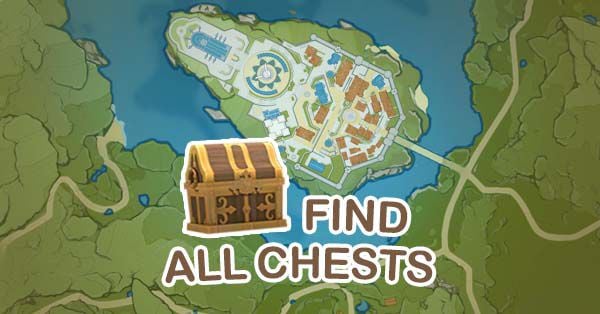



 All bots

 Registration details

 Identified technologies
User reviews (0)