Website profiles · Technology insights · Alternatives

hydralauncher.gg

Download, play, track your stats and manage your games all in one place. Hydra is a versatile game launcher with cloud saves, achievement tracking, and more.

No paid content found
Visit website
Profile views 4 Outbound visits 0 Normal
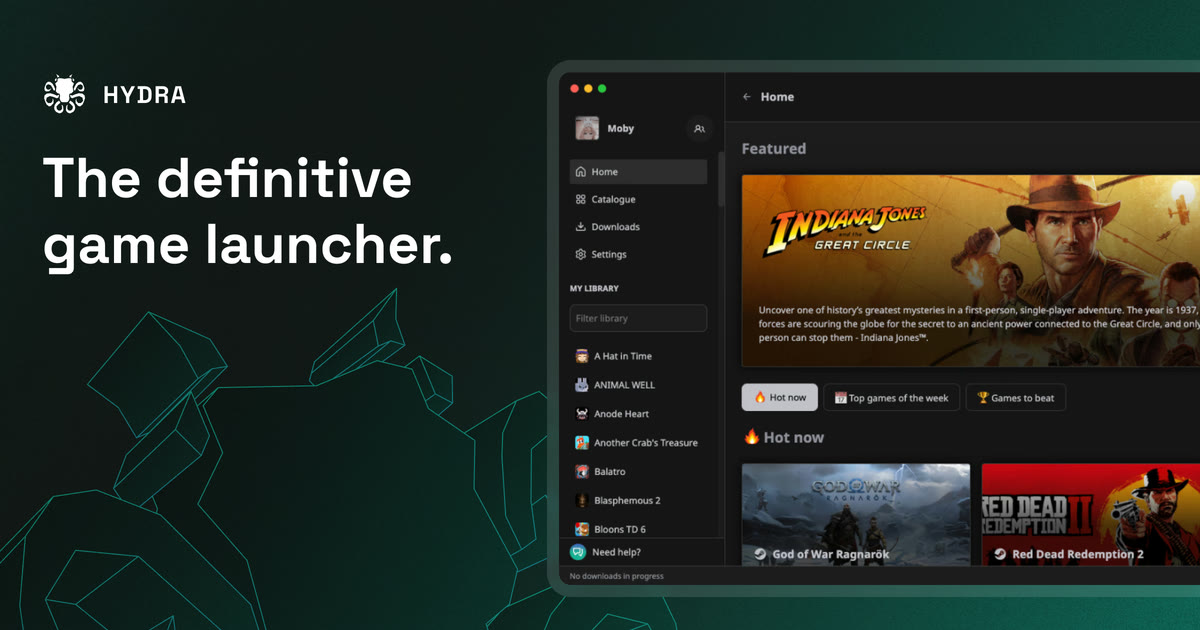
Hydra Launcher Full homepage screenshot

At a glance

Category
Games & Board Games
Language
English
Paid-content signal
No paid content foundObserved
Registered
Unknown
Hosting
CloudflareInferred
HTTPS certificate trusted
PassedObserved
Last updated

Website review

This review may include AI-generated content and is not individually verified. Domain, certificate and other facts come from the observed data on this page.

What is Hydra Launcher?

Hydra Launcher is a free, open-source desktop game launcher that pulls your games, playtime, achievements and cloud saves into one app. It runs on Windows and Linux, and its pitch is "convenience of a modern game launcher combined with the freedom and flexibility of a decentralized platform." In practice, that means it is aimed at players who want a single front end for a scattered library rather than a store-bound launcher tied to one publisher.

What it actually does

  • Built-in downloader: Hydra's downloader centralizes multiple sources in one client, so you download games from inside the launcher instead of juggling browser tabs and separate installers.
  • Playtime tracking: It monitors how long you play, giving you a stats view of your library.
  • Achievements: You unlock achievements and compare progress with friends inside the Hydra ecosystem — this is Hydra's own achievement layer, not a mirror of Steam or console achievements.
  • Cloud saves: Hydra Cloud syncs save files across devices so you can resume on another machine.
  • Social features: Friends and status let you see what others are playing, along with customizable profiles.
  • Themes: Community-made themes let you restyle the launcher, which matters if you spend a lot of time in it.

Who it suits

Player type Fit
Owns games across many sources and wants one library view Strong — the downloader and unified management are the core appeal
Cares about playtime and achievement stats Good, within Hydra's own ecosystem
Plays on both Windows and Linux Good — both are supported
Wants only Steam/Epic/GOG integration and nothing else Weaker — Hydra's value is its own download and tracking layer
Wants a polished, fully predictable store client Mixed — decentralized sourcing means more setup and variance

Trade-offs to weigh

The decentralized approach cuts both ways. You get flexibility and a launcher that isn't locked to one store, but you also take on more responsibility: sources can change, and you should make sure anything you download is something you're legally entitled to. Cloud saves and achievements only cover games played through Hydra, so a library split between Hydra and other launchers will still feel fragmented. The community theme and profile features are genuinely fun, but they're cosmetic — don't pick the launcher for those alone.

A useful next step

If you're deciding whether to switch, install it alongside your existing launcher rather than replacing anything, add a handful of games, and play for a week. Then check two things: whether playtime and achievements tracked correctly for the games you actually play, and whether cloud saves synced cleanly between two devices. If both hold up, migrating more of your library is low-risk. You can download it from the official site at Hydra Launcher, and the source code is published on GitHub if you want to inspect it before installing.

How do I download and install Hydra Launcher on Windows or Linux?

Hydra Launcher is installed by downloading the app for your platform, then running the installer or package and signing in to connect your library. The official source offers a Windows download and states Windows and Linux support, with the code published on GitHub.

Windows

  1. Go to Hydra Launcher and choose the Windows download.
  2. Run the downloaded installer and follow the prompts.
  3. Launch Hydra, then point it at your existing game folders or let it detect installed titles.
  4. Sign in if you want cloud saves, achievements and friend features to sync.

Linux The site confirms Linux support but does not spell out the exact package format, so treat the download page or the GitHub releases as the authoritative place for the current Linux build. In practice you will either get an AppImage you mark as executable and run, or a package for your distribution. After launching, the same setup steps apply: add your library locations, then sign in for cloud and social features.

What to expect after install

Area What Hydra provides
Downloading A built-in downloader that centralises your sources
Library One place to manage and launch games
Progress Playtime tracking and achievement tracking
Continuity Cloud saves that sync across devices
Extras Community themes, profiles and a friends list

Practical notes

  • If you already have games installed elsewhere, add those folders first so your playtime and achievements have something to attach to.
  • Cloud saves only help if you sign in and the game supports them; keep local backups for anything you cannot afford to lose.
  • Updates arrive regularly, so if a launch fails after an update, re-download the latest build rather than troubleshooting an old one.

A sensible next step: install it, import one small game, confirm it launches and tracks playtime, then add the rest of your library once you are satisfied.

Can I transfer my existing game library and saves into Hydra Launcher?

Hydra Launcher is built around managing and playing your games in one place, and its feature list includes cloud saves, achievement tracking and playtime tracking. However, the page does not describe an import or migration tool for pulling in an existing library from another launcher, so treat library transfer as something you set up manually rather than a one-click process.

What the page does support

  • A built-in downloader that "centralizes all your sources in one place," which is the closest thing to adding games in bulk.
  • Hydra Cloud sync, described as letting you "pick up right where you left off, across all your devices."
  • Windows and Linux support, plus community-made themes and a customizable profile.

What is unclear

  • Whether Hydra can scan an existing install folder and adopt games already on disk.
  • Which save-file locations Hydra Cloud syncs, and whether it can read saves written by other launchers or by the games themselves.
  • How achievements are awarded for titles that were not launched through Hydra from the start.

Practical approach

  1. Install Hydra and point its downloader or library at the folders where your games already live, if the interface allows it.
  2. For saves, locate the game's save directory yourself (commonly under Documents, AppData, or the game's own install folder) and copy it into the location Hydra expects before enabling cloud sync.
  3. Test with one game first: launch it through Hydra, confirm the save loads, then check whether Hydra Cloud shows a synced state before doing this across a whole library.

If your priority is preserving years of saves and achievement history from a storefront like Steam, keep that launcher installed alongside Hydra rather than replacing it — Hydra's own page makes no promise of reading another platform's save or achievement data.

How does Hydra Launcher's built-in downloader work with my game sources?

Hydra Launcher's built-in downloader is presented as a central place to manage the sources you already use, rather than a store that supplies games itself. The page describes it as a client that "centralizes all your sources in one place" so downloads happen from within Hydra instead of through a separate browser or download manager. In practice, that means you add your source, pick the game, and Hydra handles the transfer and then files the title into your library, where playtime, achievements and cloud saves are tracked.

What that changes day to day

  • One queue instead of many tabs: downloads from different sources sit in the same interface.
  • Library continuity: a finished download lands in the same place as your existing games, so playtime and achievement tracking start from one launcher.
  • Cross-device pickup: Hydra Cloud sync is described as letting you resume "right where you left off, across all your devices," which matters most if you split time between a Windows desktop and a Linux machine — both platforms are supported.

The trade-off to weigh

A built-in downloader is convenient, but it also makes Hydra the middle layer between you and your sources. If a source changes its format or goes offline, you are waiting on a Hydra update rather than fixing it yourself — the page leans on "constant updates" as the answer to that. It also means the launcher needs to know about your sources, so decide up front whether you are comfortable consolidating that.

A concrete scenario

Say you keep a handful of older titles across a couple of sources and also play on a Linux laptop. You add those sources once, download inside Hydra, and let cloud saves carry progress between machines. The convenience is real; the cost is depending on Hydra to keep each source working.

Next step

Before committing your whole library, test with one or two sources and one game you can afford to re-download. Check that the download completes, the game launches, and a save syncs to a second device. If that loop holds, expand. If a source you rely on is not handled well, keep it outside Hydra and use the launcher only for tracking.

For background on the launcher itself, see Hydra Launcher.

How do I sync cloud saves across devices with Hydra Cloud?

Hydra Cloud is described on the Hydra Launcher site as syncing your saves so you can pick up where you left off across devices. The page presents this as a built-in part of the launcher rather than a separate app, and it pairs cloud saving with achievement tracking, playtime monitoring, friends and status, custom themes and profiles. For a practical setup, install Hydra on each machine you game on, sign in with the same account, and confirm that the game you want to continue appears in your library on the second device before you launch it.

What to check before relying on it

  • Same account on both devices. Cloud sync is tied to your Hydra identity, so a different login is a different library and save set.
  • Game support. Not every title necessarily exposes save files in a way the launcher can capture. Test with one game first, then expand.
  • Sync timing. Let the launcher finish syncing before you close it or shut down. If you launch a game immediately after opening Hydra, you may start from an older save.
  • Conflicts. If you play the same game on two devices offline, one save can overwrite the other. Pick a primary device for games you care about, or check the save timestamp before continuing.

H3. A concrete scenario You play on a Windows desktop at home and a Linux laptop when travelling. Install Hydra on both, sign in, and launch the same game on each once while online. Finish a session on the desktop, wait for the sync indicator or give it a moment, then open Hydra on the laptop and check that the save is current before launching. If it is not, the usual culprits are being offline, being signed into a different account, or the game storing saves somewhere Hydra cannot see.

H3. Trade-offs and alternatives Hydra's appeal is that downloads, achievements, playtime and cloud saves sit in one launcher, with Windows and Linux support and community themes. The trade-off is that you are trusting one tool with your library and saves, and cloud sync quality depends on how well each game is handled. If a particular game syncs poorly, keep a manual backup of its save folder, or use the store's own cloud service where one exists, such as Steam or GOG. For launcher alternatives with their own cloud features, Playnite is worth comparing.

Next step: install Hydra on your second device, sign in, and run one low-stakes game through a full save-and-resume cycle before trusting it with a long campaign. If you want to verify behaviour or report a sync problem, the project's GitHub page is linked from Hydra Launcher.

How can I customize Hydra Launcher with themes, profiles, and achievements?

Hydra Launcher's personalization is split across three areas: visual themes, a public-facing profile, and achievement tracking that feeds into that profile.

H3 Themes The site advertises "thousands of community-made themes" you can download for the launcher, so customization is mainly a matter of browsing and applying what other users have made rather than building a look from scratch. If you like tinkering, expect to spend your first session just auditioning themes; if you don't, pick one and move on, since a launcher's chrome matters less than how quickly it gets you into a game.

H3 Profile Hydra describes a customizable profile where you "craft an eye-catching combination, showcase your accomplishments, and personalize your Hydra presence." The page also mentions friends being able to see "beautifully customized anime girl profiles," which tells you the profile is meant to be seen by others in the Hydra ecosystem, not just by you. Practical implication: treat it as a light social page. Choose an avatar and banner you're happy for friends to see, and decide early how much of your library and playtime you want visible.

H3 Achievements Achievements are unlocked inside Hydra and can be compared with friends, with progress shown on your profile. Playtime tracking feeds the same picture of your habits. The trade-off is that this ecosystem is self-contained — achievements earned here are Hydra achievements, not necessarily the ones tied to the store or platform you bought a game on, so don't expect them to merge with an existing external trophy list.

H3 A quick comparison

Area What you customize Who sees it
Themes Launcher appearance via community themes You
Profile Avatar, layout, showcased accomplishments Friends on Hydra
Achievements Unlocked badges and progress You and friends

H3 Where to start Install Hydra, then open your profile settings first — pick a name and avatar before anything else, because achievements and playtime will attach to it as you play. After that, browse the theme gallery, apply one, and launch a game to confirm achievements and playtime are actually recording. If they aren't, no amount of theming will make the profile worth sharing.

For background on the project and its releases, the site points to GitHub.

Related questions

More questions →
What Is a Game Launcher and What Can It Do?

A game launcher is a desktop application that acts as a central hub for your games: it installs and downloads them, organizes them into a library, launches them, and often layers on extras like playtime tracking, achievements, cloud saves, and friends lists. Hydra Launcher is one example — a launcher that, per its own site, lets you "download, play, track your stats and manage your games all in one place," with Windows and Linux support. A launcher like this fits you if you want one place to manage a scattered library and care about stats and social features; it matters less if you only play a handful of games through a single store.

The core job: one place to manage your games

At minimum, a launcher replaces the routine of hunting through folders and shortcuts. You get:

  • A unified library — every installed game shows up in one list instead of being spread across drives and desktop icons.
  • Download and install handling — the launcher manages getting files onto your machine and keeping them organized.
  • Launching — you start games from inside the launcher rather than from separate executables.

Hydra's site describes a built-in downloader client that "centralizes all your sources in one place," which is the download half of that job. The library and launch functions are the baseline you should expect from any launcher.

Features that go beyond launching

Modern launchers compete on what they add around the core. Hydra's site lists these:

Feature What it does
Achievements Unlock achievements and compare progress with friends inside the ecosystem
Playtime tracking Monitor how long you've played
Cloud saves Sync saves across devices via Hydra Cloud so you resume where you left off
Friends & status See what friends are playing and view their achievements and profiles
Custom themes Download community-made themes to change the launcher's look
Customizable profile Personalize your presence and showcase accomplishments

These are the categories worth checking on any launcher you consider. If you don't care about social features or stats, a plain library-and-launch tool may be enough.

Platform support: check this before anything else

A launcher is only useful if it runs on your system and handles your games. Hydra states Windows and Linux support, framed as giving you "the freedom to game on your platform of choice without compromise." The site's download button is labeled "Download for Windows," with the project also available on GitHub. If you're on Linux, confirm current Linux support and how your specific games behave before committing — platform support claims and per-game compatibility are different things.

How to decide if a launcher like Hydra fits you

Work through these questions:

  1. Is your library scattered? If games live across multiple stores and folders, a unified launcher earns its place. If everything is already in one store you like, the gain is smaller.
  2. Do you use Windows or Linux? Hydra targets both; verify your OS is covered.
  3. Do you value stats and social features? Achievements, playtime, friends, and cloud saves are the reasons to pick Hydra over a bare launcher.
  4. Do you want to customize? Community themes and profile options are a stated strength if that appeals to you.
  5. Are you comfortable with an actively updated tool? Hydra notes "constant updates" with new features and bug fixes — good for freshness, but it means the app changes over time.

If most answers point toward wanting one organized hub with tracking and social features on Windows or Linux, Hydra is built for that. If you want the simplest possible way to start a few games, a lighter tool will do the same core job with less to manage.

Where to get it

Hydra's site offers a Windows download, links to the project on GitHub, and a Telegram channel for updates. The site shows a version number (v4.1.5 at the time of its content), which is a useful signal that the project is maintained — check the current release before downloading.

What Is an Achievements Tracker in a Game Launcher?

An achievements tracker is the part of a game launcher that records the achievements you unlock in your games, displays them in one place, and lets you compare that progress with friends. In Hydra Launcher, achievement tracking is a built-in feature of the launcher itself: you unlock achievements, showcase them on a customizable profile, and compare progress with friends "all within the Hydra ecosystem." It is useful if you play across multiple games and want a single record of what you have completed, rather than checking each game separately.

What an achievements tracker actually does

At its core, the tracker does three jobs:

  • Records unlocks. When you meet an achievement's condition in a game, the launcher logs it as unlocked.
  • Displays your collection. Unlocked achievements appear on your profile so you (and others) can see what you have earned.
  • Enables comparison. Because friends' achievements are visible in the same ecosystem, you can measure your progress against theirs.

Hydra describes this as letting you "unlock achievements, showcase your gaming prowess, and compare your progress with friends." The tracker is not a separate app — it is one of the launcher's features, alongside playtime tracking, cloud saves, and friends and status.

How achievements are unlocked and shown in Hydra

The general flow in a launcher with built-in achievement tracking looks like this:

  1. Play the game through the launcher. Achievements are tied to the launcher's ecosystem, so the game needs to be launched and tracked there for unlocks to register.
  2. Meet the in-game condition. The achievement unlocks when you complete whatever the game requires — the launcher records the event.
  3. See it on your profile. Unlocked achievements feed into your customizable profile, which Hydra describes as a place to "showcase your accomplishments."
  4. Compare with friends. Friends and Status lets you "view their achievements," so comparison happens through the same friend list you use to see what people are playing.

The expected result is a single profile that reflects both your achievement collection and your playtime, without switching between storefronts or per-game overlays.

Achievements, playtime, and cloud saves work together

These three features reinforce each other, which is why they are usually grouped in one launcher:

Feature What it contributes
Achievements tracker Records and displays what you have unlocked
Playtime tracking Monitors how long you have played, adding context to progress
Cloud saves Syncs your save data so you "pick up right where you left off, across all your devices"

The practical link: cloud saves keep your in-game progress consistent across devices, and the achievements tracker reflects that progress on your profile. If your save data and your achievement record drift apart — for example, playing on a device where sync did not complete — the profile may not match what you actually did in-game.

What to check if achievements are not appearing

If unlocks are not showing up, work through these in order:

  • Confirm the game was launched through Hydra. Achievements are tracked within the Hydra ecosystem, so a game started outside it may not register.
  • Check that you are signed in to the same profile. Achievements attach to your Hydra presence; a different or guest profile will not show them.
  • Verify cloud sync completed. If you played on another device, the save and the achievement record may not have synced yet.
  • Look at the game's own achievement support. Not every title exposes achievements in a way a launcher can read; a game with no achievement hooks will not produce unlocks regardless of the tracker.
  • Allow for update lag. Hydra ships "constant updates" with new features and bug fixes, so a display issue after a release is worth rechecking after the next update.

Who benefits from this

An achievements tracker in a launcher makes the most sense if you:

  • Play many games and want one consolidated record instead of scattered per-game lists.
  • Care about comparing progress with friends rather than tracking solo.
  • Already use the launcher for playtime tracking and cloud saves, so achievements complete an existing profile.

It is less relevant if you only play one game, do not use the launcher as your main entry point, or do not care about profile-based comparison. In those cases the tracker adds little beyond what the game itself shows.

What Does Game Management Mean in a Game Launcher?

Game management in a launcher means the launcher handles the tasks that would otherwise be scattered across folders, store clients, and manual notes: downloading and installing games, keeping a single organized library, tracking how long you play, syncing saves across devices, and recording achievements. Hydra Launcher is one example that bundles these into one place, with Windows and Linux support and regular updates. You need this kind of tool if your games live in several locations and you want one entry point for playing, tracking, and syncing them.

The core management functions

A launcher that advertises "game management" is usually covering five jobs:

  • Library organization — every game appears in one list instead of being spread across install folders and separate clients.
  • Download and install — Hydra's built-in downloader centralizes your sources in one client, so you don't switch between them to fetch a game.
  • Playtime tracking — the launcher monitors how long you play each title, giving you a record without manual logging.
  • Cloud saves — Hydra Cloud syncs save data so you can continue on another device.
  • Achievements — unlock and display achievements inside the launcher, and compare progress with friends.

Each of these replaces a manual habit: hunting through directories, remembering where a save file lives, or keeping your own playtime notes.

Why centralizing matters in practice

The friction a launcher removes is mostly switching cost. Without one, a typical session involves opening the store or client you bought the game from, finding the install path, launching it, and separately remembering which machine has your latest save.

With management features in one place, the sequence collapses: open the launcher, pick the game from your library, play. Playtime is recorded automatically, and if cloud saves are enabled, the save follows you rather than staying tied to one machine.

This matters most for players who split time between devices or operating systems. Hydra states Windows and Linux support, so the same library view and cloud sync can span both.

Cloud saves and playtime tracking for multi-device players

Cloud saving is the feature that changes behavior rather than just convenience. Hydra describes Hydra Cloud as seamless sync that lets you "pick up right where you left off, across all your devices." The practical value: you stop copying save files manually or accepting that progress on one machine is stranded there.

Playtime tracking works alongside it as a record of what you've actually played. For someone deciding what to continue next, a playtime list is more useful than a folder of shortcuts, because it reflects real usage rather than intent.

Achievements and friends: from a private library to a shared one

Achievements in a launcher turn a solo library into something comparable. Hydra lets you unlock achievements, showcase them, and compare progress with friends inside its ecosystem. Friends and status features go further: you can see what friends are playing and view their achievements and profiles.

The effect is that your library stops being a private list and becomes a lightweight social space — useful if you like comparing progress or deciding what to play based on what friends are into.

What to check before choosing a management-focused launcher

Use the same criteria across candidates:

Criterion What to look for Why it matters
Platform support Does it cover the OS you actually game on? Hydra lists Windows and Linux; a launcher limited to one OS breaks cross-device sync plans
Cloud saves Is sync included, and across which devices? Determines whether progress follows you or stays local
Playtime and achievements Are both tracked automatically? Manual tracking defeats the purpose of centralizing
Update frequency Are features and fixes shipped regularly? Hydra cites constant updates; stale launchers accumulate broken integrations
Customization Themes and profile options Affects whether you'll actually keep using it daily

Hydra also supports community-made custom themes and customizable profiles, which are secondary to the management functions but affect long-term use.

Where to start

If you want to test whether centralized management fits your habits, download Hydra for Windows, import or install a game through the built-in downloader, and check that playtime appears after a session. Then enable cloud saves and verify the save appears on a second device before relying on it. The launcher's own channel and GitHub page are the places to confirm current version details, since features like Hydra Cloud depend on the version you install.

What Is Hydra Launcher and What Can It Do?

Hydra Launcher is a game launcher for Windows and Linux that combines downloading, playing, and managing your games in one place. It fits players who want a single hub for a personal game library rather than switching between multiple store clients. According to the official site, it offers a built-in downloader, cloud saves, achievement tracking, playtime tracking, friends and status features, and community-made themes.

Core purpose

Hydra is positioned as a game launcher that lets you download, play, track your stats, and manage your games all in one place. The site describes it as "a versatile game launcher" built around the idea that gaming tools should be in the hands of players. It combines the convenience of a modern launcher with what the site calls the freedom and flexibility of a decentralized platform.

Key features

The official site lists these capabilities:

  • Embedded downloader — a built-in downloader client that centralizes your sources in one place so you can download games.
  • Cloud saves — Hydra Cloud sync is described as seamless, letting you pick up where you left off across devices.
  • Achievements — unlock achievements, showcase them, and compare progress with friends within the Hydra ecosystem.
  • Playtime tracking — monitor your playtime as part of your stats.
  • Friends and status — connect with others, see what they're playing, and view their achievements and profiles.
  • Customizable profile — personalize your Hydra presence and display your accomplishments.
  • Custom themes — download community-made themes for the launcher.

Platform support

Hydra supports both Windows and Linux. The site frames this as giving you the freedom to game on your platform of choice without compromise. The primary download offered on the page is for Windows, with the project also available on GitHub.

How it differs from typical store launchers

Two things stand out from the site's description:

  1. Decentralized sources — instead of being tied to a single storefront, Hydra's built-in downloader centralizes your sources, which the site presents as a flexibility advantage.
  2. Player-focused tooling — features like achievement tracking, playtime stats, customizable profiles, and community themes are framed as tools for players rather than store-driven features.

Updates

The site notes that Hydra receives constant updates, with regular releases bringing new features and bug fixes. The page references version 4.1.5 as a recent release.

What to check before deciding

  • Confirm current platform builds on the official site or GitHub, since availability can change between versions.
  • Review the feature list against your own needs — for example, if cloud saves or achievement comparison matter most to you.
  • The site does not state pricing on the page, so check the official source for current terms before committing.
What Are Cloud Saves in a Game Launcher and How Do They Work?

Cloud saves store your game progress on a remote server instead of only on the device you played on, so the same save can be pulled down on another device and continued. In a game launcher, this sync usually happens automatically in the background: you finish a session, the launcher uploads the updated save, and when you open the game elsewhere it downloads the latest version. Hydra Launcher describes this as "Hydra Cloud's seamless sync ensures you can pick up right where you left off, across all your devices." That promise only holds if the game's save files are in a location the launcher tracks and if the sync completes before you switch devices.

Cloud saves vs. local save files

Local save files Cloud saves
Where they live On your disk, in the game's save folder On a remote server tied to your account
Survive a reinstall or new PC No, unless you copy them manually Yes, if synced before the change
Work offline Yes Only the local copy does; upload waits for a connection
Conflict risk None, one copy exists Possible if two devices write different progress
Depend on The game writing files correctly Launcher/account sync plus the game's save path

Local saves are the source of truth. Cloud saves are a copy of that source that gets moved between machines. If the launcher never sees the file, it can't sync it.

How syncing works in a launcher like Hydra

The mechanism is the same across most launchers, including Hydra:

  1. You play and the game writes a save. The game saves to its own folder (often under your user profile or the install directory).
  2. The launcher detects the change. It watches the known save location for that title.
  3. The updated save is uploaded to the cloud account when a connection is available.
  4. On another device, the launcher downloads the newest save before the game starts, so you resume from the latest point.

Hydra positions cloud saving alongside achievements, playtime tracking, and friends/status as part of one ecosystem, and it runs on both Windows and Linux. Cross-device sync is most useful when you actually move between a desktop and a laptop, or between a Windows and a Linux install.

Why cloud saves fail to sync

Most failures come down to one of these:

  • The game saves somewhere the launcher doesn't track. Some titles write to unusual folders or use their own account system, so the launcher has nothing to upload.
  • The sync didn't finish before you switched. Closing the launcher or shutting down immediately after playing can cut off the upload.
  • You played offline. The local save is fine, but the cloud copy is stale until you reconnect and let it upload.
  • Two devices wrote different progress. This creates a conflict; the launcher has to pick one version, and the other can be overwritten.
  • Account mismatch. Saves are tied to the account that uploaded them, so signing in with a different account shows no cloud save.

What to check before relying on cloud saves

  • Confirm the specific game actually saves to a location the launcher syncs; not every title is covered.
  • Let the launcher finish syncing (and stay open briefly) after a session before you shut down or move devices.
  • Keep a manual backup of important saves. Copy the save folder somewhere safe so a bad sync can't erase progress.
  • Avoid playing the same game on two devices at once, which is the main cause of conflicts.
  • Sign in with the same account on every device you expect the save to appear on.

If a save seems missing, first check the local save folder on the device you last played, then confirm the launcher is signed in and online so it can reconcile the two copies.

Website Overview

Page metadata, canonical configuration and social previews work together to provide more consistent search and sharing presentation.

Domain and Registration

The registrar is NameCheap, Inc (https://www.namecheap.com), a widely used domain service provider. The domain uses the common .gg extension, which is not an independent safety signal.

DNS and Email

Nameservers are provided by Cloudflare, indicating managed DNS hosting. MX records point to the Fastmail email service. No CNAME was found; the observed records resolve directly to addresses. SPF and DMARC are configured. DKIM status is unknown. The lowest observed DNS TTL is 300 seconds.

TLS and Certificates

The public key uses EC with 256 bits. The server supplied a complete certificate chain. No organization name is present in the certificate; the available fields are consistent with domain validation. The certificate was issued within the Google Trust Services cloud or CDN ecosystem. The certificate's total validity is about 90 days, consistent with a short renewal cycle.

HTTP and Browser Security

The response lacks these common security headers: HSTS, CSP, Permissions-Policy, clickjacking protection. CORS permits any origin to read this response. This is common for public resources; sensitive responses need narrower handling. No X-Powered-By header was found, reducing one common source of backend fingerprinting information. The cf-ray response header indicates a CDN or caching proxy in the delivery path. No obvious internal addresses or debug information were found in the headers.

Technology Stack Analysis

The public page identifies Next.js, Cloudflare without precise versions, leaving fewer clues for version-specific scanning.

Search and Social Sharing

Twitter Card metadata is configured. JSON-LD includes Product or Offer data, potentially supporting eligible product search features. The title has 55 characters, within a common display range. A meta description is present, with 157 characters. The observed directives allow indexing and link following.

Hosting and Email

DNSCloudflare
HostingCloudflare
EmailFastmail
Approximate IP geolocation (inferred; a CDN or proxy may differ from the origin server) United States flagUnited States Inferred 2606:4700::6812:122b

Registration details

RDAP / WHOIS

RegistrarNameCheap, Inc (https://www.namecheap.com)
RegisteredUnknown
ExpiresUnknown
Domain statusActive
NameserversUnknown
DNSSECunknown

DNS records

DNS

TypeNameValueTTLPriority
Ahydralauncher.gg104.18.18.43300—
Ahydralauncher.gg104.18.19.43300—
AAAAhydralauncher.gg2606:4700::6812:122b300—
AAAAhydralauncher.gg2606:4700::6812:132b300—
MXhydralauncher.ggin1-smtp.messagingengine.com30010
MXhydralauncher.ggin2-smtp.messagingengine.com30020
NShydralauncher.ggdax.ns.cloudflare.com86400—
NShydralauncher.ggraina.ns.cloudflare.com86400—
TXThydralauncher.ggv=spf1 include:spf.messagingengine.com ?all300—
DMARC_dmarc.hydralauncher.ggv=DMARC1; p=none;300—

TLS and certificates

TLS / SSL

AssessmentNormal configuration
Supported protocolsTLSv1.2、TLSv1.3
Negotiated protocolTLSv1.3
Certificate subjecthydralauncher.gg
IssuerGoogle Trust Services
Valid until2026-11-19T14:02 · Remaining when checked: 49 days
Verification detailsCertificate trust: Passed · Hostname match: Passed

HTTP response headers

HTTP

HeaderValue
content-typetext/html; charset=utf-8
cache-controlpublic, max-age=0, must-revalidate
servercloudflare
x-content-type-optionsnosniff
referrer-policystrict-origin-when-cross-origin
access-control-allow-origin*

Identified technologies

Next.jsCloudflare

Pages, Search and Sharing

Meta descriptionDownload, play, track your stats and manage your games all in one place. Hydra is a versatile game launcher with cloud saves, achievement tracking, and more.
Canonical URLhttps://hydralauncher.gg
LanguageEnglish (default)
Twitter Cardsummary_large_image
All bots 1 allowed · 3 disallowed
  • Allow/
  • Disallow/*.json$
  • Disallow/*.js$
  • Disallow/*.css$

No sitemaps found

User reviews (0)

  • No reviews yet.