Website profiles · Technology insights · Alternatives

makewordart.com

Free Online WordArt Generator - Create Nostalgic 90s Text Effects Instantly. No Photoshop needed! Download as PNG or use in iMessage, Google Docs. The original MS Office retro styles.

No paid content found
Visit website
Profile views 0 Outbound visits 0 Normal
Make WordArt Full homepage screenshot

At a glance

Category
Design & Creativity
Language
English
Paid-content signal
No paid content foundObserved
Registered
2016
Hosting
NetlifyInferred
HTTPS certificate trusted
PassedObserved
Last updated

Website review

This review may include AI-generated content and is not individually verified. Domain, certificate and other facts come from the observed data on this page.

What is Make WordArt?

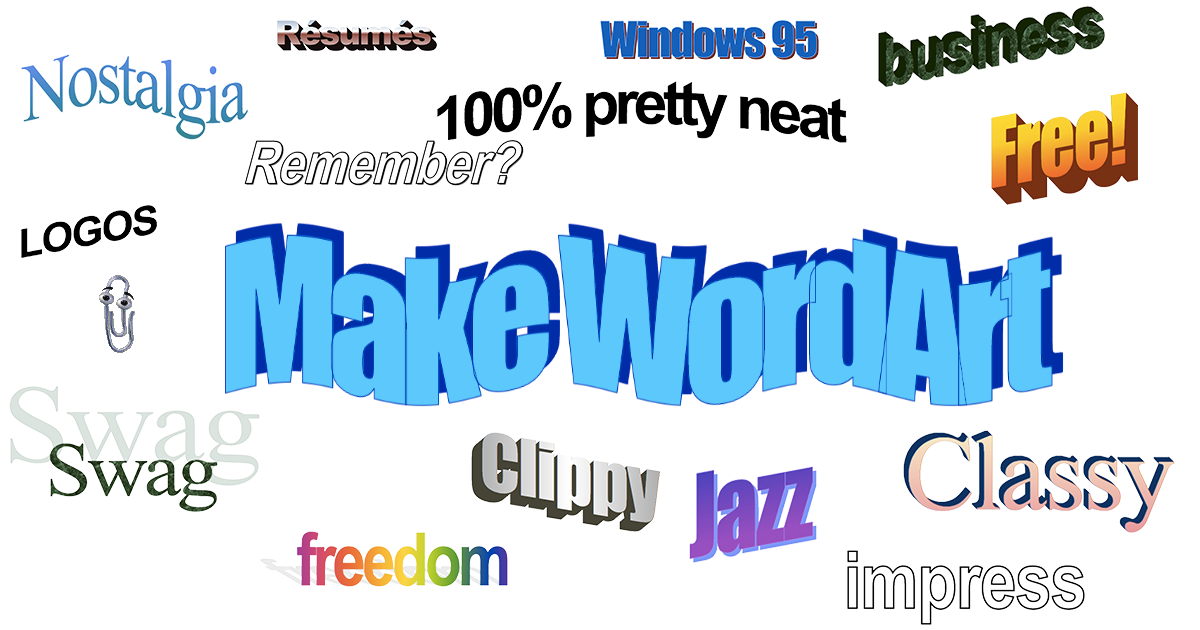
Make WordArt is a free browser-based tool for creating 1990s-style WordArt text effects without Photoshop. You type your text, choose a retro style from its gallery, and download the result as an image (PNG) to use in messages, documents or designs. It recreates the look of the classic Microsoft Office WordArt styles.

What you can do with it

  • Create nostalgic text effects: pick a style, enter your words, and adjust them in an edit dialog.
  • Export for everyday use: download the finished graphic as a PNG for iMessage, Google Docs or similar.
  • Work entirely online: no design software installation is described on the page.

Who it suits

It is aimed at people who want quick, playful retro typography: social posts, party invitations, school projects, or a throwback touch in a document. It is less suited to precise professional typesetting, since the appeal is the preset WordArt aesthetic rather than fine typographic control.

A practical next step

Decide what the image is for. If you need a fast, fun headline graphic, open Make WordArt, choose a style that matches your tone, and download the PNG. If you need editable vector text or brand-consistent fonts, a general design tool such as Canva will give you more control over sizing and layout.

How do I create and download a WordArt text effect without Photoshop?

Open Make WordArt in a browser and use its on-page canvas: choose a WordArt style from the gallery, type your text into the text field, then use the Download Image option to save the result as a PNG. The site presents this as a free, no-Photoshop workflow aimed at retro 90s-style text you can drop into messages or documents.

A practical workflow

  1. Pick a style first. The gallery is the starting point; choosing a style before typing lets you judge whether the effect suits your phrase.
  2. Keep text short. WordArt effects distort letterforms, so a few words read more cleanly than a full sentence.
  3. Check the canvas, not just the preview. The page separates the style gallery, text entry and a Clear Canvas control, so you can reset and try a different look without starting over.
  4. Download as PNG. PNG keeps the lettering crisp and works for pasting into chat apps, slide decks or word processors.

Where this approach fits

A teacher making a retro title slide, a social post that needs a nostalgic headline, or a party invitation with a 90s theme are all cases where a quick browser tool beats opening design software. For anything needing precise typography, layered layouts or print-ready resolution, a full editor remains the better choice; a generator trades control for speed.

Decision criteria

  • Use a browser generator when you need one styled phrase fast and don't want to install anything.
  • Use design software when the text must align with other elements or be edited later as layers.
  • If you want a broader set of text-effect tools to compare, Canva and FontMeme offer text styling within their own interfaces; check each site's current options before committing.

As a next step, draft your exact wording before opening the tool, then test two or three styles on the same phrase to see which keeps the letters legible at the size you'll actually use.

Can I use the WordArt images I make in iMessage, Google Docs, or other apps?

Yes. Make WordArt is built around downloading the finished text effect as an image, so the practical question is where that image file can go. The site's own description names iMessage and Google Docs as example destinations, and it offers a PNG download.

How it fits common apps

Destination What to do Watch out for
iMessage Download the PNG, then attach it as an image in the message It arrives as a picture, not editable text, so it won't reflow or be read as words
Google Docs Insert the downloaded image into the document Treat it as a graphic; resizing may soften the edges
Slides, social posts, print pieces Place the image wherever a picture is accepted Check the background is transparent or matches the page before exporting

A concrete example

If you're making a birthday message in iMessage, choose a bold retro style, download the PNG, and send it as a photo. For a school handout in Google Docs, the same image works as a title graphic, but keep it large enough that the outline effect stays crisp when printed.

Decision criteria

  • Need editable text? Use your app's own text tools; a downloaded WordArt image is fixed.
  • Need it on a coloured page? Confirm the image background matches or is transparent before placing it.
  • Need it in several places? Download once and reuse the file rather than recreating the style each time.

The generator is at Make WordArt; start by picking a style and downloading the image, then test it in your target app before building a larger design around it.

Which WordArt style should I pick to get an authentic 90s Microsoft Word look?

Pick a style that combines a filled or gradient letter face with a thick outline and a visible shadow—that combination is what most people recognize as the classic Microsoft Word look. On Make WordArt, the gallery presents styles as presets you select before editing your text, so start by choosing the preset whose sample shows strong outline and depth rather than a flat single-color fill. You can then fine-tune the wording and download the result as an image.

How to choose among the presets

  • For the most recognizable retro feel: favor presets with layered outlines, drop shadows, or a gradient across the letters. These mimic the dimensional, slightly gaudy effects that defined 90s WordArt.
  • For titles and short phrases: heavier outlines and shadows hold up well at large sizes and read clearly.
  • For body text or small captions: the same heavy effects become muddy. Use a simpler preset, or reserve the bold look for headings only.
  • For matching an existing document or slide: compare the gallery samples side by side and pick the one closest to the effect you remember, then adjust text length—longer phrases change how the outline and shadow balance.

A practical next step

Type your actual phrase into a few candidate styles before committing. Short words like "Welcome" or a name will look very different from a full sentence, and the preset that flatters one may crowd the other. If you want to compare against other takes on the same aesthetic, WordArt offers a separate generator with its own style set, which is useful for seeing how the retro look varies between tools.

Is Make WordArt free to use, and are there any paid options or donations?

Yes. Make WordArt is presented as a free online WordArt generator, and you can create and download images without a paid plan. The page also includes Donate and Buy Merch links, so donations and merchandise are optional support options rather than requirements for using the tool.

What this means in practice

  • Free use: Open the site, choose a WordArt style, enter your text, and download the result as an image. This suits quick retro-style headings for a slide, a party invitation or a social post.
  • Paid options: There is no paid subscription or premium tier described on the page. The visible commercial elements are the donation link and the merchandise store.
  • Donations: Donating is voluntary. It supports the site but does not appear to unlock extra styles or features.

How to decide

If you only need a nostalgic 90s text effect for a one-off project, start with the free generator and download the PNG. If you use the site regularly and want to support it, the Donate link is the direct way to do so; buying merchandise is a separate, optional choice.

For comparison, WordArt is another well-known word cloud and text-shape tool, though its focus differs from recreating classic Microsoft WordArt styles.

How does the WordArt Gallery work, and can I edit or reuse a style after selecting it?

The WordArt Gallery is a style picker: you choose one of the preset WordArt looks, then apply your own text to it. On Make WordArt, the page describes selecting a WordArt style to start, entering your text in a dialog, and then using the canvas controls to create, clear, and download the result as an image. So the gallery is the starting point for the look, not a fixed set of finished artwork.

Editing after selecting a style

You can edit the text after choosing a style—the page shows a text entry dialog with OK and Cancel, and an Edit option alongside Download. That means the practical workflow is: pick a style, type or replace the wording, then download the image. The style choice sets the visual treatment; your text is what you change. If you want to compare looks, the gallery lets you switch styles rather than committing to one permanently.

Reusing a style

Reuse is straightforward in the sense that styles are presets you can apply to new text each time you use the generator. What the page does not support is saving a custom style as your own reusable template—there is no described account, saved-project, or style-library feature. For repeated use, keep a note of which gallery style you chose and re-select it for each new piece of text.

A concrete scenario

Suppose you are making a retro headline for a school newsletter or a 90s-themed party invitation. You would open the gallery, pick a style that matches the nostalgic look, enter your headline, adjust the wording if it does not fit, and download the PNG. If the same style is needed for a second headline, you return to the gallery and choose it again rather than editing a saved file.

Decision criterion

Choose this approach when you want a quick, recognizably 90s text effect without design software. If you need a consistent branded template across many documents, plan to recreate the style manually each time, since the page evidence points to a generator-and-download flow rather than a persistent style library.

Related questions

More questions →
What Is Retro Gaming and How Do You Get Started?

Retro gaming is the practice of playing older video games — typically from the 1970s through the early 2000s — on original hardware, through emulation, or via official re-releases. It is defined less by a fixed year cutoff than by a combination of era, hardware generation, and design style. If you want to start, the practical path is: pick a platform generation, choose how you want to play (original hardware, emulation, or a modern re-release), then solve the two problems that trip up most beginners — display lag and region locking.

What "Retro" Actually Means

There is no single agreed cutoff, and the term shifts as time passes. A useful way to think about it is in three layers:

  • Era — games from roughly the late 1970s to the early 2000s, before HD displays and online distribution became standard.
  • Hardware generation — cartridge and early disc consoles: NES, SNES, Sega Genesis/Mega Drive, Game Boy, PlayStation, and similar machines.
  • Design style — pixel art, limited sprites and color palettes, chiptune audio, and often high difficulty with limited or no save systems.

A game can feel "retro" in style even if it is new. GGGames.se, an enthusiast site covering both modern and retro games, frames its coverage around exactly this split — "Modern and Retro" — and its review of QUOD INIT EXIT IIo covers a game that is new but built in a deliberately old-school style. That is a good illustration of why style matters as much as release date.

The Main Retro Platforms

Platform Typical era What defines it
NES / Famicom 1980s 8-bit, cartridge, iconic first-party series
SNES / Super Famicom Early–mid 1990s 16-bit, richer color and sound
Sega Genesis / Mega Drive Late 1980s–1990s 16-bit, faster arcade-style action
Game Boy / Game Boy Color Late 1980s–1990s Portable, monochrome then color
PlayStation Mid–late 1990s Disc-based, 3D transition era

Each generation has its own quirks — controller design, region coding, and video output all differ — so it helps to pick one platform to start rather than trying to cover everything at once.

Three Ways to Play, and How to Choose

Original hardware

You buy the actual console and cartridges or discs. This gives the most authentic experience, including original controllers and timing. The trade-offs are cost, aging hardware (worn cartridge slots, failing disc drives), and the need for a compatible display.

Emulation

Software runs the game on a modern computer or device. This is the most flexible and often the cheapest route, and it makes save states and region-free play easy. The catch is that the legal status of ROMs varies by country, and reliable sources matter — avoid sketchy download sites.

Official re-releases and compilations

Publishers and platforms reissue classic games on modern systems, sometimes with save states, rewind, and display options. This is the lowest-friction option if you want to play legally and without setup. Availability changes over time, so check the current store listing for the specific title you want.

A simple decision rule: if you want authenticity and don't mind maintenance, go original hardware. If you want convenience and flexibility, go emulation or official re-releases.

Common Pitfalls to Avoid

  • Display lag — modern TVs can add input delay that makes precise retro games feel wrong. A low-latency mode or a dedicated upscaler helps.
  • Region locks — many older consoles only play games from their own region. Check before buying imports.
  • Unreliable ROM sources — unofficial download sites carry legal and security risks. Prefer official re-releases where they exist.
  • Assuming "old" means "cheap" — some retro hardware and cartridges are collectible and priced accordingly.

A Practical Starting Path

  1. Pick one platform generation that appeals to you.
  2. Decide how you want to play: original hardware, emulation, or an official re-release.
  3. If using original hardware, sort out your display and check region compatibility.
  4. Start with a well-regarded title for that platform rather than a rare or expensive one.
  5. Expect higher difficulty and fewer conveniences than modern games — that is part of the design, not a flaw.

If you are unsure where to begin, following a site that covers both modern and retro games — like GGGames.se — can help you find reviews and context for older titles alongside current releases.

What Is Typography and How Do You Apply Its Core Principles?

Typography is the art and technique of arranging type so text is readable and visually effective. It covers far more than picking a font: typeface choice, size, weight, spacing, line length, and hierarchy all shape how a reader moves through a page. Apply its core principles whenever you set text for a document, website, poster, or presentation—and judge your choices by whether a reader can scan, read, and understand without friction.

Typography Is Arrangement, Not Just Font Choice

Choosing a typeface is one decision inside typography. The larger job is arranging type: how large it is, how tightly lines sit together, how much space separates sections, and which elements draw the eye first. Two documents using the same font can feel completely different depending on those arrangements.

A useful test: if you swapped the font but kept every spacing and size decision, would the page still work? If yes, your typography is doing real work. If no, the font was carrying the whole design.

Know Your Typeface Categories

Typefaces fall into broad categories, each with a different tone and typical use. Best-Font.com's free font database organizes its listings under labels such as Sans serif, Serif, Script, Display, Calligraphy, Fancy, Brush, and Dingbats, which reflects how these categories are commonly separated.

Category Typical character Common use
Serif Traditional, formal, easy for long reading Body text in print, editorial layouts
Sans serif Clean, modern, neutral Web body text, UI, headings
Script Handwritten, flowing, personal Invitations, logos, short accents
Display Bold, decorative, distinctive Headlines, posters, covers
Calligraphy / Brush Expressive, stroke-driven Titles, artistic pieces
Dingbats Symbols and icons rather than letters Decorative or functional icons

Match the category to the job. A display face that looks striking on a poster will exhaust a reader across three paragraphs of body text.

Control Readability and Legibility

Legibility is whether individual letters and words can be distinguished. Readability is whether a block of text is comfortable to read. Both depend on measurable settings:

  • Line length: Aim for roughly 45–75 characters per line in body text. Longer lines make the eye lose its place on the return sweep; shorter lines break rhythm.
  • Line height (leading): Body text usually sits comfortably around 1.4–1.6 times the font size. Tight leading crowds lines; loose leading disconnects them.
  • Letter spacing (tracking): Leave normal spacing for body text. Add slight tracking to all-caps headings, which otherwise look cramped.
  • Contrast: Ensure sufficient contrast between text and background. Low-contrast gray-on-gray is a common readability failure.
  • Size: Body text should be large enough to read without strain at the intended viewing distance—smaller on a phone screen held close, larger on a wall poster viewed from across a room.

Use Hierarchy to Guide the Reader

Hierarchy tells readers what matters most and in what order to read. You build it with scale, weight, and spacing rather than decoration alone.

  1. Scale: Make the most important element clearly larger. A heading twice the body size reads as primary; a heading only slightly larger reads as ambiguous.
  2. Weight: Bold or heavier weights pull attention. Reserve them for genuine emphasis so they keep their force.
  3. Spacing: White space above a heading separates it from prior content; space below ties it to the text it introduces. Grouping through proximity signals relationship.
  4. Consistency: Repeat the same treatment for the same level of content. If every subheading looks the same, readers learn the pattern quickly.

A simple three-level system—title, subheading, body—handles most documents. Add levels only when the content genuinely needs them.

Common Mistakes and How to Fix Them

  • Too many typefaces. Limit yourself to two, or one family in several weights. Extra faces compete instead of cooperating.
  • Centered long text. Centering works for short lines like titles; it makes multi-line paragraphs hard to track. Left-align body text.
  • All caps for long passages. Capitals remove word-shape cues and slow reading. Use them for short labels or headings.
  • Tight or default spacing left unchecked. Adjust leading and tracking deliberately rather than accepting defaults that may not suit your size and measure.
  • Decorative fonts for body copy. Keep display, script, and brush faces for short, high-impact text.
  • Weak contrast. Check text against its background at the actual size and medium it will appear in.

Applying It in Practice

Start with the content: identify what readers must see first, second, and third. Pick one or two typefaces that match the tone, set a comfortable body size with generous leading and a moderate line length, then build hierarchy with scale and weight. Review by reading the page as a stranger would—if your eye lands where you intended and the text is easy to follow, the typography is working.

What Is a PNG File and How Do You Find Free Transparent PNG Images?

A PNG (Portable Network Graphics) is a raster image format that supports lossless compression and alpha transparency, which is why it is the standard choice when you need an image with a see-through background. On PikPng, a library that states it hosts 942,661 transparent PNGs, silhouettes, icons, and images, you can search and download files for personal, educational, and non-commercial use. If your project is commercial, or you need a format other than PNG, check the license and format before you commit.

What makes PNG different from JPG

The two formats solve different problems, so the right choice depends on what the image contains.

Feature PNG JPG
Compression Lossless Lossy
Transparency Yes (alpha channel) No
Best for Logos, icons, cutouts, text, images with hard edges Photos, large images where small file size matters
Repeated editing No quality loss on re-save Quality degrades with each save

Lossless compression means the file is rebuilt exactly as it was saved, so a PNG logo stays sharp through multiple edits. The alpha channel is the part that stores per-pixel transparency, letting the background disappear instead of showing a white box. JPG has no alpha channel, so any "transparent" area becomes a solid color.

When transparency actually matters

Transparency is useful whenever the image will sit on top of something else:

  • A logo placed on a colored slide or webpage
  • An icon dropped into a design mockup
  • A product cutout layered over a new background
  • A sticker, emoji, or clipart element in a collage

If the image will be the whole frame — a photo, a full-bleed background — JPG is usually the smaller, more practical choice.

How to find free transparent PNG images

PikPng organizes its library by category and keyword, and its search results show the file dimensions and engagement counts, which helps you judge whether an image fits before downloading.

  1. Search by keyword. Enter the object or concept you need (for example, "clouds," "speech bubble," or "Christmas hat"). Results list the image title, pixel dimensions, and view/download counts.
  2. Browse by category. The site lists categories such as Clipart, Silhouette, Icon, and Top Category, plus a row of common tags (Arrow, Apple, Border, Clouds, Emoji, Frame, People, and others). Category browsing is faster when you don't have an exact term in mind.
  3. Check the resolution. Each result shows dimensions like 800×800 or 5000×2219. Match this to your output: a 400×800 image will look soft if stretched across a 1920-pixel-wide slide.
  4. Confirm the license. PikPng states its images are for personal, educational, and non-commercial use. If you plan to sell a product, run ads, or use the image in client work, that is outside the stated scope — look for a commercial-use source or permission instead.
  5. Download and place the file. Save the PNG, then insert it into your project. Because the background is transparent, it should blend directly onto your slide, canvas, or page.

A practical example

Suppose you are building a presentation slide about weather and want a cloud that sits on a blue background. Search "clouds," pick a result with enough resolution for your slide (a 5000×2219 file gives you plenty of room to crop), download the PNG, and place it on the slide. The blue background shows through the transparent areas, so no white box appears around the cloud. If you had used a JPG of the same cloud, you would see a rectangular white or colored block behind it.

Checking license and usage limits before you download

This is the step most people skip, and it is the one that causes problems later.

  • Read the stated scope. PikPng describes its collection as free for personal, educational, and non-commercial use, with unlimited downloads. That covers school projects, personal designs, and non-commercial content.
  • Commercial use is a separate question. The site's stated terms do not cover commercial use, so do not assume a download is safe for a product you sell or a monetized channel.
  • Watch for the Subscribe link. The site includes a Subscribe entry, which suggests some features or access may sit behind a subscription. Pricing details are not specified in the available information, so check the page directly if you need to know what a subscription includes.
  • Keep a record. Note the image title, the page you found it on, and the date, so you can trace it if a usage question comes up.

Practical tips for downloading and using a transparent PNG

  • Match resolution to output. Download at or above the size you need; scaling a small PNG up makes it blurry.
  • Resize with the aspect ratio locked. Stretching a PNG distorts logos and icons. Keep width and height proportional.
  • Re-save as PNG if you edit. Saving an edited transparent image as JPG flattens the transparency into a solid background.
  • Test on the real background. Place the PNG on your actual slide or page color before finalizing, since a transparent edge can look different against light and dark backgrounds.
  • Prefer simple cutouts for small sizes. Detailed images with fine edges (hair, fur, smoke) can show fringing when scaled down; simpler shapes hold up better.

Quick answers

Is PNG better than JPG? Neither is universally better. PNG wins for transparency, sharp edges, and repeated editing; JPG wins for photos and small file sizes.

Can I use PikPng images for free? The site states its images are free for personal, educational, and non-commercial use. Commercial use is not covered by that statement.

Why does my PNG show a white background? Either the file was saved as JPG at some point, or the transparency was flattened during editing. Re-download the original and avoid saving over it in a non-transparent format.

How do I know an image is high enough quality? Check the listed pixel dimensions against your target size. If the image is smaller than your output, it will lose sharpness when enlarged.

How Do You Create 90s-Style WordArt Text Effects Online and Download Them?

You can create 90s-style WordArt online by opening a browser-based generator such as Make WordArt, selecting a WordArt style, entering your text, and downloading the result as an image. Make WordArt describes itself as a free online WordArt generator that recreates the original MS Office retro text styles and lets you download as PNG or use the result in iMessage or Google Docs. The workflow below follows the controls shown on that site: a style gallery, a text entry dialog with OK/Cancel, and a Download Image option.

What You Need Before Starting

  • A modern web browser and an internet connection.
  • The exact text you want to stylize, kept short. 90s WordArt was designed for a few words, not paragraphs.
  • A destination in mind: a document, a chat app, or a slide deck. This affects whether you want a transparent or solid background.

Step-by-Step: Create the Text Effect

1. Open the generator and pick a style

On Make WordArt, the page presents a gallery with the prompt "Select a WordArt style to start." Choosing a style is the first action because the style determines the font treatment, outline, fill, and 3D/shadow look. The site's gallery is built around the nostalgic Microsoft WordArt aesthetic, so picking any style gets you into the right visual territory immediately.

2. Enter your text

After selecting a style, the text dialog appears with a "WordArt Text:" field and OK/Cancel buttons. Type your word or short phrase and confirm with OK. If you cancel, nothing is applied.

3. Adjust the look to match the 90s feel

The editor exposes controls for the elements that define the style:

  • Font: 90s WordArt leaned on heavy, decorative typefaces. Pick something bold enough to survive an outline and a shadow.
  • Color and fill: High-contrast gradients and saturated colors are the signature look. Keep the fill and the outline clearly distinct so the letters stay legible.
  • Outline/stroke: A thick contrasting outline is what makes WordArt read as WordArt rather than plain colored text.
  • 3D and shadow effects: A drop shadow or extruded look adds the depth typical of the era. Use one strong effect rather than stacking several.

4. Preview and edit

The canvas shows the result as you work. If the text is wrong, reopen the text dialog and change it; if the style is wrong, return to the gallery and choose another. The site also lists Edit WordArt alongside Download, so revisions are expected before you export.

5. Download the image

Use Download Image to save the finished piece. The site states the output is a PNG, which is the right format for placing the art in documents, slides, or chat messages. PNG also supports transparency, so if your chosen style leaves the background clear, the art will sit cleanly over other content.

Quick Reference

Stage Action Expected Result
Style selection Choose from the style gallery Canvas loads with that style applied
Text entry Type text, press OK Your words render in the chosen style
Styling Adjust font, color, outline, 3D/shadow Preview updates on the canvas
Export Click Download Image PNG file saved to your device

Common Problems and Fixes

Text doesn't appear after you press OK. The text field was likely empty or the dialog was cancelled. Reopen the text dialog, confirm the field contains your words, and press OK again.

The style doesn't seem to apply. Style changes only take effect once a style is selected from the gallery. If you changed settings but the canvas looks unchanged, reselect the style and re-enter your text.

The download fails or the file won't open. Try downloading again, and check that your browser isn't blocking the download. If the file saves but won't open, confirm it has a .png extension; some browsers drop extensions when renaming downloads.

The art looks flat compared with real 90s WordArt. Add an outline and one depth effect (shadow or 3D). The retro look comes from the combination of a bold font, a contrasting stroke, and a single strong depth cue, not from any one setting alone.

The text is hard to read. Shorten the phrase, increase the contrast between fill and outline, and reduce the number of stacked effects. Legibility was a known weakness of the original style, so fewer words and cleaner contrast help.

How to Download and Install Cascadeur for 3D Character Animation

Cascadeur is a 3D animation tool for character animation, mocap cleanup, AI motion generation, and editing, and the only reliable place to get it is the official site at cascadeur.com. Start from the download entry on that site, then use the "Start trial" link on the Plans page if you want to test the paid tiers before committing. The site lists Plans and a trial but does not publish prices or system requirements on the pages captured here, so treat those as things to confirm on the official pages rather than assume.

Where to Get the Installer

Go to cascadeur.com and use the download link on the site itself. Avoid third-party mirrors, repacked installers, or file-sharing links — animation software is a common target for bundled malware, and a mirror will not give you a legitimate license or update path.

The homepage presents two relevant entry points:

  • A Try for free action, which is the fastest route to a working install.
  • A Plans page (cascadeur.com/plans) with a Start trial link (cascadeur.com/plans#trial) if you want to evaluate paid functionality.

The site does not state which operating systems the installer supports, so check the download page for the platform list before you start. If you need Windows, macOS, or Linux specifically, confirm it there rather than assuming all three are covered.

What You Get After Installing

Once running, Cascadeur covers a specific set of animation tasks. Knowing these up front tells you whether the download is worth your time:

Feature What it does
Inbetweening AI interpolation that generates motion between keyframes
AI Motion Generation Generates running, jumping, combat, acrobatics, idles, and more
AutoPosing Produces natural poses by moving fewer control points
Ragdoll Procedural tool for impacts, falls, and collisions
AutoPhysics Physically accurate secondary motion and inertia
Rigging Drag-and-drop joints to auto-generate rigs for humanoids and quadrupeds
Retargeting Copy/paste animation between characters with different skeletons
UE Live Link Streams animation to Unreal Engine with real-time updates

It also ships tools aimed at mocap cleanup — fixing foot sliding, knee pops, and geometry penetration — plus previz and animation editing workflows.

File Compatibility Before You Commit

Cascadeur works with .FBX, .DAE, .GLB/.GLTF, and .USD files. If your pipeline already exports one of these, integration is straightforward. If your character assets live in a format outside this list, plan a conversion step before importing, or the download will not get you far.

First Steps After Install

  1. Launch the application and create or sign into an account if prompted.
  2. Start a trial or free session through the entry you chose on the Plans page.
  3. Import a character file in FBX, DAE, GLB/GLTF, or USD.
  4. Use drag-and-drop rigging to generate a skeleton for a humanoid or quadruped.
  5. Test one feature end to end — for example, AutoPosing on a single pose, or Inbetweening between two keyframes — to confirm the install is functional before building a full workflow.

Common Snags

  • Download fails or stalls. Retry from the official site; corporate networks and some browsers block large installers. Try a different browser or network.
  • Installer errors on launch. Confirm your OS version against the download page, since the captured pages do not list requirements.
  • Import rejects your file. Check the extension against the supported list above; a format that looks similar (for example, an older FBX variant) may still need re-export.
  • Trial or plan confusion. The Plans page is the authoritative source for what each tier includes and what the trial covers. The site does not publish pricing in the material available here, so read the Plans page directly rather than relying on secondhand summaries.

Is It Worth Downloading

Download Cascadeur if you need AI-assisted keyframe animation, mocap cleanup, or retargeting between characters with different skeletons, and your assets are in FBX, DAE, GLB/GLTF, or USD. Skip it if your pipeline depends on a format outside that list or you need confirmed system requirements before installing — in that case, check the official download and Plans pages first, since those details are not published in the source material here.

Website Overview

An established domain and managed infrastructure suggest continuity of operations and may support dependable delivery, although neither guarantees service quality. Several search or sharing settings need attention. Together they may make snippets, preview images or preferred URLs less consistent across platforms.

Domain and Registration

Registered in 2016, this domain has about 10 years of history. That suggests continuity, although ownership and purpose may have changed. Transfer-protection status is present, helping reduce the risk of unauthorized domain transfers. The registrar is NameCheap, Inc., a widely used domain service provider. The domain uses the common .com extension, which is not an independent safety signal.

DNS and Email

Nameservers are provided by NS1, indicating managed DNS hosting. No CNAME was found; the observed records resolve directly to addresses. No MX record was found. A conventional explicit inbound-mail route is not configured. TXT records include verification markers for Google. Such markers may also remain after a service stops being used. DNSSEC signatures were not detected, so this additional DNS authenticity protection is not confirmed.

TLS and Certificates

The public key uses EC with 256 bits. The server supplied a complete certificate chain. No organization name is present in the certificate; the available fields are consistent with domain validation. The certificate was issued by Let's Encrypt, commonly associated with automated certificate services. The certificate's total validity is about 89 days, consistent with a short renewal cycle.

HTTP and Browser Security

The response lacks these common security headers: CSP, Permissions-Policy. No X-Powered-By header was found, reducing one common source of backend fingerprinting information. No obvious internal addresses or debug information were found in the headers. The Server header contains the custom value Netlify. No explicit CDN or WAF marker was found in the response headers.

Technology Stack Analysis

The public page identifies Netlify without precise versions, leaving fewer clues for version-specific scanning.

Search and Social Sharing

The title has 70 characters and may be truncated in search results. The meta description has 183 characters and may be shortened in search results. Open Graph is partially configured; og:type is missing. Twitter Card metadata is configured. JSON-LD includes Organization data, helping describe the organization as an entity.

Hosting and Email

DNSNS1
HostingNetlify
EmailUnknown
Approximate IP geolocation (inferred; a CDN or proxy may differ from the origin server) United States flagAshburn, Virginia, United States Inferred 18.208.88.157

Registration details

RDAP / WHOIS

RegistrarNameCheap, Inc.
Registered2016-10-09
Expires2027-10-09
Domain statusclient transfer prohibited
Nameserversdns1.p01.nsone.net、dns2.p01.nsone.net、dns3.p01.nsone.net、dns4.p01.nsone.net
DNSSECunsigned

DNS records

DNS

TypeNameValueTTLPriority
Awww.makewordart.com18.208.88.157120—
Awww.makewordart.com98.84.224.111120—
AAAAwww.makewordart.com2600:1f18:16e:df01::258311—
AAAAwww.makewordart.com2600:1f18:16e:df01::259311—
NSmakewordart.comdns1.p01.nsone.net3600—
NSmakewordart.comdns2.p01.nsone.net3600—
NSmakewordart.comdns3.p01.nsone.net3600—
NSmakewordart.comdns4.p01.nsone.net3600—
TXTmakewordart.comgoogle-site-verification=ZvsfeGPqM-7WC6QAawGBKHsIX1V2WETPf7GJb6kSDPw3600—

TLS and certificates

TLS / SSL

AssessmentNormal configuration
Supported protocolsTLSv1.2、TLSv1.3
Negotiated protocolTLSv1.3
Certificate subject*.makewordart.com
IssuerLet's Encrypt
Valid until2027-01-08T01:53 · Remaining when checked: 70 days
Verification detailsCertificate trust: Passed · Hostname match: Passed

HTTP response headers

HTTP

HeaderValue
content-typetext/html; charset=UTF-8
cache-controlpublic,max-age=0,must-revalidate
serverNetlify
strict-transport-securitymax-age=31536000
x-frame-optionsDENY
x-content-type-optionsnosniff
referrer-policystrict-origin-when-cross-origin

Identified technologies

Netlify

Pages, Search and Sharing

Meta descriptionFree Online WordArt Generator - Create Nostalgic 90s Text Effects Instantly. No Photoshop needed! Download as PNG or use in iMessage, Google Docs. The original MS Office retro styles.
Canonical URLhttps://www.makewordart.com
LanguageEnglish (default)
Twitter Cardsummary_large_image
All bots 1 allowed · 0 disallowed
  • Allow/

User reviews (0)

  • No reviews yet.