Website profiles · Technology insights · Alternatives

noiseandgradient.com

Paid content
Visit website
Profile views 2 Outbound visits 1 Normal
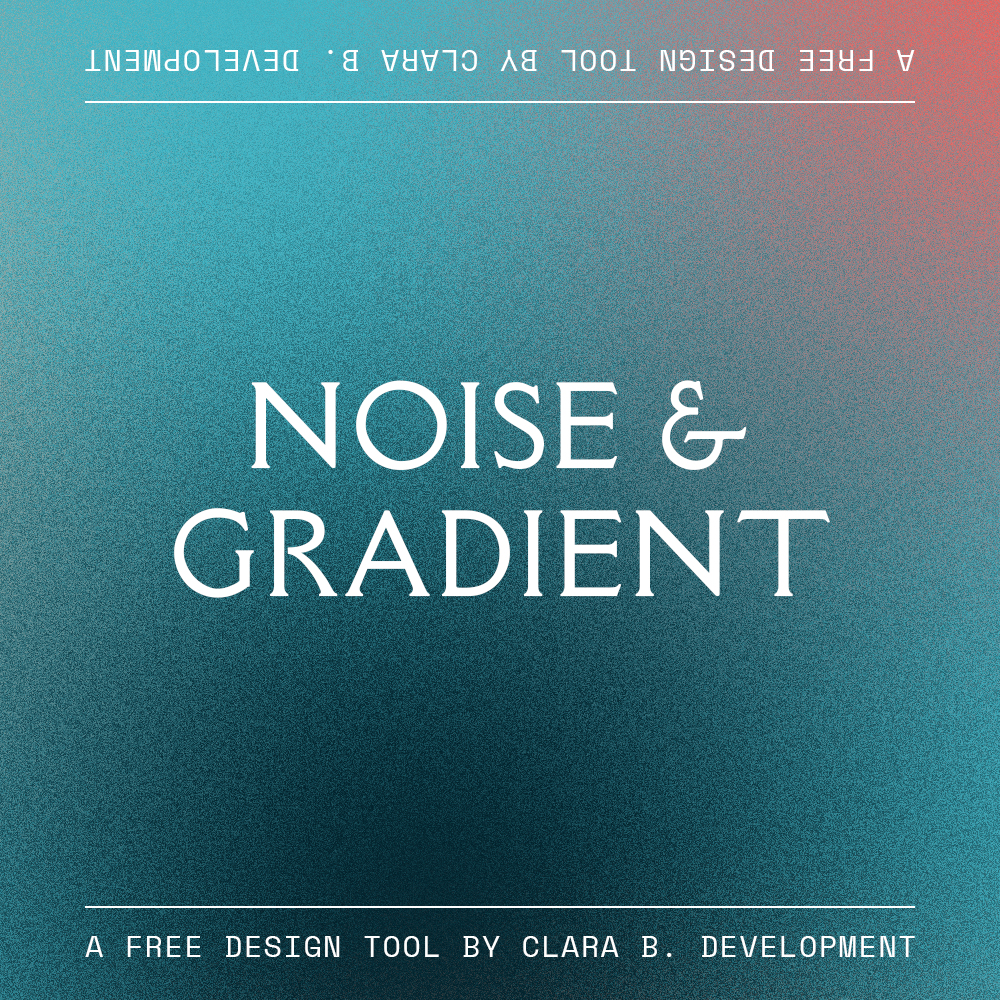
Noise & Gradient Full homepage screenshot

At a glance

Category
Color Tools
Language
English
Paid-content signal
Paid contentObserved
Registered
2021
Hosting
NetlifyInferred
HTTPS certificate trusted
PassedObserved
Last updated

Website review

This review may include AI-generated content and is not individually verified. Domain, certificate and other facts come from the observed data on this page.

What is Noise & Gradient?

Noise & Gradient is a small browser-based tool for generating grainy gradient textures. You pick colors, adjust a chaos factor and a grain factor, and the page produces a downloadable 1000×1000px image. Pressing the space bar generates a fresh gradient, and there is a "Pro Version" for higher-resolution output.

What you actually do with it

  • Add or remove colors to build the gradient's palette.
  • Tune two sliders: a chaos factor (how irregular or turbulent the blend becomes) and a grain factor (how much noise sits on top).
  • Generate variations fast: the space bar randomizes a new texture, which suits browsing for an option rather than dialing in one exact result.
  • Paste a Coolors URL: if you already have a palette from a color-scheme generator, the tool accepts that link instead of entering colors by hand.

Who it suits

Designers and developers who need quick background textures — hero banners, card backgrounds, presentation slides, or placeholder art — benefit most. The grain is the point: it gives flat gradients a printed, slightly analog feel that reads as more deliberate than a clean CSS gradient.

The trade-off is control and resolution. Output is fixed at 1000×1000px unless you go pro, so it works for web and social but not for large print. And because randomization is a core interaction, getting one specific texture may take several presses.

A practical next step

Decide your use before you start. For a website background, generate a texture, download it, then compress it — grain adds file size that a plain gradient would not. For a one-off social graphic, the default resolution is likely fine. If you need print-scale or repeatable output, check the pro option first rather than building a workflow around the free size.

How do I generate a gradient texture on Noise & Gradient?

Open the Noise & Gradient generator, pick your colors, and the texture updates live; press the space bar to roll a new gradient, then download the result.

Basic workflow

  1. Load Noise & Gradient and look at the preview area.
  2. Add colors to build your gradient, and remove any you don't want. The order and count of colors shape how the blend moves across the canvas.
  3. Adjust the Chaos Factor and grain controls to change how organic or noisy the texture looks.
  4. Press the space bar for a fresh randomized gradient if you want to browse variations instead of hand-tuning.
  5. Download the image. The standard download comes out at 1000x1000px, which suits web backgrounds, thumbnails, and quick mockups.

Working from an existing palette

There's a shortcut if you already have a palette: paste a Coolors generator URL into the input field and the tool pulls those colors in. That's useful when a gradient has to match a brand palette or an existing color scheme you've already settled on, since it skips manual color entry.

Practical notes

  • Chaos Factor governs how irregular the transition between colors feels; low values read as clean and smooth, higher values as mottled or cloud-like.
  • Grain adds fine texture on top, which helps gradients avoid the banding that flat blends often show on large screens.
  • Randomizing with the space bar is fast for exploration, but it's a starting point rather than a finish — expect to nudge colors and factors afterward.

When 1000x1000 isn't enough

For print, large hero images, or high-DPI displays, the built-in download may be too small. The site points to a Pro version for high-resolution output, so check that page if you need bigger files. Decide based on your final use: on-screen at modest sizes, the free download is usually fine; anything destined for print or full-width backgrounds likely needs the higher-resolution route.

A sensible next step: build one gradient you like, note the color values and factor settings, then reproduce it at higher resolution rather than re-randomizing and losing the version you approved.

Can I import a color scheme from Coolors into Noise & Gradient?

Yes. Noise & Gradient accepts a Coolors generator URL pasted directly into the tool, rather than requiring you to re-enter each hex value by hand. The page text even prompts for it: "Got a color scheme from coolors? Paste the generator URL in here."

How to do it

  1. Build or open a palette on Coolors and copy the URL of that generator view.
  2. Open Noise & Gradient.
  3. Paste the URL into the input field, then adjust the Chaos Factor and grain settings to taste.

What to expect and where it matters

The import is a starting point, not a finished asset. Once the colors are in, the tool's controls — adding or removing a color, Chaos Factor, grain, and the space bar shortcut for a fresh texture — determine the result. Downloads come out at 1000x1000px; the page points to a Pro option for higher resolution, so treat resolution as the main reason to upgrade rather than as a color-import limitation.

Two practical caveats:

  • Paste the generator URL, not a screenshot or a saved image of the palette. If the link is a shortened or shared variant that doesn't open the generator, the import may not pick up the colors.
  • Coolors URLs encode colors in order, so a five-color palette and a ten-color palette will seed the gradient differently. Trim the palette first if you want tighter control.

A concrete scenario

A designer needs a quick hero background matching a client's brand palette. They export the palette link from Coolors, paste it into Noise & Gradient, nudge the grain down for a cleaner look, and press the space bar a few times to cycle through texture variants. The 1000x1000px export works for a web banner; for print or a large hero, the resolution ceiling is the deciding factor.

What is the resolution of downloaded images and how do I get higher resolution?

Downloaded images from Noise & Gradient are 1000 × 1000 px. To get higher resolution, the site points you to its Pro Version, which is the upgrade path for high-res output.

How to get higher resolution

  1. Generate your gradient and grain texture as usual.
  2. When you want to export, choose the high-res route rather than the standard download — the page notes high-res requires going pro.
  3. Visit the Pro Version page to upgrade: Noise & Gradient Pro Version.

Practical guidance

1000 × 1000 px is fine for web banners, social posts, avatars, small backgrounds, and quick mockups. It becomes limiting when you need print, large-format backgrounds, or assets that will be scaled or cropped heavily.

Before upgrading, decide based on your end use:

Use case 1000 × 1000 px enough?
Social media, web hero, avatar Usually yes
Presentation or desktop wallpaper Often yes, sometimes soft on large displays
Print, posters, packaging, large backgrounds No — upgrade or upscale carefully

If you only occasionally need a larger file, upscaling a 1000 px export with a good resampling tool can work for soft, grainy textures, since fine grain hides some loss of detail. If you need crisp, repeatable high-res output, the Pro Version is the more reliable option.

One workflow tip from the page: if you have a color scheme from Coolors, you can paste the generator URL directly into Noise & Gradient to build a gradient from those colors, then export at the resolution your project needs.

What do the Chaos Factor and grain Factor settings do?

The Chaos Factor and grain Factor are the two main controls that shape how a generated gradient looks on Noise & Gradient. The tool builds a gradient from the colors you add, and these two sliders decide how orderly or how textured the result becomes.

Chaos Factor

This controls how much the gradient's color blending is disturbed or randomized. At low values, colors transition smoothly and predictably from one to the next. Raising it introduces more irregularity, so the placement and blending of colors become less even and more organic. Use a low Chaos Factor when you want a clean, presentable background; raise it when you want something that feels less machine-made, such as a hero banner or album artwork.

grain Factor

This controls the amount of grain, or fine speckled noise, layered over the gradient. A little grain softens banding and gives flat digital gradients a more tactile, film-like quality. Heavy grain makes the texture itself the visual feature. Grain is especially useful on large screens or print, where smooth gradients can otherwise show visible stepping between color bands.

How they work together

The two settings are independent, so you can combine them:

Goal Chaos Factor grain Factor
Clean UI or slide background Low Low or none
Soft, natural-looking blur Medium Low
Textured, poster-like image Medium to high Medium to high
Heavy analog or print feel Any High

A practical next step: generate a gradient, then nudge one slider at a time and use the space bar to produce a fresh texture, comparing results side by side. Decide based on where the image will appear — subtle grain for screens, more grain and chaos for standalone artwork. If you need higher resolution than the default 1000×1000px output, the site points to a Pro version for that.

Is there a Pro version of Noise & Gradient and what does it include?

The site does point to a Pro version: its page includes a "Pro Version!" link and a prompt that high-resolution output requires going Pro. The free generator produces a 1000x1000px downloaded image; the Pro tier is presented as the way to get higher resolution.

What the page indicates

  • Free tier: generate gradient textures with noise/grain controls, add or remove colors, adjust "Chaos Factor" and "grain Factor", and download at 1000x1000px.
  • Pro tier: the visible upsell is high-resolution downloads. The page does not spell out other inclusions, so treat any further feature list as unconfirmed.

Practical use

If you're testing palettes or making quick backgrounds for web or social, the free 1000x1000px output is usually enough. If you're printing, designing large-format graphics, or need crisp textures for high-DPI screens, resolution is the deciding factor and Pro is the relevant option.

A useful workflow: build the gradient with the free tool, paste a Coolors scheme URL if you already have one, then only upgrade when a specific project demands larger output. Check the Pro page for the exact resolution and licensing terms, since those details aren't visible here. For palette inspiration alongside it, Coolors is the scheme generator the tool explicitly supports.

Related questions

More questions →
How to Import a Coolors Color Scheme into Noise & Gradient

Paste your Coolors generator URL into the input field on Noise & Gradient, and the tool loads that palette into the gradient generator. The site's own prompt confirms this: "Pssst. Got a color scheme from coolors? Paste the generator URL in here." This works when you have a Coolors palette URL (the generator page link, not a screenshot or an exported file), and it saves you from re-entering each color by hand.

Step by step

  1. Build or open your palette on Coolors. Go to the Coolors generator and either create a new scheme or open an existing one you've saved.
  2. Copy the generator URL. Use the address bar link for that palette view. This is the URL the Noise & Gradient field expects.
  3. Paste it into the Noise & Gradient input field. The site's hint text sits right at that field, so you can confirm you're in the right place.
  4. Let the palette load. The colors from your Coolors scheme populate the gradient generator.
  5. Adjust as needed. After import you can still add a color, remove a color, and tune the Chaos Factor and Grain Factor.
  6. Generate and download. Press the space bar to generate a new gradient texture, then use the download link. The downloaded image is 1000x1000px.

What carries over and what doesn't

Item Behavior
Coolors palette colors Loaded into the gradient generator
Adding/removing colors afterward Still available
Chaos Factor / Grain Factor Still adjustable after import
Downloaded image size 1000x1000px
Higher resolution Requires the Pro Version

Common snags

  • Wrong link type. The field wants the Coolors generator URL. A saved image, a PDF export, or a share link that isn't the generator page may not load the palette.
  • Expecting a fixed output. Importing sets your colors, but the gradient texture itself still varies. Space bar generates a new texture, so the same palette can produce different results.
  • Wanting high-res output. The standard download is 1000x1000px. If you need more, that's the Pro Version path rather than something the import step changes.

If your goal is just to skip manual color entry, the paste-the-URL route is the fastest option. If you need a specific resolution or a locked-in texture, plan around the 1000x1000px download and the Pro Version instead.

What Is Noise & Gradient?

Noise & Gradient (noiseandgradient.com) is a free browser-based generator for gradient textures with a noise or grain overlay. You open the page, adjust a few controls, and download a 1000x1000px image. It suits quick texture work — backgrounds, mockups, album art, thumbnails — where you want a grainy gradient rather than a clean, flat one. If you need higher resolution than 1000x1000px, the site points you to a Pro version.

What you can do on the page

The tool is a single interactive canvas with a small set of controls:

  • Add a color / remove a color — build the gradient from as many color stops as you need.
  • Chaos Factor — controls how the gradient is distributed or distorted.
  • Grain Factor — controls the amount of noise/grain in the texture.
  • Download — saves the current result as a 1000x1000px image.
  • Space bar — pressing it generates a new gradient texture, so you can cycle through variations quickly.
  • Coolors import — paste a Coolors generator URL into the input field to pull in that color scheme.

How a typical session works

  1. Open noiseandgradient.com. A gradient texture appears on the canvas.
  2. Add or remove colors until the palette matches what you want, or paste a Coolors generator URL to import a scheme.
  3. Adjust Chaos Factor and Grain Factor until the texture looks right.
  4. Press the space bar to roll a new variation if you want to explore alternatives.
  5. Download the image. The downloaded file is 1000x1000px.

Expected result: a square PNG-style texture with your chosen colors, chaos, and grain, ready to drop into a design or use as a background.

Resolution and the Pro version

The free download is fixed at 1000x1000px. The site links to a Pro version for high-resolution downloads, so if your use case needs larger output — print, large hero images, high-DPI screens — that is the path the site itself points to. The page does not state Pro pricing or payment details, so check the Pro page directly before assuming cost or terms.

When this tool fits — and when it doesn't

Situation Fits?
You need a grainy gradient background fast, at 1000x1000px Yes
You want to try many variations quickly (space bar reroll) Yes
You already have a Coolors palette to reuse Yes
You need output larger than 1000x1000px Only via the Pro version
You need vector output or editable layered files Not indicated by the site
You need precise, reproducible color-stop placement Limited — controls are chaos/grain based, not positional

Common snags

  • Downloaded image looks small for your layout. The free output is 1000x1000px; scaling it up will soften the grain. Consider the Pro version if size matters.
  • Coolors import doesn't take. The field expects a Coolors generator URL, not a saved palette page or a screenshot.
  • Results feel random. That's the point of Chaos Factor and the space-bar reroll — lock in a look by noting your settings, since the tool doesn't appear to expose shareable presets beyond the Coolors URL import.

If your goal is simply "a textured gradient I can download in under a minute," this tool does exactly that. If your goal requires large files or precise control, plan around the Pro version or a different tool.

What Do the Chaos Factor and Grain Factor Do in Noise & Gradient?

Chaos Factor and Grain Factor are the two style sliders on Noise & Gradient that change how a generated texture looks without touching your colors. Chaos Factor controls how varied or unpredictable the gradient blending appears, while Grain Factor controls how much noise/grain is layered onto the texture. Both are adjustable before you generate or download the image, so you can dial in a rough, noisy look or a smoother, more predictable one.

Chaos Factor

Chaos Factor affects the blending behavior of the gradient itself. At low values, the transitions between your colors tend to look more orderly and predictable. As you raise it, the blending becomes more varied and less uniform, so the same color set can produce a noticeably different texture.

Use it when you want to:

  • Break up a gradient that looks too clean or flat.
  • Get more variation between generations without changing your palette.
  • Create a more organic or irregular blend.

Grain Factor

Grain Factor controls the amount of noise/grain added on top of the gradient. This is separate from the color blending — it's the texture layer that gives the image a grainy, film-like, or rough surface.

Use it when you want to:

  • Add subtle texture to an otherwise smooth gradient.
  • Push toward a heavier, noisier look.
  • Match the grain level to the intended use (backgrounds often want less, overlays or print-style textures often want more).

How They Work Together

Setting What it changes Low value High value
Chaos Factor Gradient blending variation More orderly, predictable transitions More varied, unpredictable blending
Grain Factor Amount of noise/grain Cleaner, smoother surface Heavier, rougher texture

The two are independent: you can have a chaotic blend with no grain, or a smooth blend with heavy grain. That's what makes them useful for fine-tuning style without reworking your color scheme.

Practical Notes

  • Both settings are adjusted before you generate or download the image, so experiment with a few combinations rather than committing to one.
  • The downloaded image is 1000x1000px; the page notes that high-res output requires the Pro version, so if grain detail matters at larger sizes, check that option.
  • The generator also accepts a Coolors color scheme URL pasted into the input, which lets you bring in a palette and then use Chaos and Grain to shape the texture.
  • A quick tip from the page itself: the space bar generates a new gradient texture, which is a fast way to compare how your Chaos and Grain settings behave across variations.

If your goal is a clean, minimal background, keep both low. If you want something textured and less predictable, raise Grain first for surface roughness, then adjust Chaos to control how much the colors themselves shift.

Noise & Gradient Pro vs Free: What You Get and When to Upgrade

The free version of Noise & Gradient downloads at 1000x1000px. The site promotes a Pro version specifically for high-resolution output, so if 1000x1000px is enough for your project, the free tool covers the core workflow. If you need larger textures, the Pro page is where you check the exact resolution and feature details before deciding.

What the free version gives you

Based on the tool's own interface, the free generator includes:

  • Gradient generation — the space bar generates a new gradient texture.
  • Color controls — add a color, remove a color.
  • Chaos Factor — adjusts the randomness/irregularity of the texture.
  • Grain Factor — adjusts the grain applied to the texture.
  • Coolors import — paste a Coolors generator URL to pull in a color scheme.
  • Download — the downloaded image is 1000x1000px.

That's a complete loop: build a palette, tune chaos and grain, generate variations, download. For web backgrounds, small UI assets, or quick mockups, 1000x1000px is often workable.

What the Pro version is for

The site's own prompt is direct: "Downloaded image is 1000x1000px. Want high-res? Go pro!"

So the stated differentiator is resolution. The free tier caps output at 1000x1000px; Pro is positioned as the path to high-resolution downloads.

What to verify before upgrading

The page evidence only confirms that Pro is promoted for high-res. It does not state the exact Pro resolution, price, or any additional features. Before paying, check the Pro version page for:

Question Why it matters
Exact output resolution "High-res" could mean 2000px or 4000px+ — match it to your target use
Price and billing terms Not stated in the available page content
Whether features beyond resolution differ The free tool already exposes chaos, grain, and color controls
License/commercial use terms Relevant if the texture goes into client or product work

When the free version is enough

  • You're making web backgrounds, hero sections, or CSS textures where 1000x1000px tiles or scales fine.
  • You're prototyping and just need a direction, not a final asset.
  • You're exporting small thumbnails, avatars, or previews.

When Pro makes sense

  • You need print-resolution or large-format output.
  • The texture will be stretched across a large canvas where 1000x1000px would visibly soften.
  • You're producing final assets for a client deliverable that specifies a minimum resolution above 1000px.

Practical check

Generate a texture in the free version, download it, and place it at the actual size you'll use it. If it holds up, you don't need Pro. If it pixelates or blurs, go to the Pro version page, confirm the resolution and price, and decide from there.

How to Create and Download a Gradient Texture on Noise & Gradient

Open noiseandgradient.com and you can build a gradient texture in the browser, tune it with two sliders, and download a 1000x1000px image — no account needed for the basic download. The whole flow is: set your colors, adjust Chaos Factor and Grain Factor, press the space bar to reroll, then use the download link. If you want higher resolution than 1000x1000px, the site points you to its Pro Version.

Step by step

  1. Open the generator. Go to noiseandgradient.com. The gradient canvas and controls load directly on the page.
  2. Build your palette. Use add a color to introduce a new stop and remove a color to drop one. The order and number of colors determine how the gradient blends across the canvas.
  3. Tune the texture. Drag Chaos Factor to change how irregular and turbulent the blend looks, and Grain Factor to control how much noise/grain sits on top. Low chaos reads as a smooth gradient; higher chaos pushes it toward a mottled, organic texture. Grain adds fine speckle.
  4. Reroll the result. Press the space bar to generate a new gradient texture. This is the fastest way to explore variations without rebuilding your palette — the page notes that the space bar also generates a new gradient texture.
  5. Download. Use the download link to save the image. The downloaded file is 1000x1000px.

Bringing in a palette from Coolors

If you already have a color scheme, you don't have to re-enter it by hand. The page accepts a Coolors generator URL: paste that URL into the input field and the palette is applied. This is useful when you've locked a brand or project palette elsewhere and want to see it as a textured gradient.

Key controls at a glance

Control What it changes Practical effect
Add / remove a color Number of color stops More stops = more transitions; fewer = simpler blend
Chaos Factor Irregularity of the blend Low = smooth, high = turbulent/organic
Grain Factor Amount of noise/grain Low = clean, high = speckled/textured
Space bar Regenerates the texture Rerolls variation while keeping your settings
Download link Saves the image Output is 1000x1000px

Common snags

  • You want a bigger file. The standard download is 1000x1000px. The site's answer to higher resolution is the Pro Version, linked from the page as "Pro Version!" — check that page for what it includes rather than assuming the free download scales up.
  • The result looks too busy. Lower Chaos Factor first, then reduce Grain Factor. Chaos drives the large-scale irregularity; grain drives the fine speckle, so fixing them in that order is usually faster.
  • You keep getting similar results. Press the space bar again — each press generates a new texture, so reroll a few times before changing your palette.
  • Your palette looks off. Re-check the Coolors URL you pasted; a wrong or truncated link will apply the wrong colors.

When this workflow fits

Use this approach when you need a quick, textured gradient background for a web hero, thumbnail, or mockup and 1000x1000px is enough. If you need print-resolution output or larger assets, plan on the Pro Version instead of upscaling the free download.

Website Overview

Several search or sharing settings need attention. Together they may make snippets, preview images or preferred URLs less consistent across platforms.

Domain and Registration

The domain has about 5 years of registration history; its current configuration provides more context than age alone. The registrar is Squarespace Domains II LLC, a widely used domain service provider. The domain uses the common .com extension, which is not an independent safety signal.

DNS and Email

Nameservers are provided by NS1, indicating managed DNS hosting. No CNAME was found; the observed records resolve directly to addresses. No MX record was found. A conventional explicit inbound-mail route is not configured. DNSSEC signatures were not detected, so this additional DNS authenticity protection is not confirmed. The lowest observed DNS TTL is 120 seconds.

TLS and Certificates

The public key uses EC with 256 bits. The server supplied a complete certificate chain. No organization name is present in the certificate; the available fields are consistent with domain validation. The certificate was issued by Let's Encrypt, commonly associated with automated certificate services. The certificate's total validity is about 89 days, consistent with a short renewal cycle.

HTTP and Browser Security

The response lacks these common security headers: CSP, X-Content-Type-Options, Referrer-Policy, Permissions-Policy, clickjacking protection. No X-Powered-By header was found, reducing one common source of backend fingerprinting information. No obvious internal addresses or debug information were found in the headers. The Server header contains the custom value Netlify. No explicit CDN or WAF marker was found in the response headers.

Technology Stack Analysis

The public page identifies Google Analytics, Netlify without precise versions, leaving fewer clues for version-specific scanning.

Search and Social Sharing

No homepage meta description was detected, leaving snippet selection more dependent on page text. No homepage canonical URL was detected. If duplicate URLs exist, consolidation may be less explicit. Open Graph is partially configured; og:description, og:type is missing. Twitter Card metadata is configured. The title has 16 characters, within a common display range.

Hosting and Email

DNSNS1
HostingNetlify
EmailUnknown
Approximate IP geolocation (inferred; a CDN or proxy may differ from the origin server) United States flagAshburn, Virginia, United States Inferred 18.208.88.157

Registration details

RDAP / WHOIS

RegistrarSquarespace Domains II LLC
Registered2021-03-24
Expires2027-03-24
Domain statusactive
Nameserversdns1.p06.nsone.net、dns2.p06.nsone.net、dns3.p06.nsone.net、dns4.p06.nsone.net
DNSSECunsigned

DNS records

DNS

TypeNameValueTTLPriority
Awww.noiseandgradient.com18.208.88.157120—
Awww.noiseandgradient.com98.84.224.111120—
NSnoiseandgradient.comdns1.p06.nsone.net3600—
NSnoiseandgradient.comdns2.p06.nsone.net3600—
NSnoiseandgradient.comdns3.p06.nsone.net3600—
NSnoiseandgradient.comdns4.p06.nsone.net3600—

TLS and certificates

TLS / SSL

AssessmentNormal configuration
Supported protocolsTLSv1.2、TLSv1.3
Negotiated protocolTLSv1.3
Certificate subject*.noiseandgradient.com
IssuerLet's Encrypt
Valid until2026-11-24T01:41 · Remaining when checked: 39 days
Verification detailsCertificate trust: Passed · Hostname match: Passed

HTTP response headers

HTTP

HeaderValue
content-typetext/html; charset=UTF-8
cache-controlpublic,max-age=0,must-revalidate
serverNetlify
strict-transport-securitymax-age=31536000

Identified technologies

Google AnalyticsNetlify

Pages, Search and Sharing

User reviews (0)

  • No reviews yet.