Website profiles · Technology insights · Alternatives

pixelpeeper.com

Explore camera settings and embedded Lightroom edits. When edit metadata is missing, try a Look Match estimate. PixelPeeper Premium is $49 for 12 months, with no automatic renewal.

No paid content found
Visit website
Profile views 10 Outbound visits 12 Normal
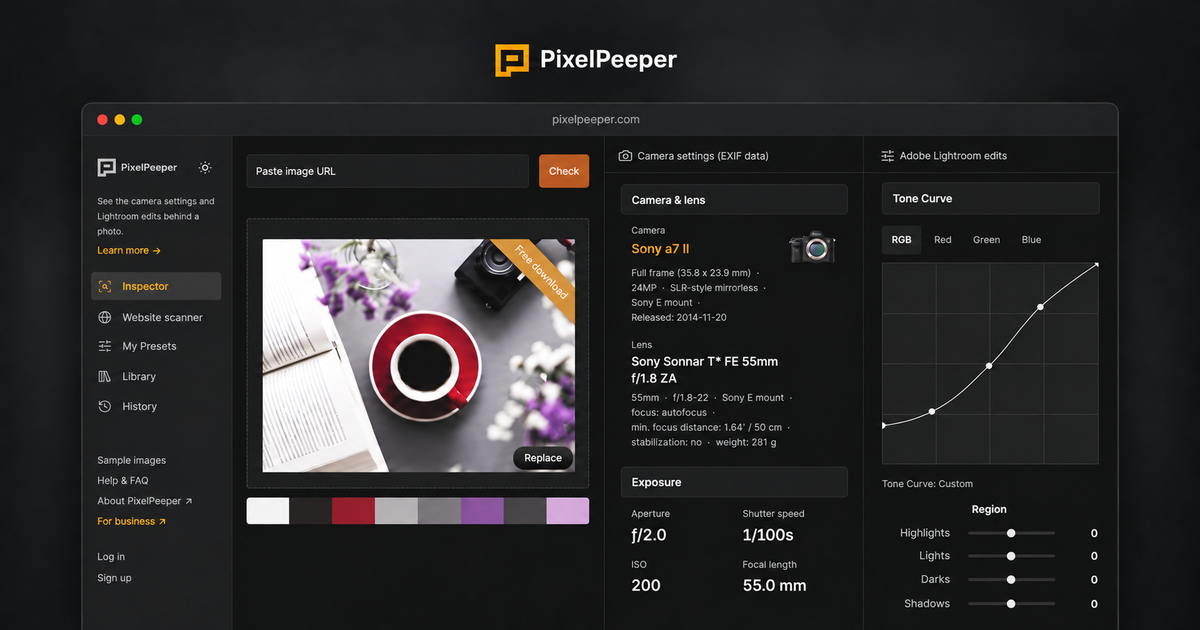
PixelPeeper Full homepage screenshot

At a glance

Category
Artificial Intelligence
Language
English
Paid-content signal
No paid content foundObserved
Registered
2008
Hosting
CloudflareInferred
HTTPS certificate trusted
PassedObserved
Last updated

Website review

This review may include AI-generated content and is not individually verified. Domain, certificate and other facts come from the observed data on this page.

What is PixelPeeper?

PixelPeeper is a web tool for inspecting photos to see the camera settings and Lightroom edits behind them. You upload or point it at an image, and it reads what's stored in the file: shutter speed, aperture, ISO, focal length, plus any embedded Lightroom adjustments such as exposure, contrast, tone curves and color-mixer values. Where those edits exist, you can download them as an XMP preset to open in Lightroom.

Its two main modes:

  • Embedded metadata — recovers actual saved Lightroom settings when the file contains them. This is the reliable path, because the numbers come from the file rather than an estimate.
  • Look Match — when no edit metadata is present, a machine-learning model suggests plausible Lightroom adjustments based on how the photo looks. Treat these as a starting point, not the photographer's real settings; accuracy will vary image to image.

There's also an integration that connects PixelPeeper to AI assistants such as Claude or ChatGPT, so you can ask about a photo's look and get its settings and edits summarized in conversation. PixelPeeper Premium is listed at $49 for 12 months with no automatic renewal.

Who it's for: photographers trying to reverse-engineer a look they admire, people learning how tone curves and color mixing produce a specific style, and anyone who wants a preset starting point rather than building one from scratch. It's less useful if you only shoot JPEGs with no edit data and don't want approximate suggestions.

Practical next step: run one of your own edited exports through the inspector first. If the embedded settings match what you actually did in Lightroom, you know the tool is reading your files correctly — then try it on a photo whose look you want to copy.

How do I extract Lightroom presets from a photo using PixelPeeper?

PixelPeeper reads the edit metadata that a photo already carries and turns it into a downloadable Lightroom preset. The workflow is: upload or open a photo in the inspector, check whether it contains embedded Lightroom edits, then download those settings as an XMP file you can import into Lightroom.

Step-by-step

  1. Open the photo in PixelPeeper's inspector (PixelPeeper).
  2. Look at the "Lightroom edits" section. If the file has embedded XMP data, you'll see the saved adjustments listed — exposure, contrast, highlights, shadows, tone curve, and color mixer values.
  3. Download the settings as an XMP preset, then import it into Lightroom to study or reuse the look.

The page shows this working on real files: a Sony ILCE-7M2 shot at 55mm, f/2.0, 1/100, ISO 200 with Exposure +0.40 and a red hue shift of -10, and a Fujifilm X100F file with Exposure -0.2, Contrast +20, Highlights -48, Shadows +42.

When there are no edits in the file

Not every photo carries Lightroom metadata — exports often strip it. PixelPeeper's Look Match uses a machine-learning model to estimate adjustments from how the image looks. Treat this as a starting point, not recovered settings: the results vary by photo and won't match the original edit exactly.

A practical decision criterion

If your goal is to replicate a specific photographer's exact edit, only embedded metadata gives you that. If you just want a similar mood, Look Match is faster and works on any image. Either way, import the XMP and compare the result against the original before trusting it.

A concrete scenario

Say you've saved a favorite landscape from a photographer you follow. Open it in the inspector, confirm the tone curve and color mixer values are present, download the XMP, and apply it to your own shot. You'll likely need to adjust exposure and white balance for your own lighting, but the color and curve work transfers directly.

What is Look Match and how does it differ from embedded metadata?

Look Match is PixelPeeper's fallback for photos that carry no recoverable editing information. Instead of reading saved adjustments out of the file, it uses a machine-learning model to suggest Lightroom settings based on how the image looks, giving you a starting point for a similar style. PixelPeeper itself is explicit that these are estimates, not recovered settings, and that results vary from photo to photo.

Embedded metadata is the opposite case: the file already contains Lightroom edit data, so PixelPeeper can show the actual saved adjustments — exposure, contrast, highlights and shadows, tone curve, color mixer values — and let you download them as an XMP preset to open in Lightroom.

H3 What the difference means in practice

Embedded metadata Look Match
Source of the numbers XMP data written into the photo Model inference from the image's appearance
Reliability The photographer's real edits An approximation that varies by photo
Output Viewable settings plus an XMP preset download Suggested adjustments to explore
When it applies Only if the file still has the edit data When no edit metadata is present

A concrete scenario: you find a photo whose muted greens and lifted blacks you want to reuse. If the file has embedded XMP, you can pull the exact tone curve and color mixer values and load them as a preset. If the photographer stripped metadata on export — common on social platforms — Look Match gives you an approximate recipe instead, useful for learning the shape of the look but not a faithful copy.

Next step: inspect a photo you already know the edits for and compare the embedded values against a Look Match estimate on the same image. That tells you quickly how close the estimates run for your kind of photography. PixelPeeper's own sample photos are a reasonable place to test this before trusting it on a look you intend to publish.

Can I use PixelPeeper with AI assistants like ChatGPT or Claude?

Yes. PixelPeeper is designed to work inside AI assistants such as ChatGPT and Claude, so you can ask about a photo's look in plain language and get the camera settings and embedded Lightroom edits back in the conversation.

What that looks like in practice

  • You ask something like "show me how this photo was edited."
  • The assistant pulls a photo report from PixelPeeper covering camera settings, Lightroom edits and a color palette.
  • You get an explanation of what drives the look — for example lifted blacks and airy highlights from the tone curve, plus selective color changes.

Why the AI layer matters

Reading an XMP panel tells you what changed. An assistant helps you understand why the image looks the way it does, and how to apply something similar to your own files. That is the real difference between a metadata viewer and a conversation.

A realistic scenario

Say you are a portrait shooter studying a photographer whose skin tones you admire. You connect PixelPeeper to your assistant, paste in a reference image, and ask which adjustments create that warmth. You get a walkthrough of the hue shifts and tone curve, then try the same moves on your own raw file. Without the assistant you would be staring at numbers with no interpretation.

One thing to keep in mind

The AI route is only as good as the data behind it. When a photo carries embedded Lightroom metadata, the report reflects the actual saved edits. When that metadata is missing, PixelPeeper falls back to Look Match, a machine-learning estimate based on the image's appearance — useful as a starting point, but explicitly an estimate rather than recovered settings, and results vary by photo.

Next step

Pick one photo whose look you want to reverse-engineer. Run it through PixelPeeper first to see whether embedded edits exist, then bring it into your assistant for the explanation. If you only get a Look Match, treat the suggested adjustments as a hypothesis to test rather than a recipe to copy.

Start at PixelPeeper.

How much does PixelPeeper Premium cost and what does it include?

PixelPeeper Premium is listed at $49 for 12 months, with no automatic renewal — so it is a one-off annual payment rather than a subscription that charges you again unless you choose to renew.

What the free side covers

  • Inspecting a photo to read its embedded camera settings (shown on the page as examples like a Sony ILCE-7M2 at 55.0 mm · f/2.0 · 1/100 · ISO 200).
  • Viewing embedded Lightroom edits when the file contains them, including Exposure, Contrast, Highlights, Shadows, tone curve and color mixer values.
  • Downloading those settings as an XMP preset to open in Lightroom.
  • Trying Look Match, which estimates Lightroom adjustments from a photo's appearance when no edit metadata is present. The site is explicit that these are estimates, not recovered settings, and that results vary by photo.

What Premium adds The page does not spell out a clean feature-by-feature Premium list, so treat the paid tier as the route to the deeper and automated parts of the product rather than a documented bundle. The areas the site frames as going further are:

  • Going deeper into looks you love — more inspection and preset-oriented work beyond a single photo.
  • Automating image research — bulk or repeated analysis rather than one-off checks.
  • Using PixelPeeper with AI tools — connecting it to Claude or ChatGPT so you can ask how a look was achieved and get a photo report covering camera settings, Lightroom edits and color palette.

Who it suits If you are a hobbyist who occasionally wants to know why a favourite photo looks the way it does, the free inspector plus XMP export may be enough. If you are building a preset library, studying a photographer's body of work, or want to query edits through an AI assistant, the annual fee is the more sensible entry point.

Practical next step: run one of your own photos and one you admire through the inspector first. If both return embedded Lightroom edits, you can already export XMP presets without paying. If the admired photo returns only a Look Match estimate, decide whether the automated and AI-assisted research is worth $49 a year to you — and note that because there is no auto-renewal, you will need to re-buy deliberately when the 12 months end.

Is PixelPeeper suitable for analyzing photos from any camera brand?

Yes, for the most part. PixelPeeper reads EXIF camera settings and embedded Lightroom XMP edits from the file itself, so brand doesn't determine whether it works. Its own sample set spans Sony, Fujifilm and more, showing the same readout format across brands. When no edit metadata is present, its Look Match feature estimates adjustments from the image's appearance instead — and that estimate is brand-agnostic too, since it works from pixels rather than maker tags.

H3 What actually varies by brand

  • Embedded Lightroom edits: only appear if the photographer edited in Lightroom and the export kept the XMP data. A Canon or Nikon file with edits is just as readable as a Sony one; a Sony file exported without metadata is not.
  • Look Match: available regardless of brand or file origin, but it produces estimates, not recovered settings. PixelPeeper states results vary by photo.
  • Camera settings: standard EXIF fields (focal length, aperture, shutter, ISO) are broadly consistent, though some brands and phone cameras write less or nonstandard data.

H3 Practical scenario

You're rebuilding a look from a Fujifilm X100F shot you found on social media. If the uploader exported with edits intact, you get their real exposure, tone curve and color mixer values and can download an XMP preset to open in Lightroom. If the platform stripped metadata, you fall back to Look Match and treat the output as a starting point you refine by eye. Expect the first path to be accurate and the second to be approximate.

Next step: test with one photo you know was edited in Lightroom and one that wasn't, ideally from two different brands, and compare how each path behaves before relying on it for a batch of references.

Related questions

More questions →
How Does PixelPeeper Read Lightroom Edits from a Photo?

PixelPeeper reads Lightroom edits in two different ways depending on what the file contains. If the photo still has its embedded XMP metadata, PixelPeeper recovers the actual saved adjustments — exposure, contrast, highlights, shadows, tone curve, and color mixer values — and can export them as an XMP preset. If that metadata is missing, it falls back to Look Match, a machine-learning estimate based on how the photo looks. The first path gives you real settings; the second gives you a starting point, not a recovery.

The two paths, side by side

Embedded metadata Look Match
What it reads Saved Lightroom adjustments inside the file's XMP data The photo's appearance
Output Recovered settings, downloadable as an XMP preset Suggested Lightroom adjustments
Reliability Actual edits, as saved Estimate — results vary by photo
Use it when The photo was exported with edit metadata intact No edit data is present in the file

The distinction matters because only one of these tells you what the photographer actually did.

Path 1: Recovering embedded edits

When a photo contains Lightroom metadata, PixelPeeper surfaces the saved adjustments rather than guessing. The sample photos on the site show what this looks like in practice — for example, a Sony ILCE-7M2 shot at 55.0 mm, f/2.0, 1/100, ISO 200 with embedded edits of Exposure +0.40, Contrast 0, Highlights 0, Shadows 0, and color mixer values of Red −10, Green +26, Blue +13.

The reported items include:

  • Camera settings — body, focal length, aperture, shutter speed, ISO
  • Lightroom edits — Exposure, Contrast, Highlights, Shadows
  • Tone curve — RGB curve adjustments
  • Color mixer — Hue shifts per color channel (Red, Orange, Green, Blue)

You can open a full inspector for each photo and download the settings as an XMP preset to load into Lightroom and explore yourself.

Why the metadata is there in the first place

Lightroom can write your adjustments into the exported file's XMP data. When that happens, the edit information travels with the image. PixelPeeper reads from that embedded XMP data — it isn't reverse-engineering the pixels to find your sliders. This is why the recovered values are exact when present, and why they're simply unavailable when the export stripped or omitted that data.

Path 2: Look Match when edits are missing

Not every photo carries edit metadata. When it doesn't, PixelPeeper offers Look Match: a custom machine-learning model that suggests Lightroom adjustments based on the photo's appearance.

Two things to keep in mind:

  • These are estimates, not recovered settings. The model is inferring a plausible set of adjustments from the visual result.
  • Results vary by photo. A clean, well-lit image may yield a more usable starting point than a heavily stylized or low-quality one.

Treat Look Match as a way to explore a similar look, not as a claim about what the original photographer did.

Using PixelPeeper with an AI assistant

PixelPeeper can be connected to Claude or ChatGPT. In the example conversation shown on the site, a user asks the assistant to show how a photo was edited; the assistant calls PixelPeeper and returns a photo report covering camera settings, Lightroom edits, and a color palette, then explains that the soft, matte look comes largely from the tone curve and selective color adjustments — lifted blacks and airy highlights, with the curve lifting the black point from 0 to 50.

This is useful when you want the settings interpreted in plain language rather than just listed.

What to check before trusting a result

  • Did the file keep its edit metadata? If yes, you're seeing recovered settings. If no, you're seeing a Look Match estimate.
  • Does the photo match your intent? Look Match estimates are appearance-based, so a similar-looking photo with different underlying edits can produce different suggestions.
  • Do you need the preset or just the idea? Embedded edits can be downloaded as an XMP preset; Look Match gives you adjustments to try, not a recovered file.

PixelPeeper Premium is listed at $49 for 12 months, with no automatic renewal.

How to Use PixelPeeper with Claude or ChatGPT

PixelPeeper can be connected to Claude or ChatGPT so you can ask about a photo's camera settings and embedded Lightroom edits in plain language, then get a report covering camera settings, Lightroom edits, and a color palette. This works best when the photo actually contains embedded XMP edit metadata — if it doesn't, PixelPeeper's Look Match estimate is the fallback, and you should treat those results as suggestions rather than recovered settings.

What the connection actually gives you

Once PixelPeeper is connected to your AI assistant, the assistant can call it on your behalf. According to PixelPeeper's own example conversation, the flow looks like this:

  • You ask something like "Use PixelPeeper to show me how this photo was edited."
  • The assistant calls PixelPeeper, which returns a photo report.
  • The report contains camera settings, Lightroom edits, and a color palette, with a link to explore the photo's settings in more detail.

In the sample exchange, the assistant explains that a soft, matte look "comes largely from the tone curve and selective color adjustments" — lifted blacks, airy highlights — and notes the curve lifts the black point from 0 to 50. That level of explanation is the point: you're not just reading numbers, you're getting the reasoning behind the look.

Step-by-step: connecting and using it

  1. Open PixelPeeper's AI connection option. The site has a "Connect your AI assistant" entry point under its "Use PixelPeeper with your AI tools" section. Use that to start the connection.
  2. Connect Claude or ChatGPT. PixelPeeper states it can be brought into either assistant. Follow the connection flow from that page.
  3. Give the assistant a photo to analyze. Ask it to use PixelPeeper on a specific image — for example, "Use PixelPeeper to show me how this photo was edited."
  4. Read the photo report. You should get camera settings, Lightroom edits, and a color palette, plus a link to explore the settings further.
  5. Ask follow-up questions. Because the assistant has the report, you can ask how a specific look was achieved, or how to try similar edits on your own photos.

Expected result: a plain-language explanation tied to real values from the file (for example, exposure, contrast, tone curve, and color mixer hue shifts), not a generic editing lecture.

What you can ask once connected

PixelPeeper lists three intended uses for the AI connection:

  • Ask how a specific look was achieved.
  • Understand the camera settings and embedded Lightroom edits behind a photo.
  • Explore how to try similar edits on your own photos.

A useful follow-up pattern is to take one reported adjustment and ask for a starting point on your own image — for instance, if the report shows a lifted black point and reduced highlights, ask what to change first in your own edit.

Embedded edits vs. Look Match: know which one you're getting

This distinction matters when you're interpreting the AI's answer.

Embedded metadata Look Match
Source Lightroom metadata saved inside the photo's XMP data A machine-learning estimate based on the photo's appearance
What you get The actual saved adjustments Suggested adjustments as a starting point
Reliability Recovered settings Estimates, not recovered settings; results vary by photo
Extra output Can be downloaded as an XMP preset for Lightroom No recovered preset

If the assistant reports real adjustment values, the photo had embedded metadata. If it describes a suggested look instead, you're in Look Match territory — useful for inspiration, but don't treat it as what the photographer actually did.

Common snags

  • No edits in the file. If the photo has no embedded Lightroom metadata, there's nothing to recover. PixelPeeper's own guidance is to try Look Match in that case, and to expect variation between photos.
  • Expecting exact recovery from Look Match. PixelPeeper explicitly labels these as estimates. If you need the real settings, you need a file that carries them.
  • Skipping the follow-up. The report is a starting point. The value comes from asking the assistant to explain or adapt what it found.

Cost and access

PixelPeeper Premium is listed at $49 for 12 months, with no automatic renewal. The site's description does not state whether the AI assistant connection requires Premium, so check the connection page itself before assuming it's included in a free tier.

Is PixelPeeper Premium worth it and how does the $49 plan work?

PixelPeeper Premium costs $49 for 12 months, and it does not renew automatically. That single fact answers the two most common questions about the plan: the price is a one-time annual charge, and you won't be billed again when the year ends unless you choose to buy it again. Whether it's worth it depends on how often you inspect photos, export XMP presets, or use Look Match — the free parts of the site may already cover occasional use.

What PixelPeeper does

PixelPeeper reads the story behind a photo. Its core promise is "See the settings behind the photo," and it works on two levels:

  • Camera settings — focal length, aperture, shutter speed, and ISO. The site's own samples show this plainly, e.g. a Sony ILCE-7M2 shot at 55.0 mm · f/2.0 · 1/100 · ISO 200.
  • Embedded Lightroom edits — when a photo's file contains Lightroom metadata, PixelPeeper recovers the saved adjustments, from exposure and contrast to tone curves and color mixer values. You can then download those settings as an XMP preset to open in Lightroom.

The sample data on the site shows what "recovered" edits look like in practice: one photo carries Exposure +0.40, Contrast 0, and color mixer values like Green +26 and Blue +13; another shows Exposure -0.45, Contrast +7, Highlights -25, Shadows +33. These are read from the photo's embedded XMP data — not guessed.

Embedded edits vs. Look Match

This distinction matters most when deciding whether you need Premium, because it tells you what the tool can and cannot do.

Embedded metadata Look Match
What it is Lightroom edits actually saved in the file A machine-learning estimate based on how the photo looks
Accuracy Recovered settings Estimates, not recovered settings
When it applies Only if the photo contains Lightroom metadata When edit metadata is missing
Reliability High, when present Results vary by photo

If a photo has no edit metadata in the file, PixelPeeper offers Look Match as a starting point for exploring a similar look. The site is explicit that these are estimates and that results vary — so treat Look Match as inspiration, not a reconstruction of what the original photographer did.

Using PixelPeeper with AI assistants

PixelPeeper can be connected to Claude or ChatGPT. In the example conversation shown on the site, a user asks the assistant to show how a photo was edited; the assistant uses PixelPeeper and returns a report covering camera settings, Lightroom edits, and a color palette, then explains that the soft, matte look comes largely from the tone curve and selective color adjustments — lifted blacks and airy highlights, with the curve lifting the black point from 0 to 50.

This is a workflow point rather than a pricing point, but it's relevant to value: if you already work inside an AI assistant, connecting PixelPeeper lets you ask about a look in plain language instead of reading raw adjustment values yourself.

Who the $49 plan suits

The plan is a reasonable fit if you:

  • Inspect photos regularly enough that per-use limits or missing features would interrupt your workflow
  • Want to download XMP presets from recovered Lightroom edits and study them in Lightroom
  • Rely on Look Match for photos that carry no edit metadata
  • Want PixelPeeper available inside Claude or ChatGPT as part of your research process

It's probably not necessary if you only occasionally want to check a camera's settings or look at one photo's edits. The site exposes camera settings and embedded Lightroom edits in its samples and full inspector views, so start there and see whether the free experience answers your actual questions before paying.

How the billing works

  • Price: $49 for 12 months.
  • Renewal: No automatic renewal. The plan does not auto-charge when the term ends.
  • What that means practically: You pay once for a year of access. If you want another year, you buy again; if you don't, nothing happens to your payment method.

Because there's no auto-renewal, the usual "cancel before the renewal date" concern doesn't apply — there's no recurring charge to cancel. The trade-off is the reverse: if you want to keep access, you have to remember to repurchase rather than relying on a subscription to continue.

A quick way to decide

  1. Open a few photos you care about and check whether they show embedded Lightroom edits or only camera settings.
  2. If the photos you study usually carry edit metadata, test whether the recovered adjustments and XMP export are useful to you.
  3. If they usually don't, try Look Match and judge whether the estimates are close enough to be a useful starting point.
  4. If either path is something you'd use repeatedly over the next 12 months, $49 with no auto-renewal is a low-commitment way to get full access. If not, the free views are likely enough.
What Is Look Match on PixelPeeper and When Should I Use It?

Look Match is PixelPeeper's fallback feature for photos that don't contain embedded Lightroom edit metadata. Instead of reading saved adjustments out of the file, it uses a custom machine-learning model to suggest Lightroom adjustments based on how the photo looks. The key thing to understand before using it: Look Match returns estimates, not recovered settings, and results vary by photo. Use it when you want a starting point for exploring a similar look, not when you need the photographer's actual edit values.

How Look Match differs from embedded metadata

PixelPeeper has two ways of telling you how a photo was edited, and they are not interchangeable.

Embedded metadata Look Match
Source of the data Lightroom metadata saved inside the photo file The photo's visual appearance
What you get The actual saved adjustments Suggested adjustments
Accuracy Recovered settings Estimates that vary by photo
Typical output Exposure, contrast, tone curve, color mixer values you can download as an XMP preset A starting point for exploring a similar look

The embedded path is the reliable one. PixelPeeper's own examples show what that looks like in practice — for instance a Sony ILCE-7M2 shot at 55.0 mm, f/2.0, 1/100, ISO 200 with embedded edits of Exposure +0.40, Contrast 0, and color mixer hue shifts of Red -10, Green +26, Blue +13. Those numbers came out of the file. Look Match numbers do not.

When to use Look Match

Reach for Look Match in these situations:

  • The photo has no Lightroom edits in the file. This is the primary trigger. PixelPeeper states plainly: "No edits in the file? Try a Look Match."
  • You're reverse-engineering a look, not a preset. If you want to understand why an image feels soft, matte, or airy, Look Match gives you a direction to experiment in.
  • You're working with a JPEG or an export that stripped the edit data. Once metadata is gone, embedded recovery isn't possible, and estimation is the only remaining option.
  • You want a starting point before editing your own photos. The suggested adjustments are meant to be explored and adapted, not applied blindly.

When not to use it

Skip Look Match if any of the following applies:

  • You need the photographer's real settings. Look Match cannot recover what isn't there. If the file has embedded XMP, use the embedded inspector instead — it's the accurate path.
  • You're comparing two photos and need consistent, reproducible numbers. Estimates vary by photo, so they aren't a stable basis for comparison.
  • You plan to publish the values as fact. They are suggestions, and PixelPeeper labels them as such.

What you actually get and what to do with it

Look Match outputs suggested Lightroom adjustments — exposure, contrast, tone curve, color mixer style values — based on the model's read of the image. Treat the output as a hypothesis:

  1. Open the photo in PixelPeeper and check whether embedded Lightroom edits are present.
  2. If they are, use the embedded inspector and download the settings as an XMP preset.
  3. If they aren't, run Look Match and read the suggested adjustments.
  4. Apply them in Lightroom as a starting point, then adjust to taste against your own image.
  5. Expect variation — a different photo of a similar scene may produce different suggestions.

A note on the AI assistant route

PixelPeeper can also be connected to Claude or ChatGPT, which lets you ask how a specific look was achieved and get the camera settings, embedded Lightroom edits, and color palette in one report. That route is most useful when embedded metadata exists, since the assistant is reporting on what's in the file. When metadata is missing, the assistant is working from the same estimation logic as Look Match, so the same caveat applies: estimates, not recovered settings.

Bottom line

Use Look Match when a photo has no embedded Lightroom edits and you want an informed starting point for a similar look. Use the embedded metadata inspector when the edits are actually in the file and you need the real values. The two features answer different questions, and only one of them can tell you what the photographer actually did.

What Is PixelPeeper and What Can It Do?

PixelPeeper is a web tool that reads the camera settings and embedded Lightroom edits stored inside a photo file, so you can see how an image was shot and edited. It works best when the photo still contains its original XMP metadata. If that metadata is missing, PixelPeeper offers a Look Match estimate as a starting point instead of recovered settings.

What PixelPeeper reads from a photo

When a photo contains embedded Lightroom metadata, PixelPeeper surfaces the saved adjustments rather than guessing. Based on the site's samples, the inspector can show:

  • Camera settings — camera model, focal length, aperture, shutter speed, and ISO (for example: Sony ILCE-7M2, 55.0 mm, f/2.0, 1/100, ISO 200).
  • Lightroom edits — Exposure, Contrast, Highlights, Shadows.
  • Tone curve — the RGB curve, including lifted black points.
  • Color mixer — Hue adjustments per color channel (Red, Orange, Green, Blue).

Each sample links to a full inspector, so you can open a photo and see the complete breakdown rather than a summary.

The two ways it handles a photo

Mode When it applies What you get
Embedded metadata The file contains Lightroom XMP data The actual saved adjustments, readable and exportable
Look Match No edit metadata is present in the file A machine-learning estimate of similar Lightroom adjustments

The distinction matters: embedded metadata is recovered from the file, while Look Match is an estimate. PixelPeeper states plainly that Look Match results are estimates, not recovered settings, and that results vary by photo.

Turning what you find into a preset

If PixelPeeper reads embedded Lightroom edits, you can download those settings as an XMP preset and open it in Lightroom to explore on your own images. This is the main path from "how was this edited?" to "let me try it myself."

For Look Match results, treat the output as a starting point for a similar look rather than a faithful copy of the original edit.

Using PixelPeeper with AI assistants

PixelPeeper can be connected to Claude or ChatGPT. In that setup you can ask how a specific look was achieved, have the assistant pull the camera settings and embedded Lightroom edits behind a photo, or explore how to try similar edits on your own shots. The site shows an example conversation where the assistant returns a photo report covering camera settings, Lightroom edits, and a color palette.

Pricing

PixelPeeper Premium is listed at $49 for 12 months, with no automatic renewal. The site does not state that the core inspection features are free, so check what the free experience covers before relying on it for regular use.

When PixelPeeper is the right tool

  • You found a photo whose look you want to understand and the file still has its Lightroom metadata.
  • You want a concrete, exportable preset rather than a visual guess.
  • You are comparing several photos and want to see how their edits differ across exposure, tone curve, and color mixer values.

If the photo has been stripped of metadata (common after export or social media upload), expect Look Match estimates instead of exact settings, and plan to refine them by eye.

Website Overview

An established domain and managed infrastructure suggest continuity of operations and may support dependable delivery, although neither guarantees service quality.

Domain and Registration

Registered in 2008, this domain has about 18 years of history. That suggests continuity, although ownership and purpose may have changed. Transfer-protection status is present, helping reduce the risk of unauthorized domain transfers. The registrar is NameCheap, Inc., a widely used domain service provider. The domain uses the common .com extension, which is not an independent safety signal.

DNS and Email

Nameservers are provided by Cloudflare, indicating managed DNS hosting. MX records point to the Fastmail email service. No CNAME was found; the observed records resolve directly to addresses. SPF and DMARC are configured. DKIM status is unknown. TXT records include verification markers for Google, Meta. Such markers may also remain after a service stops being used.

TLS and Certificates

The public key uses EC with 256 bits. The server supplied a complete certificate chain. No organization name is present in the certificate; the available fields are consistent with domain validation. The certificate was issued within the Google Trust Services cloud or CDN ecosystem. The certificate's total validity is about 90 days, consistent with a short renewal cycle.

HTTP and Browser Security

The response lacks these common security headers: HSTS, CSP, Permissions-Policy. No X-Powered-By header was found, reducing one common source of backend fingerprinting information. The cf-ray response header indicates a CDN or caching proxy in the delivery path. No obvious internal addresses or debug information were found in the headers. The Server header identifies cloudflare without an exact version.

Technology Stack Analysis

The public page identifies Google Analytics, Cloudflare without precise versions, leaving fewer clues for version-specific scanning.

Search and Social Sharing

The meta description has 180 characters and may be shortened in search results. Twitter Card metadata is configured. The title has 47 characters, within a common display range. The observed directives allow indexing and link following. No Generator meta tag is publicly exposed.

Hosting and Email

DNSCloudflare
HostingCloudflare
EmailFastmail
Approximate IP geolocation (inferred; a CDN or proxy may differ from the origin server) Location unknown Inferred 104.21.66.39

Registration details

RDAP / WHOIS

RegistrarNameCheap, Inc.
Registered2008-09-12
Expires2027-09-12
Domain statusclient transfer prohibited
Nameserversjune.ns.cloudflare.com、kanye.ns.cloudflare.com
DNSSECunsigned

DNS records

DNS

TypeNameValueTTLPriority
Apixelpeeper.com104.21.66.39300—
Apixelpeeper.com172.67.155.249300—
AAAApixelpeeper.com2606:4700:3031::6815:4227300—
AAAApixelpeeper.com2606:4700:3033::ac43:9bf9300—
MXpixelpeeper.comin1-smtp.messagingengine.com30010
MXpixelpeeper.comin2-smtp.messagingengine.com30020
NSpixelpeeper.comjune.ns.cloudflare.com86400—
NSpixelpeeper.comkanye.ns.cloudflare.com86400—
TXTpixelpeeper.comfacebook-domain-verification=j8hbvquav4t39msexz8csi8n1uvx4o300—
TXTpixelpeeper.comgoogle-site-verification=9irlH_BjZ3534t-URyVAoNoXwCTuKb5y7y03Z7Hr56E300—
TXTpixelpeeper.comgoogle-site-verification=njDnIHBlXqQ4yn2X262AAl6Lcm7FoCRM5ZyzPjlV_wY300—
TXTpixelpeeper.comhyper-site-verification=5866b19710f9756a0ee93e38761f487e300—
TXTpixelpeeper.compinterest-site-verification=7db19b3ee8d0832b881b471504db4870300—
TXTpixelpeeper.comv=spf1 include:spf.messagingengine.com -all300—
DMARC_dmarc.pixelpeeper.comv=DMARC1; p=none;300—

TLS and certificates

TLS / SSL

AssessmentNormal configuration
Supported protocolsTLSv1.2、TLSv1.3
Negotiated protocolTLSv1.3
Certificate subjectpixelpeeper.com
IssuerGoogle Trust Services
Valid until2026-12-30T22:47 · Remaining when checked: 89 days
Verification detailsCertificate trust: Passed · Hostname match: Passed

HTTP response headers

HTTP

HeaderValue
content-typetext/html; charset=utf-8
cache-controlmax-age=0, private, must-revalidate
servercloudflare
x-frame-optionsSAMEORIGIN
x-content-type-optionsnosniff
referrer-policystrict-origin-when-cross-origin
set-cookieRedacted

Identified technologies

Google AnalyticsCloudflare

Pages, Search and Sharing

Meta descriptionExplore camera settings and embedded Lightroom edits. When edit metadata is missing, try a Look Match estimate. PixelPeeper Premium is $49 for 12 months, with no automatic renewal.
Canonical URLhttps://pixelpeeper.com/
LanguageEnglish (default)
Twitter Cardsummary_large_image
All bots 0 allowed · 3 disallowed
  • Disallow/info/
  • Disallow/payment
  • Disallow/users/password_resets/
dotbot 0 allowed · 1 disallowed
  • Disallow/
blexbot 0 allowed · 1 disallowed
  • Disallow/

Recent Updates

  • Website images
  • Screenshots
  • Pages and Search Information

User reviews (0)

  • No reviews yet.