
 简体中文
简体中文 English
Website review
This review may include AI-generated content and is not individually verified. Domain, certificate and other facts come from the observed data on this page.
What is Presentator?
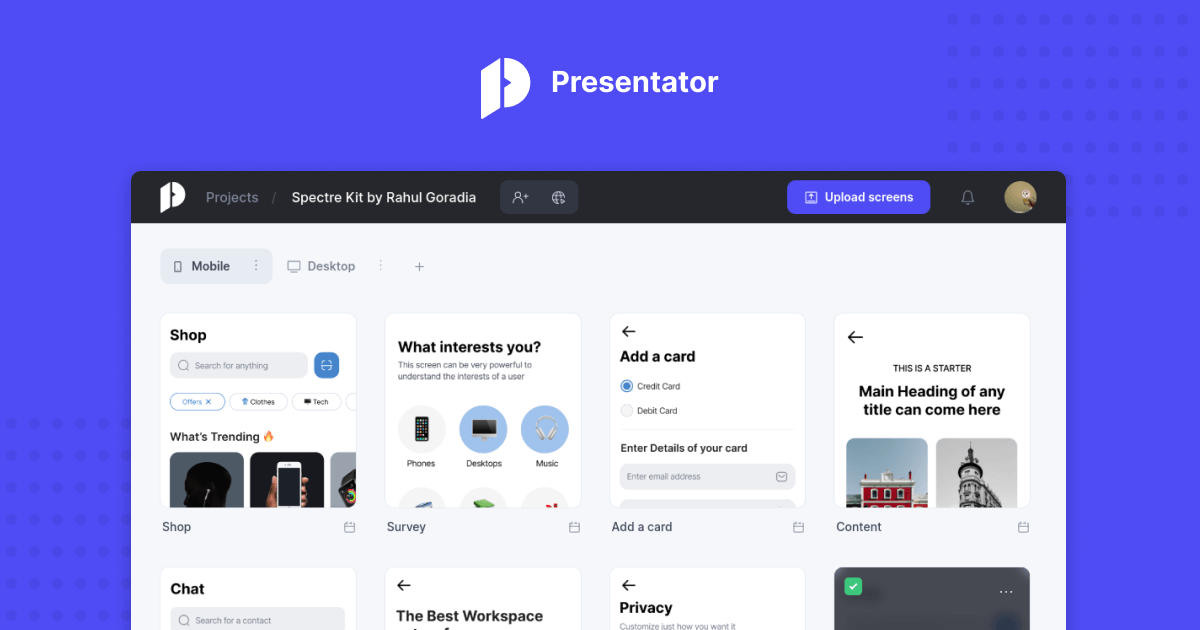
Presentator is a free, open-source platform for presenting design work and collecting feedback on it. Instead of emailing screenshots or holding a screen-share to walk through mockups, you upload your screens, share a link, and let reviewers leave comments directly on the designs.
What it does
- Design presentation — hosts your screens in a browser-based viewer rather than as loose image files.
- Inline comments — reviewers pin feedback to specific spots on a design, so notes stay tied to the element they refer to.
- Clickable prototypes — per the site, annotations, hotspots and transitions turn static screens into interactive walkthroughs.
- Preview links — public and password-protected links let you control who sees a project.
- Multiple project owners — more than one person can manage a project, useful for teams rather than solo designers.
- Figma plugin — exports designs from Figma into Presentator.
- Hosting choice — use the free hosted app, or install it on your own server.
Who it suits
A freelance designer sending three homepage concepts to a client is the clearest fit: one password-protected link, comments collected in one place, no back-and-forth attachments. Small product teams reviewing a flow before development would get similar value from the prototype features. Because it is open source, it also appeals to organisations that need to self-host design assets rather than store them with a third party.
Trade-offs to weigh
Self-hosting gives you control over where client work lives, but you take on updates, backups and uptime yourself. The hosted route is simpler but depends on someone else's service. Compared with general-purpose tools, a dedicated feedback platform is narrower — it presents and critiques designs well, but it is not where you build them, so it sits alongside your design tool rather than replacing it. Confirm current hosting terms and plugin compatibility on the site before committing a client project.
Next step: open Presentator, create one small project with a handful of screens, and send the preview link to a single reviewer. If the comment flow feels natural to them, expand from there.
How do I self-host Presentator on my own server?
Self-hosting Presentator means running the open-source platform on your own infrastructure instead of using its hosted app. The page confirms both options exist: “Use the free hosted app” and “Host on your own.” Choosing self-hosting is mainly about control — keeping design files and client feedback inside your own environment, integrating with your existing stack, and avoiding dependence on someone else's uptime.
What you are actually deploying
Presentator is a web application with a database and file storage layer. A self-hosted instance needs to serve the app, persist uploaded screens and comments, and handle user accounts and project permissions. The page also lists a Figma plugin for exporting designs, plus features like annotations, hotspots, transitions, and public or password-protected preview links — those run inside the app once it is up, not as separate services you install.
Practical path to get it running
- Check the official repository and documentation for the current deployment method — Docker images, a compose file, or a manual install — rather than assuming a single approach.
- Provision a small Linux server or VM with a database (MySQL/MariaDB or similar) and enough disk for design assets.
- Configure a domain and TLS certificate so preview links are served over HTTPS, especially if clients will open them.
- Create the first admin account, then set registration and project-owner permissions to match your team.
- Back up the database and upload directory on a schedule before inviting real projects.
Decisions worth making early
| Situation | Better fit |
|---|---|
| You need client feedback fast, no ops time | Hosted app |
| Strict data residency or internal-only access | Self-hosted |
| You want to modify or extend the code | Self-hosted |
| Small team, no server admin | Hosted, or self-host with Docker |
A concrete scenario: a two-person studio handling healthcare clients self-hosts on a small VPS behind their own domain, so annotated screens and comments never leave infrastructure they control, and they can restore from a nightly backup if something breaks. The trade-off is that patching, backups, and certificate renewal become their responsibility.
Next step: open the project's repository and read the installation section for your preferred method, then confirm the database and PHP/runtime versions it supports before you buy or configure a server. If you only need feedback on a handful of projects, the hosted option is usually the faster route.
How does Presentator compare to Figma for collecting design feedback?
Presentator is built specifically to collect feedback on designs, while Figma is a full design tool that also includes commenting. If your main goal is gathering client or stakeholder feedback on finished screens, Presentator's whole interface is organized around that task; in Figma, feedback is one feature inside a much larger editor.
Where they differ
| Aspect | Presentator | Figma |
|---|---|---|
| Primary purpose | Design presentation and feedback | End-to-end design and prototyping |
| Feedback model | Comments placed directly on designs, with preview links | Comments on frames and prototypes inside the file |
| Prototyping | Clickable prototypes via annotations, hotspots and transitions | Native interactive prototyping |
| Access for reviewers | Public and password-protected preview links | Share links with view or comment permissions |
| Hosting | Free hosted app or self-hosted | Cloud-hosted |
| Figma relationship | Offers a Figma plugin to export designs | — |
Practical reading
The key trade-off is separation versus convenience. Presentator keeps reviewers out of the working file: you publish a link, they comment, and your design file stays clean. That suits agencies and teams sending work to clients who don't need — or shouldn't have — edit access. Figma keeps everything in one place, which is faster for internal teams already living in the file, but reviewers see the same environment designers work in, and heavy comment threads can clutter the canvas.
Self-hosting is Presentator's other distinguishing option. Teams with data-residency or confidentiality requirements can run it on their own infrastructure, which Figma doesn't offer.
A concrete scenario
Suppose you're a freelance designer with a client who has never used a design tool. With Presentator, you export from Figma via the plugin, share a password-protected link, and the client leaves comments on the screens without creating a Figma account or navigating an editor. If instead your collaborators are in-house designers who iterate with you daily, staying in Figma avoids the export step entirely.
How to decide
- Choose Presentator when feedback is the main event and reviewers are external or non-designers.
- Choose Figma when design and feedback happen in the same continuous loop with the same people.
- Consider running both: design in Figma, present in Presentator.
Next step: try the free hosted Presentator app with one real project and one real reviewer, and see whether the link-based flow reduces back-and-forth compared with your current Figma commenting. Related tools in this space include Figma and Notion for written feedback docs.
How do I share a password-protected design preview link with clients?
Presentator is built for exactly this: it hosts design presentations and lets you create preview links that can be public or password-protected. You upload or export your screens, arrange them into a project, and share a single URL with the client instead of sending files back and forth.
Typical workflow
- Create a project and add your screens (the Figma plugin can export designs directly).
- Add annotations, hotspots and transitions if you want the client to click through a prototype rather than view static images.
- Generate a preview link and set it as password-protected rather than public.
- Send the link and password to the client through separate channels — for example, link by email, password by chat or phone.
- Collect feedback as comments placed directly on the designs, so notes stay attached to the relevant screen.
Who this suits
- Freelancers and small studios who want a lightweight, no-cost way to present work.
- Teams that need multiple project owners and a shared feedback history.
- Anyone who prefers to self-host, since Presentator is open source and can be run on your own infrastructure.
Trade-offs to weigh
| Approach | Control | Effort |
|---|---|---|
| Presentator hosted app | Password-protected links, comment threads | Minimal setup |
| Self-hosted Presentator | Full data control, your own domain | Server maintenance |
| PDF or image attachments | No live comments or clickable prototype | None, but weak feedback loop |
A password-protected link is convenient, but treat it as a soft barrier — anyone with both the URL and password can view it. For confidential client work, self-hosting keeps the files on infrastructure you control. For general-purpose file delivery alongside design review, services such as Dropbox or WeTransfer handle transfers but not on-design commenting.
Next step
Before sending, open the protected link in a private browser window to confirm the password prompt appears and that comments are enabled for viewers. Then agree with the client on where feedback should live, so comments don't scatter across email and chat.
How do I use the Figma plugin to export designs into Presentator?
The Presentator Figma plugin exports your Figma designs into a Presentator project, so you can turn static frames into clickable prototypes and collect feedback in one place. According to the site, the plugin is the bridge: you design in Figma, export, and then present and comment inside Presentator rather than sending screenshots around.
Practical workflow
- Create or open a project in Presentator. You'll need a project to export into; the site mentions multiple project owners, so confirm you have access before starting.
- In Figma, select the frames you want to present. Exporting whole screens usually works better than isolated components, since Presentator builds prototypes from screens.
- Run the Presentator plugin from Figma's plugin menu and choose the destination project.
- Once imported, arrange the screens in Presentator and add annotations, hotspots and transitions to make them clickable.
- Share a preview link. Presentator offers public and password-protected preview links, so pick the protected option for client or unreleased work.
- Collect comments directly on the designs, and use the project structure to keep feedback organized across owners and versions.
What to check before you rely on it
- Where you host it: the site offers a free hosted app and a self-hosted option. Self-hosting gives you control over design data; the hosted app is faster to start with.
- Whether your Figma plan and team permissions allow plugin use and export.
- How you'll handle updates: re-exporting changed frames is normal, so decide whether you overwrite screens or add new versions.
When this fits
This suits designers and small teams who want an open-source alternative to paid review tools and are comfortable with a lighter feature set. If you need deep version history, automated design-system syncing or enterprise permissions, compare against dedicated tools before committing. For a quick look at the project itself, see Presentator.
A useful first step: export two or three screens from a real project, add one hotspot and one annotation, then send yourself the password-protected preview link. That test tells you quickly whether the plugin-to-present flow matches how your team actually reviews work.
Can I build clickable prototypes with hotspots and transitions in Presentator?
Yes. Presentator is built around turning static screens into interactive prototypes: the page describes building clickable prototypes “via annotations, hotspots, transitions and more,” and it also offers a Figma plugin for exporting designs into the platform.
H3 What that means in practice
- Hotspots let you place invisible click targets over parts of a screen, so a viewer can tap a button, menu item or image to jump to another screen.
- Transitions control how that jump looks (for example, a slide or fade rather than an abrupt swap), which makes a flow feel closer to a finished app.
- Annotations add context on top of a screen, useful when the point is explaining a decision rather than just demonstrating a path.
- Preview links can be shared publicly or protected with a password, so you can send a flow to a stakeholder, client or usability test participant without giving them an account.
H3 Where it fits Presentator is a feedback and presentation layer rather than a full design tool. You design in Figma (or another tool), export or sync screens in, then wire up the interaction and collect comments in one place. That suits teams who want reviewers to comment directly on the design instead of trading screenshots in chat.
H3 Trade-offs to weigh
- If you need high-fidelity motion, conditional logic, variables or realistic data, a dedicated prototyping tool will go further.
- If your priority is a lightweight, self-hostable way to present flows and gather organised feedback, Presentator’s combination of hotspots, transitions and inline comments is a good match.
- Because it is open source, you can either use the hosted app or run it on your own infrastructure — relevant if design files cannot leave your network.
H3 A quick way to decide Take one real flow — say, onboarding with three screens. Add hotspots for the primary path and one transition, share a password-protected preview link with two reviewers, and see whether their comments land where you need them. If that loop feels smooth, the tool fits your process; if you immediately miss advanced logic or animation, keep Presentator for review and prototype elsewhere.
You can start at Presentator.
 hetzner.de
 Helsinki, Uusimaa, Finland

User reviews (0)