
 简体中文
简体中文 English
Website review
This review may include AI-generated content and is not individually verified. Domain, certificate and other facts come from the observed data on this page.
What is Privatiser?
Privatiser is a browser-based tool for stripping sensitive data out of text before you paste it into an AI chat. It detects things like API keys, JWTs, SSH keys, IP addresses and internal domains, emails, credit cards, SSNs, passports and IBANs, then replaces them with pseudonyms and hands you a local mapping file. Paste the AI's reply back into its Deanonymize panel and the real values snap back into place.
The core trade-off is deliberate: detection runs entirely in your browser, so nothing is sent to a server, but that also means you are responsible for keeping the mapping file safe—it is the key that reverses the redaction.
Who it suits
- Developers pasting config, connection strings, or logs into a chatbot for debugging help
- Anyone handling customer data, support tickets, or contracts who wants a second pair of eyes from an AI without leaking identifiers
- Teams that need consistent redaction rules, since custom words, allowlists, and regex patterns can be saved as presets
Practical scenario
You are debugging a failing deployment and want an AI to read your environment file. Running it through Privatiser turns DB_PASSWORD, the Postgres URL, and the AWS account ID into stable placeholders. The AI still sees the structure and can spot the mistake; you keep the mapping locally and restore the true values in the answer.
Things to weigh
- Coverage is pattern-based, so unusual formats or context-dependent identifiers can slip through—review the output before sharing
- Reversibility is a feature, not a guarantee: if the mapping leaks, the redaction is undone
- There are browser, VS Code, and Python routes, so it can fit into an editor or script workflow rather than only manual pasting
If you want to test it against your own data, paste a sample containing a fake key and a fake email into the live tool and check the redacted output and mapping before trusting it with anything real.
How does Privatiser keep my sensitive data from leaving my machine when I use AI tools?
Privatiser works by redacting sensitive values in your browser before any text reaches an AI tool, and by keeping the mapping between fake and real values on your own device. According to its page, it runs locally: "nothing leaves your machine," and it reports "0 bytes to any server." So the flow is: you paste text into Privatiser, it swaps secrets and identifiers for stand-in values, you copy the anonymized version into ChatGPT, Claude, Gemini or a similar tool, and you use the local mapping to restore the real values afterward.
What gets replaced
The page lists these detection categories and examples:
- Secrets and keys: API keys, JWTs and bearer tokens, SSH/PEM keys, Slack tokens, webhook secrets, passwords
- Network: IPs and internal domains, MAC addresses
- PII: emails, phone numbers, credit cards (Luhn-checked), SSNs, passports, IBANs, NHS and SWIFT numbers, sort codes, vehicle plates and VINs, names and dates of birth
- Cloud: AWS, GCP and Azure identifiers, ARNs, subscription paths
- Optional packs: crypto addresses and keys, Kubernetes, Terraform, comms platforms, location and coordinates
It also supports custom words to always redact, an allowlist of values never to redact, and custom regex patterns.
Why the reversibility matters
Anonymizing without a mapping usually means you lose the ability to read the AI's answer in context. Privatiser keeps a local mapping so you can paste the AI's reply into its Deanonymize view and have the real values snap back. The trade-off is that the mapping itself is sensitive: if you export it or leave it in a shared clipboard, the protection is undone. Keep mappings local and delete them when the task is finished.
Practical scenario
A developer debugging a database error would paste a connection string like postgres://admin:[email protected]:5432 into an AI chat. Privatiser replaces the host, credentials and any embedded tokens, so the AI can still reason about the error structure without seeing the real endpoint or password. The developer then restores the real values in the AI's suggested fix.
The limits to weigh
Local processing protects against the AI vendor seeing your raw text, but it does not protect against everything. If you paste the anonymized text into a hosted model, that model still receives the surrounding context, and anonymized identifiers can sometimes be re-identified from context. Detection is pattern-based, so unusual formats, free-form names, or secrets split across lines may slip through. The page's own advice is to review the redacted output before sending it.
Next step
Try it on a single realistic snippet rather than a whole file: paste a config block or log line, check the redacted output for anything missed, then copy that into your AI tool. If you want the same behavior without a separate tab, the page points to browser extensions for Chrome and Firefox that auto-anonymize on paste, plus a VS Code extension and a Python package.
What types of sensitive information can Privatiser detect and redact?
Privatiser detects and redacts a broad set of sensitive values in text before you paste it into an AI tool, replacing each with a placeholder while keeping the surrounding structure intact. According to the site, detection runs entirely in your browser, and the redaction is reversible through a local mapping.
Detection categories
- Secrets and keys: API keys (including patterns like
sk-proj-...), generic secrets and passwords, JWTs and bearer tokens, SSH/PEM keys, webhook secrets, and tokens such as Slack tokens (xoxb-...). - Network identifiers: IP addresses (public and private, e.g.
10.0.4.221,192.168.1.100), internal domains and hostnames, and MAC addresses. - Personal data (PII): Email addresses, phone numbers, credit card numbers (Luhn-checked), SSNs, passports, IBANs, SWIFT codes, sort codes, NHS numbers, vehicle plates and VINs, names, and dates of birth.
- Cloud identifiers: AWS identifiers such as access key IDs (
AKIA...) and ARNs, plus GCP and Azure identifiers. - Other identifiers: Generic identifiers such as UUIDs and subscription-style resource paths, and crypto addresses (BTC, ETH).
Practical notes
- Languages and breadth: The site lists 30+ patterns across 13 languages, so non-English text and locale-specific formats (for example, IBANs or national ID numbers) are covered alongside English ones.
- Pattern packs: Optional packs extend coverage to areas like Kubernetes, Terraform, and communications services (Slack, Teams, Twilio), plus location and coordinates.
- Custom control: You can add custom regex patterns, a custom word list that is always redacted, and an allowlist of values that should never be redacted — useful when a project name or test account looks like a secret.
- Reversibility: Output comes with a mapping you can copy or download; pasting the AI's reply back into the Deanonymize view restores the original values locally.
Next step: If you handle regulated data, test with a representative sample first — paste a snippet containing one real secret, one internal hostname, and one customer record, then confirm each appears as a placeholder and that Deanonymize restores them exactly. For a quick sanity check on a browser-based workflow, see Privatiser.
How do I restore the original values from an anonymized AI response?
Use the Deanonymize tab with the mapping that was generated when you anonymized the text. In Privatiser, anonymizing produces two things: a redacted copy to paste into the AI, and a local mapping of pseudonyms to originals. After the AI replies, paste that reply into Deanonymize and every real value is substituted back. The mapping can also be copied as JSON, downloaded, or reloaded from a file later.
The practical workflow
- Paste your text into the Anonymize tab and turn on the categories you need.
- Copy the redacted output into the AI chat — never the original.
- When the reply comes back, switch to Deanonymize.
- Paste the reply. If the mapping is still loaded, the real values reappear automatically.
- If you're in a new session, load the saved mapping file (or paste the mapping JSON) first.
Where this breaks down
Restoration only works if two conditions hold. The pseudonyms must survive the AI's reply unchanged, and you must still have the matching mapping. Watch for:
- The AI rewrites or paraphrases the tokens. A model that "cleans up" or reformats placeholders can produce values the mapping no longer matches, and those stay redacted.
- You lose or overwrite the mapping. Each anonymization run has its own mapping. Load the wrong one and you'll restore the wrong values, or nothing.
- You cleared the session. The tool runs entirely in the browser and sends nothing to a server, so there is no remote copy to recover from. Export the mapping before closing the tab.
A concrete scenario
A developer pastes a database connection string and an AWS key into an AI assistant to debug a config. The output comes back with the host, credentials and key replaced by placeholders. They paste the reply into Deanonymize, the real connection values snap back, and the corrected config can be saved straight to the repo. If they had instead pasted the reply into a text editor and only later opened Deanonymize, they would need the exported mapping JSON to get the same result.
When to save the mapping instead of relying on the session
Save or export the mapping whenever the round trip spans more than a few minutes, involves another person, or crosses devices. The browser extension auto-anonymizes on paste into ChatGPT, Claude and Gemini, which shortens the loop but doesn't change the rule: the reply must go back through Deanonymize with the same mapping. For editor-based work, the VS Code extension covers the same ground without leaving the IDE.
For teams comparing redaction approaches, it's worth knowing that some tools only mask and never restore — Privatiser is built around the reversible mapping, which is what makes the deanonymize step possible at all.
Can I use Privatiser directly inside ChatGPT, VS Code, or other tools I already work in?
Yes—Privatiser is designed to work where you already type, not only on its own site. The page lists three integration routes plus a Python package, and the core engine runs locally in your browser, so text isn't sent to a Privatiser server before you paste it into an AI tool.
Where it plugs in
| Environment | How it works | Best for |
|---|---|---|
| ChatGPT, Claude, Gemini and similar | Browser extension auto-anonymizes on paste | Chat-style AI use where you paste logs, configs or customer data |
| Firefox | Separate Firefox add-on with the same auto-anonymize behavior | Firefox users who don't want a Chromium browser |
| VS Code | Extension anonymizes selected text without leaving the editor | Developers redacting code, env files or stack traces before sharing |
| Python workflows | pip install privatiser |
Scripted or pipeline-based redaction |
The page also describes a live tool with Anonymize and Deanonymize modes, a mapping you can copy or download as JSON, and 30+ detection patterns across 13 languages. That reversibility matters: you keep a local mapping, paste the redacted text into the AI, then paste the reply back into Deanonymize to restore real values.
What this means in practice
A support engineer pasting a production log into ChatGPT can let the extension swap out IPs, emails, tokens and card numbers automatically. A developer reviewing a .env file in VS Code can anonymize the selection, ask an AI assistant about the error, then restore the secrets locally. The trade-off is that you must keep the mapping safe—it is the key that undoes the redaction—and pattern-based detection can miss unusual formats, so use the custom words and custom regex fields for anything organization-specific.
Start by checking the extension or add-on for your main browser, then test with one real but low-risk snippet: paste it, confirm the mapping restores correctly, and only then use it on sensitive material. For a second opinion on browser-side redaction tools, see Privatiser.
How do I add custom patterns or allowlist specific values that should never be redacted?
Use the Settings panel in Privatiser: add your own regex under Custom regex patterns, and put values that must stay readable under Allowlist (never redact). Both fields are comma-separated, and the custom pattern area has a Case insensitive toggle.
Custom patterns
- Write the regex for the shape of the secret you want caught, not just one literal value.
- Tick Case insensitive if the identifier can appear in different capitalisations.
- Save the current configuration as a preset so a project's patterns can be reloaded later; presets can also be exported and imported.
Example: if your internal service tokens look like svc_ followed by 32 hex characters, a pattern such as svc_[0-9a-f]{32} catches every token in that family. A pattern matching only one exact token is brittle — the next rotated token slips through.
Allowlist
The allowlist is for values that match a detection category but are safe in context. Typical candidates:
- Documentation examples and placeholder hosts, e.g.
example.comormonitoring.local. - Public identifiers you need the model to reason about, such as a public support address or a published company phone number.
- Test fixtures that are already fake, so redacting them only makes the prompt harder to read.
The allowlist wins regardless of which pattern matched, so it is the right tool when a built-in detector is technically correct but practically unhelpful.
Trade-offs to weigh
| Approach | Best for | Main risk |
|---|---|---|
| Custom regex | Organisation-specific token formats | Too broad a pattern redacts harmless text; too narrow misses rotated values |
| Allowlist | Known-safe values in a specific task | A value allowlisted once stays visible in every later session, including ones where it is sensitive |
Allowlisting is a standing decision, not a per-paste one. Before adding an email address or hostname, ask whether it would still be fine to expose in a different conversation, because the setting persists.
A practical next step
Paste a representative sample of your real text, add one custom pattern and one or two allowlist entries, then check the redaction count and the mapping output. If a value you expected to be caught appears untouched in the anonymised text, widen the pattern; if something harmless disappears, move it to the allowlist. Do this against a sample that contains the awkward cases — nested config, mixed languages, tokens inside URLs — rather than a clean example, since that is where pattern boundaries usually fail.
 Cloudflare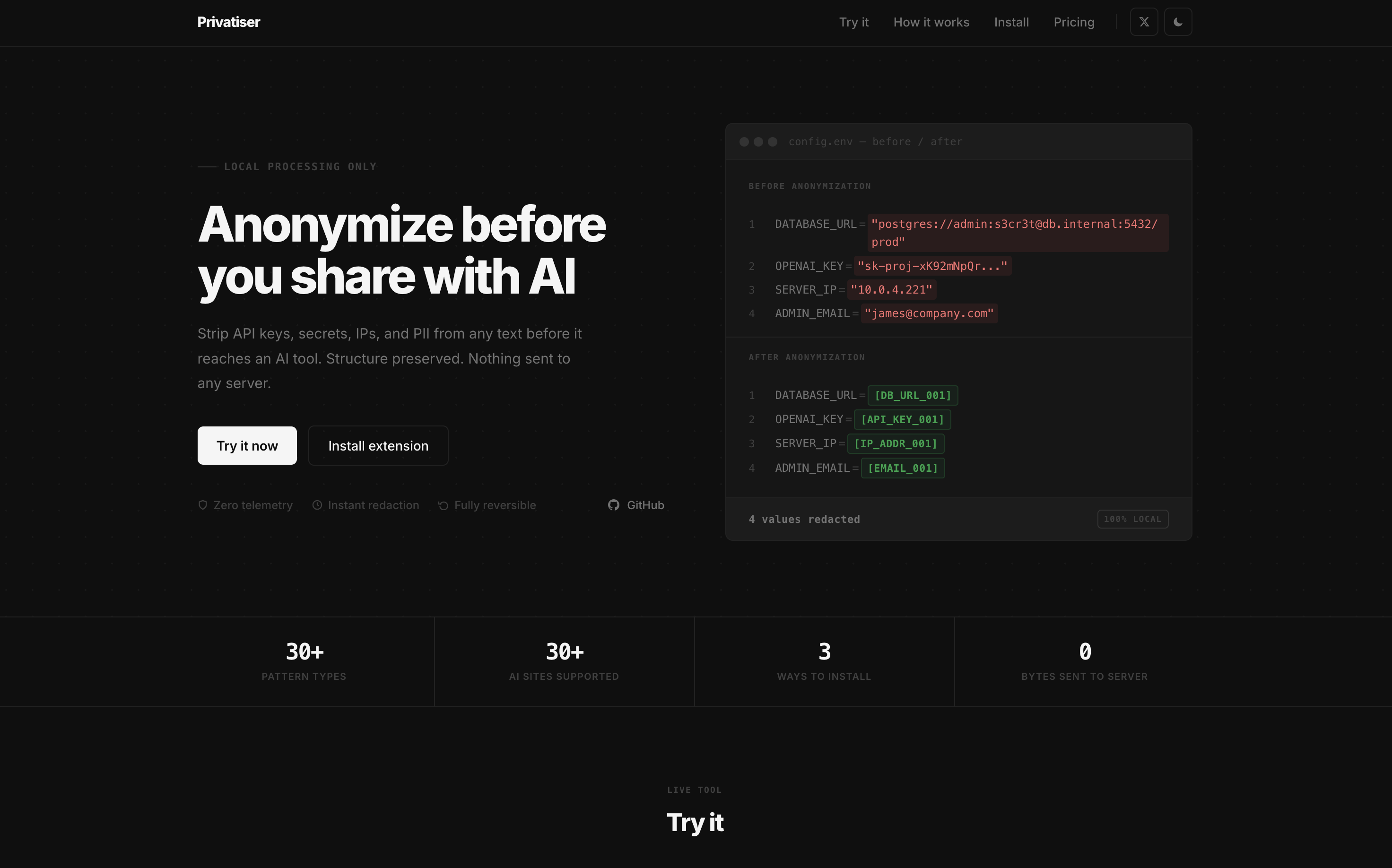

User reviews (0)