
 简体中文
简体中文 English
Website review
This review may include AI-generated content and is not individually verified. Domain, certificate and other facts come from the observed data on this page.
What is PS SoftLab?
PS SoftLab is a small software company that makes utilities for tidying up everyday Windows annoyances. Its catalog centers on three tools: a system tray manager, a file dialog helper, and an application launcher. The site positions these as practical fixes for a cluttered tray, slow folder browsing, and inefficient launching, with a free 30-day trial and one-time-payment licensing rather than a subscription.
H3 What the main products do
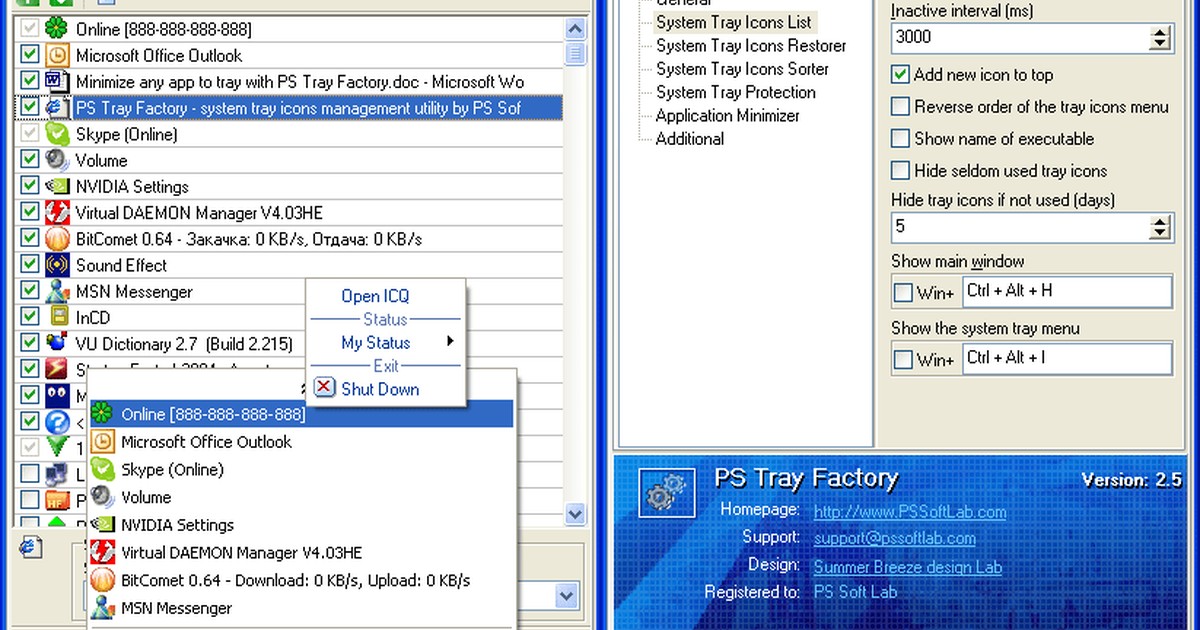
- PS Tray Factory — manages system tray icons: hide unwanted ones, restore them from a custom menu, assign hotkeys, control icon order and priority, and minimize applications to the tray.
- PS Hot Folders — adds favorites, recent history and hotkeys to Windows Open/Save/Browse dialogs, including network paths and Office dialogs.
- PS Hot Launch — a free launcher for starting programs quickly.
H3 Who it suits
The tools target Windows users who spend a lot of time in file dialogs or want tighter control over the taskbar and tray. A graphic designer juggling project folders, for example, is the kind of user PS Hot Folders is aimed at, while an IT administrator managing many background apps is the natural audience for PS Tray Factory. If you rarely open Save dialogs or keep a minimal tray, the benefit is smaller.
H3 Trade-offs to weigh
These are narrow, single-purpose utilities rather than an all-in-one suite, so you buy only what you need — but each solves one problem and nothing more. The trial is the sensible way to judge whether the time saved is real for your workflow. The site claims 500,000+ users, 25+ years in business and a 4.8 average rating; treat those as vendor claims.
Next step: download the free trial of the one tool matching your biggest irritation, use it for a week, and buy only if it visibly changes your routine.
What problems do PS SoftLab's Windows utilities solve?
PS SoftLab makes small Windows utilities that each target one specific annoyance in the operating system rather than offering a broad system suite. The page groups them around three everyday pain points: a cluttered system tray, slow file browsing, and inefficient app launching.
The problems each tool addresses
- PS Tray Factory — a crowded, disorganized system tray. Windows gives you limited control over notification-area icons. This utility is presented as a manager that can hide unnecessary icons automatically, restore them through a custom tray menu, set icon priority and order, assign hotkeys, and minimize applications to the tray.
- PS Hot Folders — repetitive folder navigation in Open/Save dialogs. If you constantly dig through the same directory trees when saving or opening files, this adds favorite folders, recent history, hotkeys, and network paths inside standard Windows dialogs, with Office integration noted.
- PS Hot Launch — a free launcher. The page lists it as a free tool for starting applications, aimed at people who want quicker access than the Start menu or desktop shortcuts provide.
Who tends to benefit
| User | Likely useful tool | Why |
|---|---|---|
| IT administrator managing many background apps | PS Tray Factory | Tray icons accumulate fast on a heavily loaded machine |
| Designer or office worker saving files all day | PS Hot Folders | Repeated Open/Save navigation is the time sink |
| Anyone wanting faster app access | PS Hot Launch | Free, low-commitment starting point |
The trade-off is scope: these are narrow fixes, not a single integrated control panel. If your main frustration is the tray, PS Hot Folders won't help, and vice versa. There's also overlap between PS Hot Launch and features built into Windows or your keyboard's software, so it's worth checking whether you already have a workable launcher before adding another.
Practical next step
Identify which of the three problems costs you the most time in a normal day, then trial only that tool. The page states a 30-day free trial with no credit card required and full functionality, so you can test the specific behavior — for example, whether hidden tray icons still behave correctly when an app needs attention — before deciding. Reviews quoted on the page come from named users such as an IT administrator praising the tray cleaner and a graphic designer citing daily time savings with the folder tool; treat those as individual experiences, and verify the tools against your own workflow.
How does PS Tray Factory compare to PS Hot Folders for managing my Windows desktop?
PS Tray Factory and PS Hot Folders solve different desktop problems rather than competing on the same feature. PS Tray Factory manages the notification area (system tray), while PS Hot Folders manages file and folder navigation inside Open/Save dialogs. If your complaint is "my tray is a mess," choose Tray Factory. If your complaint is "I waste time clicking through folders every time I save a file," choose Hot Folders.
What each tool actually does
PS Tray Factory — a system tray manager. Per the site, it lets you hide or organize tray icons, restore hidden icons through a custom tray menu, assign hotkeys, control icon priority and order, and minimize applications to the tray. It is aimed at users whose tray is cluttered by background apps (VPNs, cloud sync, chat clients, audio tools).
PS Hot Folders — a file dialog companion. It adds favorites, folder history and hotkey shortcuts to Open/Save/Browse dialogs, including Office dialogs and network paths. It is aimed at people who repeatedly navigate to the same project, download or asset folders.
Quick comparison
| Dimension | PS Tray Factory | PS Hot Folders |
|---|---|---|
| Desktop area affected | System tray / notification area | Open, Save and Browse dialogs |
| Core benefit | Less clutter, faster access to tray icons | Fewer clicks to reach frequent folders |
| Typical user | Anyone with many background apps | Designers, admins, Office-heavy users |
| Daily time saved | Occasional, situational | Recurring, per-file-save |
| Trial | 30-day free trial | 30-day free trial |
How to decide
Pick PS Tray Factory if you regularly lose track of tray icons or want a single menu and hotkeys for them. Pick PS Hot Folders if your work involves saving, opening or attaching files many times a day and you keep hunting for the same directories. They address separate pain points, so they can be used together; there is no real overlap to weigh.
Reader scenario
An IT administrator with a dozen tray icons and frequent file exports would likely notice Hot Folders more often during the workday, while Tray Factory delivers a constant, visible cleanup. A reviewer quoted on the site, Michael R. (IT administrator), describes Tray Factory as cleaning up his tray with minimal resource use; Sarah M. (graphic designer) says Hot Folders saves her around 30 minutes daily. Those are their reported experiences, not independent measurements — your own savings depend on how often you touch the tray versus file dialogs.
Next step: install the 30-day trial of the one matching your most frequent annoyance, and track how often you use it in the first week. If you find yourself wanting both, PS SoftLab offers each as a separate one-time purchase with a lifetime license, so there is no bundle pressure to decide upfront.
You can review both products at PS SoftLab.
Is the 30-day free trial of PS SoftLab utilities really free, or does it require a credit card?
The free trial is described as genuinely free: the site states it runs for 30 days with full functionality, no credit card, and no registration required. So you can evaluate the utilities without entering payment details, and the trial is not a limited-feature demo.
A few practical caveats worth knowing:
- It is time-limited, not feature-limited. After 30 days the software stops being usable unless you buy a license.
- Licensing is one-time, not subscription. The site presents the paid versions as a one-time payment with a lifetime license and free updates, which suits people who dislike recurring fees.
- A money-back window exists on purchases. The trial and the refund policy are separate safety nets; the trial lets you test, and the guarantee covers you if you buy and change your mind.
- "No credit card" applies to the trial, not the purchase. Buying goes through a payment processor, so payment details are only needed at that point.
The main decision is which tool matches your irritation. If your system tray is overflowing, PS Tray Factory is the tray-icon manager. If you constantly hunt through Open/Save dialogs, PS Hot Folders targets that. If you mainly want faster app launching, the site also lists a free launcher.
A sensible next step: install the trial for the single utility that addresses your biggest annoyance, use it daily for a week, then decide whether the paid license is worth it. Trying all three at once tends to blur which one actually earned its place.
For comparison, Windows itself now includes some tray and folder-favorites features, and third-party alternatives exist, such as Stardock for desktop customization. The trade-off is that built-in options are free but less granular, while dedicated utilities like these offer more control for a one-time cost.
Can PS SoftLab utilities work on Windows 11 and older versions like Windows 7?
Yes. PS SoftLab states that its utilities run on Windows 7 through Windows 11, in both 32-bit and 64-bit editions. The three tools listed on the site — PS Tray Factory, PS Hot Folders, and the free PS Hot Launch launcher — are all covered by that same Windows 7–11 range, so you do not need a different build for an older PC versus a current one.
What that means in practice
- One install across a mixed fleet. If your office still has Windows 7 or 8.1 machines alongside Windows 11 laptops, the same download applies to each.
- 32-bit and 64-bit are both handled. Older 32-bit Windows 7 installations and modern 64-bit Windows 11 systems are both supported.
- Tray behaviour differs by version. PS Tray Factory manipulates the notification area, which Microsoft redesigned in Windows 11. If a specific icon refuses to hide or reorder, test the trial on that exact machine before buying.
- Dialog tools are less version-sensitive. PS Hot Folders hooks into standard Open/Save dialogs, which have stayed broadly consistent, though individual applications can use custom dialogs that a utility cannot touch.
A sensible next step
Install the free 30-day trial on your oldest and newest machines first, not just your main PC. Those two extremes will tell you quickly whether the tool behaves as expected on Windows 7 and Windows 11; if it does, everything in between is very likely fine.
For reference, PS SoftLab publishes its own product documentation and downloads at PS SoftLab.
What do verified users say about PS SoftLab's performance and reliability?
Verified user feedback on PS SoftLab focuses on two products: PS Tray Factory (system tray management) and PS Hot Folders (file dialog favorites). Two named testimonials appear in the site's own marketing material, so treat them as vendor-published rather than independently verified reviews.
What the quoted users report
- Michael R., IT Administrator (PS Tray Factory): describes it as "one of the best utilities I have ever used," says his system tray is finally clean, and notes it "works flawlessly, uses minimal resources." The reliability and low-overhead claims are his observations, not measured benchmarks.
- Sarah M., Graphic Designer (PS Hot Folders): says it "saves me at least 30 minutes per day" and that she saw ROI in the first week. That's a self-reported time saving in a folder-heavy workflow, not a general productivity figure.
My practical read
Both quotes point to the same pattern: these are small, single-purpose tools whose value shows up as saved clicks and a tidier desktop rather than dramatic performance gains. "Minimal resources" is plausible for tray and dialog helpers, but you should confirm it on your own machine, especially on older Windows 7 or 8 hardware or on a locked-down corporate image where shell extensions can conflict with security software.
How to judge reliability for yourself
- Run the 30-day trial through a normal week, including sleep/resume and multi-monitor sessions.
- Watch Task Manager for memory and CPU drift after several days of uptime.
- Test the specific pain point — a crowded tray, or repeated Open/Save dialog navigation — and time the before/after.
- Check whether your antivirus or IT policy flags the shell integration.
If you want broader, independent opinion rather than the site's own testimonials, look for long-running Windows utility communities and download archives where users discuss tray and dialog tools over time, such as MajorGeeks or AlternativeTo. Neither is affiliated with PS SoftLab, so their threads are a useful counterweight to vendor quotes.

User reviews (0)