Website profiles · Technology insights · Alternatives

slackmojilab.com

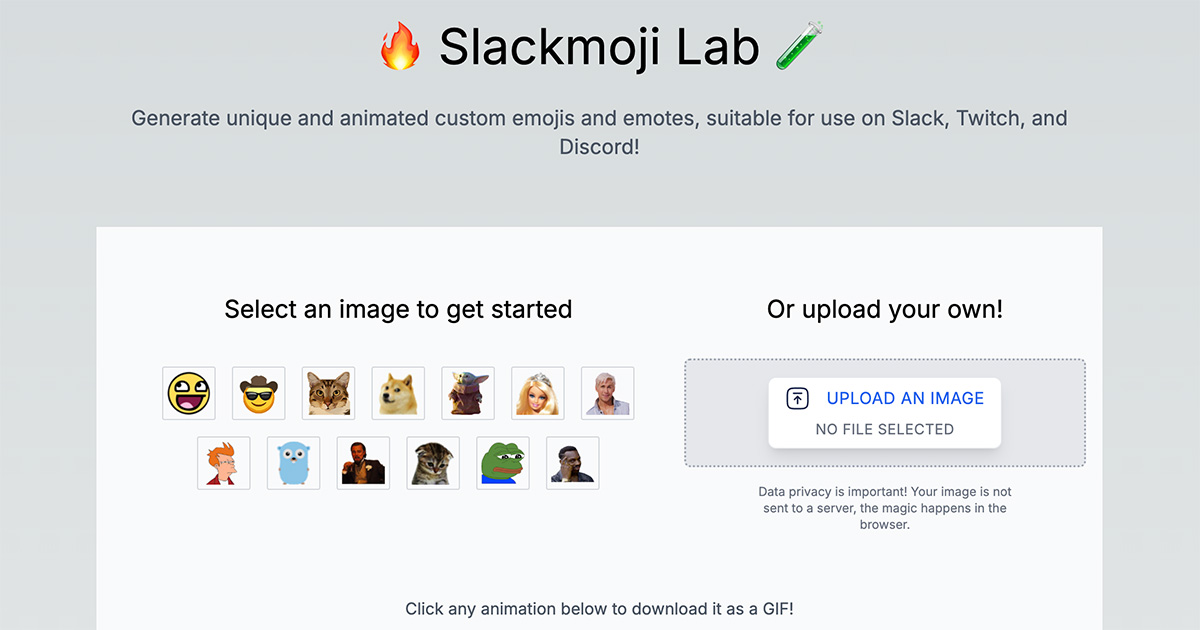
Create unique animated custom emojis for Slack, Twitch, and Discord with ease! Upload your image and generate dozens of fun, downloadable animated GIFs with a simple click. Free, instant, and works in your browser.

No paid content found
Visit website
Profile views 2 Outbound visits 0 Normal
Slackmoji Lab Full homepage screenshot

At a glance

Category
Productivity
Language
English
Paid-content signal
No paid content foundObserved
Registered
2023
Hosting
VercelInferred
HTTPS certificate trusted
PassedObserved
Last updated

Website review

This review may include AI-generated content and is not individually verified. Domain, certificate and other facts come from the observed data on this page.

What is Slackmoji Lab?

Slackmoji Lab is a browser-based tool for turning an uploaded image into a set of animated custom emoji, intended for chat and streaming platforms such as Slack, Discord and Twitch. According to the site's own description, you upload an image, click once, and it generates dozens of downloadable animated GIFs, with no installation and no account step mentioned.

What that means in practice

The practical value is volume and speed rather than fine-grained design control. A realistic use is a community manager who has one mascot image and needs a batch of reaction emotes for a Discord server or a Slack workspace: uploading once and picking from a generated set is faster than animating each emote by hand. Streamers face a similar task when refreshing a Twitch emote lineup.

The trade-offs follow from the batch approach. Generated variants can be inconsistent in how well they read at small sizes, which matters because emoji are usually displayed tiny in message text. Expect to preview each GIF at actual display size and discard the ones that turn to mush. Platform limits on file size and dimensions also vary, so check each destination's emote requirements before uploading the results.

Choosing between this and alternatives

Approach Best for Main trade-off
Slackmoji Lab Quickly producing many animated variants from one image Less precise control over the final animation
General GIF or animation editors Precise timing, framing and cleanup Slower; requires animation skills
Static emoji makers Simple, legible icons at small sizes No motion

As a next step, start with a single high-contrast source image, generate a batch, and test the strongest few in a private channel at real display size before committing to a full set.

How do I create a custom animated emoji for Slack from my own image?

Upload your image to Slackmoji Lab, pick an animation style, and download the generated GIF. The site describes the flow as a one-click process that produces dozens of downloadable animated GIFs in your browser, with no installation step. That matches the common Slack workflow: a custom emoji is just an image uploaded to your workspace, and Slack accepts animated GIFs as emoji, so an animated GIF is what you need to end up with.

A practical sequence

  1. Start from a clean source image. Use a square crop of the face, logo or object you want to animate. Transparent PNGs work best because Slack emoji sit on both light and dark message backgrounds; a white box around your subject looks wrong in dark mode. Avoid thin details and small text, which blur at emoji size.
  2. Choose an animation that survives shrinking. Slack renders emoji at roughly text size, so a subtle bounce, pulse, shake or spin reads better than a busy multi-element scene. If the generator offers several variants, download a few and compare them at small size before committing.
  3. Check the file size. Slack imposes a size limit on custom emoji uploads, and animated GIFs can grow quickly with many frames. If a download is rejected, try a simpler animation or a smaller source image. The exact limit is set by Slack and worth confirming in your workspace settings.
  4. Upload it. In Slack, open the emoji customization page for your workspace (Workspace name → Customize → Emoji, or the admin settings depending on your plan), choose Add Emoji, and upload the GIF. Give it a short, memorable name like :partyparrot: style — names are lowercase, no spaces.
  5. Test in a message. Type the emoji name with colons and check how it looks next to text, in both light and dark themes, and on mobile.

Decisions worth making first

Situation Better choice
Personal reactions in one workspace A single expressive GIF, e.g. a nodding head or spinning logo
Team or brand emoji used widely Simple, high-contrast animation with transparent background
Workspace with strict admin controls Check whether members can add emoji at all before generating files
Sharing across Slack, Discord and Twitch Generate once, then check each platform's size limits separately

If your workspace restricts custom emoji to admins, send the GIF to whoever manages them rather than generating many variants. And if you want a fallback tool, EZGIF is a well-known option for resizing or trimming a GIF that Slack rejects.

Will the animated emojis I generate work on Discord and Twitch, or do I need different files for each platform?

Yes — the animated emojis you generate are downloadable GIFs, and GIF is the format Discord and Twitch both accept for animated emotes, so the same file can generally be uploaded to either platform. You don't need a separate generator or a different export per platform.

That said, "same file works" doesn't mean "same file looks right everywhere." Each platform crops and scales emotes differently, so check the preview in each service after uploading.

What to watch for per platform

Platform Format accepted Practical consideration
Discord Animated GIF for animated emojis Emotes are displayed small (around 32px in chat); fine detail and thin lines tend to disappear. Animated emoji slots depend on the server's boost tier.
Twitch Animated GIF for sub emotes Emotes render at 28px, 56px and 112px; the 28px version is what most viewers see in chat, so keep the design legible at that size. Upload rights depend on your sub/affiliate status.

A concrete test

Take one generated GIF and view it at roughly 28–32px on screen before uploading. If the motion still reads — a bounce, a shake, a blink — it will work on both platforms. If it only looks good at full size, simplify the animation or crop tighter to the subject.

Next step: generate one emoji, download the GIF, and upload it to whichever platform you use first. If it passes the small-size test there, reuse the same file on the other rather than regenerating.

What image format and size should I upload to get the best-looking animated emoji?

Upload a square PNG or GIF with a transparent background, ideally 512×512 pixels or larger. Starting from a high-resolution source gives the generator clean edges and enough detail to animate without blurring. If your image isn't square, crop it before uploading so the subject isn't stretched or clipped.

For best results:

  • Format: PNG for still images with transparency; GIF if you want to bring in existing motion. Avoid JPEG, since its compression leaves fuzzy edges and no transparency.
  • Size: Work at 512×512 or above, then let the tool scale down. Small uploads (under ~128px) tend to look soft once animated.
  • Background: Transparent, so the emoji sits cleanly on Slack, Discord, or Twitch dark and light themes.
  • Composition: Center the subject with a little padding; keep detail bold and simple, since small emoji sizes lose fine lines.

A practical next step: prepare one test image at 512×512 with a transparent background and compare it against a smaller or JPEG version. If the animated result looks crisp and the edges stay clean, that's your baseline settings for the rest of your set.

Is Slackmoji Lab free to use, and does it add watermarks or require an account?

Slackmoji Lab presents itself as free, instant, and browser-based, and nothing in its own description mentions watermarks or an account requirement. The described flow is simply: upload an image, generate animated GIFs, and download them. That wording suggests no sign-up step stands between you and the output, and no watermarking is advertised.

Treat that as the site's stated positioning rather than a verified guarantee. The page evidence available here is limited to the site's own summary, so the practical check is quick: upload a test image, download one GIF, and inspect the corner of the frame for any added logo before you commit to making a full set.

What to confirm on your first visit

  • Account gate: whether generation starts immediately after upload or prompts for login.
  • Watermark: whether exported GIFs carry any branding, especially on transparent backgrounds.
  • Export limits: any cap on how many emojis you can generate or download per session.
  • Format fit: whether the GIF output meets the size limits of your target platform.

Why the watermark question matters more than the price

For Slack, custom emojis are typically small and displayed at modest sizes, so a subtle corner mark can be easy to miss until it appears in a busy channel. For Twitch emotes, where the image is often shown at 28px, 56px, and 112px, an added mark can crowd the artwork at the smallest size. If you plan to use the output commercially or as channel branding, confirm the licensing terms on the site itself before relying on it.

A realistic first test

Pick one image with a clear silhouette and a transparent background, run it through the generator, and download a single GIF. Open it at the smallest size your platform uses and check two things: that the animation still reads clearly, and that nothing was added to the frame. If both hold, the tool fits a quick workflow for personal emoji sets.

If watermark-free output or bulk generation turns out to be essential, compare against dedicated emoji tools such as Emoji.gg for browsing and downloading existing emote packs, or a general GIF editor if you need frame-level control.

How do I download and add the generated GIFs as custom emojis in my Slack workspace?

Slackmoji Lab generates animated GIFs in your browser; getting them into Slack is a separate, manual step. Slack has no built-in importer, so you download the GIFs and upload each one as a custom emoji yourself.

Download the GIFs

  1. Upload your image and generate the set of animated GIFs.
  2. Download the GIFs you want to keep — save them to a folder you can find easily, since you'll upload them one at a time.

Add them to Slack

  1. In Slack, open Customize workspace (workspace name menu → Settings & administration → Customize workspace, or the admin Emoji tab).
  2. Choose Add emoji and upload a downloaded GIF.
  3. Give it a short, memorable name using lowercase letters, numbers, and underscores or hyphens (e.g. party_parrot). The name is what people type after a colon to insert it.
  4. Save, then repeat for each GIF. Typing :name: in a message, or picking it from the emoji picker, inserts it.

Practical notes

  • Size and format: Slack accepts GIFs for custom emoji, but very large files may be rejected or look choppy. If an upload fails, reduce the GIF's dimensions or length before trying again.
  • Permissions: On many workspaces, only admins or owners can add emoji. If you don't see the option, ask a workspace admin.
  • Naming for a team: Agree on a prefix (e.g. team_) so a growing library stays easy to browse, and avoid names that clash with standard Slack emoji.
  • Sharing: Once added, anyone in the workspace can use the emoji, so it's worth a quick check that the animation reads clearly at Slack's small display size.

A sensible next step: build one emoji first, upload it, and check how it looks in a message before generating and adding a whole set. For a broader library of ready-made emoji, see Slackmojis.

Related questions

More questions →
How to Make a Custom Animated Emoji from an Image for Slack, Discord, or Twitch

You can turn a single image into a downloadable animated GIF emoji in your browser using Slackmoji Lab: upload the image, generate the animated versions, preview them, and download the GIF that fits your platform. This works best when your source image has one clear subject on a simple background, and when you check each platform's size and format limits before uploading. No software installation is required, but you do need a browser and an image you have the rights to use.

What you need before starting

  • A source image with a clear, centered subject and a simple background. Busy backgrounds make small animated emojis hard to read.
  • Rights to the image. Use your own artwork or an image you are allowed to modify and distribute.
  • A browser. The generator runs in the browser, so no desktop app is needed.
  • Platform limits in mind. Custom emoji slots on Slack, Discord, and Twitch have their own file size and dimension rules. Check the current limits in each platform's settings before you upload, since they can change.

Step-by-step: generate the animated emoji

1. Prepare the image

Crop tightly around the subject so the face or main shape fills most of the frame. Remove or simplify the background where possible. A square crop usually works best because emojis display as small squares in chat.

2. Upload the image to the generator

Open Slackmoji Lab in your browser and upload your prepared image. The tool accepts an uploaded image and produces animated GIF versions from it.

3. Generate the animations

Trigger the generation step. According to the site, a single click produces dozens of animated GIF variations, so you get a range of motion styles to choose from rather than one fixed result.

4. Preview and pick a version

Preview the generated GIFs at small size, the way they will appear in chat. Favor versions where:

  • The subject stays recognizable at emoji scale.
  • The motion loops cleanly without a visible jump.
  • The animation is not so busy that it becomes distracting in a message.

5. Download the GIF

Download the version you want. You will upload this GIF file to each platform as a custom emoji or emote.

Uploading your animated emoji to each platform

Platform Where custom emojis live What to check before uploading
Slack Workspace custom emoji settings File size and dimension limits; admin permission to add emoji
Discord Server emoji settings File size limit, dimensions, and whether your role can manage emojis
Twitch Channel emotes settings Emote size tiers, file size, and availability of emote slots

The exact limits differ by platform and plan, so confirm the current requirements in each platform's own settings or help pages before uploading. If an upload is rejected, the cause is usually file size, dimensions, or format.

Troubleshooting common problems

  • Upload rejected for size: Reduce the GIF's dimensions or file size, then try again. Smaller frames and fewer colors usually shrink the file.
  • Format not supported: Make sure you are uploading the GIF file the generator produced, not the original image.
  • Animation does not loop smoothly: Choose a different generated version, or trim the animation so the first and last frames match.
  • Emoji looks blurry or unreadable after upload: The source image was probably too detailed. Recrop tighter around the subject and regenerate.
  • Animation looks fine large but wrong in chat: Preview at actual emoji size before committing; detail that reads well at full size often disappears at chat scale.
  • Upload option missing: You may lack the permission or emote slot needed on that workspace, server, or channel. Check with the workspace, server, or channel owner.

When this approach fits

Use this workflow when you want a quick, browser-based way to turn one image into several animated GIF options and pick the best one. If you need precise frame-by-frame control, a dedicated animation editor will give you more control than a one-click generator. If you only need a static emoji, a simple resize and upload is faster than generating animations.

How to Make a Custom Animated Twitch Emoji from an Image

You can turn a single image into a custom animated Twitch emoji by uploading it to a browser-based animated emoji generator such as Slackmoji Lab, which creates dozens of downloadable animated GIFs from one image in a click. The main conditions are that your source image should be square and clear at small sizes, and that the final file must meet Twitch's own emote upload requirements (size and format) before it will be accepted in chat.

Before you start: prepare the image

Twitch displays emotes very small in chat, so the source image matters more than the animation effect.

  • Use a square image. Crop to a 1:1 ratio before uploading. Non-square images often get stretched or cropped awkwardly by generators.
  • Keep the subject centered and simple. A face, logo, or single character reads better at emote size than a busy scene.
  • Start from the largest clean version you have. A sharp source survives downscaling better than a small, blurry one.
  • Check Twitch's current emote rules. Twitch sets its own limits on file size, dimensions, and format for uploaded emotes. Confirm the current requirements in Twitch's emote guidelines before you generate, since these can change.

Generate the animated emoji

  1. Open the animated emoji generator in your browser (Slackmoji Lab lists Twitch among its supported platforms).
  2. Upload your prepared square image.
  3. Trigger the generation. The tool produces a set of animated GIF variations from that single image.
  4. Wait for the previews to load — you'll get multiple options rather than one fixed result.

No software install is needed; the whole step runs in the browser.

Preview and pick the best result

Review the generated GIFs at small size, not just full size, because that's how viewers will see them.

  • Check legibility at emote scale. If the subject is unrecognizable when shrunk, pick a simpler animation.
  • Watch the loop. A clean, seamless loop looks better in chat than one that jumps or stutters.
  • Compare motion intensity. Subtle movement usually reads better than fast, busy animation at small sizes.
  • Pick one file that balances clarity and motion.

Download and check against Twitch requirements

Download your chosen GIF, then verify it before uploading to Twitch:

Check Why it matters
File format Twitch accepts specific formats for emotes; confirm yours matches
File size Oversized files are rejected at upload
Dimensions Must fit Twitch's emote size rules
Visual clarity at small size Ensures the emote reads in chat

If the downloaded GIF doesn't meet Twitch's limits, resize or re-export it with an image editor, or regenerate with a simpler source image.

Troubleshooting common problems

  • Generation fails or stalls: Try a smaller or simpler source image, and reload the page before retrying.
  • Animation looks messy or unreadable: The source was likely too detailed. Crop tighter on the main subject and regenerate.
  • File too large for Twitch: Reduce dimensions or simplify the animation, then re-check the size.
  • Colors look off after export: Confirm the GIF saved correctly and wasn't converted to another format by your browser's download settings.
  • Emote rejected on upload: Re-read Twitch's current emote guidelines — the issue is usually size, format, or content rules rather than the animation itself.

Once your GIF passes these checks, upload it through Twitch's emote management settings to make it available in your channel.

Website Overview

Several search or sharing settings need attention. Together they may make snippets, preview images or preferred URLs less consistent across platforms. An active inbound-mail setup with incomplete authentication may leave the domain more open to impersonation. Provider hosting alone does not close that gap.

Domain and Registration

Transfer-protection status is present, helping reduce the risk of unauthorized domain transfers. The domain has about 3 years of registration history; its current configuration provides more context than age alone. The registrar is NameCheap, Inc., a widely used domain service provider. The domain uses the common .com extension, which is not an independent safety signal.

DNS and Email

The observed email authentication setup is incomplete: DMARC is missing. Nameservers are provided by Namecheap, indicating managed DNS hosting. MX records point to the registrar-servers.com email service. No CNAME was found; the observed records resolve directly to addresses. DNSSEC signatures were not detected, so this additional DNS authenticity protection is not confirmed.

TLS and Certificates

The certificate uses an RSA 2048-bit public key, offering broad client compatibility. The server supplied a complete certificate chain. No organization name is present in the certificate; the available fields are consistent with domain validation. The certificate was issued by Let's Encrypt, commonly associated with automated certificate services. The certificate's total validity is about 89 days, consistent with a short renewal cycle.

HTTP and Browser Security

The response lacks these common security headers: CSP, X-Content-Type-Options, Referrer-Policy, Permissions-Policy, clickjacking protection. CORS permits any origin to read this response. This is common for public resources; sensitive responses need narrower handling. No X-Powered-By header was found, reducing one common source of backend fingerprinting information. No obvious internal addresses or debug information were found in the headers. The Server header contains the custom value Vercel.

Technology Stack Analysis

The public page identifies Next.js, Google Analytics, Vercel without precise versions, leaving fewer clues for version-specific scanning.

Search and Social Sharing

The title has 68 characters and may be truncated in search results. The meta description has 214 characters and may be shortened in search results. Twitter Card metadata is configured. The observed directives allow indexing and link following. No Generator meta tag is publicly exposed.

Hosting and Email

DNSNamecheap
HostingVercel
Emailregistrar-servers.com
Approximate IP geolocation (inferred; a CDN or proxy may differ from the origin server) United States flagWalnut, California, United States Inferred 76.76.21.21

Registration details

RDAP / WHOIS

RegistrarNameCheap, Inc.
Registered2023-08-01
Expires2027-08-01
Domain statusclient transfer prohibited
Nameserversdns1.registrar-servers.com、dns2.registrar-servers.com
DNSSECunsigned

DNS records

DNS

TypeNameValueTTLPriority
Aslackmojilab.com76.76.21.211799—
MXslackmojilab.comeforward1.registrar-servers.com180010
MXslackmojilab.comeforward2.registrar-servers.com180010
MXslackmojilab.comeforward3.registrar-servers.com180010
MXslackmojilab.comeforward4.registrar-servers.com180015
MXslackmojilab.comeforward5.registrar-servers.com180020
NSslackmojilab.comdns1.registrar-servers.com1800—
NSslackmojilab.comdns2.registrar-servers.com1800—
TXTslackmojilab.comv=spf1 include:spf.efwd.registrar-servers.com ~all1800—

TLS and certificates

TLS / SSL

AssessmentNormal configuration
Supported protocolsTLSv1.2、TLSv1.3
Negotiated protocolTLSv1.3
Certificate subjectslackmojilab.com
IssuerLet's Encrypt
Valid until2026-12-14T08:00 · Remaining when checked: 56 days
Verification detailsCertificate trust: Passed · Hostname match: Passed

HTTP response headers

HTTP

HeaderValue
content-typetext/html; charset=utf-8
cache-controlpublic, max-age=0, must-revalidate
serverVercel
strict-transport-securitymax-age=63072000
access-control-allow-origin*

Identified technologies

Next.jsGoogle AnalyticsVercel

Pages, Search and Sharing

Meta descriptionCreate unique animated custom emojis for Slack, Twitch, and Discord with ease! Upload your image and generate dozens of fun, downloadable animated GIFs with a simple click. Free, instant, and works in your browser.
Canonical URLhttps://slackmojilab.com
LanguageEnglish (default)
Twitter Cardsummary_large_image
All bots 1 allowed · 0 disallowed
  • Allow/

User reviews (0)

  • No reviews yet.