Website profiles · Technology insights · Alternatives

soundshow.app

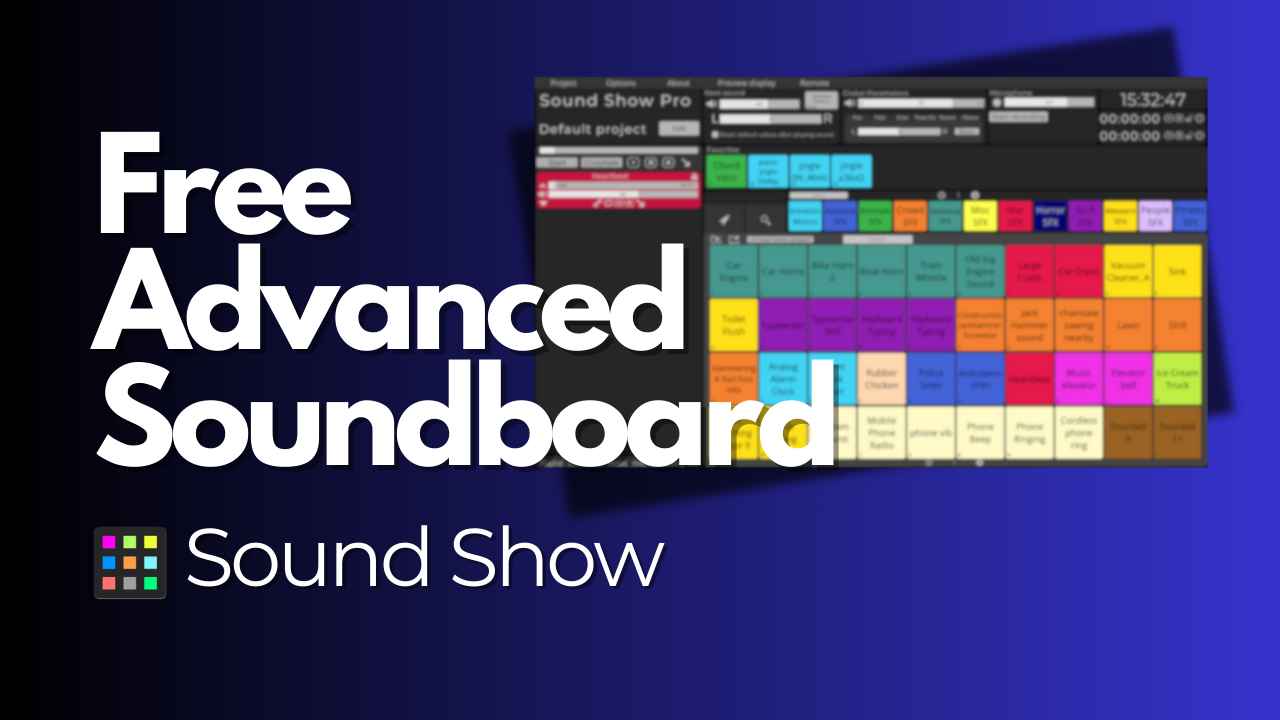
Sound Show is a user-friendly advanced soundboard software that makes managing audio cues simple and accessible. For Windows, Mac, Linux and Android

Paid content Multilingual
Visit website
Profile views 8 Outbound visits 3 Normal
Sound Show Full homepage screenshot

At a glance

Category
Software & Apps
Language
English
Paid-content signal
Paid contentObserved
Registered
2023
Hosting
CloudflareInferred
HTTPS certificate trusted
PassedObserved
Last updated

Website review

This review may include AI-generated content and is not individually verified. Domain, certificate and other facts come from the observed data on this page.

What is Sound Show?

Sound Show is a soundboard and multimedia playback app for live performances, available for Windows, Mac, Linux and Android. It plays audio cues from customizable grids arranged across multiple tabs, and each sound opens in its own player with independent volume and playback control — so you can drop a sting under dialogue, loop an ambience bed, and cut a track without touching the others.

It goes beyond a simple clip launcher: the same interface handles images, video and a live webcam feed, plus programmable sequences, playlists and text-to-speech. That combination suits anyone cuing sound and visuals together — theatre technicians, RPG game masters, DJs, improv performers, podcasters and streamers, party hosts and corporate event crews.

Free vs Pro

Free Pro
Tabs and sounds Up to 10 tabs, 40 sounds per tab Unlimited sounds and tabs
Look and layout Limited visual customization Custom grid sizes, skins, icons, layouts
Integrations Some modules locked (MIDI, lighting) MIDI, Stream Deck, OBS, QLC+, Android remote
Audio outputs Not specified Up to 8
Price shown €0.00 €45.00

The practical trade-off is capacity and control rather than audio quality. If your show fits inside 10 tabs of 40 sounds and you trigger everything by mouse or keyboard, the free version covers it. Pro matters when you need a hardware controller under your fingers, more than a couple of outputs routed to different speakers or zones, or a visual layout that matches how you actually work on stage.

A concrete case: an amateur theatre company running a two-act play might load one tab per act, keep a third for pre-show and interval music, and still have room to spare — free is enough. A game master running weekly sessions with dozens of ambience loops, combat stings and location themes will hit the tab limit quickly, and a Stream Deck or MIDI pad makes cueing far less disruptive to the table.

Next step: download the free version and rebuild one real show or session in it. Count the tabs and sounds you actually need and note whether you ever reach for a physical controller — that tells you whether Pro is worth the €45 for your use.

How does Sound Show compare to free soundboard apps for live theatre and improv performances?

Sound Show is a strong fit for theatre and improv when you need more than a grid of play buttons. The free tier already covers straightforward cue playback, but its real distinction is the built-in performance toolkit: visuals, sequences, playlists, and text-to-speech in one interface, with each playing sound getting its own player and independent volume control. That matters in improv, where a cue may need to duck under dialogue or shift mid-scene without touching a mixer.

Where it pulls ahead of typical free soundboards

  • Per-track control. A dedicated player on the left gives independent volume and playback control for each track, rather than one master level for everything.
  • Multiple tabs and grids. Organizing cues across tabs suits a show with distinct scenes, acts, or cue categories. The free version allows up to 10 tabs and 40 sounds per tab.
  • Beyond audio. Images, video, and a live webcam feed can be displayed alongside sound, which many free soundboard apps do not attempt.
  • Show automation. Programmable sequences and playlists let a run of cues fire in order, useful for scripted transitions.
  • Platform reach. Windows, Mac, Linux, and Android, so a small company is not locked to one machine type.

Where free alternatives can still win

If your needs are simply "press button, play sting," a lightweight free soundboard may load faster, use fewer resources, and require less setup. Sound Show's extra modules are also partly gated: MIDI, lighting, Stream Deck, OBS, QLC+, and Android remote control sit in Pro, along with unlimited sounds and tabs, custom grid sizes and skins, and up to 8 audio outputs. A theatre running lighting or QLab-style integration should treat those as Pro features, not free ones. The page lists Free at €0.00 and Pro at €45.00, with Pro described as a one-time-style "Get Pro" purchase rather than a subscription signal.

Practical decision criteria

  • Choose the free tier for a single-operator improv show with a modest cue list, no lighting or MIDI needs, and no requirement for more than 10 tabs.
  • Choose Pro if you need MIDI or Stream Deck triggering, multiple audio outputs for separate speakers or monitors, OBS or QLC+ integration, or remote control from an Android device.
  • Compare against a dedicated theatre playback tool if your priority is timecode, cue stacking with precise fade curves, or show control across many departments. Sound Show's strength is breadth and ease of use; a specialist tool may go deeper on a narrow cueing workflow.

As a next step, list your must-haves before downloading: how many simultaneous outputs, whether a stage manager will trigger cues remotely, and whether lighting or video must sync. If two or more of those are essential, the Pro feature set is the realistic comparison point; if none are, the free version is likely enough to run a small show.

Can I use Sound Show for tabletop RPG sessions and online game mastering?

Yes. Sound Show is well suited to tabletop RPG sessions, both in person and online, and its grid-and-tab layout fits the way game masters actually run games: a handful of ambience loops, a few stingers, and quick access to mood changes without breaking narration.

Why it fits game mastering

The core workflow is built around triggering clips fast. You organize sounds into customizable grids across multiple tabs, so you can dedicate one tab to tavern ambience, another to combat, another to weather or travel, and switch between them mid-scene. When a sound plays, it appears in a dedicated player on the left with independent volume and playback control — useful when you want a music bed running quietly underneath a louder one-shot effect.

Beyond audio, Sound Show also displays images, videos, or a live webcam feed, and supports programmable sequences, playlists, and text-to-speech. A game master can therefore run a scene change as a single automated cue: music swap, a visual handout on screen, and an NPC line read aloud, all from one trigger.

What the free version covers for a typical campaign

Most home games will run comfortably on the free tier. The limits are on scale rather than on core function: up to 10 tabs with 40 sounds per tab, limited visual customization, and some modules locked, including MIDI and lighting. That is roughly 400 sounds total, which is more than most campaigns ever prepare.

The Pro tier removes the sound and tab caps, allows custom grid sizes, skins, icons, and layouts, and unlocks MIDI, Stream Deck, OBS, QLC+, and Android remote control, plus up to 8 audio outputs. For a solo game master at a laptop, the integrations matter less than they would for a streamed show. For anyone broadcasting a session, the OBS and remote-control support is the more meaningful upgrade.

In-person versus online play

Situation What helps most
Around a table Large, clearly labeled grid buttons; a second display or tablet for visuals
Online via a VTT or Discord OBS integration and separate audio outputs so music and voice route independently
Streamed sessions Stream Deck or Android remote for triggering without touching the keyboard
Convention or one-shot games Playlists and sequences so cues fire in order with one press

An online game master running voice chat usually wants the soundboard on a separate audio path from the microphone, so players hear effects without also hearing every notification sound from the host machine. That is where multiple audio outputs earn their place.

Practical setup advice

Build tabs around scenes rather than file types, and keep the first three or four buttons on each tab for the cues you reach for most. Test your routing before the session — confirm that players hear the ambience at a comfortable level under speech, and that one-shot stingers are not clipping. Keep a "silence" or "stop all" button within reach; the ability to kill audio instantly matters more than any single effect.

The page notes a 4.6/5 rating on itch.io and includes comments from users describing exactly this use case, including a game master who has run both online and tabletop games with it and calls it their current favorite tool. Treat those as individual user impressions rather than a broad survey, but they line up with the feature set described.

If you want to try it before committing, download the free version and build one combat tab and one ambience tab. If you find yourself wanting more than ten tabs, custom layouts, or MIDI and streaming integrations, that is the signal to look at Pro. You can compare tiers at Sound Show.

What features are included in the free version versus the Pro upgrade?

The free version covers the core soundboard workflow; Pro removes the limits and adds integrations for larger, more automated shows.

Feature Free Pro
Tabs and sounds Up to 10 tabs, 40 sounds per tab Unlimited sounds and tabs
Visual customization Limited Custom grid sizes, skins, icons, layouts
Modules Some locked (MIDI, lighting, etc.) MIDI, Stream Deck, OBS, QLC+
Remote control Not listed Android remote control
Audio outputs Not specified Up to 8

What the free tier is good for

Casual use: a handful of cue sounds for a tabletop session, a small improv set, or a podcast intro and stinger library. Ten tabs at 40 sounds each is a few hundred cues, which is plenty for most single-operator setups. The catch is that locked modules and limited visual customization mean you can't reshape the interface heavily or wire the board into external gear.

What Pro changes in practice

The jump matters most when sound is one part of a bigger technical setup. MIDI and Stream Deck support let you fire cues from hardware instead of clicking; OBS and QLC+ integration ties audio to streaming scenes or lighting; multiple audio outputs let you route cues to separate destinations, such as a stage monitor versus a front-of-house feed. Unlimited tabs and sounds suit repertory theatre or a DJ with a deep library, and an Android remote lets someone off the main machine trigger cues.

How to decide

Start free and count what actually blocks you. If you only hit the tab or sound ceiling, that's a mild constraint. If you need MIDI, Stream Deck, lighting, or multi-output routing, those are locked modules and Pro is the only route. The listed upgrade is €45.00, with the free tier at €0.00.

For context on comparable tools, see QLC+ for lighting control and OBS Studio for streaming, both of which Sound Show Pro integrates with.

How do I connect Sound Show to MIDI controllers, Stream Deck, or OBS for a live show?

Sound Show lists MIDI, Stream Deck and OBS support among its Pro features, so those connections require the paid tier rather than the free version. The free edition is capped at 10 tabs and 40 sounds per tab, with some modules locked, so plan your licence choice around whether you actually need external control.

What each integration is for

  • MIDI controllers: a hardware pad or keyboard can trigger cues so you are not aiming a mouse during a show. This suits theatre techs and performers who want physical buttons under their hands.
  • Stream Deck: a grid of labelled keys that fire cues by name. Best for streamers, podcasters and anyone running a show from a desk where a labelled button beats remembering keyboard shortcuts.
  • OBS: useful when your sound cues and your video scene changes need to stay in step, common in streaming and recorded productions.

A practical setup order

  1. Install Sound Show Pro and build your cue grid first, using tabs to separate scenes or acts.
  2. Confirm each sound plays correctly on its own, including the per-track volume in the player panel on the left.
  3. Add the external control layer last: map MIDI notes or Stream Deck keys only after the cue layout is stable, so you are not remapping twice.
  4. Test the whole chain at show volume, not headphone volume, and test it after a restart so nothing depends on a forgotten manual step.

Choosing between them

Situation Sensible choice
You perform standing up, away from the laptop MIDI pad or foot controller
You sit at a desk with many cues and need labels Stream Deck
Sound and video must change together OBS integration
Small party or one-off event Free version, mouse and keyboard

One user on the Sound Show forum, a game master running tabletop and online RPGs since 2009, describes trying many tools before settling on Sound Show for music and effects during sessions. That is a good illustration of the general point: the value of MIDI or Stream Deck mapping grows with how often you trigger cues live, and a game master running a weekly session will feel the benefit far more than someone playing a handful of sounds at a party.

If a controller is not recognised, check the module is unlocked in your Pro licence and that the device is connected before Sound Show starts. For a broader look at the software, see Sound Show.

Is Sound Show available on Windows, Mac, Linux, and Android, and does it support multiple audio outputs?

Yes. Sound Show is offered for Windows, Mac, Linux and Android, and multiple audio outputs are part of the paid tier rather than the free one.

Platform support

The four desktop and mobile platforms are covered by the same product, so a theatre tech on a Windows laptop, a podcaster on a Mac, a Linux user and an Android tablet user can all run it. The Android build doubles as a remote control in the Pro tier, which matters if you want to trigger cues from a phone or tablet while your main machine sits at the mixing position.

Audio outputs

Multiple outputs are a Pro feature, listed as up to 8 audio outputs. In practice this is what lets you route a backing track to the front-of-house system while sending a click or cue feed somewhere else, or split effects across separate speakers. The free version does not include it, so anyone whose workflow depends on discrete output routing should plan on Pro.

What the free version still gives you

Free covers most features, with limits of up to 10 tabs and 40 sounds per tab, reduced visual customization, and some modules locked — MIDI and lighting among them. For a small improv group or a home RPG session, that ceiling is often enough; for a show with dozens of cues per scene plus MIDI-triggered lighting, it is not.

Choosing between them

Need Free Pro
Windows, Mac, Linux, Android Yes Yes
Multiple audio outputs No Up to 8
Sounds and tabs 10 tabs, 40 sounds each Unlimited
MIDI, Stream Deck, OBS, QLC+, Android remote Locked Included

A practical next step: list your actual cue count and whether you need a separate output feed. If both answers are modest, start free and confirm the interface suits you before paying. If you need split outputs or external control surfaces, go straight to Pro — those are exactly the locked items. The listed Pro price is €45.

Related questions

More questions →
How to Choose Soundboard Software for Live Performance and Gaming

Choose soundboard software by matching three things to your actual use case: platform support, the free tier's limits, and whether you need live integrations like MIDI or Stream Deck. If you run theatre, tabletop RPGs, streams, or DJ sets on Windows, Mac, Linux, or Android and want a free core version with a one-time paid upgrade, Sound Show is a reasonable starting point. If your needs are simpler — a few clips for Discord — a lighter tool may be enough, and the paid tier here would be wasted money.

Start with your primary use case

The right software depends on what you're triggering sounds for, because that determines which features actually matter.

Use case What matters most Why
Theatre / live performance Multi-tab grids, independent per-track volume, automation, multiple audio outputs You cue many sounds in sequence and need precise control
Gaming / Discord Low latency, simple hotkeys, low cost You trigger a handful of clips on demand
Streaming / podcast Integration with OBS, playlists, text-to-speech Sounds need to mix into a broadcast pipeline
Tabletop RPG Large sound library, quick search, visuals You punctuate scenes with music and effects over long sessions
DJ / party Fast triggering, visual display You react to a crowd in real time

Sound Show positions itself across theatre techs, RPG game masters, sports DJs, improv shows, podcasts, radio, streaming, parties, corporate events, and dance shows — so it's built for the performance end of this list rather than casual Discord use.

Compare free vs paid before you commit

This is where most people either save money or waste it. Sound Show's free tier is genuinely usable, but the limits are specific.

Feature Free (€0.00) Pro (€45.00)
Tabs Up to 10 Unlimited
Sounds per tab 40 Unlimited
Grid sizes, skins, icons, layouts Limited visual customization Custom
Modules (MIDI, lighting, etc.) Some locked Unlocked
Integrations — MIDI, Stream Deck, OBS, QLC+, Android remote control
Audio outputs — Up to 8

The practical read: if you need more than 10 tabs or 40 sounds per tab, or you rely on MIDI, Stream Deck, OBS, or QLC+, the free version will block you and Pro is the real product. If you just want to fire off a few dozen clips, free covers it.

Note that the Pro price is listed as a one-time €45.00 on the page, not a subscription — but confirm current pricing at checkout, since listed prices change.

Check platform compatibility first

Sound Show runs on Windows, Mac, Linux, and Android. That breadth matters if your setup is mixed — for example, a Windows show laptop with an Android tablet as a remote. The Android remote control is a Pro feature, so if remote triggering is part of your workflow, factor that into the tier decision.

If you only ever use one platform, this advantage is neutral — don't pay for cross-platform support you won't use.

Evaluate the features that affect live use

These are the capabilities that separate a performance tool from a toy:

  • Multi-tab grids — organize sounds into customizable grids across tabs. The free tier caps this at 10 tabs / 40 sounds each.
  • Independent playback control — when a sound plays, it appears in a dedicated player on the left with its own volume and playback controls, so you can adjust one track without touching others.
  • Multimedia playback — display images, videos, or a live webcam feed alongside audio.
  • Automation — programmable sequences and playlists let a show run itself once cued.
  • Text-to-speech — trigger spoken cues from the same interface.
  • Multiple audio outputs (Pro) — up to 8, useful for routing different sounds to different speakers or a monitor mix.

For a theatre or dance show, independent volume and multiple outputs are close to essential. For a Discord session, they're irrelevant.

Decide on budget and licensing

Sound Show's model is free core + one-time Pro upgrade, which suits people who dislike subscriptions. The trade-off: the free version is deliberately limited on tabs, sounds, and integrations, so "free" only works if your show fits inside those caps.

A simple decision rule:

  • Stay free if you use fewer than 10 tabs, under 40 sounds per tab, and don't need MIDI, Stream Deck, OBS, or QLC+.
  • Buy Pro if any single one of those limits blocks you — the integrations alone justify it for streamers and lighting-controlled shows.

What users report

The page cites a 4.6/5 rating on itch.io and quotes users including an amateur theatre company in Abrantes, Portugal, and a game master who has run online and tabletop RPGs since 2009 and calls Sound Show their favorite tool after trying many others. A pro-wrestling user mentions buying Pro to support the project. These are vendor-hosted testimonials, so treat them as directional rather than independent — but the recurring theme (theatre, RPG, live events) matches the feature set.

Bottom line

Pick Sound Show if you perform live or run long sessions on Windows, Mac, Linux, or Android and want a free tier you can outgrow into a one-time €45 Pro upgrade. Pick something lighter if you only need a few clips for Discord — you'd be paying for integrations and capacity you'll never touch.

Which Free Soundboard for Windows Should You Use for Discord and Gaming?

For most people who want a free Windows soundboard for Discord and gaming, SmoredBoard is the strongest fit among the options described here: it advertises unlimited sound slots at no cost, keybinds and a Stream Deck plugin for triggering sounds, a built-in editor and effects lab, and fully local storage with no account required. The trade-off is that it is Windows-only and its "works everywhere" claim depends on routing its audio into your chat or game, which is the step most people get stuck on. If you only need a handful of sounds and no voice changer, a lighter tool may be enough — but if you want editing, effects, and sharing in one free package, this is the one to try first.

What to compare before you download

Use the same criteria for any free soundboard, because "free" and "works in Discord" mean different things across tools.

Feature Why it matters SmoredBoard (per its site)
Sound slots Caps how many clips you can keep loaded Unlimited, free
Trigger method Determines how fast you can fire a sound mid-game Keybinds, Stream Deck plugin, or click
Built-in editor Avoids needing a separate audio editor Trim and cut; Effects Lab for echo, bass boost, "low quality," etc.
Voice changer Needed if you want live voice effects, not just clips Realtime changer with built-in voices, all free
Where it plays Must reach Discord, games, and other apps "Works everywhere you need it to"
Storage and account Affects privacy and offline use Local storage, offline, no account
Platform Rules out non-Windows users Windows only

Two rows deserve emphasis. First, unlimited slots matters more than it sounds: many free soundboards cap you at a small number of pads, and you hit the ceiling fast once you add meme clips, alerts, and game callouts. Second, local storage with no account means your sounds stay on your device and work offline — a real difference from browser-based boards that require a login and an internet connection.

How to add sounds

SmoredBoard describes three input paths, and each produces the same result: a playable slot on your board.

  1. Drag and drop an audio file or MP4 onto the board.
  2. Use the built-in browser to pull a sound from any website in one click.
  3. Edit after import — apply trims and cuts to remove dead space or jump straight to the part you want.

If a clip sounds wrong after import, the fix is usually in the editor rather than the source file: trim the leading silence, then re-test the keybind.

How to trigger sounds in Discord and games

The site lists three trigger options: keybinds, a Stream Deck plugin, or clicking the sound directly. Keybinds are the practical choice for gaming, since you can fire a clip without leaving the keyboard.

The part the site does not spell out is audio routing. For other people to hear your soundboard in Discord or in a game's voice chat, your board's output has to reach the app as an input device. That normally means:

  • Set your soundboard's output to a virtual audio cable or similar virtual device.
  • In Discord (or the game), set the input device to that same virtual device.
  • Keep your own headphones on a separate output so you still hear the game.

This is the single most common setup failure: the sound plays on your end but nobody else hears it, because the board is still going to your speakers instead of the virtual input. If sounds are silent in Discord specifically, check the input device in Discord's voice settings before you touch anything in the soundboard.

Sharing and effects

Two features are worth knowing about before you commit:

  • Sharing: you can export soundboard profiles to send to friends, or use the site's Voicy profile maker to share sounds with a wider community. Useful if you and your friends want identical boards.
  • Effects Lab: combine effects to make a sound echo, sound "low quality," get bass boosted, or build a custom voice. The same lab is what powers the voice changer's custom voices, so you are not limited to the built-in set.

Who should pick something else

  • You are not on Windows. SmoredBoard is Windows-only, so you need a different tool entirely.
  • You want zero setup. Any soundboard that plays into Discord needs virtual audio routing; if that is more than you want to configure, stick to Discord's own built-in soundboard features.
  • You only need a few clips and no voice changer. A minimal board will do, and the editor, effects, and sharing features here go unused.

Otherwise, the combination of unlimited free slots, keybinds, a Stream Deck plugin, a built-in editor, and local no-account storage is what makes SmoredBoard the default pick for Discord and gaming on Windows. Download it, add one sound by drag-and-drop, bind a key, and confirm it plays through your virtual input in Discord before you build out a full board.

What Is a Virtual Soundboard and What Can You Do With It?

A virtual soundboard is software that turns your computer or phone into a sound-triggering device: you load audio clips into a grid, then fire them off with a click, tap, or key press while controlling each one's volume independently. It replaces a hardware soundboard or mixing desk for most small-to-medium setups. It's the right tool if you need to play cues on demand during a live performance, game session, stream, or podcast — and the wrong tool if you need multi-channel studio mixing or hardware faders under your fingers.

What "virtual" actually means here

A hardware soundboard is a physical console with pads, faders, and dedicated outputs. A virtual soundboard does the same job in software: the audio files live on your machine, the interface is a grid of buttons on screen, and the "output" is whatever audio device your system exposes.

The practical consequences:

  • No extra hardware to buy or carry. A laptop or Android device is enough.
  • Unlimited clip capacity, limited only by the software's tier. Physical pads are fixed; software grids can grow.
  • Per-clip control without a mixer. Each playing sound gets its own volume and playback control instead of sharing one channel strip.
  • Routing depends on your OS and audio setup, not on the board itself — which is where most beginners get stuck.

Core features to expect

Sound Show, a soundboard and multimedia player for Windows, Mac, Linux, and Android, illustrates the typical feature set:

  • Customizable grids across multiple tabs — organize cues by scene, mood, or category instead of one long list.
  • A dedicated player per active sound — when a clip plays, it appears in its own player with independent volume and playback control.
  • Playlists and programmable sequences — chain cues so a single trigger starts a run of sounds.
  • Visuals alongside audio — images, video, or a live webcam feed.
  • Text-to-speech triggering for announcements and callouts.

Its free tier covers most features but caps you at 10 tabs and 40 sounds per tab, with limited visual customization and some modules (MIDI, lighting) locked. The Pro tier at €45 removes the sound and tab limits, adds custom grid sizes, skins, icons and layouts, and unlocks MIDI, Stream Deck, OBS, QLC+, and Android remote control integrations plus up to 8 audio outputs.

Who actually uses one

The same tool serves very different jobs, which is why feature priorities vary so much:

Use case What matters most
Theatre tech Reliable cue triggering, sequences, multiple outputs
RPG game master Fast search across many clips, low latency, simple grid
Sports DJ / dance shows Instant response, playlists, visual display
Podcast / radio / streaming Integration with OBS or a mixer, clean routing
Parties and corporate events Ease of use, remote control from a phone

A theatre company quoted on Sound Show's site describes it as fitting "all our needs" for amateur productions; a long-running game master notes he tried many tools before settling on it for both online and tabletop sessions. Both point at the same thing: the value is in firing the right cue at the right moment, not in studio-grade processing.

Virtual soundboard vs. hardware console

Choose a virtual soundboard when:

  • Your cue count is large and changes often.
  • You want to run everything from one laptop or tablet.
  • You need visuals, text-to-speech, or app integrations in the same tool.
  • Budget matters — capable free tiers exist.

Choose a hardware console when:

  • You need tactile faders and pads you can hit without looking at a screen.
  • You're feeding a house PA with strict channel and output requirements.
  • You can't risk a computer crash mid-show and have no redundant machine.

Many live setups use both: software for cue playback, hardware for final output control.

How to start

  1. Install the software on your performance machine (Windows, Mac, Linux, or Android for Sound Show).
  2. Create tabs for logical groups — Act 1, combat, stingers, walk-on music.
  3. Load clips into the grid and assign each a key or pad.
  4. Set per-clip volume so loud effects don't blow out quieter ambience.
  5. Test routing — confirm the board's output goes to the right device (headphones, PA, or virtual cable for streaming).
  6. Rehearse the trigger order before going live, including any sequences.

The most common failure point is step 5: audio playing through the wrong device, or a streaming app not receiving the board's output. Fix that before showtime, not during it.

FAQ

Is a virtual soundboard the same as a virtual audio cable? No. A soundboard plays and manages clips; a virtual audio cable routes audio between applications. They're often used together for streaming.

Can I use one for free? Yes — Sound Show's core version is free, with limits on tabs, sounds per tab, and locked modules. Paid tiers remove those limits.

Does it work for Discord and gaming? Yes, provided your routing is set up so the board's output reaches your voice chat or stream. That's a system audio configuration task, not a soundboard feature.

Do I need a powerful computer? No. Playing audio clips is light work; the constraints are your audio routing and, for visuals, your GPU.

What Is a Soundboard and How Do You Use One on Windows?

A soundboard is software that stores short audio clips and plays them on command—usually through a hotkey, a click, or a hardware controller—so the sound goes into whatever app you're already using, such as Discord, a game, or a streaming setup. On Windows, the basic workflow is the same across most tools: add audio files, assign each one a trigger, then fire it live. SmoredBoard is one example of a free Windows soundboard that also bundles a realtime voice changer, unlimited sound slots, a built-in editor, and an effects lab, with all sounds stored locally so it works offline without an account.

What people actually use a soundboard for

The keyword "soundboard" covers a few different jobs, and it helps to know which one you're solving for:

  • Discord and voice chat — dropping a meme clip, a sound effect, or a sting into a call.
  • Gaming — triggering audio without alt-tabbing out of the game.
  • Streaming and content creation — cueing intros, transitions, or reaction sounds on demand.
  • Voice changing — a related but separate feature: altering your microphone input in real time rather than playing clips.

If you only need to play clips, a plain soundboard is enough. If you also want to change how your voice sounds, look for one that includes a voice changer, since running two separate tools adds latency and routing headaches.

The core workflow: add, assign, trigger

Every soundboard follows roughly the same three steps.

1. Add sounds

You bring audio into the board, typically by dragging and dropping files. SmoredBoard accepts audio files and MP4s, and also has a built-in browser that lets you add a sound from a website in one click. Once added, the clip lives in a "slot" on the board.

2. Assign a trigger

Each slot needs a way to fire. The common options are:

  • Keybinds — a keyboard shortcut you press to play that specific sound.
  • Clicking — just clicking the slot in the app window.
  • Hardware controllers — for example, a Stream Deck plugin, which SmoredBoard supports.

Keybinds are what make a soundboard usable mid-game or mid-call, because you don't have to switch windows.

3. Trigger it live

When you press the keybind or click the slot, the sound plays and routes into your chosen output—your mic input, your headset, or a virtual audio device, depending on how you've set up routing in Windows. The expected result is that other people in the call or stream hear the clip.

Features worth comparing before you pick one

Not all soundboards are equal, and the differences usually show up in these areas:

Feature Why it matters
Sound slots A low cap (e.g. 8–16) forces you to swap clips constantly. SmoredBoard advertises unlimited slots for free.
Built-in editor Lets you trim dead space or cut to the part you want without a separate audio editor.
Effects Echo, bass boost, "low quality," etc. SmoredBoard's Effects Lab is where these are applied.
Voice changer Separate from clip playback; useful if you want to alter your live voice.
Trigger options Keybinds, clicking, and controller support (e.g. Stream Deck).
Local vs. cloud Local storage means offline use and no account; cloud means sync across devices but usually a login.
Sharing Exporting profiles or sound packs to send to friends.

Local storage, offline use, and accounts

A meaningful distinction is where your sounds live. SmoredBoard states that all sounds and voices are stored locally on your device and can be used offline without an account. That's convenient if you want zero sign-up friction or you're somewhere without reliable internet. The trade-off is that local-only tools generally don't sync your board across multiple computers automatically—you'd move profiles manually.

If a tool requires an account or cloud storage, check what happens to your sounds if you stop using it, and whether offline playback still works.

Sharing sounds and profiles

Two common sharing models:

  • Profile export — you package your whole board (slots, keybinds, settings) and send it to a friend, who imports it. SmoredBoard supports exporting soundboard profiles.
  • Community packs — a public library or profile maker where people publish sound sets. SmoredBoard mentions a "Voicy profile maker" for sharing sounds with a larger community.

If sharing is important to you, confirm the export format is portable and that the recipient doesn't need the exact same setup to use it.

A quick way to decide

  • Just want to play clips in Discord or a game? Any soundboard with keybinds and enough slots will do; prioritize low latency and easy routing.
  • Want clips and a voice changer in one tool? Pick one that bundles both, like SmoredBoard, to avoid stacking two apps.
  • Need it to work offline with no account? Favor a local-storage tool.
  • Plan to share boards with friends? Check for profile export before committing.

SmoredBoard is free to download for Windows and positions itself around unlimited slots, a built-in editor, an effects lab, a realtime voice changer, and fully local storage. Whether it's the right fit depends on which of the rows above you actually care about—so match the feature list to your use case rather than the other way around.

Website Overview

Page metadata, canonical configuration and social previews work together to provide more consistent search and sharing presentation.

Domain and Registration

Transfer-protection status is present, helping reduce the risk of unauthorized domain transfers. The domain has about 3 years of registration history; its current configuration provides more context than age alone. The registrar is Gandi SAS, a widely used domain service provider. The domain uses the common .app extension, which is not an independent safety signal.

DNS and Email

Nameservers are provided by Cloudflare, indicating managed DNS hosting. MX records point to the Proton Mail email service. No CNAME was found; the observed records resolve directly to addresses. SPF and DMARC are configured. DKIM status is unknown. TXT records include verification markers for Google. Such markers may also remain after a service stops being used.

TLS and Certificates

The public key uses EC with 256 bits. The server supplied a complete certificate chain. No organization name is present in the certificate; the available fields are consistent with domain validation. The certificate was issued within the Google Trust Services cloud or CDN ecosystem. The certificate's total validity is about 90 days, consistent with a short renewal cycle.

HTTP and Browser Security

The response lacks these common security headers: HSTS, CSP, Referrer-Policy, Permissions-Policy, clickjacking protection. No X-Powered-By header was found, reducing one common source of backend fingerprinting information. The cf-ray response header indicates a CDN or caching proxy in the delivery path. No obvious internal addresses or debug information were found in the headers. The Server header identifies cloudflare without an exact version.

Technology Stack Analysis

The public page identifies Odoo, Cloudflare without precise versions, leaving fewer clues for version-specific scanning.

Search and Social Sharing

The Generator tag identifies Odoo, making the publishing system easier to fingerprint. Twitter Card metadata is configured. The page declares 11 language or regional alternatives using hreflang. The title has 37 characters, within a common display range. A meta description is present, with 148 characters.

Hosting and Email

DNSCloudflare
HostingCloudflare
EmailProton Mail
Approximate IP geolocation (inferred; a CDN or proxy may differ from the origin server) Location unknown Inferred 104.21.30.228

Registration details

RDAP / WHOIS

RegistrarGandi SAS
Registered2023-08-24
Expires2027-08-24
Domain statusclient transfer prohibited
Nameserversadrian.ns.cloudflare.com、ricardo.ns.cloudflare.com
DNSSECunsigned

DNS records

DNS

TypeNameValueTTLPriority
Asoundshow.app104.21.30.228300—
Asoundshow.app172.67.173.231300—
AAAAsoundshow.app2606:4700:3033::ac43:ade7300—
AAAAsoundshow.app2606:4700:3036::6815:1ee4300—
MXsoundshow.appmail.protonmail.ch30010
MXsoundshow.appmailsec.protonmail.ch30020
NSsoundshow.appadrian.ns.cloudflare.com86400—
NSsoundshow.appricardo.ns.cloudflare.com86400—
TXTsoundshow.appgoogle-site-verification=1foS8f5P3-yTopN6prFPZ9bBJuTPhdYRT1mClR_2O8M300—
TXTsoundshow.appprotonmail-verification=d7531e057fb74d34b532d10eacc9ad4d5a8f696d300—
TXTsoundshow.appv=spf1 include:_spf.protonmail.ch include:spf.mailjet.com ~all300—
DMARC_dmarc.soundshow.appv=DMARC1; p=quarantine; rua=mailto:[email protected]300—

TLS and certificates

TLS / SSL

AssessmentNormal configuration
Supported protocolsTLSv1.2、TLSv1.3
Negotiated protocolTLSv1.3
Certificate subjectsoundshow.app
IssuerGoogle Trust Services
Valid until2026-12-12T10:44 · Remaining when checked: 60 days
Verification detailsCertificate trust: Passed · Hostname match: Passed

HTTP response headers

HTTP

HeaderValue
content-typetext/html; charset=utf-8
servercloudflare
x-content-type-optionsnosniff

Identified technologies

OdooCloudflare

Pages, Search and Sharing

Meta descriptionSound Show is a user-friendly advanced soundboard software that makes managing audio cues simple and accessible. For Windows, Mac, Linux and Android
Canonical URLhttps://soundshow.app/
LanguageEnglish (default) · Multilingual
Twitter Cardsummary_large_image
All bots 0 allowed · 4 disallowed
  • Disallow/forum
  • Disallow/profile
  • Disallow/web/login
  • Disallow/shop

Recent Updates

  • Website images

User reviews (0)

  • No reviews yet.