Website profiles · Technology insights · Alternatives

speechify.com Paid content Multilingual

Categories: Artificial Intelligence

Speechify reads anything aloud to you. Listen to books, PDFs, or web pages anytime with natural voices. Try Speechify free.

Visit website

Updated: 2026-09-24 00:09 Language: English (default) Access: Normal

Profile views 1 Outbound visits 0
Speechify Full homepage screenshot
Editorial Review

Website Review

What is Speechify?

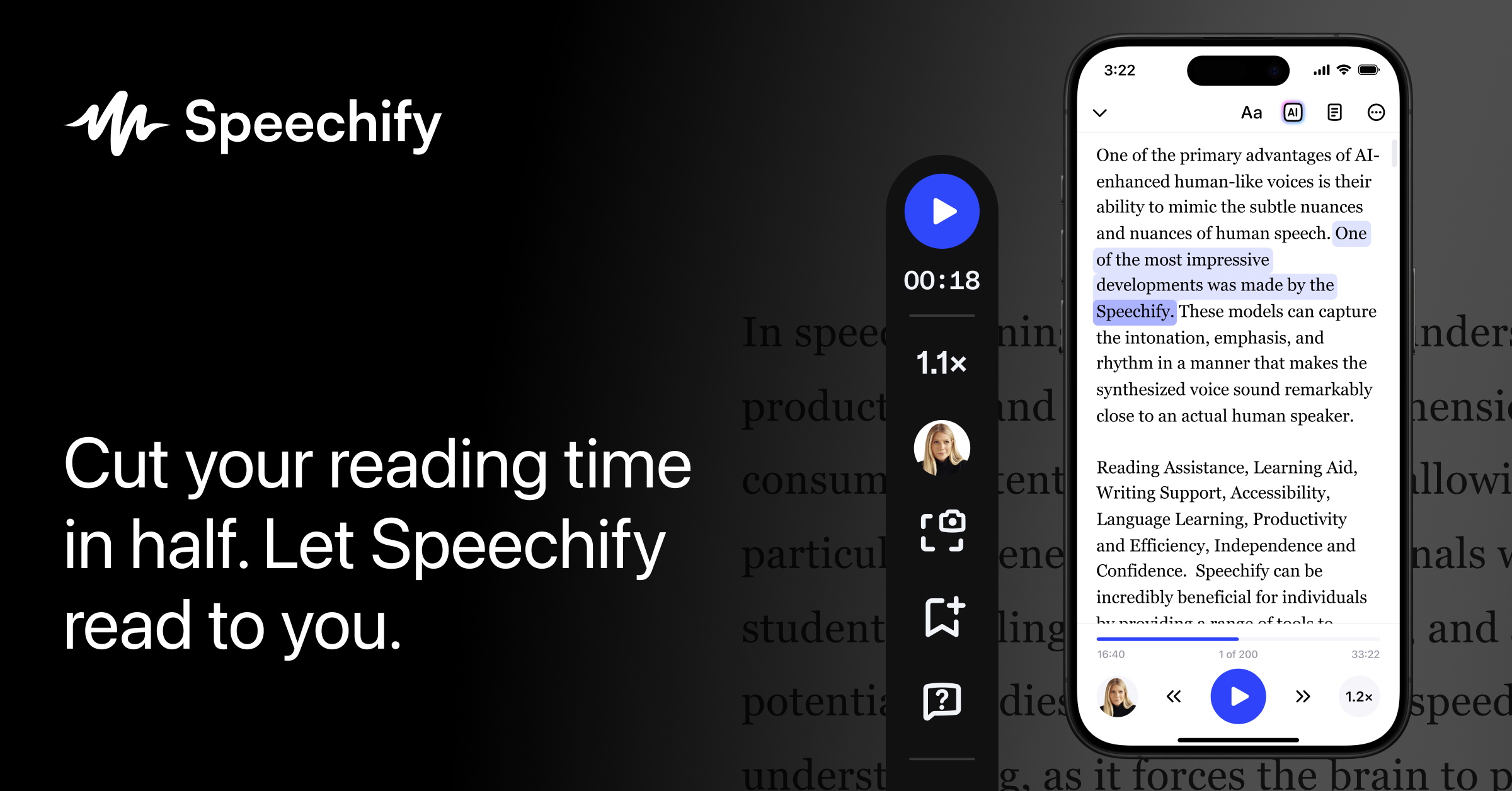
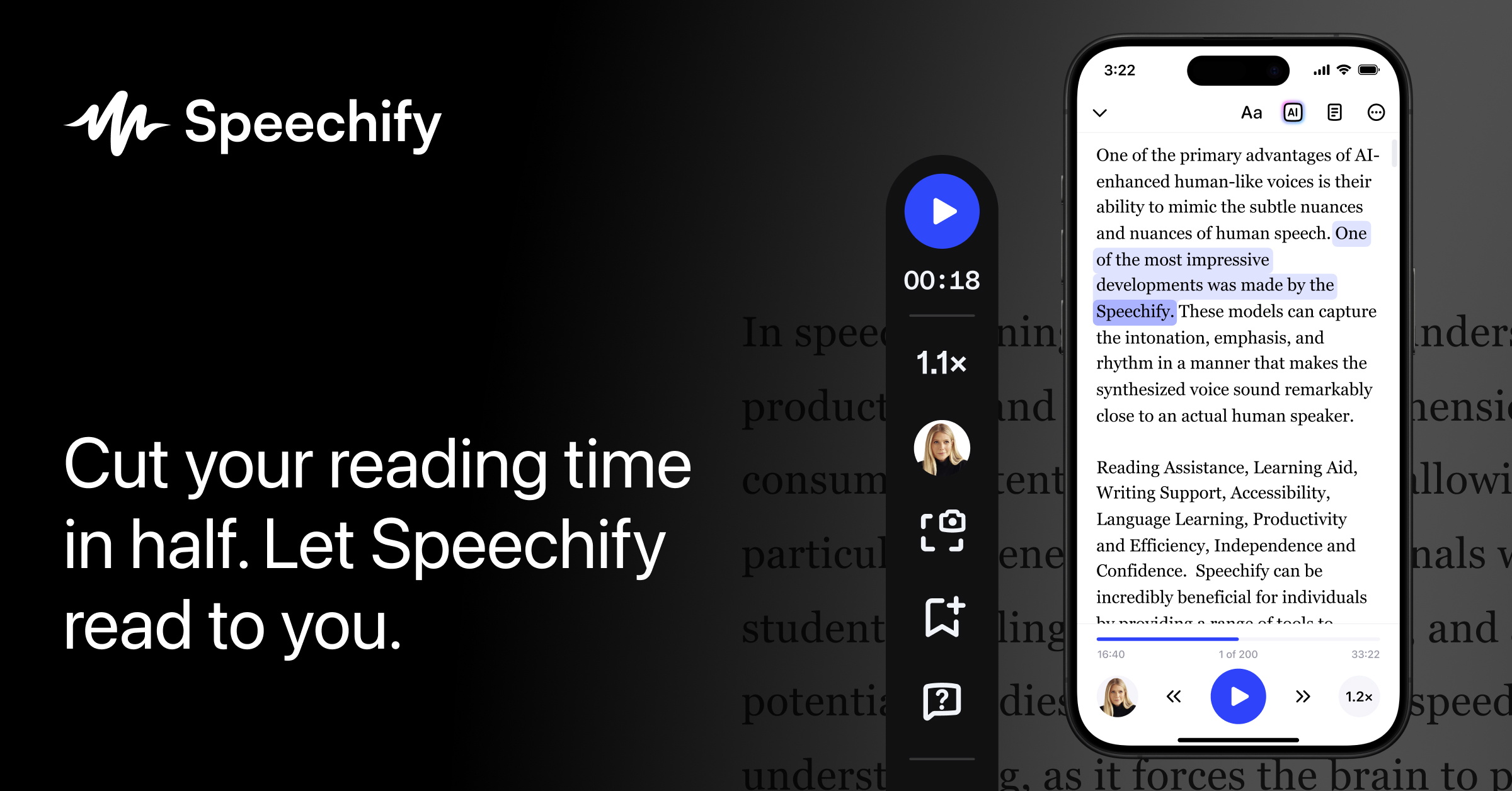
Speechify is a text-to-speech and voice AI tool that reads written content aloud in natural-sounding voices. It works across devices — web app, Chrome and Edge extensions, iOS, Android, Windows and Mac — so you can listen to PDFs, documents, books and web pages instead of reading them on screen. The same assistant also handles voice typing (dictating text into other apps) and answering questions about what you're reading.

What you can actually do with it

  • Upload a PDF or document and have it read aloud, summarized, or turned into a podcast-style audio.
  • Use the browser extension to have web pages read to you, dictate text, or ask questions about the page you're on.
  • Dictate into everyday apps rather than typing — the page claims speech input can be faster than a keyboard.
  • Adjust voice, speed and highlighting so you can follow along while listening.
  • Choose from a large library of AI voices and listen at higher playback speeds.

Who it suits

Reader Why it fits
Students and researchers Long PDFs and papers become listenable, with summaries for skimming
Commuters and multitaskers Books and articles become audio for hands-busy time
People with reading difficulties or visual impairment Content is read aloud with highlighting and speed control
Heavy typists and writers Dictation replaces typing across apps
Anyone curious about a page Ask questions about the content instead of reading all of it

The trade-off is that it's a reading-and-dictation layer, not a full document editor or a replacement for focused reading when you need to absorb dense material carefully. If your main need is listening to long documents on the go, it's a strong fit; if you mainly want to edit and format text, it's secondary.

A useful next step: pick one real task you do often — say, a weekly PDF report or a stack of saved articles — and run it through the free tier to see whether the voices and speed feel comfortable enough to rely on.

How does Speechify's Chrome extension help me read web pages and PDFs?

Speechify's Chrome extension is a browser add-on that reads web pages and PDFs aloud in a natural-sounding AI voice, so you can listen instead of staring at the screen. According to the page, it reads anything in your browser, can type for you as you talk, and can answer questions about whatever you're reading.

Reading web pages

  • Click the extension and it converts the page's text to speech, so articles, newsletters and long threads become audio you can play in the background.
  • Text highlighting lets you follow along visually while the voice reads.
  • Speed control lets you listen faster or slower than normal speech.

Reading PDFs

  • The extension handles PDFs opened in the browser, reading them aloud rather than making you scroll.
  • On the web app side, the page also describes uploading a PDF to have it read out loud, summarized, or turned into a podcast. That upload flow is a web-app feature, not necessarily something the extension itself does.

Practical scenario: A student with a 40-page PDF and a commute could open the PDF in Chrome, start the extension, set a faster listening speed, and get through it hands-free — then use highlighting to jump back to a key passage.

Trade-offs to weigh

  • Listening works best for linear content; for tables, diagrams, code or heavy math, audio alone is a poor fit and you'll still need the visual page.
  • Extension quality depends on the page's underlying text. Scanned PDFs and image-heavy pages may not read cleanly unless the tool can recognize the text.
  • Voice AI question-answering is convenient for quick comprehension, but treat its summaries as a study aid, not a substitute for the source.

Next step: Install the extension and test it on one long article and one PDF you already know well. Compare what the voice gets right against your own reading — that tells you quickly whether it fits your workflow. Speechify also offers the same reading capability across its web app and other platforms if you want to move beyond the browser. See Speechify for the extension and pricing details.

Can Speechify turn my PDFs or documents into podcasts?

Yes. Speechify can turn a PDF or document into a podcast-style audio experience. According to the site, you can upload a PDF into the web app and have Speechify read it aloud, summarize it, or create a podcast from it. The Android app is also described as being able to create podcasts from any document or description. So the feature is real, but the exact controls and output format may vary by platform.

What this looks like in practice

  • Upload a PDF: Use the web app to add a document, then choose whether you want it read aloud, summarized, or turned into podcast-style audio.
  • Listen on the go: The Android app is the clearest mobile option mentioned for podcast creation from a document.
  • Use it for study or commutes: A student could upload lecture notes and listen during a walk; a commuter could turn a work report into audio for the drive.

A useful next step

If podcast-style output is your main goal, start with one short PDF in the web app and compare the podcast result with the plain read-aloud version. If you prefer doing this on your phone, try the Android app instead. Also check Speechify for current platform availability before relying on a specific device.

How does Speechify's voice typing work across apps like Slack and Outlook?

Speechify's voice typing is a dictation layer: you talk, and it turns your speech into text inside whatever app has focus, rather than making you write in a Speechify window and paste it elsewhere. Its Mac app is described as turning speech into polished text across Slack, Outlook, Cursor and other apps, and the Windows app is pitched the same way — talk instead of type, in every app. On the web side, the Chrome extension types for you as you talk, so the same dictation idea applies to browser text fields.

What that looks like in practice

  • Slack: you open a message box, trigger dictation, and speak your reply; the words land in the compose field, where you can edit before sending.
  • Outlook: the same flow for an email body, which suits longer messages where speaking beats typing.
  • Cursor and other editors: useful for comments, prompts or prose, though you will still want to review code-adjacent text carefully.

The claimed benefit is speed — the page compares typing at roughly 40 words per minute with dictating up to 5× faster. Treat that as a best case: real throughput depends on how cleanly you speak, how much you correct, and whether you are thinking as you talk.

Trade-offs worth knowing

Dictation shifts effort from fingers to voice and editing. It works best for people who think out loud, write long messages, or have RSI or other typing difficulty. It works less well in open offices, for precise punctuation and formatting, or for text full of names, jargon and code.

If you are deciding, run a one-week test on your two most common writing tasks — a Slack thread and an Outlook reply — and count how much time you spend correcting versus typing. If corrections stay low, expand to more apps; if not, keep dictation for long-form drafting only. For the underlying text-to-speech and reading side, see Speechify.

What natural-sounding AI voices and languages does Speechify offer?

Speechify offers more than 1,000 AI voices, and its own materials describe them as lifelike and emotional, with the goal of sounding natural rather than robotic. The same voice assistant works across its web app, Chrome and Edge extensions, iOS, Android, Windows and Mac apps, so you can hear the same kind of narration whether you are listening to a PDF, a book, a web page or a document on your phone.

What that means in practice

  • Voices are pitched for listening rather than system announcements, so long articles, books and study material are easier to follow for long stretches.
  • Playback speed is adjustable up to 4.5x, which matters if you want a natural voice but also want to get through material quickly.
  • Text highlighting and speed control are built in, so you can follow along while listening instead of only hearing the audio.
  • The assistant can also summarize what you are reading or listening to, which is useful when you want the gist before committing to the full narration.

About languages

The supplied page information does not list specific supported languages or a language count. Speechify's marketing emphasizes voices, devices and features like text to speech, voice typing and question answering, but it does not name individual languages in the material provided here. So the honest answer is: many natural-sounding voices are offered, but the exact language list is not something this page evidence confirms.

A useful next step

If a specific language matters to you — for example, reading French or Spanish documents aloud — open Speechify's voice picker in the app or browser extension and check whether that language appears before relying on it. Voice quality also varies by language and voice, so test a short paragraph in your target language rather than judging from the English demo alone. For a sense of how it compares in everyday browser reading, you can also look at Speechify.

Is Speechify free or paid, and what do the pricing plans include?

Speechify is a freemium product: you can use a free tier, but the fuller voice, speed and AI features sit behind a paid subscription. The site's own pricing page is the only reliable place to check current tiers and prices, since these change often.

Speechify

What the free tier typically covers

The free plan is best understood as a trial of the core reading experience rather than a full tool. You can paste or upload text and hear it read aloud, but expect limits on which voices you can use, how much you can listen to, and how much of the AI assistant you can access. For a student testing whether listening beats reading for a dense PDF, that is enough to decide.

What paid plans generally add

  • Premium voices: access to the wider library of natural-sounding voices rather than a small default set.
  • Higher listening speed: the site advertises speeds up to 4.5x, which is a paid-tier feature in practice.
  • Voice AI assistant: summaries, question-answering about what you are reading, and podcast creation from documents.
  • Dictation: speech-to-text across apps, which the site frames as faster than typing.
  • Cross-device use: web app, Chrome and Edge extensions, iOS, Android, Windows and Mac.

How to decide

Your situation Sensible starting point
Occasional article or short PDF Free tier, then upgrade only if you hit a voice or length limit
Daily reading of long documents or books Paid tier, mainly for premium voices and speed control
Dictation as your main writing method Paid tier, since voice typing is a headline feature, not a free extra
Wanting summaries and Q&A over documents Paid tier, as the AI assistant is the differentiator

One practical next step: pick a single real task — a 20-page PDF, a long report, or a week of dictating emails — run it on the free tier first, and note exactly where you hit a wall. That tells you which paid feature you are actually buying, rather than paying for the whole bundle on reputation.

Related questions

More questions →
What Can an Amazon Seller Browser Extension Actually Do for Your Listings?

An Amazon seller browser extension is a small piece of software that runs inside Chrome, Edge, or Firefox and adds information or shortcuts directly onto Amazon pages you already visit. In practice, it can overlay demand and competition data on a product page, pull quick numbers while you browse a niche, flag missing or weak listing elements, and save you from switching between tabs. What it cannot do is replace a full listing engineering or growth platform: extensions are lightweight, page-level helpers, while serious listing work — keyword architecture, AI-readiness, bulk optimization, and performance tracking over time — needs a dedicated toolset. The useful question is not "extension or platform" but "which jobs belong to each."

What a browser extension typically does well

Most seller extensions cluster around a few repeatable, on-page tasks. If your workflow involves a lot of browsing, these are where the time savings are real.

On-page data overlays

While you're on a product detail page, the extension can display estimated sales, revenue, review velocity, seller count, and price history in a panel next to the listing. This turns "open a separate research tab and paste the ASIN" into "read the number where you already are." For quick sanity checks on a competitor or a potential product, that's a genuine speed gain.

Quick product and niche research

Extensions often let you scan a search results page and see metrics for every listing at once, or export a batch of ASINs. This is useful for early filtering: you can spot which results have thin review counts, unstable pricing, or a dominant seller, and decide which few are worth deeper analysis.

Listing checks and basic audits

Some extensions highlight on-page elements — title length, bullet presence, image count, whether A+ content appears, whether key fields look empty. This is a fast visual audit, not a scoring system. It tells you what's there, not whether your listing is engineered to match how Amazon discovery works now.

Convenience features

Coupon and deal finders, price-drop alerts, review-request shortcuts, and quick links to seller tools fall into this bucket. They're small quality-of-life wins rather than strategy.

Where extensions fall short

This is the part sellers most often underestimate. An extension sees the page in front of you; it doesn't hold your catalog, your history, or your strategy.

Job Browser extension Full listing/growth platform
On-page competitor snapshot Yes, fast Yes, often deeper
Keyword architecture across a listing No Yes
AI-readiness / discovery optimization Rarely Core function
Bulk edits across many ASINs No Yes
Tracking your own listings over time Limited Yes
Historical trend and seasonality Usually shallow Yes
Team workflows and permissions No Yes

The pattern: extensions are read-and-react tools for pages you're already on. Platforms are build-and-manage tools for your own catalog. If your bottleneck is "I need to know if this niche is worth entering," an extension helps. If your bottleneck is "my listings aren't converting or aren't being surfaced the way Amazon discovery now works," an extension won't fix that — you need listing engineering, not a data overlay.

Scenarios: when an extension earns its place

  • Early product research. You're scanning dozens of search pages a day. An overlay that shows demand and competition inline saves hours of tab-switching. Worth it.
  • Competitor spot-checks. You want a fast read on a rival's pricing and review momentum before a pricing decision. An extension gives you that in seconds.
  • Quick listing sanity checks. You're about to publish and want to confirm images, bullets, and title are all present. A visual audit extension is handy.
  • Ongoing listing optimization. You need to align titles, bullets, and backend terms with how Amazon's discovery systems interpret intent, and to keep that consistent across a catalog. This is platform territory — an extension can't hold or apply that structure.
  • Scaling a catalog. Once you're managing many ASINs, bulk operations, version history, and team access matter more than any single-page overlay.

What to check before installing any extension

Extensions can read the pages you visit, and some request broad permissions. Before you install:

  1. Read the permission list. Does it need access to all sites, or only Amazon domains? Broader access than the job requires is a yellow flag.
  2. Check what data leaves your browser. Does it send your browsing or seller data to a server? Is that disclosed?
  3. Confirm the vendor. Prefer extensions from established sellers/tool providers with a real product behind them, not anonymous one-off add-ons.
  4. Test on a non-critical account first. If it touches your Seller Central session, verify behavior before relying on it.
  5. Know the exit. Can you disable it cleanly, and does uninstalling remove stored data?

How to decide if it fits your stage

Ask three questions:

  • Is my main pain "I browse a lot and want data inline"? An extension is likely worth it.
  • Is my main pain "my listings underperform and I need to engineer them properly"? Skip the extension-first mindset; look at a listing/growth platform.
  • Am I managing more than a handful of ASINs? You'll outgrow page-level tools quickly; extensions become a supplement, not the system.

A practical setup for many sellers is both: an extension for fast on-page research, and a dedicated platform for the listing work that actually moves rankings and conversion. ZonGuru, for example, positions its toolset around listing engineering and AI-readiness rather than page overlays — the kind of work an extension structurally can't do. If you want to see where a full platform picks up, its pricing page outlines the options, and there's a free trial to test the workflow before committing.

The short version: a browser extension is a fast, cheap way to see more while you browse. It is not a listing strategy. Use it for the browsing jobs, and bring in a real platform for the engineering jobs — that division is what keeps your time and your listings both working.

Website Overview

An established domain and managed infrastructure suggest continuity of operations and may support dependable delivery, although neither guarantees service quality.

Domain and Registration

Registered in 2013, this domain has about 13 years of history. That suggests continuity, although ownership and purpose may have changed. Transfer-protection status is present, helping reduce the risk of unauthorized domain transfers. The registrar is Cloudflare, Inc., a widely used domain service provider. The domain uses the common .com extension, which is not an independent safety signal.

DNS and Email

Nameservers are provided by Cloudflare, indicating managed DNS hosting. MX records point to the Google Workspace email service. No CNAME was found; the observed records resolve directly to addresses. SPF and DMARC are configured. DKIM status is unknown. TXT records include verification markers for Google, Microsoft. Such markers may also remain after a service stops being used.

TLS and Certificates

The public key uses EC with 256 bits. The server supplied a complete certificate chain. No organization name is present in the certificate; the available fields are consistent with domain validation. The certificate was issued by Let's Encrypt, commonly associated with automated certificate services. The certificate's total validity is about 89 days, consistent with a short renewal cycle.

HTTP and Browser Security

X-Powered-By exposes backend information: Next.js, Payload. The response lacks these common security headers: CSP, Referrer-Policy, Permissions-Policy. CORS permits any origin to read this response. This is common for public resources; sensitive responses need narrower handling. The cf-ray response header indicates a CDN or caching proxy in the delivery path. No obvious internal addresses or debug information were found in the headers.

Technology Stack Analysis

The public page identifies Next.js, Cloudflare, Vercel without precise versions, leaving fewer clues for version-specific scanning.

Search and Social Sharing

The title has 66 characters and may be truncated in search results. Twitter Card metadata is configured. The page declares 44 language or regional alternatives using hreflang. A meta description is present, with 123 characters. The observed directives allow indexing and link following.

Hosting and Email

DNSCloudflare
HostingVercel
EmailGoogle Workspace
Location Location unknown 104.26.0.186

User reviews (0)

  • No reviews yet.

Pages, Search and Sharing

Meta descriptionSpeechify reads anything aloud to you. Listen to books, PDFs, or web pages anytime with natural voices. Try Speechify free.
Canonical URLhttps://speechify.com/
LanguageEnglish (default) · Multilingual
Twitter Cardsummary_large_image
All bots 1 allowed · 3 disallowed
  • Allow/onboarding/sign-in/
  • Disallow/*?landing=
  • Disallow/api/
  • Disallow/onboarding/
adsbot-google 0 allowed · 2 disallowed
  • Disallow/*?landing=
  • Disallow/api/
oai-searchbot 1 allowed · 1 disallowed
  • Allow/
  • Disallow/api/
chatgpt-user 1 allowed · 1 disallowed
  • Allow/
  • Disallow/api/
gptbot 1 allowed · 1 disallowed
  • Allow/
  • Disallow/api/
claudebot 1 allowed · 1 disallowed
  • Allow/
  • Disallow/api/
claude-user 1 allowed · 1 disallowed
  • Allow/
  • Disallow/api/
claude-searchbot 1 allowed · 1 disallowed
  • Allow/
  • Disallow/api/

Registration details RDAP / WHOIS

RegistrarCloudflare, Inc.
Registered2013-05-08
Expires2031-05-08
Domain statusclient transfer prohibited
Nameserverschristian.ns.cloudflare.com、irena.ns.cloudflare.com
DNSSECunsigned

DNS records

TypeNameValueTTLPriority
Aspeechify.com104.26.0.186191—
Aspeechify.com104.26.1.186191—
Aspeechify.com172.67.68.119191—
AAAAspeechify.com2606:4700:20::681a:1ba300—
AAAAspeechify.com2606:4700:20::681a:ba300—
AAAAspeechify.com2606:4700:20::ac43:4477300—
MXspeechify.comaspmx.l.google.com3001
MXspeechify.comalt1.aspmx.l.google.com3005
MXspeechify.comalt2.aspmx.l.google.com3005
MXspeechify.comalt3.aspmx.l.google.com30010
MXspeechify.comalt4.aspmx.l.google.com30010
NSspeechify.comchristian.ns.cloudflare.com86400—
NSspeechify.comirena.ns.cloudflare.com86400—
TXTspeechify.comMS=ms17961709300—
TXTspeechify.combrevo-code:12e857ce7d2475c03d0520cb1abfeea2300—
TXTspeechify.comcloudflare_dashboard_sso=3ee2459d2ef47fe687018d4ace85f3bf300—
TXTspeechify.comfirebase=speechifymobile300—
TXTspeechify.comgoogle-site-verification=0NMx-vPGfL_G8y8xC5qeUe0wFb9P01EuGVpNbHY4GOw300—
TXTspeechify.comgoogle-site-verification=FL-iUFvzm5PJcPKoNOqVHt1AviYT7L7HTB5bcIihGx4300—
TXTspeechify.comgoogle-site-verification=IxuVU02JK7dOxZfU7nH22nesDtT7pFk_6Fbt1QPqgjM300—
TXTspeechify.comgoogle-site-verification=JLtCZkD8Pksdg8kCg_hej81HW035T_fDecbwPZvvpxk300—
TXTspeechify.comgoogle-site-verification=Yu8kzUcEnqfRXn_8COF1C1d06jfTRVDFi8ctRfkaw0o300—
TXTspeechify.comgoogle-site-verification=_PFFxP_7WQCgP2rc2wGD1bkBXVfMsp3hVM2VddtU3_g300—
TXTspeechify.comgoogle-site-verification=jOgzn6XqgeyR4XKT3Zk1CBBwBBEq7h0tM_TcpDRzldI300—
TXTspeechify.comgoogle-site-verification=kjf24vPJMikiyelPK8LJvuzm68DQL_59Y0FZcEYujz8300—
TXTspeechify.comgoogle-site-verification=tJdLxdoFlpUJHPVfMi2TSr-TYhUtXsgFK1R_imQx1YI300—
TXTspeechify.comgoogle-site-verification=w8xFo-VjVA36G3fJxjGCUBSBwFaHdLcRctCZncVyVd0300—
TXTspeechify.comgoogle-site-verification=xKbt-vedrz2QVy4demgOMtNu0oxDMgTlRaxhPcp2byY300—
TXTspeechify.comgoogle-site-verification=zWHRDDnmY3eOfFnOzdr9uWF5Y2987stx5alSSgT5JNY300—
TXTspeechify.comslack-domain-verification=mFBi1tulc0kQXFybB5MftPT0dgSw4Ew30Mrt24s5300—
TXTspeechify.comtiktok-developers-site-verification=2YQmS5K06QxxCpVgOYk1V5grx28TIC4G300—
TXTspeechify.comtiktok-developers-site-verification=Ea6ys5DBLXbIIAoIYQ6vxWI8FGa028s6300—
TXTspeechify.comtiktok-developers-site-verification=WJe1RhthcRLhQdSHlwcdhK83EFYDWTxE300—
TXTspeechify.comv=spf1 include:_spf.google.com include:mg-spf.greenhouse.io include:_spf.firebasemail.com ~all300—
TXTspeechify.comwork-os-domain-verification-amwvmj=WRbEQukKnawXBczo8fi1zpVm7300—
DMARC_dmarc.speechify.comv=DMARC1; p=reject; pct=100; rua=mailto:[email protected]300—

TLS and certificates

AssessmentNormal configuration
Supported protocolsTLSv1.2、TLSv1.3
Negotiated protocolTLSv1.3
Certificate subjectspeechify.com
IssuerLet's Encrypt
Valid until2026-11-26T08:02 · Remaining when checked: 63 days
Verification detailsCertificate trust: Passed · Hostname match: Passed

HTTP response headers

HeaderValue
content-typetext/html; charset=utf-8
cache-controlpublic, max-age=0, must-revalidate
servercloudflare
strict-transport-securitymax-age=63072000
x-frame-optionssameorigin
x-content-type-optionsnosniff
access-control-allow-origin*
set-cookieRedacted

Identified technologies

Next.jsCloudflareVercel