
 简体中文
简体中文 English
Website review
This review may include AI-generated content and is not individually verified. Domain, certificate and other facts come from the observed data on this page.
What is Super Productivity?
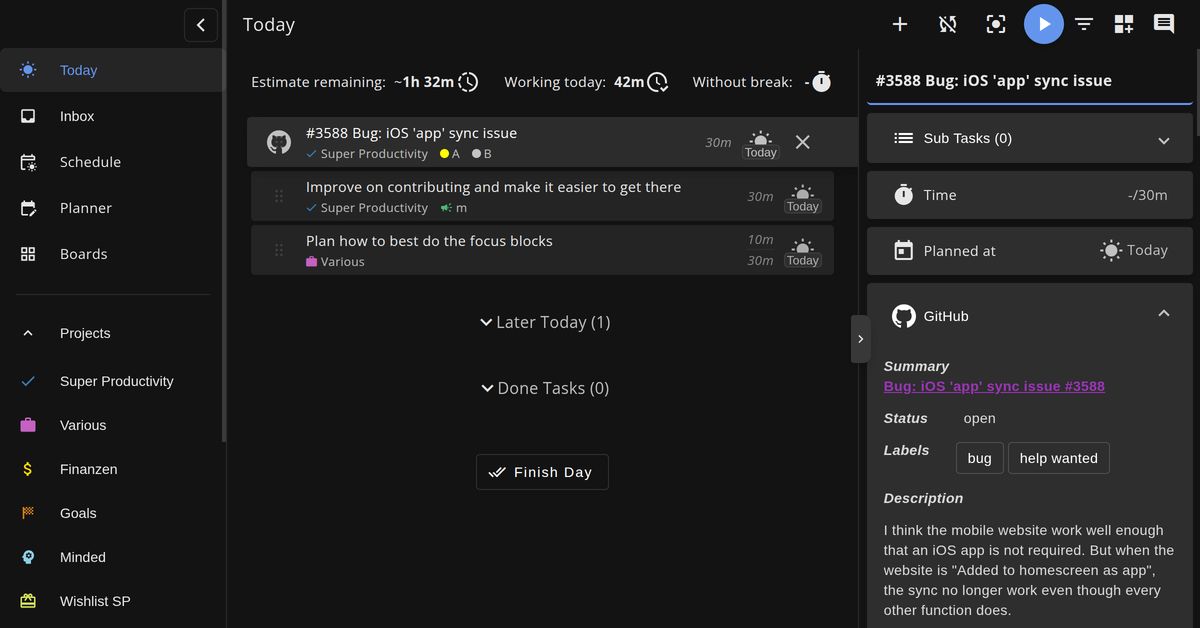
Super Productivity is a free, open-source task manager built around planning your day and tracking the time you actually spend on it. It combines a to-do list with work estimates, timeboxing, a built-in timer, and a focus mode, so a task moves from "planned" to "timed" without a separate spreadsheet or stopwatch. It runs on Windows, macOS, Linux, Android, iOS, and in the browser, and works offline without an account. Data stays on your device by default, with optional sync through Super Sync, WebDAV, or Dropbox. See Super Productivity for the official overview.
Who it fits
- Developers: issues from GitHub, GitLab, and Jira can be pulled into the daily plan, reducing tab switching between tickets and tasks.
- Freelancers: built-in time tracking produces timesheets and reports, which helps when hours need to be billed or justified.
- People who struggle with unstructured days: focus mode, a Pomodoro timer, and scheduled (timeboxed) work give the day a shape.
- Privacy-minded users: local-first storage and offline use mean tasks aren't tied to a cloud account.
Where the trade-offs are
| Aspect | What it means in practice |
|---|---|
| Open source, free | No license cost, but you support it yourself and features arrive on the community's schedule |
| Local-first | Strong privacy, but syncing across devices needs optional setup (Super Sync, WebDAV, Dropbox) |
| Many features in one app | Estimates, timeboxing, integrations, and plugins suit methodical planners; someone wanting a bare checklist may find it heavy |
| Keyboard- and plugin-friendly | Rewards users who invest in shortcuts and customization; casual users may not need it |
Next step
If your problem is "I plan tasks but never know where the hours go," start with one project: add estimates to a few tasks, timebox them into a day, and run one focus session. If that loop feels natural, expand to calendar import and issue-tracker integrations. If you mainly need a simple shared list for a team, a lighter collaborative tool may suit you better.
How does Super Productivity's built-in time tracking compare to maintaining a spreadsheet for freelancers tracking billable hours?
Built-in tracking wins for freelancers who bill by the hour, because it removes the step where most spreadsheet time gets lost: remembering to log it. Super Productivity ties a timer directly to each task, with estimates and scheduled work shown alongside time spent, and turns the result into timesheets and reports. A spreadsheet asks you to reconstruct your day afterward and to rebuild totals, formulas and formatting yourself.
Where each approach fits
| Situation | Built-in task timer | Spreadsheet |
|---|---|---|
| Work happens in short bursts across many clients | Start and stop per task; the record is created as you work | Easy to forget a block, or round it away |
| You need a defensible invoice | Time spent vs. estimate per task, plus reports | Depends entirely on how disciplined your manual entries are |
| You bill one retainer with fixed monthly hours | Fine, but overkill | Perfectly adequate, and clients may expect a sheet |
| You want to see where unbilled time goes | Estimates and scheduled work sit next to actual time | Requires extra columns you have to maintain |
| You need custom billing rules or shared client access | Not the focus | Full control over rates, rounding and sharing |
The practical difference is friction. A timer attached to a task you are already looking at costs one keystroke; opening a spreadsheet costs a context switch, and freelancers tend to skip it precisely during busy stretches when billable time matters most.
A concrete test
Take one week and run both in parallel: track in the app, and keep your usual sheet. At week's end, compare total billable hours and count how many entries you had to guess at. If the guesses cluster around client calls and small fixes, the built-in timer is earning its place.
Trade-offs to weigh
- Data ownership: the app keeps tasks on your device by default and works offline without an account, which suits freelancers handling confidential client material. Your spreadsheet is equally private but lives wherever you store it.
- Sync and client hand-off: optional sync is available, but if a client wants a live shared sheet, a spreadsheet remains the simpler path.
- Ecosystem: the app connects to GitHub, GitLab and Jira, useful if client work arrives as tickets rather than emails.
- Lock-in: it is open source and free, so trying it costs nothing beyond setup time; a mature spreadsheet template, by contrast, is already tuned to your rates.
If your billing is mostly project-based with few line items, a spreadsheet is enough. If you sell hours and lose track of them, start with the timer and export totals into whatever invoicing format your clients accept. See Super Productivity for the current feature set.
Can I use Super Productivity offline without creating an account, and what sync options exist if I want to work across desktop and mobile?
Yes. Super Productivity is designed to work offline without an account: tasks stay on your device by default, and the site states "No account needed · Works offline." You can start using it in the browser or download it for Windows, macOS, Linux, Android, and iOS without signing up.
Sync options for desktop and mobile
If you want the same tasks on more than one device, the site lists three routes:
| Option | What it is | Practical fit |
|---|---|---|
| Super Sync | The app's optional built-in sync | Simplest choice if you want sync handled inside the app and don't already run your own storage |
| WebDAV | Sync through a WebDAV server you control | Good for privacy-minded users or those with existing WebDAV storage; requires setup on your side |
| Dropbox | Sync via a Dropbox account | Convenient if Dropbox is already part of your workflow |
How to decide
- Single device, privacy first: skip sync entirely and keep everything local.
- Phone plus laptop, minimal setup: try Super Sync first.
- You already self-host or use WebDAV: that route keeps your data in infrastructure you manage.
- Dropbox household: use the Dropbox option to avoid another account.
A concrete scenario: a freelancer tracks billable hours on a laptop during the day and captures tasks on a phone between meetings. Local-only use works on each device, but without one of the three sync options the lists won't match—so choose sync before relying on mobile capture. For a broader comparison of task managers with offline support, see Todoist and Obsidian if note-based planning appeals to you.
How do focus mode and the Pomodoro timer in Super Productivity help someone with ADHD structure their workday?
Focus mode and the Pomodoro timer give an ADHD user two complementary kinds of structure: focus mode narrows attention to one task, while the Pomodoro timer breaks the day into bounded stretches with scheduled breaks. Super Productivity's page describes focus mode as "one task, your full attention," paired with a Pomodoro timer and breaks that fit your rhythm, and it lists "ADHD minds" among the audiences it is designed for. The practical effect is that the decision of what to do next is made once, when you pick the task, rather than repeatedly during the day—which is where ADHD attention tends to leak.
What each part contributes
- Focus mode: Removes the surrounding list, boards and competing tasks from view so the only visible commitment is the current item. This suits people who get pulled toward whatever looks urgent on a long task list.
- Pomodoro timer: Creates an explicit start and end to a work interval. A visible countdown makes time concrete, which helps when time estimation is unreliable, and the built-in break prompts reduce the all-or-nothing pattern of working until exhausted.
- Time tracking alongside: The page describes tracking time against tasks and turning that into timesheets and reports. For someone with ADHD, this is less about billing and more about learning how long your work actually takes, so future plans are realistic.
- Timeboxing and calendar: Bringing in a calendar and scheduling tasks gives the day a shape, so focus sessions land in real available time instead of an imagined empty day.
A concrete day
A freelancer with ADHD opens the app in the morning, picks one client deliverable, and starts a Pomodoro session in focus mode. When the timer ends, the break is a cue to stand up rather than drift into another tab. After four sessions, the tracked time shows the estimate was too optimistic, and the afternoon gets timeboxed accordingly.
Trade-offs to weigh
Strict intervals can feel interruptive when you are genuinely in flow; the page's phrase "breaks that fit your rhythm" suggests adjusting lengths rather than following a fixed schedule. Focus mode also depends on capturing stray thoughts somewhere—the page lists quick capture and keyboard shortcuts, which matter for anyone whose interruptions come from their own head. And structure only helps if setting it up is low-friction: no account is needed and it works offline, which removes two common reasons to postpone starting.
Next step
Try one week with a single change: focus mode plus Pomodoro on your three most important tasks, and review the tracked time at week's end. If the timer feels constraining, keep focus mode and lengthen intervals; if starting is the harder problem, shorten them. For a second opinion on how the app fits real workflows, see Lifehacker and It's FOSS, both cited on the product page as coverage.
How does Super Productivity integrate GitHub, GitLab, and Jira issues into my daily task plan to reduce context switching?
Super Productivity pulls issues from GitHub, GitLab, and Jira into the same task list you plan your day in, so a ticket can become a scheduled, time-tracked task without opening a browser tab for each tracker. You bring the issue in once, then work it alongside everything else instead of hopping between three web apps to check status.
What the integration actually changes
- One plan instead of three inboxes. Imported issues sit next to your own tasks, so your daily list reflects real work from all connected trackers rather than just personal to-dos.
- Estimates and timeboxing apply to issues. Because imported issues are ordinary tasks, you can give them a time estimate, slot them into your calendar, and track actual time against the estimate — useful when a Jira ticket turns out to be twice the work you assumed.
- Focus mode and Pomodoro work on issues. You can settle into one imported issue with a timer rather than keeping the tracker open "just in case."
- Context stays close. Notes, subtasks, and tags attach to the imported task, so the detail you'd normally re-read in Jira lives beside the work.
Where the friction actually goes
Context switching has two costs: the tab hop itself, and the re-orientation after it. This setup mainly removes the first. It doesn't eliminate the second — you still need to decide what to work on and in what order. The realistic gain is fewer "let me just check the ticket" detours mid-task, not zero overhead.
A concrete scenario: a freelancer with client work in Jira and open-source contributions in GitHub can plan one morning that interleaves both, with billable hours tracked per issue. A developer on a single team tracker may find less benefit, since the tab hop was never the bottleneck.
Practical criteria
| Your situation | Likely payoff |
|---|---|
| Issues spread across two or more trackers | High — one plan replaces several inboxes |
| Billable or reported time per issue | High — tracking happens where you plan |
| One tracker, already open all day | Modest — convenience, not transformation |
| Heavy reliance on tracker-native workflows (sprints, boards) | Low — you'll still return to the tracker for those |
The last row matters: imported issues are a planning convenience, not a replacement for Jira's sprint boards or GitHub's review flow. Expect to use the tracker for status changes and the task manager for deciding when the work happens.
Next step: pick one tracker, import a handful of current issues, and estimate them for tomorrow. If your plan feels more accurate than your tracker's backlog view, expand from there; if you keep flipping back to the tracker anyway, the integration isn't solving your particular bottleneck.
Is Super Productivity really free and open source, and what does the pricing page offer?
Yes. Super Productivity presents itself as a free, open-source task manager, and its own pages consistently describe the core app as free to use: no account required, works offline, and available on Windows, macOS, Linux, Android, iOS, and the web. The phrase "Free. Open source. Yours." appears directly in the page evidence, so this is the product's stated model rather than an inference.
What the pricing page offers
The site links to a pricing page, but the supplied page evidence does not include its contents, so specific tiers, paid add-ons, or subscription details cannot be confirmed here. What the evidence does show is a free core with optional extras:
- Core app: task lists, Kanban, Eisenhower Matrix, subtasks, notes, tags, projects, repeating tasks, time tracking, timeboxing, focus mode, Pomodoro timer, and keyboard shortcuts.
- Optional sync: Super Sync, WebDAV, or Dropbox, described as optional.
- Integrations: GitHub, GitLab, and Jira, framed as bringing issues into your daily plan.
Treat sync and integrations as the likely boundary between free use and any paid offering, but verify on the pricing page before committing.
Who this suits
A freelancer tracking billable hours gets the clearest fit: estimates, scheduled work, and timesheets live in one place, avoiding a separate spreadsheet. A developer who already works from GitHub or Jira issues benefits from keeping tickets in the same daily plan. Someone who wants offline, account-free task management gets that by default, since tasks stay on the device.
The trade-off is that a local-first, open-source tool asks more of you than a hosted service: you manage your own sync setup if you want it, and you should check how the optional sync is provided and priced. If you need guaranteed vendor support or a fully managed cloud, that is a different purchase.
Next step: open the pricing page and check specifically what Super Sync costs and whether integrations are included, then compare that against your actual need for cross-device sync. If you do not need sync, the free core likely covers planning, focus, and time tracking on its own.
 Germany

User reviews (0)