Website profiles · Technology insights · Alternatives

textanim.com

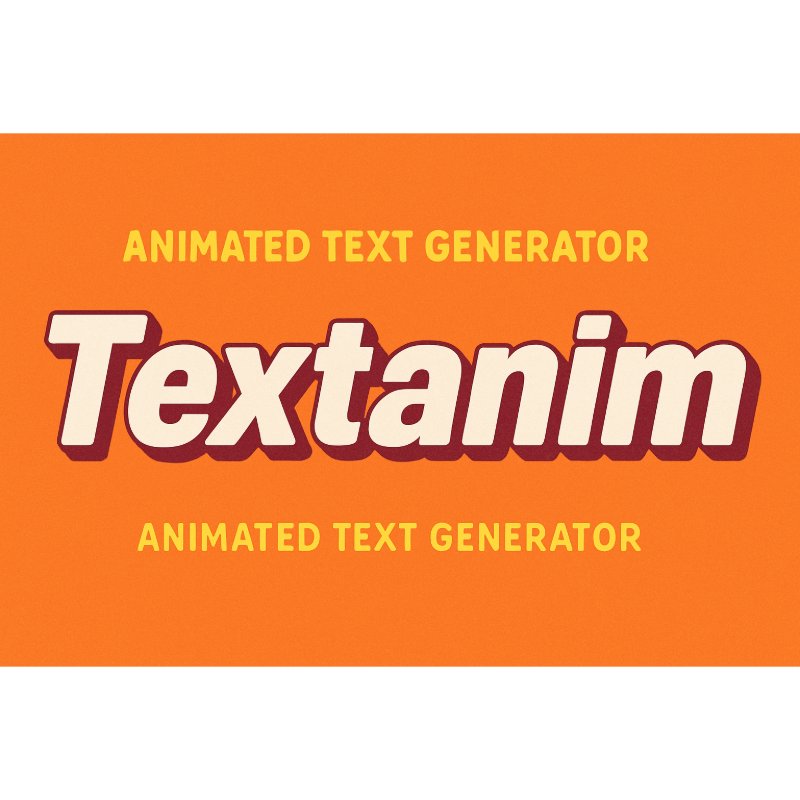
Create animated text with customizable textures, fonts, and effects. Fast and easy!

No paid content found
Visit website
Profile views 1 Outbound visits 1 Normal
Textanim Full homepage screenshot

At a glance

Category
Design & Creativity
Language
English
Paid-content signal
No paid content foundObserved
Registered
2008
Hosting
OVH SASInferred
HTTPS certificate trusted
PassedObserved
Last updated

Website review

This review may include AI-generated content and is not individually verified. Domain, certificate and other facts come from the observed data on this page.

What is Textanim?

Textanim is a browser-based tool for making animated text, such as titles, quotes or short layered messages, without animation software. You type your text, choose a font, size and outline, pick a background style, then set the animation direction (for example left to right or diagonally) and speed. The result can be exported as a GIF or WebP file or shared via a link, according to the site's own description.

Where it fits

It suits people who need a quick moving-text graphic for social posts, a slide deck, a simple web banner or a video overlay. The draw is speed and no install: the whole workflow is a single form on one page.

The practical limits are equally clear. Text is capped at 60 characters per line, and saved items are limited to 10, so it is a short-message tool rather than a captioning or long-form design system. The site says it supports Unicode, including accents and right-to-left scripts, which matters if you work in languages beyond English.

A concrete use

A small shop wants a moving "Open Saturday 9–5" banner for Instagram and its homepage. It types the line, picks a readable font, adds a contrasting outline so the text stays legible over a busy background, sets a slow left-to-right motion, and downloads the animation. The site notes that WebP exports are smaller and load faster than GIF, so WebP is the better pick for a website; GIF remains the safer choice where a platform only accepts GIF.

Choosing between options

Need What to check
Quick social graphic Export format accepted by the platform; short text limit is fine
Website banner File size and load speed; WebP export helps
Non-Latin or RTL text Confirm the characters render correctly before exporting
Longer or multi-style design This tool is built for short lines; a full design app may be needed

A sensible next step is to open the site's Gallery for ready-made templates, then test one line in your own language and font before committing to a format. For static typography work instead, a general design tool such as Canva covers broader layout needs.

How do I export my animated text as a GIF or WebP file for social media?

Use the export buttons under the preview: DOWNLOAD GIF, DOWNLOAD WEBP, or SHARE GIF / GET LINK. The page also offers SAVE LOCALLY for keeping work in the browser (up to 10 saved items). TextAnim describes WebP as its preferred format because files are smaller and load faster than GIF; GIF remains the safer choice for platforms or chat apps that don't render animated WebP.

Choosing a format for social media

Need Better choice Why
Posting to a platform that accepts GIF uploads (many chat apps, some social feeds) GIF Widest compatibility; plays inline almost everywhere
Fast-loading web page, email signature, or modern app WebP Smaller file, quicker load, per TextAnim's own recommendation
Sharing without downloading Share GIF / Get link Sends a link instead of a file attachment
Keeping a draft to edit later Save Locally Stores up to 10 items in the browser

A practical workflow: design the text, set direction and speed, check the preview at the size it will appear (a phone feed is small, so thin outlines and fast animation can blur), then download the WebP first and fall back to GIF only if the target platform rejects it. Keep lines within the 60-character limit and use the multi-line support for stacked titles rather than one long string.

If a platform strips your animation or shows a static frame, that is a compatibility issue, not a design flaw—re-export as GIF. For inspiration before exporting, the site's own gallery is the quickest reference point: Textanim.

What fonts and background textures can I use to customize my animated text?

Textanim offers a built-in font list and color/pattern controls rather than a full texture library. On the generator page, the Font Family selector includes classics like Arial, Verdana, Tahoma, Trebuchet MS, Impact, Times New Roman, Georgia, Courier New, Comic Sans MS and Helvetica, alongside display and decorative faces such as Cornerstone, Bestime, Creepster, Bebas, Monoton, PressStart2P, Zombie, Retrograde, Pulsar and DeliusUnicase. The page also says you can choose from hundreds of background patterns, and you control background color, outline color and outline size.

Practical uses

  • Social posts and thumbnails: pick a heavy display font (Impact, Bebas, PressStart2P) so short text stays legible at small sizes.
  • Quotes and titles: use a serif or neutral sans (Georgia, OpenSans) with a thin outline for a cleaner look.
  • Retro or themed graphics: Creepster, Zombie or Monoton suit Halloween, gaming or neon styles, but read poorly in long strings.

Choosing fonts and backgrounds

Match contrast first: a busy background pattern needs a solid outline and a simple font. Keep to one or two fonts per animation, and test the result at the size it will actually appear. Since Textanim supports multi-line text up to 60 characters per line, shorter lines with a clear font usually animate more readably than dense paragraphs.

If you need photographic textures rather than patterns, you would combine a transparent animated text export with an image in an editor such as Canva or Photopea; Textanim's own controls cover colors, outlines and pattern backgrounds.

Can Textanim handle multi-line text and non-Latin or right-to-left languages?

Yes. Textanim supports multi-line text (up to 60 characters per line) and is built for broad language coverage: Unicode support means accents, special characters and right-to-left scripts should render correctly, so Arabic, Hebrew or Persian titles are within scope alongside Latin text.

What that means in practice

  • Multi-line use: Suitable for short stacked titles, two-line quotes or layered messages. The 60-character limit per line is the constraint to plan around; long paragraphs are not the intended use.
  • Non-Latin scripts: Cyrillic, Greek, CJK and similar should display, but font choice matters more than the tool. Several listed fonts (Impact, Courier New, PressStart2P, Creepster) have limited or no glyph coverage for non-Latin characters, so pick a broadly supported font and check the preview before exporting.
  • Right-to-left: The site states RTL rendering is supported. Directional animation settings (left to right, right to left, diagonal) are separate from text direction, so confirm the reading order looks right in the preview, not just the motion.

A quick test before committing

Type a sample line in your target script with the accented or joined characters you actually need, switch fonts once or twice, and export a single frame or short GIF. If the glyphs hold up in the preview and the export, the rest of the design work is safe.

For ready-made examples of how multi-line animated text looks, the site's own gallery is the fastest reference: Textanim.

How do I adjust animation direction and speed to get the effect I want?

Use the Direction menu to set where the text travels and the Animation Speed slider to control how quickly it moves. Direction offers eight paths: top to bottom, bottom to top, left to right, right to left, and the four diagonals (for example, bottom right to top). Speed runs on a 50-point scale, with lower values giving a slower, more readable crawl and higher values giving a snappier, more energetic motion.

Matching settings to the effect you want

  • A headline that reads comfortably: choose a single direction such as left to right, and keep speed in the lower half of the scale. Long text (up to 60 characters per line) needs more time on screen, so slower is safer.
  • A short, punchy social clip: a diagonal direction plus a higher speed creates movement that feels lively without much text to track.
  • A layered or multi-line message: send lines in the same direction at a moderate speed so the eye follows one path rather than competing motions.
  • A subtle accent: pair a slow speed with a thin outline and a background pattern that contrasts with the text color, so the motion reads without shouting.

Practical checks before exporting

  1. Preview the full loop, not just the first frame — diagonal paths can clip text at the edges.
  2. Test on the smallest screen you expect (phone feed, slide thumbnail); speed that feels right on desktop often feels too fast when scaled down.
  3. Adjust outline size and color alongside speed, since a heavy outline improves legibility during fast movement.
  4. Export as WebP for smaller files and faster loading; choose GIF when a platform or recipient requires it.

If you want to see how direction and speed combine before building your own, browse the ready-made examples in the Textanim gallery and note the settings that resemble the look you're after.

Where can I find ready-made animated text templates in the gallery?

The ready-made templates are in Textanim's own Gallery, linked from the top menu of Textanim. The gallery is a browsing starting point: pick a template, then adjust the text, font, size, outline and animation direction in the generator.

How to use it in practice

  • Best for: social posts, slide titles, short quotes and layered multi-line messages where you want a finished look quickly.
  • Audience: non-designers who need animated text without animation software, and designers who want a fast base to customise.
  • Trade-offs: templates speed up the start but can make results look familiar; the generator's controls are where you add distinction. Textanim notes a 60-character limit per line and exports in GIF or WebP, with WebP recommended for smaller files and faster loading.

Next step: open the Gallery, note the font and animation direction of two or three templates you like, then rebuild your own text with those settings rather than using the template unchanged.

Related questions

More questions →
How to Create Custom Animated Text and Download It as GIF or WebP

Open Textanim (textanim.com), type your text into the input field, then adjust font, size, outline, background, shadow, animation direction, and speed until the preview looks right. When it does, use DOWNLOAD GIF, DOWNLOAD WEBP, or SHARE GIF / GET LINK to export or share the result. The whole workflow runs in the browser, and the tool supports multi-line text at up to 60 characters per line, so it works for titles, quotes, and layered messages rather than just single words.

Before You Start

  • Text limit: 60 characters per line. Longer lines need to be split manually.
  • Language support: Textanim states it works with almost all languages, including special characters, accents, and right-to-left scripts via Unicode. If a glyph looks wrong in the preview, it will look wrong in the export.
  • Fonts: The font list is fixed (Cornerstone, Arial, Verdana, Impact, Bebas, PressStart2P, Creepster, and others). You cannot upload your own font file.
  • Output formats: GIF and WebP. The site notes that WebP exports are smaller and load faster than GIF, and that it automatically exports in WebP for optimal performance — so treat WebP as the default choice unless a platform specifically requires GIF.

Step-by-Step: Build the Animation

1. Enter your text

Type into the Your Text field. The counter shows characters used against the 60 limit. For a multi-line title, press Enter to start a new line — each line is counted separately.

2. Set size and font

  • Text Size: a numeric value (the default shown is 60). Larger values fill more of the canvas.
  • Font Family: pick from the dropdown. Display fonts like Impact, Bebas, Monoton, or PressStart2P give a stronger animated-title look; Arial, Verdana, or Georgia are safer for readability.

3. Style the text

  • Background Color and Outline Color pickers.
  • Outline Size: a decimal value (default 0.5) — raise it for bold outlines on busy backgrounds, lower it or set near zero for a clean look.
  • Shadow: toggle on if the text needs separation from the background.

The About page also mentions hundreds of background patterns in addition to solid colors, which is useful when a plain background makes the animation look flat.

4. Choose direction and speed

Direction options include:

  • Bottom right to Top
  • Top to Bottom
  • Bottom to Top
  • Left to Right
  • Right to Left
  • Top right to Bottom

Animation Speed is a numeric slider (default 50). Lower values slow the scroll, which usually reads better for quotes; higher values suit short social clips.

5. Preview, then export

Watch the live preview. When it matches your intent:

  • DOWNLOAD GIF — for platforms or tools that only accept GIF.
  • DOWNLOAD WEBP — smaller file, faster loading; the better default for websites and modern social platforms.
  • SHARE GIF / GET LINK — produces a shareable link instead of a file.
  • SAVE LOCALLY — stores the design in the site's saved list, capped at 10 saved animated texts.

Choosing Between GIF and WebP

GIF WebP
File size Larger Smaller (site states this explicitly)
Loading speed Slower Faster
Best for Legacy tools, platforms that reject WebP Websites, social media, presentations
Availability here Yes Yes

Pick GIF only when a destination won't accept WebP. Otherwise WebP gives you the same animation with less weight.

Common Problems and Fixes

  • Text gets cut off or wraps oddly: you've hit the 60-character line limit. Shorten the line or split it into two lines.
  • Characters render as boxes or blanks: the chosen font lacks those glyphs. Switch to a broadly supported font (Arial, Verdana, Times New Roman) and re-check the preview before exporting.
  • Export file is too large for a platform: switch from GIF to WebP, reduce text size, or simplify the background.
  • Animation feels too fast or jerky: lower the Animation Speed value and re-export.
  • Saved designs disappeared: the saved list holds a maximum of 10 items — download anything you want to keep rather than relying on the site storage.
  • Right-to-left text looks reversed: confirm the script renders correctly in the preview first; if it doesn't, try a different font family before exporting.

When This Tool Fits

Textanim is a good fit when you need a quick animated title, quote card, or layered message for social media, a website, or a slide deck, and you're happy working within its fixed font list and 60-character line limit. If you need custom typefaces, longer paragraphs, or video formats beyond GIF/WebP, this generator won't cover it — plan to build the animation elsewhere. For inspiration before starting, the site's Gallery has ready-made templates you can browse for direction and speed combinations.

How to Browse, Filter, and Sort Steam Backgrounds, Emoticons, and Trading Cards with steam.tools

steam.tools is a set of browser-based utilities for Steam community items. It lets you browse, filter, and sort up-to-date lists of Steam backgrounds and emoticons, check stats on trading card sets, and sort your own community items by market value or type. Use it when you want to explore or compare items; it is a viewing and sorting tool, not a marketplace, and the site does not present itself as a place to log in and trade.

What Each Tool on steam.tools Does

The homepage lists the available tools and a one-line description of each:

Tool What it shows
Trading Cards Stats about Steam trading card sets, kept up to date
Emoticons A browsable, filterable, sortable list of Steam emoticons on one page
Backgrounds A browsable, filterable, sortable list of Steam backgrounds on one page
Mosaticon Generates a mosaic of an image you choose using Steam emoticons you own
Games Filter The intersection of a user's Steam games, filtered by categories
Item Value Sorter Loads your Steam Community items and sorts them by market value or filters them by type

For the background, emoticon, and trading card tasks in this guide, the first three tools are the relevant ones. Mosaticon, Games Filter, and Item Value Sorter serve different goals and are covered briefly at the end.

Browsing and Filtering Backgrounds and Emoticons

The Backgrounds and Emoticons tools share the same design: each puts the full up-to-date list on a single page so you can browse it, then narrow it with filters and reorder it with sorting.

  1. Open the Backgrounds or Emoticons tool from the steam.tools homepage.
  2. Browse the list to see the items and their details.
  3. Apply filters to narrow the list to the items you care about — for example, a specific game or item type.
  4. Apply sorting to reorder the remaining results so the items you want appear first.

The site describes the filters and sorting as ways to "easily browse, filter and sort" the list, but it does not publish the exact filter fields or sort options. Treat the filter and sort controls in the page itself as the source of truth for which criteria are available, rather than assuming a fixed set.

A practical example: if you want backgrounds tied to one game, filter the Backgrounds list down to that game, then sort the results so you can scan them in a consistent order instead of paging through the entire catalog.

Checking Trading Card Set Stats

The Trading Cards tool focuses on stats for Steam trading card sets rather than on individual card listings. The homepage describes it as "all the stats you could need about Steam trading card sets, kept up to date."

Use it when you want an overview of card sets — for example, to see set-level information before deciding which sets to pursue or compare. Because the site does not document the specific stat fields, check the tool's own display for the exact metrics it reports.

Comparing Item Value with Item Value Sorter

The Item Value Sorter is the tool for evaluating your own community items. According to the site, it loads your Steam Community items and lets you sort them by market value or filter them by type.

Use it when your goal is value comparison rather than browsing a catalog: load your items, then sort by market value to see which items rank highest, or filter by type to isolate backgrounds, emoticons, or other item categories. The site does not state how items are loaded or whether any Steam login is involved, so follow the prompts in the tool itself.

Choosing the Right Tool

Your goal Tool to use
Browse or narrow the catalog of Steam backgrounds Backgrounds
Browse or narrow the catalog of Steam emoticons Emoticons
See stats about trading card sets Trading Cards
Sort your own community items by market value or type Item Value Sorter
Build an image mosaic from emoticons you own Mosaticon
Filter your Steam games by category Games Filter

If you only want to look at what exists, start with Backgrounds or Emoticons. If you want to evaluate items you already hold, go to Item Value Sorter. If you want set-level card data, use Trading Cards.

What steam.tools Is Not

steam.tools is a browsing and sorting utility built around Steam trading cards, emoticons, and backgrounds. It is not a marketplace: it does not sell items, and the site presents no pricing or payment information. It is also not described as a login destination for your Steam account — the tools are built to view, sort, and filter item lists. For buying, selling, or trading, use Steam's own market and inventory features; use steam.tools to explore and compare before you do.

What Is an Animated Drawing Tool with a Line Boil Effect?

An animated drawing tool with a line boil effect is a drawing program that makes your strokes wobble or shimmer slightly, frame after frame, instead of sitting perfectly still. The effect mimics the natural jitter of hand-drawn animation, where no two frames trace exactly the same line. Sora's FizzPaint is a browser-based example: it offers a Solo mode for drawing on your own and a Live mode where multiple people draw on the same canvas in real time, and it states that no account is needed.

What the line boil effect actually does

In traditional animation, "boil" (sometimes called "line boil" or "shimmer") is the small, constant movement you see when an artist redraws the same line by hand on every frame. The line never lands in precisely the same place, so it appears to vibrate or breathe. It reads as lively and organic rather than mechanical.

A digital tool with a line boil effect recreates that instability automatically. Instead of you redrawing each frame, the tool perturbs your strokes so they shift slightly over time. The result is a hand-drawn feel without the labor of tracing every frame.

Why animators use it:

  • Organic texture — a static digital line can look sterile; boil adds life.
  • Consistency with hand-drawn work — if part of your animation is drawn on paper, boil helps digital elements match.
  • Stylistic choice — some styles (sketchy, loose, "fizzy") depend on visible line movement.

The trade-off is control: too much boil looks noisy or distracting, so the useful skill is dialing the effect to a level that reads as intentional.

Starting in Solo mode

Solo mode is the single-player path: you draw on your own canvas without needing to coordinate with anyone else. Based on the tool's own description, no account is required to use it.

A practical way to begin:

  1. Open the tool in your browser and choose Solo mode.
  2. Pick a brush and draw a simple shape — a circle or a short line.
  3. Watch the stroke over time. With a boil effect, the line should shift or shimmer rather than stay fixed. This is the core behavior to confirm before you invest time in a drawing.
  4. Adjust the effect until the movement feels right for your style. Start subtle; increase only if you want a more agitated look.
  5. Add FX to see how effects interact with your strokes. The tool lists "FX" among its features, so treat this as the layer where you experiment with how the boil and other effects combine.
  6. Redraw or refine as you would in any drawing app — the boil is applied to your strokes, not a replacement for drawing them.

Expected result: a drawing whose lines carry a slight, continuous wobble rather than a clean vector edge.

Common snag: if the boil is too strong, the drawing can look unstable or hard to read. Reduce the effect before adding more detail.

How Live mode collaboration works

Live mode is the collaborative path. Per the tool's description, everyone draws on the same canvas in real time, and no account is needed.

What that means in practice:

  • Shared canvas — you and other participants see and edit the same drawing surface simultaneously.
  • Real-time updates — strokes appear for others as they're made, not after a save or refresh.
  • No sign-up barrier — because no account is required, joining is a matter of opening the tool and entering Live mode rather than creating a profile.

When Live mode is a good fit:

Situation Solo mode Live mode
You're sketching alone Yes Not needed
You want to draw with a friend or group at the same time No Yes
You want a shared canvas without account setup Possible Yes
You need a stable, controlled line for a finished piece Yes Harder — others can edit

Practical caution: on a shared canvas, anyone in the session can draw over your work. If you need a clean final image, Solo mode gives you sole control.

Brush and FX basics

The tool lists brush and FX as core features. Treat them as two layers of the same workflow:

  • Brush controls the mark you make — the stroke itself.
  • FX controls what happens to that mark afterward, including the animated, fizzy quality the tool is named for.

A useful habit: draw a test stroke, apply an effect, and observe how the line behaves over time before committing to a full drawing. Because the defining feature is movement, judging a stroke from a single still frame won't tell you much — you need to watch it.

When to choose a browser-based animated drawing tool

Choose this kind of tool when:

  • You want a line boil or hand-drawn wobble without frame-by-frame redrawing.
  • You want to draw collaboratively in real time on one canvas.
  • You want to start without creating an account, as this tool states is possible.
  • You're working in a browser and don't want to install desktop animation software.

Look elsewhere when:

  • You need precise, stable vector lines for technical or production work.
  • You need frame-by-frame control over every line rather than an automatic effect.
  • You need version history or locked layers — a shared real-time canvas is not built for that.

The simplest way to decide is to test one stroke: draw a line, watch whether the boil effect matches the look you're after, then try Live mode if you want others drawing alongside you.

What Are Open Source Fonts and How Do You Use Them?

Open source fonts are typefaces released under a license that lets anyone use, study, modify, and redistribute them—including the font files themselves. You can use them in websites, apps, and print without paying a license fee, provided you follow the specific terms of the license (most commonly SIL OFL, Apache 2.0, or GPL). This guide explains the difference between open source, freeware, and public domain fonts, how the major licenses work, where to find and verify them, and the practical steps for embedding and attribution.

Open Source vs. Freeware vs. Public Domain

These three terms are often used interchangeably, but they mean different things:

Category Can you use it? Can you modify it? Can you redistribute it? Source files available?
Open source (e.g., SIL OFL) Yes Yes Yes, under same license Usually yes
Freeware Often yes, per EULA Usually no Usually no No
Public domain Yes Yes Yes Not required
  • Open source fonts come with a license that grants the same freedoms as open source software. The license travels with the font, so derivatives must keep the same terms.
  • Freeware fonts are free to download but the license may restrict modification, redistribution, or commercial use. "Free" here means zero cost, not freedom.
  • Public domain fonts have no copyright restrictions at all. You can do anything with them, but the original designer gives up attribution rights.

The key practical difference: with open source fonts, you can legally modify the glyphs, rename the font, and ship it inside your product—as long as you comply with the license.

Common Open Font Licenses and What They Allow

SIL Open Font License (OFL)

The most widely used license for open source fonts (e.g., most Google Fonts). It allows:

  • Use in commercial and non-commercial projects
  • Modification and redistribution
  • Embedding in websites, apps, and documents

Requirements:

  • The font must not be sold by itself.
  • Modified versions must not use the Reserved Font Name (if one is declared).
  • Any derivative must also be released under the OFL.

Apache License 2.0

Used by some open fonts (e.g., early versions of Roboto). It allows:

  • Commercial use, modification, distribution
  • Patent grant from contributors

Requirements:

  • You must include a copy of the license and state changes made.
  • It does not have the "no selling by itself" restriction, but you still need to keep notices.

GNU General Public License (GPL)

Less common for fonts but used in some projects (e.g., GNU FreeFont). It allows:

  • Use, modify, redistribute

Requirements:

  • If you distribute a modified version, you must release the source under GPL.
  • This can be problematic for embedding in proprietary software, because the copyleft may extend to the whole work depending on how it's linked. Many font projects use GPL with a font exception to clarify.

Rule of thumb: For most web and app projects, SIL OFL is the safest and most permissive choice. Apache 2.0 is also fine if you don't mind including notices. Avoid GPL fonts in closed-source products unless you understand the copyleft implications.

How to Find and Verify Open Source Fonts

Community libraries like Font Library (fontlibrary.org) collect fonts that are explicitly licensed for open use. When you download from such a library, the font page usually states the license.

To verify a font's license:

  1. Check the font file itself. Open the font in a font editor (e.g., FontForge) or use a command-line tool like otfinfo or fc-query. The license is often embedded in the name table.
  2. Look for a LICENSE or OFL.txt file in the download package.
  3. Check the project's website or repository (e.g., GitHub). If the license is not stated, assume it's not open source.
  4. Search the font name on a license database like the SPDX license list or the Google Fonts license page.

If you cannot find a clear license, do not use the font in a commercial project. "Free download" does not mean open source.

Practical Use: Websites, Apps, and Print

Embedding in websites

  • Self-hosting: Download the font files (WOFF2 is best for web), place them in your project, and use @font-face in CSS. This gives you full control and avoids third-party requests.
  • Third-party hosting: Google Fonts and similar services host open fonts and provide a CSS link. Check that the font's license allows this (OFL and Apache do).
  • Attribution: OFL does not require attribution in the website's visible text, but you must keep the license file with the font files. Apache 2.0 requires you to include a NOTICE file if one exists.

Example @font-face for an OFL font:

@font-face {
  font-family: 'MyOpenFont';
  src: url('myopenfont.woff2') format('woff2');
  font-weight: 400;
  font-style: normal;
}

Embedding in apps

  • Mobile apps: You can bundle OFL and Apache fonts in your app. For OFL, include the license text in your app's about screen or a licenses file. For Apache, include the license and any NOTICE.
  • Desktop apps: Same rules apply. If you modify the font, you must rename it if the original has a Reserved Font Name.

Print

  • You can use open source fonts in printed materials (books, posters, packaging) without restriction, as long as you don't sell the font itself.
  • If you modify the font for a logo, check the license: OFL allows modification but requires the derivative to be under OFL. That means you cannot claim exclusive copyright on the modified font, but you can use it in a logo.

Common Licensing Mistakes and How to Avoid Them

  • Assuming "free" means open source. Many free fonts are freeware with restrictive licenses. Always check the license file.
  • Forgetting attribution for Apache fonts. Apache 2.0 requires you to keep copyright notices and state changes. Put them in a licenses file.
  • Using GPL fonts in closed-source apps. The copyleft may require you to release your app's source. Use OFL or Apache instead.
  • Selling a font you got for free. OFL and many other licenses prohibit selling the font by itself. You can sell a product that uses the font, but not the font files alone.
  • Modifying a font with a Reserved Font Name. If the original font has a Reserved Font Name (e.g., "Roboto"), you must rename your modified version. Check the license for the RFN clause.
  • Not including the license file when redistributing. Always bundle the original license text with the font files.

By following these guidelines, you can confidently use open source fonts in any project while staying compliant with their licenses.

Website Overview

An established domain and managed infrastructure suggest continuity of operations and may support dependable delivery, although neither guarantees service quality. Page metadata, canonical configuration and social previews work together to provide more consistent search and sharing presentation.

Domain and Registration

Registered in 2008, this domain has about 18 years of history. That suggests continuity, although ownership and purpose may have changed. Transfer-protection status is present, helping reduce the risk of unauthorized domain transfers. The domain uses the common .com extension, which is not an independent safety signal.

DNS and Email

MX records exist, but SPF, DKIM and DMARC were not detected. Protection against domain impersonation may be incomplete. Nameservers are provided by ip-192-99-35.net, indicating managed DNS hosting. MX records point to the textanim.com email service. No CNAME was found; the observed records resolve directly to addresses. DNSSEC signatures were not detected, so this additional DNS authenticity protection is not confirmed.

TLS and Certificates

The public key uses EC with 256 bits. The server supplied a complete certificate chain. No organization name is present in the certificate; the available fields are consistent with domain validation. The certificate was issued by Let's Encrypt, commonly associated with automated certificate services. The certificate's total validity is about 89 days, consistent with a short renewal cycle.

HTTP and Browser Security

The response lacks these common security headers: HSTS, X-Content-Type-Options, Referrer-Policy, Permissions-Policy. No X-Powered-By header was found, reducing one common source of backend fingerprinting information. No obvious internal addresses or debug information were found in the headers. The Server header identifies Apache without an exact version. No explicit CDN or WAF marker was found in the response headers.

Technology Stack Analysis

The public page identifies Apache without precise versions, leaving fewer clues for version-specific scanning.

Search and Social Sharing

Twitter Card metadata is configured. The title has 34 characters, within a common display range. A meta description is present, with 83 characters. The observed directives allow indexing and link following. No Generator meta tag is publicly exposed.

Hosting and Email

DNSip-192-99-35.net
HostingOVH SAS
Emailtextanim.com
Approximate IP geolocation (inferred; a CDN or proxy may differ from the origin server) Canada flagCanada Inferred 192.99.35.192

Registration details

RDAP / WHOIS

RegistrarOVH sas
Registered2008-06-15
Expires2027-06-15
Domain statusclient delete prohibited、client transfer prohibited
Nameserversns540697.ip-192-99-35.net、sdns2.ovh.ca
DNSSECunsigned

DNS records

DNS

TypeNameValueTTLPriority
Atextanim.com192.99.35.1923600—
MXtextanim.commail.textanim.com360010
NStextanim.comns540697.ip-192-99-35.net3600—
NStextanim.comsdns2.ovh.ca3600—

TLS and certificates

TLS / SSL

AssessmentNormal configuration
Supported protocolsTLSv1.2、TLSv1.3
Negotiated protocolTLSv1.3
Certificate subjecttextanim.com
IssuerLet's Encrypt
Valid until2027-01-13T00:18 · Remaining when checked: 76 days
Verification detailsCertificate trust: Passed · Hostname match: Passed

HTTP response headers

HTTP

HeaderValue
content-typetext/html; charset=UTF-8
cache-controlmax-age=1209600
serverApache
content-security-policyframe-ancestors 'none'
x-frame-optionsDENY

Identified technologies

Apache

Pages, Search and Sharing

Meta descriptionCreate animated text with customizable textures, fonts, and effects. Fast and easy!
Canonical URLhttps://textanim.com/
LanguageEnglish (default)
Twitter Cardsummary_large_image
All bots 0 allowed · 0 disallowed

User reviews (0)

  • No reviews yet.