Website profiles · Technology insights · Alternatives

th.gl

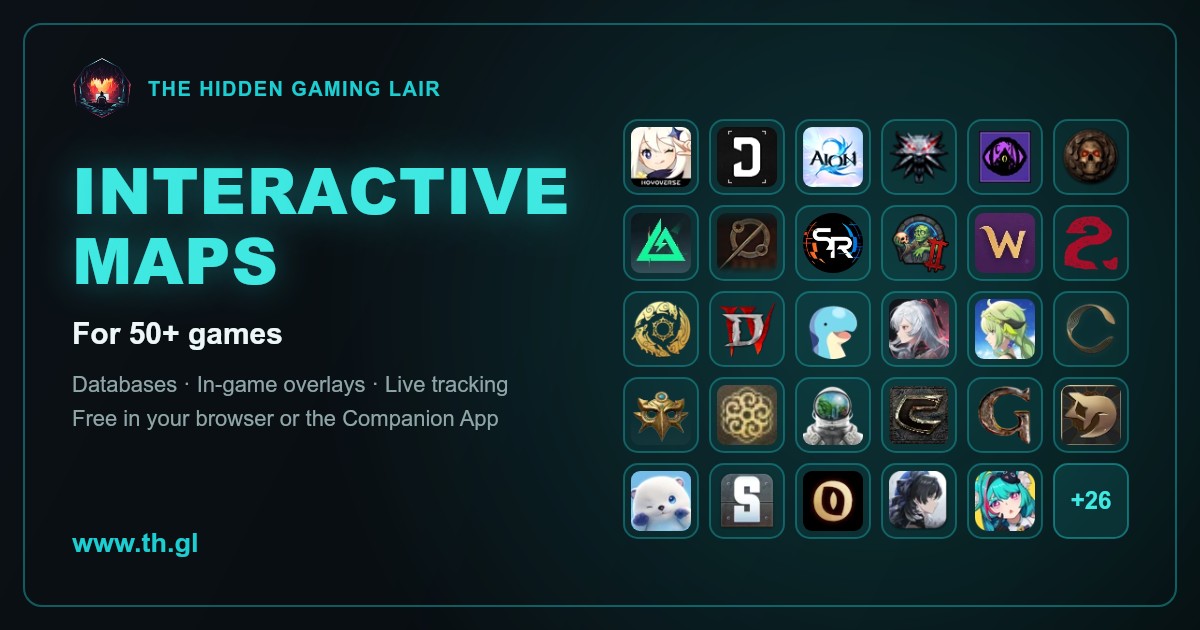
Interactive maps, databases and in-game overlays with real-time position tracking for 50+ games. Free in your browser or with the TH.GL Companion App.

No paid content found
Visit website
Profile views 1 Outbound visits 0 Normal
TH.GL Full homepage screenshot

At a glance

Category
Games & Board Games
Language
English
Paid-content signal
No paid content foundObserved
Registered
2017
Hosting
b-cdn.netInferred
HTTPS certificate trusted
PassedObserved
Last updated

Website review

This review may include AI-generated content and is not individually verified. Domain, certificate and other facts come from the observed data on this page.

What is TH.GL?

TH.GL is a gaming companion site offering interactive maps, searchable game databases and in-game overlays for a large catalog of titles (the site says 50+ games, with overlays in its standalone app covering 37+). It works two ways: directly in a browser, or through a small Windows companion app that draws overlays on top of the game and tracks your live position.

What you actually get

  • Interactive maps for tracking nodes, collectibles, NPCs and resources, with filters, custom markers and shareable routes.
  • Live position tracking in the app, plus "Peer Link" to use a phone or tablet as a second-screen minimap.
  • Game databases kept current with patches—its update notes, for example, list new monster spots, characters and costumes after a version update, and a cooking guide covering all 372 recipes.
  • Overlays so you don't alt-tab between game and map.

The site emphasizes no account requirement, local-first data and anonymous analytics, and free marking of unlimited discovered locations. The app is listed as a roughly 7MB Windows 10/11 download that the site describes as officially permitted in supported games.

Who it suits, and the trade-offs

It fits players in large open-world or survival games—Palworld, Dune: Awakening, Once Human, Wuthering Waves and Genshin Impact are named—who want to hunt resources or collectibles without leaving the game. The browser maps are the low-commitment option; the app is worth it only if you play on Windows and value overlays or a second-screen minimap. Check that your specific game is supported before downloading, since map and overlay coverage differ across the catalog.

As a next step, open the map for the game you're currently playing and test the filters and custom markers in the browser first. If you find yourself switching windows constantly, the companion app is the logical upgrade. For coverage of other titles, Map Genie is a comparable map-focused option worth comparing on game list and filter depth.

How does the TH.GL Companion App overlay work in-game without alt-tabbing?

The overlay is a separate Windows application that draws its map and position data on top of the game window, so the game keeps running underneath while you read the map. You launch the game as usual, start the TH.GL Companion App, and the overlay sits above the game rather than in a second window you switch to. Because the app tracks your live position, the overlay can show where you are and what is nearby (nodes, collectibles, NPCs, resources) on the same screen, which is what removes the alt-tab cycle.

What the page says about the app

  • Standalone Windows 10/11 app, roughly 7MB, free download, no account required.
  • In-game overlays plus live position tracking, and second-screen support for dual monitors.
  • Described as officially permitted and local-first, with anonymous analytics.
  • Overlay and tracking support is listed for 37+ games; the browser maps cover 50+ games.

How this plays out in practice

Imagine you are hunting resource nodes in a large open-world title. With the overlay, the map and your marker stay visible while you move, so you can adjust direction without pausing. On a dual-monitor setup you can instead run the map on the second screen, or use Peer Link to mirror it to a phone or tablet as a live minimap — useful if the overlay itself feels intrusive.

Trade-offs to weigh

Approach Strength Limitation
In-game overlay No window switching; position visible while playing Overlay can cover part of the HUD; best on a single monitor
Second screen / Peer Link Keeps the game view unobstructed Needs a second device or monitor
Browser map only No install; broadest game coverage Requires tabbing out to check position

Next step

If you mostly play one of the 37+ overlay-supported titles on a single monitor, try the overlay first and check whether it obscures key HUD elements; if it does, switch to the second-screen or Peer Link setup. For games outside that overlay list, the browser maps at TH.GL remain the practical option.

Can I use TH.GL's live position tracking as a minimap on my phone or tablet?

Yes. TH.GL's live position tracking can work as a live minimap on a phone or tablet through its Peer Link feature, which syncs with the companion app running on your PC. The phone or tablet acts as a second screen showing your position and nearby actors in real time.

How it fits different setups

Setup What you need Best for
Single monitor, PC only TH.GL Companion App with in-game overlays Players who want tracking without alt-tabbing
PC plus phone or tablet Companion App on PC, Peer Link to the mobile device A minimap you can prop up beside your keyboard
Browser only Interactive maps in the browser Planning routes and marking resources, without live position sync

Practical considerations

  • The PC side is required for live tracking. Position tracking and Peer Link come from the Windows companion app, so the phone is a display, not a standalone tracker. Browser maps cover planning and collectibles but not your live position.
  • Plan for a stable local connection. A second-screen minimap is only useful if it updates smoothly; keep the phone on the same network and within range.
  • Privacy is low-friction. No account is required and data is local-first, so using a spare phone as a minimap doesn't mean creating a profile.

A concrete example: while gathering in Palworld or exploring Dune Awakening, run the companion app on your PC, open Peer Link on a tablet propped next to your monitor, and keep the main screen free of overlays. If you play on a single screen and dislike clutter, the in-game overlay is the simpler choice instead.

Next step: check the supported games list to confirm your title has live tracking, since map coverage and tracking support can differ by game.

Which popular games like Palworld, Dune Awakening, or Once Human have interactive maps on TH.GL?

Palworld, Dune Awakening and Once Human are all listed on TH.GL as supported titles, and the site describes its interactive maps as covering resources, collectibles, NPCs and nodes with filters, custom markers and shareable routes. The same tools page names Wuthering Waves among the supported games, and the Featured Games section lists Genshin Impact, Loftia, Vaultbreakers, The Blood of Dawnwalker, DragonSword: Awakening and Crimson Desert with links to either a companion app or a website entry. The site says it covers 50+ games in total, with new titles added regularly.

How the maps differ in practice

For open-world survival games like Palworld, Dune Awakening and Once Human, the useful part is usually node and resource tracking plus live position, since players spend long sessions gathering and travelling. The site also mentions a Peer Link feature that turns a phone or tablet into a live minimap, which suits survival games played on a single monitor. For story-driven RPGs such as Genshin Impact or Crimson Desert, collectible and NPC markers tend to matter more than resource nodes.

A quick way to decide: check whether the game you are playing appears on the site's supported-games list, then look at whether its map page offers the filter categories you need. If you mostly play one survival title and want to avoid alt-tabbing, the overlay route is the more relevant option; if you just need an occasional collectible check, the browser map alone is enough.

Is the TH.GL Companion App safe to use and officially permitted by game developers?

TH.GL states that its Companion App is "safe and approved" and "officially permitted," and the site's design supports that claim in practical ways: it is a small standalone Windows app (about 7MB), requires no account, keeps data local-first, uses only anonymous analytics, and offers overlays and position tracking rather than gameplay automation. Those are the features most likely to stay within a game's rules, since they read and display information instead of modifying the game or playing it for you.

The site does not name which developers have approved it, and "approved" can mean different things: tolerated, explicitly allowed, or formally licensed. Treat the claim as the site's own statement and confirm it per game, because policies vary by title and can change with patches.

How to check before installing

  1. Match the game to its rules. Look up the specific title's third-party software or overlay policy on the developer's or publisher's official site; an approval for one game does not carry to another.
  2. Prefer the official download path. Get the app only from TH.GL rather than mirror sites, and scan the file before running it.
  3. Keep privacy settings tight. No account is needed, so skip any optional data sharing; local-first storage and anonymous analytics are the privacy-friendly defaults described on the site.
  4. Watch for scope creep. Overlays and maps are informational; if a tool starts automating inputs or altering game files, that is where bans usually begin.

For a concrete case: a Palworld player who wants resource nodes and collectibles on a second monitor can use the map and Peer Link phone minimap with little risk, provided Palworld's current policy allows overlays. A competitive multiplayer player should check that game's anti-cheat guidance first, since overlay hooks are treated more strictly there.

How do I create and share custom markers and routes on TH.GL's interactive maps?

TH.GL's interactive maps let you create custom markers and routes and share them with friends, according to the site's own description of its map tools. The site presents this as part of its browser-based maps, which cover 50+ games, alongside filters for nodes, collectibles, NPCs and resources.

How it works in practice

  1. Open the interactive map for the game you're playing, either in the browser or through the companion app.
  2. Use the map's filtering and marker tools to mark the spots you care about—resources, collectibles, NPCs or points of interest.
  3. Build a route from those markers when you want an efficient path rather than scattered pins.
  4. Share the markers or route with friends so they can follow the same plan.

TH.GL also says markers you mark as discovered are unlimited and free, and that no account is required—useful if you want to plan a farming run without signing up.

A concrete scenario

Suppose you're playing Palworld and want a resource-gathering loop. You'd mark ore and other node clusters on the map, arrange them into a route, then send it to a friend so you both run the same path instead of comparing notes over voice chat.

What to keep in mind

  • Game coverage varies. Marker and route tools are most useful in games with large open maps; the site lists supported titles like Palworld, Dune Awakening and Wuthering Waves, but features may differ by game.
  • Sharing depends on the map's tools. The site says routes can be shared with friends, but it doesn't detail link formats or permissions, so check the specific map page for the share option.
  • Browser vs. app. The browser version needs no install; the companion app adds in-game overlays and live position tracking, which helps if you want your route visible while playing without alt-tabbing.

For a second opinion on map tools in a specific game, community wikis such as Palworld Wiki often cross-reference marker locations, though they won't replicate TH.GL's route-sharing feature.

Related questions

More questions →
What Are Gaming Tools Like Interactive Maps and Overlays, and How Do You Use Them?

Gaming tools such as interactive maps, in-game overlays, and companion apps are helper utilities that sit alongside a game to show you where things are and where you are. On TH.GL, these tools cover 50+ games, with a standalone Windows companion app supporting 37+ titles and browser-based maps available for the rest. You use them when you want to find resources, collectibles, or NPCs quickly, plan a route, or keep a live minimap on a second screen without alt-tabbing. The browser tools need no install; the companion app is a roughly 7MB Windows 10/11 download that requires no account.

The main types of gaming tools

Each tool type solves a different problem, and most players end up using two or three together.

Tool type What it does Best for
Interactive maps Show nodes, collectibles, NPCs, and resources with filters; let you place custom markers and share routes Planning a farming run or collectible sweep
In-game overlays Display map or position information on top of the game window Avoiding alt-tabbing during play
Live position tracking Shows your exact position and nearby actors in real time Knowing what is close to you right now
Second-screen / minimap Mirrors your position to a phone or tablet via Peer Link Dual-monitor or handheld-as-minimap setups
Companion app Bundles overlays, tracking, and second-screen support in one Windows program Players who want everything in one place

How to use them in practice

Browser-based interactive maps

  1. Open the map for your game from the site's game list.
  2. Apply filters for the category you need, such as resources, collectibles, or NPCs.
  3. Add custom markers for spots you care about and build a route.
  4. Share the route with friends if you are playing together.

Expected result: a filtered view of exactly the points you need, plus a saved route you can reuse. Marking locations as discovered is unlimited and free.

The companion app with overlays and live tracking

  1. Download the Windows app (about 7MB, Windows 10/11, no account required).
  2. Launch it alongside your supported game.
  3. Use the in-game overlay to see map data without leaving the game window.
  4. Enable live tracking to see your position and nearby actors.
  5. Optionally pair your phone or tablet through Peer Link to use it as a live minimap.

Expected result: map information and your position stay visible while you play, and a second device can act as a minimap. The app is described as officially permitted and safe, and it is local-first with anonymous analytics only.

Browser tools vs. the companion app: which fits your setup?

Use the same dimensions to decide:

  • Install effort: Browser maps need none; the app is a small download.
  • Alt-tabbing: Browser maps require switching windows; overlays do not.
  • Live position: Available through the app's tracking and Peer Link; browser maps focus on static points and routes.
  • Hardware: The app is Windows 10/11 only and benefits from a second screen; browser maps work on any device with a browser.
  • Game coverage: 50+ games have maps; 37+ are supported by the app, so check your title first.
  • Account and privacy: Neither requires an account; the app states local-first data handling.

A practical rule: if your game is app-supported and you play on Windows, the companion app removes the most friction. If your game is map-only or you play on another device, the browser map is the right entry point.

Common snags and what to check

  • Your game is not in the app list. Check the full supported-games page; if it is map-only, use the browser version.
  • Overlay does not appear. Confirm you are on Windows 10/11 and that the game is one of the 37+ app-supported titles.
  • Second screen not syncing. Peer Link pairs a phone or tablet as a minimap; verify both devices are connected before play.
  • Map looks out of date. Game updates are patched into maps and databases; for example, the DragonSword: Awakening map was updated for Update 1.1.1 with new monster spots and database entries. Check the "What's New" notes for your title.

Deciding what to use

Start with the browser map for your game to learn the layout and mark what you need. If the title is app-supported and you play on Windows, add the companion app for overlays and live tracking, and pair a phone or tablet if you have one spare. That combination covers planning, in-play reference, and real-time position without an account or a large install.

What Is a Gaming Companion App and How Does It Work?

A gaming companion app is a standalone desktop program that runs alongside your game and adds a layer of information on top of it — typically an in-game overlay, live position tracking, and interactive maps. On TH.GL, the Companion App is a Windows 10/11 download of about 7MB that requires no account and supports 37+ games, while the same site's browser-based tools cover 50+ games. Install the app when you want overlays and real-time tracking without alt-tabbing; stay in the browser when you only need to look up a map or database occasionally.

Companion App vs. Browser Tools

Both options draw on the same interactive map and database content. The difference is how the information reaches you while you play.

Dimension Companion App Browser-Based Tools
Form Standalone Windows 10/11 program Web page in any browser
In-game overlay Yes — no alt-tabbing needed No
Live position tracking Yes, in real time Not described as live in-game
Second screen Dual-monitor support; Peer Link syncs a phone or tablet as a live minimap Manual lookup on a second device
Game coverage 37+ games 50+ games
Download / setup ~7MB download, no account required Nothing to install
Best for Players who consult maps constantly during play Occasional lookups, or games not covered by the app

The coverage gap matters: if your game appears in the 50+ browser list but not the 37+ app list, the browser is your only option on this site.

What the App Actually Does

In-game overlays

The overlay places map and tracking information on top of the game window, so you don't switch out of the game to check a location. TH.GL describes this as "no alt-tabbing needed."

Live position tracking

The app shows your exact position and nearby actors in real time. With Peer Link, you can pair a phone or tablet and use it as a live minimap — useful if you game on a single monitor and don't want the overlay covering the screen.

Interactive maps

Maps let you track nodes, collectibles, NPCs, and resources with filters. You can create custom markers and routes and share them with friends. TH.GL states that marking locations as discovered is unlimited and free.

Second-screen support

On a dual-monitor setup, the app can run on the second screen while the game stays on the primary one.

Requirements, Safety, and Privacy

  • Platform: Windows 10/11 only, per the site. Mac and Linux users would need the browser tools.
  • Size and account: ~7MB download, no account required.
  • Permission: TH.GL describes the app as "officially permitted" and "safe & approved." That is the vendor's own claim; if a specific game's rules matter to you, check that game's policy on overlays before installing.
  • Data handling: The site describes a local-first approach with anonymous analytics and no account, so your marker data stays on your machine rather than in a cloud profile.

Deciding Whether to Install

Install the companion app if all of these are true:

  • You play on Windows 10/11.
  • Your game is among the 37+ supported titles (the site names Palworld, Dune Awakening, Once Human, and Wuthering Waves among them).
  • You regularly want map or position information mid-session and find alt-tabbing disruptive.

Skip it and use the browser if any of these apply:

  • You play on another operating system.
  • Your game is only in the 50+ browser catalog.
  • You look things up between sessions rather than during them — a browser tab costs nothing to open.

A practical middle ground: start with the browser map for your game. If you find yourself tabbing out repeatedly during play, the ~7MB install is a low-commitment upgrade, and the no-account, local-first design means there's little to undo if you change your mind.

What Is a Palworld Interactive Map and How Do You Use It?

A Palworld interactive map is a zoomable, filterable map of the game world that shows resource nodes, collectibles, NPCs, and spawn locations, and on TH.GL it can also show your live in-game position. You use it by opening the map in a browser or the TH.GL Companion App, filtering to the category you need, and either planning a route with custom markers or letting live tracking guide you while you play. It suits players who are tired of wandering aimlessly for ore, chests, or specific Pals, and it works on Windows 10/11 through the companion app or in any browser without an account.

What the map actually shows

TH.GL describes its interactive maps as tracking "nodes, collectibles, NPCs, and resources with comprehensive filters." For Palworld specifically, that means you can look up where a resource type spawns, where collectibles sit, and where NPCs are placed, rather than relying on memory or scattered forum posts.

The map is part of a larger toolset: TH.GL lists Palworld among its featured supported games and says its companion app covers 37+ games including Palworld, Dune, and Once Human, while the browser tools span 50+ games. The same page notes 10,000+ daily users, which is a signal of active maintenance rather than a guarantee of accuracy for every patch.

How to use it: browser vs. companion app

There are two ways in, and the right choice depends on whether you want the map on a second screen or overlaid on the game.

Approach What you get Best for
Browser-based map Interactive map with filters, custom markers, and routes you can share with friends Planning sessions, second monitor, phone or tablet as a minimap
TH.GL Companion App (Windows 10/11) In-game overlays, live position tracking, and second-screen support Playing on one monitor and not wanting to alt-tab

The companion app is described as a standalone Windows app, roughly 7MB, free to download, with no account required. TH.GL states it is "officially permitted" and "safe & approved" — that is the site's own claim about its tool, so treat it as their positioning rather than an independent audit.

Step-by-step: a gathering run

  1. Open the map for Palworld in your browser or launch the companion app.
  2. Filter by category — narrow to the resource or collectible type you need so the map isn't cluttered.
  3. Search for a specific item or location if you already know the name of what you're after.
  4. Place custom markers on the spots you want to hit. TH.GL says you can "mark unlimited locations as discovered — completely free," and create custom markers and routes to share with friends.
  5. Play with live tracking on (companion app) so you can see your exact position and nearby actors in real time, or use Peer Link to sync your phone or tablet as a live minimap.
  6. Verify in-game — walk to the marked spot and confirm the node or collectible is there before committing to a long route.

The expected result is a shorter, more directed run: you know which markers you're hitting and in what order instead of sweeping the map.

Live tracking and the second-screen setup

Live tracking is the feature that separates an interactive map from a static wiki image. TH.GL says the companion app shows "your exact position and nearby actors in real-time," and Peer Link lets you use a phone or tablet as a live minimap. That second-screen option matters for Palworld because the game is often played fullscreen; a tablet beside your monitor avoids overlay clutter entirely.

If you prefer overlays, the app supports in-game overlays so you don't need to alt-tab, plus dual-monitor support. On privacy, TH.GL states no account is required, data is local-first, and analytics are anonymous — again, the site's own description.

Practical limits and tips

  • Maps change after patches. TH.GL's update log shows maps and databases being revised for game updates (for example, a DragonSword: Awakening 1.1.1 map update adding new monster spots). Expect Palworld map data to lag a patch occasionally; if a marker looks wrong after an update, check whether the map has a newer revision.
  • Browser vs. app is a real trade-off. The browser map is the fastest way to plan and share routes; the app is what gives you live position and overlays. You don't have to pick one permanently.
  • Filters are the main skill. An unfiltered map is noise. Filtering to one resource type before you start is what turns the tool into a route.
  • Custom markers are for repeat runs. If you farm the same ore or chest loop, save the markers and reuse the route rather than rebuilding it each session.
  • Check platform fit first. The companion app is listed for Windows 10/11; if you play on another platform, the browser map and a second screen are your path.

Is it worth using?

If you play Palworld regularly and find yourself searching for the same resources or collectibles, an interactive map with filters, custom routes, and live tracking removes most of that search time. Start with the browser map to plan one gathering run, and only move to the companion app if you find yourself alt-tabbing constantly or wanting your position tracked live.

What Is a Game Overlay and How Do You Use One?

A game overlay is a layer of information drawn on top of a running game — a map, position marker, or resource list that stays visible while you play. You use one by installing a companion app that hooks into the game (or opening a browser map on a second screen), then toggling the overlay or map you need. TH.GL, for example, offers a standalone Windows companion app with in-game overlays and live position tracking for 37+ games, plus browser-based interactive maps covering 50+ titles. The main choice is between an in-game overlay (no alt-tabbing, single monitor) and a second-screen or browser map (no install, works on any device).

In-game overlay vs. second-screen vs. browser map

These three formats solve the same problem — keeping game data visible — but fit different setups.

Type How it works Best for Trade-offs
In-game overlay A companion app draws info over the game window Single-monitor players who don't want to alt-tab Requires a Windows app; overlay must be permitted by the game
Second screen The app or a phone/tablet shows a live minimap alongside the game Dual-monitor or phone-at-desk setups Needs a second device or display
Browser map An interactive map in a browser tab Quick lookups, planning routes before or between sessions Switching windows interrupts play

TH.GL's companion app covers both the overlay and second-screen cases: it supports in-game overlays and dual-monitor second-screen use, and its Peer Link feature syncs with a phone or tablet as a live minimap.

What overlays and maps actually show you

Most companion tools surface the same categories of information:

  • Live position tracking — your exact location and nearby actors in real time, so you can orient without opening the game map.
  • Interactive maps with filters — track nodes, collectibles, NPCs, and resources, and filter to just what you're hunting.
  • Custom markers and routes — mark locations and share routes with friends.
  • Discovery tracking — mark locations as discovered; TH.GL notes unlimited marking is free.

For a concrete case: in a survival game like Palworld, you'd filter the map to a resource type, mark the nodes you've found, and keep the overlay up while traveling so you don't re-check cleared areas.

Setting up: companion app vs. browser

Companion app (Windows):

  1. Confirm your game is supported — TH.GL lists 37+ games for the app, including Palworld, Dune, Once Human, and Wuthering Waves.
  2. Download the app (TH.GL lists it as a ~7MB Windows 10/11 download, no account required).
  3. Launch the game, then enable the overlay or second-screen view for that title.
  4. Verify it works: your position should update as you move, and nearby actors should appear. If nothing tracks, check that the game is on the supported list and that the overlay is enabled for it.

Browser map:

  1. Open the game's interactive map page.
  2. Apply filters for the collectible or resource type you need.
  3. Add custom markers for your route.
  4. Expected result: a filtered map you can plan from — but no live position, since browser tools don't hook into the game.

Practical considerations before you install

  • Performance — a lightweight overlay (TH.GL cites ~7MB) is less likely to cost frames than a heavy one; test in a low-stakes session first.
  • Alt-tabbing — the core benefit of an in-game overlay is avoiding window switches; if you already run dual monitors, a second-screen map may be enough.
  • Game approval — overlays aren't universally allowed. TH.GL describes its app as "safe & approved" and "officially permitted," but approval is per-game and per-publisher, so check your specific title's rules rather than assuming.
  • Privacy — TH.GL states no account is required, data is local-first, and analytics are anonymous. Treat claims like these as vendor statements and verify in the app's settings if it matters to you.

Choosing the right type for your setup

  • One monitor, want data during play → in-game overlay from a companion app.
  • Two monitors or a phone/tablet at your desk → second-screen live minimap.
  • Planning routes, casual lookups, or a console/mobile game → browser interactive map.
  • Competitive or strict-rule games → confirm overlay permission first; a browser map on a second screen is the safer default.

TH.GL's catalog spans 50+ games with new titles added regularly, so check the supported-games list for your title before committing to the app route.

Website Overview

An established domain and managed infrastructure suggest continuity of operations and may support dependable delivery, although neither guarantees service quality. Page metadata, canonical configuration and social previews work together to provide more consistent search and sharing presentation.

Domain and Registration

Registered in 2017, this domain has about 9 years of history. That suggests continuity, although ownership and purpose may have changed. The domain uses the common .gl extension, which is not an independent safety signal.

DNS and Email

The lowest TTL is 35 seconds, supporting rapid record changes at the cost of more frequent lookups. Nameservers are provided by bunny.net, indicating managed DNS hosting. MX records point to the Google Workspace email service. SPF and DMARC are configured. DKIM status is unknown. TXT records include verification markers for Google. Such markers may also remain after a service stops being used.

TLS and Certificates

The public key uses EC with 256 bits. The server supplied a complete certificate chain. No organization name is present in the certificate; the available fields are consistent with domain validation. The certificate was issued by Let's Encrypt, commonly associated with automated certificate services. The certificate's total validity is about 89 days, consistent with a short renewal cycle.

HTTP and Browser Security

X-Powered-By exposes backend information: Next.js. The response lacks these common security headers: CSP, Permissions-Policy, clickjacking protection. No obvious internal addresses or debug information were found in the headers. The Server header contains the custom value BunnyCDN-ASB1-1310. No explicit CDN or WAF marker was found in the response headers.

Technology Stack Analysis

The public page identifies Next.js without precise versions, leaving fewer clues for version-specific scanning.

Search and Social Sharing

Open Graph is partially configured; og:type is missing. Twitter Card metadata is configured. JSON-LD includes Organization data, helping describe the organization as an entity. The title has 49 characters, within a common display range. A meta description is present, with 150 characters.

Hosting and Email

DNSbunny.net
Hostingb-cdn.net
EmailGoogle Workspace
Approximate IP geolocation (inferred; a CDN or proxy may differ from the origin server) United States flagAtlanta, Georgia, United States Inferred 185.152.66.247

Registration details

RDAP / WHOIS

RegistrarINWX GmbH
Registered2017-09-24
Expires2027-09-24
Domain statusok https://icann.org/epp#ok
Nameserverscoco.bunny.net、kiki.bunny.net
DNSSECunsigned

DNS records

DNS

TypeNameValueTTLPriority
Amc-cb3fpku1px.b-cdn.net185.152.66.24735—
AAAAmc-cb3fpku1px.b-cdn.net2a02:6ea0:c113:2::1364:135—
MXth.glsmtp.google.com36001
NSth.glcoco.bunny.net172800—
NSth.glkiki.bunny.net172800—
TXTth.glgoogle-site-verification=mv712hAMa43dxMXEHTRStGVKflyERCQBiKcyYeZfUe43600—
TXTth.glv=spf1 include:_spf.google.com include:spf.mailjet.com ~all3600—
CNAMEwww.th.glmc-cb3fpku1px.b-cdn.net3600—
DMARC_dmarc.th.glv=DMARC1; p=none; rua=mailto:[email protected]3600—

TLS and certificates

TLS / SSL

AssessmentNormal configuration
Supported protocolsTLSv1.2、TLSv1.3
Negotiated protocolTLSv1.3
Certificate subjectwww.th.gl
IssuerLet's Encrypt
Valid until2026-12-29T14:03 · Remaining when checked: 66 days
Verification detailsCertificate trust: Passed · Hostname match: Passed

HTTP response headers

HTTP

HeaderValue
content-typetext/html; charset=utf-8
cache-controlpublic, max-age=0, s-maxage=86400, stale-while-revalidate=60
serverBunnyCDN-ASB1-1310
strict-transport-securitymax-age=63072000; includeSubDomains
x-content-type-optionsnosniff
referrer-policystrict-origin-when-cross-origin

Identified technologies

Next.js

Pages, Search and Sharing

Meta descriptionInteractive maps, databases and in-game overlays with real-time position tracking for 50+ games. Free in your browser or with the TH.GL Companion App.
Canonical URLhttps://www.th.gl
LanguageEnglish (default)
Twitter Cardsummary_large_image
All bots 0 allowed · 2 disallowed
  • Disallow/nodes/
  • Disallow/archive
claudebot 0 allowed · 1 disallowed
  • Disallow/
gptbot 0 allowed · 1 disallowed
  • Disallow/
meta-externalagent 0 allowed · 1 disallowed
  • Disallow/
amazonbot 0 allowed · 1 disallowed
  • Disallow/
cohere-ai 0 allowed · 1 disallowed
  • Disallow/
amzn-searchbot 0 allowed · 5 disallowed
  • Disallow/nodes/
  • Disallow/archive
  • Disallow/api/
  • Disallow/*?_rsc=
  • Disallow/*&_rsc=
googleother 0 allowed · 1 disallowed
  • Disallow/
ahrefsbot 0 allowed · 1 disallowed
  • Disallow/
shapbot 0 allowed · 1 disallowed
  • Disallow/
semrushbot 0 allowed · 1 disallowed
  • Disallow/
keenablebot 0 allowed · 1 disallowed
  • Disallow/
linkupbot 0 allowed · 1 disallowed
  • Disallow/

User reviews (0)

  • No reviews yet.