Website profiles · Technology insights · Alternatives

theboring.name

The home of boring.notch — the free app that turns your MacBook's notch into a music player. Try the browser demo and download for macOS.

No paid content found
Visit website
Profile views 2 Outbound visits 0 Normal
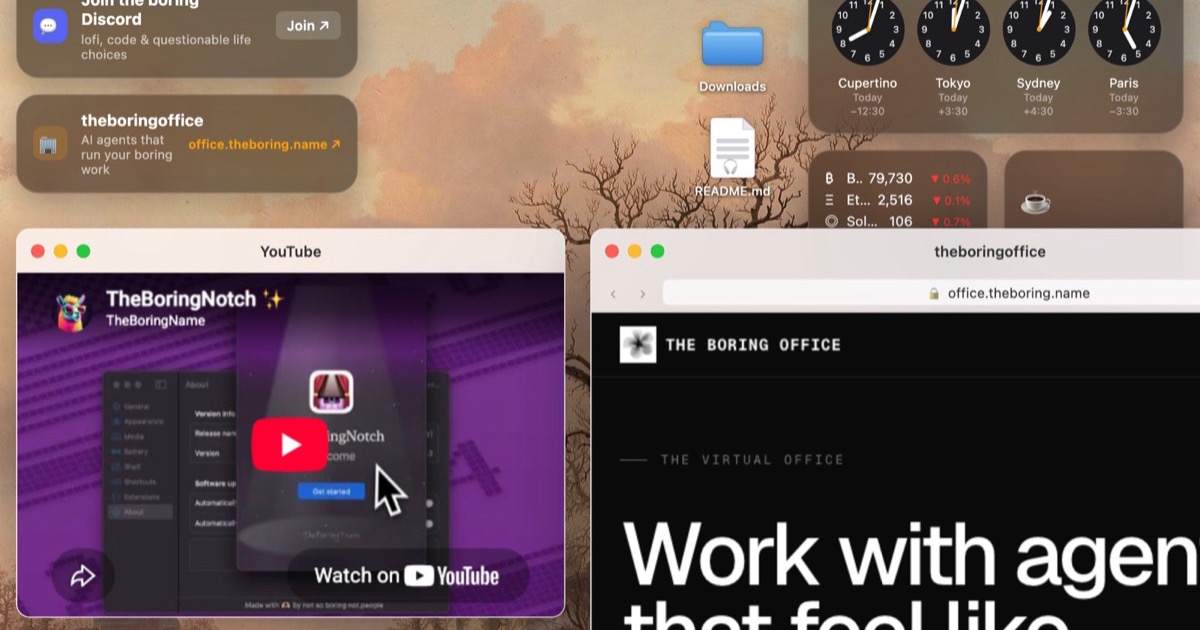
boring.notch — the notch, reinvented for macOS Full homepage screenshot

At a glance

Category
Other
Language
English
Paid-content signal
No paid content foundObserved
Registered
2024
Hosting
CloudflareInferred
HTTPS certificate trusted
PassedObserved
Last updated

Website review

This review may include AI-generated content and is not individually verified. Domain, certificate and other facts come from the observed data on this page.

What is boring.notch?

boring.notch is a free macOS app that turns the notch on newer MacBook models into a music player. The project describes it as a "Dynamic Island"-style experience for MacBooks: instead of leaving the camera cutout as dead space at the top of the screen, the app uses that area to show and control what's playing. It's offered by TheBoredTeam, and the site includes a browser demo alongside the macOS download, so you can get a feel for it before installing anything.

Who it's for

  • MacBook owners with a notch (the 14- and 16-inch Pro models and the MacBook Air models that have the cutout) who want quick access to playback controls.
  • People who keep music or podcasts running all day and dislike switching windows or reaching for menu bar controls just to pause or skip.
  • Tinkerers curious about the Dynamic Island concept on macOS, who can try the demo first.

Where it makes sense — and where it doesn't

The appeal is convenience: playback controls that sit exactly where your eyes already rest at the top of the screen, without a floating window in the way. The trade-off is that it's tied to hardware — on a Mac without a notch, there's nothing for it to occupy, so it won't be useful. It also only handles media; it's not a general-purpose menu bar replacement or a full Dynamic Island clone with notifications and timers.

A practical next step

If you're unsure whether it fits your setup, open the browser demo on the site first to see how the controls behave, then download the macOS version if the interaction feels natural. If your Mac has no notch, skip it and look at conventional menu bar music controllers instead.

How do I try boring.notch in my browser before installing it?

Open boring.notch in a desktop browser and use the browser demo linked on the page to preview the notch interface before you download the macOS app. The demo is meant as a quick look at how the notch-based player behaves, not a full replacement for the installed app.

What to check in the demo

  • Whether the notch overlay feels natural next to your menu bar and open windows.
  • How the music controls and any expanding panel respond to clicks and hover.
  • Whether the visual style fits your setup before you commit to installing anything.

Practical next step

Run the demo on the same MacBook you plan to use it on, since the whole idea depends on the physical notch and screen layout. If the demo feels cramped or distracting during normal work, that is a useful signal to skip the install; if it feels unobtrusive, download the macOS build and compare the two.

Keep expectations modest: a browser demo can show interaction and layout, but it cannot fully reproduce system-level behavior such as how the app sits above other windows or responds across Spaces. Treat the demo as a first impression, and the installed app as the real test.

Does boring.notch work on MacBooks that don't have a notch?

boring.notch is built around the MacBook notch, so its core experience — turning the notch area into a music player and Dynamic Island–style surface — is designed for MacBooks that actually have a notch. On Macs without one, there is no notch region for the app to occupy, so the signature feature has nothing to attach to. The product is described as free and macOS-only, with a browser demo and a macOS download; it does not present a separate non-notch mode.

Practical implications

  • Notched MacBooks (roughly M2/M3-era Airs and newer Pros): the intended audience; the notch is the display surface.
  • Non-notched MacBooks and desktop Macs: expect the defining feature to be unavailable or reduced, even if the app installs and runs.
  • External monitors: a notchless display won't reproduce the effect, since the concept depends on physical screen geometry.

If you're unsure which category your machine falls into, check whether your screen has a visible camera housing cut into the menu bar. As a next step, try the browser demo on the site first — it lets you judge the interaction before committing to a download, and it's the quickest way to see whether the notch-centric design would suit your setup.

How does boring.notch turn the notch into a music player and what music sources does it support?

boring.notch turns the MacBook notch into a small music control surface: instead of a static black cutout, the notch area becomes an interactive panel for playback. The page presents it as a free macOS app with a browser demo and a download, positioning it as a "Dynamic Island"–style experience for the Mac.

What the notch does as a player

Based on the site's description, the notch expands into a music player view — showing what's playing and giving quick playback controls — rather than requiring you to switch to a separate app window. The practical appeal is glanceability: track info and controls sit where your eyes already pass, useful when you're in full-screen work and don't want to break focus.

Music sources

The supplied page information describes it as a music player but does not list which services or sources it supports. So the honest answer is that the source coverage isn't stated in the available material. If you need a specific service (Apple Music, Spotify, local files, etc.), check the app's own documentation or the download page before relying on it.

A sensible next step

If the concept fits how you work, try the browser demo first to judge the interaction, then confirm source support on the official page at boring.notch before installing. For comparison, Dynamic Island-style utilities on macOS vary mainly in which players they hook into and how much of the notch they occupy — that integration list, not the visual gimmick, is usually the deciding factor.

Is boring.notch free to download and use?

Yes. boring.notch is presented as a free app: the site describes it as "the free app that turns your MacBook's notch into a music player," and offers a browser demo alongside the macOS download. There are no price listings or paid tiers mentioned on the page.

What "free" covers here

  • Download and use: The app itself is offered at no cost, with no subscription or purchase step described.
  • Trying before installing: The browser demo lets you see the notch-as-music-player idea without downloading anything, which is useful if you're unsure whether a notch-based control suits your workflow.
  • What it does: It turns the MacBook notch area into a music player interface — a Dynamic Island-style treatment for macOS.

Practical considerations

Free software can still carry indirect costs or limits. Before committing, check the download page for the macOS version required, whether it needs permissions such as media or accessibility access, and how updates are delivered. If you rely on a specific player (Apple Music, Spotify, a local library), confirm it's supported rather than assuming.

A sensible next step: open the browser demo first to judge whether the interaction fits how you actually control music, then download only if it does. For background on the Dynamic Island concept it borrows from, see Apple.

How do I install boring.notch on macOS?

boring.notch is distributed as a free macOS app from its own site, boring.notch. The page offers a browser demo alongside the macOS download, so you can preview the notch-based music player before installing anything.

Installation steps

  1. Open the official site in Safari or another browser on your MacBook.
  2. Use the browser demo first if you want to see how the notch interface behaves.
  3. Choose the macOS download link on the same page.
  4. Open the downloaded file from your Downloads folder. If it arrives as a disk image, mount it and drag the app into Applications; if it arrives as an archive, unzip it and move the app to Applications.
  5. Launch the app. macOS may ask you to confirm opening an app downloaded from the internet — approve it in System Settings → Privacy & Security if the prompt appears.
  6. Grant any permissions the app requests for media control or playback, then start a track to confirm the notch display updates.

Practical notes

  • The notch player only makes sense on MacBooks that actually have a notch; on other displays there is nothing for it to anchor to.
  • If the app does not respond to playback controls, check macOS media permissions first, then relaunch the app.
  • Keep the download source consistent: re-download from the official site rather than a mirror, so you get the current build.

As a next step, run the browser demo and note which controls you expect to use most — that tells you quickly whether the notch placement suits your workflow before you commit to installing.

Related questions

More questions →
What Is a Notch Music Player on macOS and How Does It Work?

A notch music player is a macOS app that turns the camera notch on a MacBook into a small playback surface: now-playing information and controls appear in and around the notch area instead of in a separate window or the menu bar. The best-known example is boring.notch, which its site describes as a free app that "turns your MacBook's notch into a music player," with a browser demo and a macOS download. It is worth trying if you have a notched MacBook and want faster access to playback controls; it is not a fit if your Mac has no notch or if your music app doesn't expose playback data to other apps.

How the interaction works

The basic flow is the same across apps of this type:

  1. Media detection. The app reads what is currently playing from a supported music source on your Mac.
  2. Notch-area display. Track title, artist, artwork, or a compact indicator appears at the notch, using the space on either side of the camera housing.
  3. Hover or click to expand. Moving the pointer to the notch (or clicking it) reveals controls such as play/pause, skip, and sometimes a progress bar.
  4. Collapse when idle. The controls recede so the notch returns to looking like a plain notch.

The expected result is that you can pause or skip without switching apps or hunting through the menu bar. The main variable between apps is how much they show at rest versus on hover.

Notch player vs. menu bar controller vs. Dynamic Island app

Type Where controls live What it's for
Notch music player In and around the camera notch Quick playback access tied to the notch's physical position
Menu bar music controller Menu bar icon and dropdown Playback control on any Mac, notched or not
Dynamic Island-style app A floating pill near the top of the screen Emulates the iPhone Dynamic Island look, often beyond music

A notch player depends on the notch existing, so it is inherently a MacBook-oriented tool. A menu bar controller works on any Mac. Dynamic Island-style apps overlap in appearance but are usually broader in scope than music playback.

Compatibility checks before you try one

  • Notched hardware. You need a MacBook with a camera notch. On non-notched Macs the core visual premise doesn't apply.
  • macOS version. Check the app's stated requirements; boring.notch is distributed for macOS, but the site excerpt provided does not list a minimum version, so confirm on the download page.
  • Supported music sources. The app can only show and control what your music app exposes. Apple Music and Spotify are the usual candidates; less common players may not report metadata.
  • Permissions. Media control and metadata access may require granting permissions on first launch. If controls don't respond, permissions are the first thing to check.

Common limitations

  • Apps that don't expose playback metadata will show nothing or only partial information.
  • Full-screen apps and video can hide or conflict with notch overlays, depending on how the app handles full-screen spaces.
  • Hover behavior can feel intrusive if the activation area is large; look for a setting to adjust sensitivity or disable hover expansion.
  • Pricing and login requirements are not stated in the available site information, so don't assume the app is free or account-free beyond what the download page says.

Trying it without installing

The boring.notch site offers a browser demo, which is the lowest-commitment way to see the hover-and-expand behavior before downloading. If the interaction style suits you and your MacBook has a notch, the macOS download from the official site is the next step.

What Are Open-Source UI Element Libraries and How Do They Differ From UI Frameworks?

An open-source UI element library is a collection of individual, ready-made interface pieces—buttons, cards, inputs, toggles, loaders—that you copy into your own project and adapt. A UI framework, by contrast, is a structured system of components, conventions, and often a theming layer that governs how your whole interface is built. The practical difference: an element library gives you a snippet; a framework gives you a way of working. If you need a polished button in ten minutes, reach for the element library. If you're building a 40-screen product with a team, you probably want the framework.

What "open-source UI element library" actually means

The term gets used loosely, so it helps to separate the parts:

  • Open-source: the code is publicly available, and the license tells you what you may do with it—copy, modify, redistribute, or use commercially.
  • UI element: a single, self-contained piece of interface, usually small enough to read in one sitting. A button with hover states, a pricing card, a search field.
  • Library: a browsable, searchable collection of those elements, typically contributed by many different people.

On a site like Uiverse, elements are shared by a community and written in plain CSS or Tailwind. You find one you like, copy the markup and styles, paste them into your project, and adjust colors, spacing, and text to fit. There's no package to install and no build step required—which is exactly the appeal, and also the source of most of the confusion.

Element library vs. UI framework: the core differences

Dimension Open-source UI element library UI framework / design system
Unit of reuse A single snippet you copy A component you import or call
Installation None; paste into your code Package install, config, sometimes a provider
Consistency Depends on you; each element may look different Enforced by shared tokens and APIs
Theming Manual edits per element Central theme/config file
Updates You own the copy; no upstream updates Version bumps bring fixes and changes
Accessibility Varies per contributor; must be checked Usually tested and documented
Best for Prototypes, landing pages, small sites, one-off needs Multi-page apps, teams, long-lived products
Learning curve Low—read the CSS Higher—learn the API and conventions

The table isn't a verdict. It's a map of trade-offs. Element libraries win on speed and freedom; frameworks win on consistency and maintenance.

Licensing and attribution: what to check before you paste

This is where people get into trouble, and it's worth slowing down for.

  1. Find the license. Every element or collection should state one. Common open-source licenses include MIT, Apache-2.0, and BSD. Some projects use copyleft licenses like GPL, which can impose obligations if you redistribute your code.
  2. Understand what the license permits. MIT and Apache-2.0 are permissive: you can typically use the code in commercial and closed-source projects. Copyleft licenses may require you to release derivative source under the same terms.
  3. Check attribution requirements. Permissive licenses usually require you to keep the copyright notice and license text somewhere in your project. That's a real obligation, not a formality.
  4. Look for per-element terms. On community sites, the site's overall terms and the individual contributor's stated wishes may differ. If a contributor asks for credit, honor it.
  5. When in doubt, ask or avoid. If a snippet has no license at all, you don't have clear permission to reuse it. Treat "no license" as "not open source," even if the code is publicly visible.

This article is general information, not legal advice. For commercial products with real exposure, have someone qualified review the licenses you're relying on.

How to use a community element in your project: a practical workflow

Here's a repeatable process that avoids most of the usual mess.

1. Start from a real need, not a browsing session

Decide what you need first—"a compact primary button with a loading state"—then search. Browsing aimlessly produces a pile of pretty snippets that don't fit together.

2. Copy the smallest version that works

Take the markup and the styles. Strip anything you don't need: demo wrappers, extra animations, decorative layers. Less code means fewer surprises.

3. Convert it to your conventions

If your project uses design tokens or CSS variables, replace hard-coded values:

/* Before: hard-coded */
.button { background: #4f46e5; border-radius: 8px; }

/* After: token-based */
.button { background: var(--color-primary); border-radius: var(--radius-md); }

This one step is what keeps a copied element from looking like a foreign object in your UI.

4. Check accessibility before you ship

Community elements vary widely here. Verify at minimum:

  • Keyboard focus is visible and the element is reachable by Tab.
  • Color contrast meets WCAG AA (4.5:1 for normal text).
  • Interactive elements use semantic HTML (<button>, not a clickable <div>).
  • Form inputs have associated labels.
  • Motion respects prefers-reduced-motion.

5. Test in context

Paste it into a real page with real content. Long labels, small screens, and dark mode break more copied elements than anything else.

6. Note where it came from

Keep a short comment or an internal credits file: source, license, date. Future you—and your legal reviewer—will be grateful.

Where element libraries genuinely shine

  • Prototypes and demos: you need something clickable today, not a design system.
  • Landing pages and marketing sites: a handful of distinctive elements, each custom.
  • Filling gaps: your framework lacks one specific component, and you don't want to build it from scratch.
  • Learning: reading well-made CSS is one of the fastest ways to improve.
  • Small projects: a personal site doesn't need a theming architecture.

Where they fall short

  • Consistency at scale: ten elements from ten contributors rarely look like one product.
  • Maintenance: you own every copy. When your design changes, you edit each one.
  • Accessibility debt: you inherit whatever the contributor did or didn't do.
  • No upstream fixes: a bug fixed in the original won't reach your copy.
  • Integration friction: different naming conventions, different units, different assumptions about resets.

When to choose which

Choose an element library when the scope is small, the timeline is short, or you need a few distinctive pieces rather than a whole system.

Choose a framework or design system when multiple people build multiple screens over months, when consistency is a product requirement, or when accessibility and theming need to be guaranteed rather than checked.

A hybrid works well for many teams: adopt a framework for the structural components—forms, navigation, layout—and borrow individual elements for the places where you want personality. Just route every borrowed element through the same token and accessibility checks, so it lands as part of your system rather than beside it.

The short version: open-source UI element libraries are a fast, flexible way to get good-looking interface pieces into a project. They are not a substitute for a design system, and the license and accessibility details are the part worth reading carefully.

Where to Find the Official boring.notch Site and Download the macOS Notch Music Player

The official site for boring.notch is theboring.name. It is the home of the free macOS app that turns your MacBook's notch into a music player, and it is also where you can try a browser demo or download the macOS version. Use this page as your starting point to avoid third-party or lookalike download pages.

What boring.notch Is

boring.notch is a macOS app built around the MacBook notch. Instead of leaving the notch as unused screen space, the app turns it into a music player and adds Dynamic Island–style interaction on macOS. The project is associated with TheBoredTeam.

The site describes it as a free app. No pricing links, payment platforms, or subscription signals appear on the official page, so there is no paid tier or subscription entry point to look for.

How to Get It

Option 1: Try the browser demo first

The official site offers a browser demo. This lets you see the notch-player concept in a browser before installing anything on your Mac. It is the lowest-commitment way to check whether the interaction style suits you.

Option 2: Download the macOS version

From the same site, you can download the macOS build. The download is intended for macOS, so confirm you are on a MacBook before installing.

Quick Reference

Question Answer
Official site theboring.name
What it does Turns the MacBook notch into a music player with Dynamic Island–style interaction
Cost signal Described as free; no pricing or payment links on the page
Try before installing Browser demo on the official site
Platform macOS

If the Download or App Fails

If the download does not start or the app will not open, return to theboring.name and check the system requirements and the latest release notes there. The official page is the authoritative source for the current build and any stated requirements; avoid mirror sites or repackaged installers, since those are not the official distribution channel.

What Is Dynamic Island on macOS and How Does a MacBook Notch App Work?

Dynamic Island on macOS is not a built-in Apple feature. It is a third-party app concept that borrows the iPhone's Dynamic Island idea and applies it to the MacBook notch: the camera cutout at the top of the screen becomes an interactive strip for things like now-playing info and playback controls. One free example is boring.notch (boring.notch, by TheBoredTeam), which turns the notch into a music player and offers a browser demo before you download the macOS app.

What "Dynamic Island on macOS" actually means

On iPhone, Dynamic Island is a system-level area around the front camera that expands to show live activity. On a Mac, there is no equivalent system feature. Instead, developers build apps that draw content around or beside the physical notch, so the cutout stops being dead space and becomes a small display surface.

The concept therefore depends on two things:

  • Hardware: a MacBook with a notch (the camera housing at the top center of the display).
  • Software: a third-party app that reserves and draws into that region, usually with the required screen-recording or accessibility permissions.

If your Mac has no notch, the visual premise doesn't apply, though some apps may still offer a floating overlay.

How a MacBook notch app works

A notch app typically follows the same loop:

  1. Detect the notch region. The app reads the display geometry to find the cutout and the menu bar area around it.
  2. Draw an overlay. It renders a compact panel that blends with the menu bar and expands when there is something to show.
  3. Read media state. It pulls now-playing metadata (track, artist, album art) and playback status from the system's media APIs.
  4. Accept input. Hovering or clicking the expanded area exposes controls such as play/pause, skip, and a progress indicator.
  5. Collapse when idle. When nothing is playing, the overlay shrinks back so it doesn't block the menu bar.

The result is a small, always-available control surface that sits where the notch already is, rather than a separate window you have to find.

Typical features

  • Now-playing title, artist, and album art around the notch
  • Play/pause, previous/next, and a scrubber or progress bar
  • Expand-on-hover or expand-on-click behavior
  • Status hints for other activity, depending on the app

Feature sets vary by app; treat any specific list as app-specific rather than a guarantee of the concept.

Requirements and limitations to check first

Before installing, confirm these conditions, since a mismatch is the most common reason a notch app "doesn't work":

Check Why it matters
Notched MacBook model The core visual depends on the physical cutout
Supported macOS version Overlay and media APIs differ across releases; check the app's stated minimum
Screen recording / accessibility permission Needed to draw over the menu bar and read media state
Menu bar space Very crowded menu bars can collide with the expanded panel
Full-screen apps Overlays may hide or behave differently in full-screen mode

Permissions are the usual sticking point: if the overlay appears but shows no track info, the media-access permission is often the cause.

Trying boring.notch as an example

boring.notch is presented as a free app that turns the MacBook notch into a music player, with a browser demo on its site. A sensible sequence:

  1. Open the official site and run the browser demo to see the interaction model without installing anything.
  2. If the behavior fits how you work, download the macOS build from the same site.
  3. On first launch, grant the permissions the app requests, then play something and check that the notch area expands with track info.
  4. Verify controls (play/pause, skip) respond, and that the panel collapses when playback stops.

If the demo looks right but the installed app shows nothing, re-check permissions and your macOS version against the app's requirements before assuming a bug.

Deciding whether it's worth it

A notch app is a good fit if you keep music playing while you work and want controls without switching windows or hunting for the menu bar widget. It is a poor fit if you rarely play media, use a non-notched Mac, or run a very crowded menu bar. Because the category is third-party and app-specific, confirm the supported macOS version and permission requirements on the developer's site rather than assuming they match another app's.

Website Overview

Page metadata, canonical configuration and social previews work together to provide more consistent search and sharing presentation.

Domain and Registration

Transfer-protection status is present, helping reduce the risk of unauthorized domain transfers. The domain has about 2 years of registration history; its current configuration provides more context than age alone. The registrar is NameCheap, Inc., a widely used domain service provider. The domain uses the common .name extension, which is not an independent safety signal.

DNS and Email

Nameservers are provided by Cloudflare, indicating managed DNS hosting. MX records point to the Apple iCloud Mail email service. No CNAME was found; the observed records resolve directly to addresses. SPF and DMARC are configured. DKIM status is unknown. DNSSEC signatures were not detected, so this additional DNS authenticity protection is not confirmed.

TLS and Certificates

The public key uses EC with 256 bits. The server supplied a complete certificate chain. No organization name is present in the certificate; the available fields are consistent with domain validation. The certificate was issued within the Google Trust Services cloud or CDN ecosystem. The certificate's total validity is about 90 days, consistent with a short renewal cycle.

HTTP and Browser Security

The response lacks these common security headers: HSTS, CSP, Permissions-Policy, clickjacking protection. CORS permits any origin to read this response. This is common for public resources; sensitive responses need narrower handling. No X-Powered-By header was found, reducing one common source of backend fingerprinting information. The cf-ray response header indicates a CDN or caching proxy in the delivery path. No obvious internal addresses or debug information were found in the headers.

Technology Stack Analysis

The public page identifies Google Analytics, Cloudflare without precise versions, leaving fewer clues for version-specific scanning.

Search and Social Sharing

Twitter Card metadata is configured. JSON-LD includes Organization data, helping describe the organization as an entity. The title has 46 characters, within a common display range. A meta description is present, with 137 characters. The observed directives allow indexing and link following.

Hosting and Email

DNSCloudflare
HostingCloudflare
EmailApple iCloud Mail
Approximate IP geolocation (inferred; a CDN or proxy may differ from the origin server) Location unknown Inferred 104.21.94.31

Registration details

RDAP / WHOIS

RegistrarNameCheap, Inc.
Registered2024-08-10
Expires2027-08-10
Domain statusclient transfer prohibited
Nameserversmarek.ns.cloudflare.com、paige.ns.cloudflare.com
DNSSECunsigned

DNS records

DNS

TypeNameValueTTLPriority
Atheboring.name104.21.94.31300—
Atheboring.name172.67.218.253300—
AAAAtheboring.name2606:4700:3035::6815:5e1f300—
AAAAtheboring.name2606:4700:3036::ac43:dafd300—
MXtheboring.namemx01.mail.icloud.com360010
MXtheboring.namemx02.mail.icloud.com360010
NStheboring.namemarek.ns.cloudflare.com86400—
NStheboring.namepaige.ns.cloudflare.com86400—
TXTtheboring.nameapple-domain=B5vgcezTOpTOSzwL3600—
TXTtheboring.namev=spf1 include:icloud.com ~all3600—
DMARC_dmarc.theboring.namev=DMARC1; p=none;300—

TLS and certificates

TLS / SSL

AssessmentNormal configuration
Supported protocolsTLSv1.2、TLSv1.3
Negotiated protocolTLSv1.3
Certificate subjecttheboring.name
IssuerGoogle Trust Services
Valid until2026-11-26T15:40 · Remaining when checked: 31 days
Verification detailsCertificate trust: Passed · Hostname match: Passed

HTTP response headers

HTTP

HeaderValue
content-typetext/html; charset=utf-8
cache-controlpublic, max-age=0, must-revalidate
servercloudflare
x-content-type-optionsnosniff
referrer-policystrict-origin-when-cross-origin
access-control-allow-origin*

Identified technologies

Google AnalyticsCloudflare

Pages, Search and Sharing

Meta descriptionThe home of boring.notch — the free app that turns your MacBook's notch into a music player. Try the browser demo and download for macOS.
Canonical URLhttps://theboring.name/
LanguageEnglish (default)
Twitter Cardsummary_large_image
All bots 1 allowed · 0 disallowed
  • Allow/

User reviews (0)

  • No reviews yet.