
 简体中文
简体中文 English
Website review
This review may include AI-generated content and is not individually verified. Domain, certificate and other facts come from the observed data on this page.
What is VideoUtils?
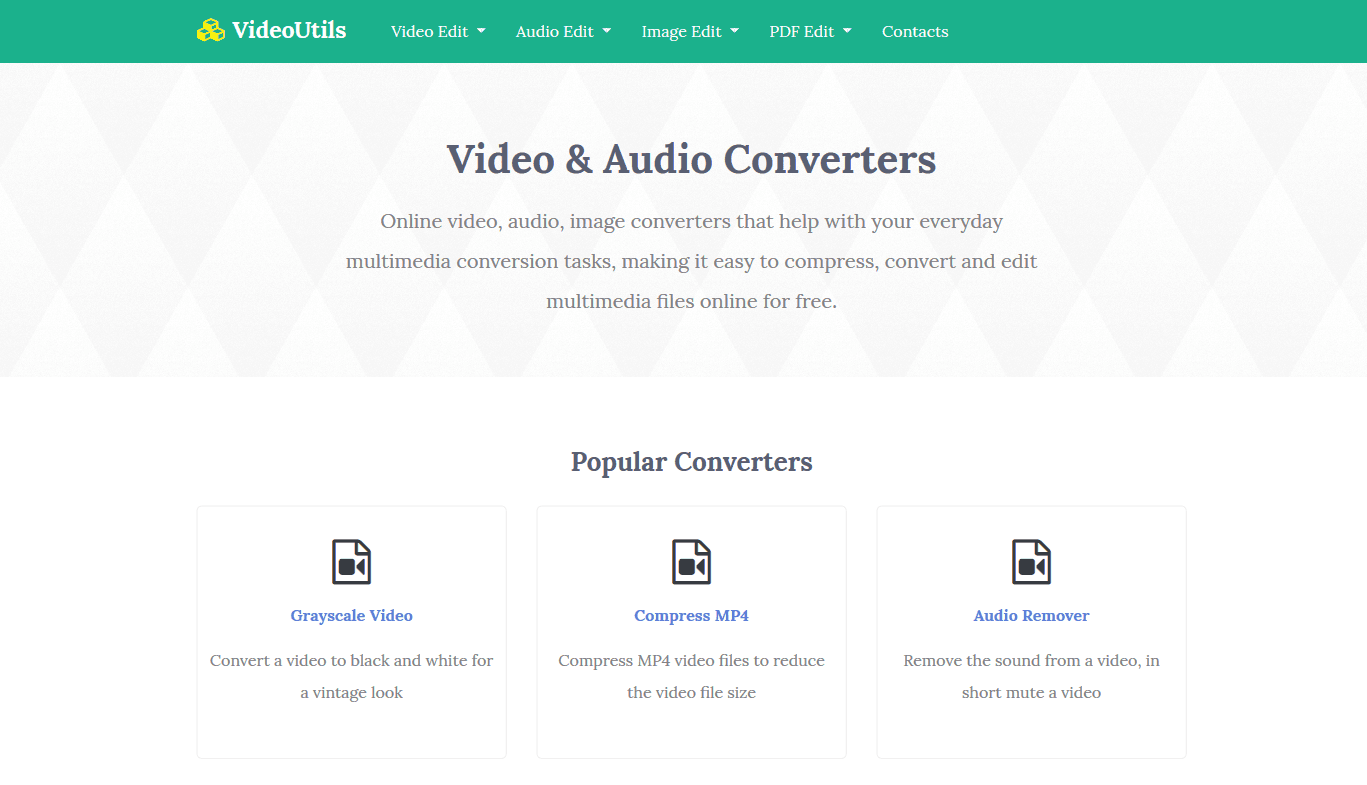
VideoUtils is a browser-based toolkit for everyday video, audio, image and PDF tasks, with no software installation required. Its menu groups tools into four areas:
- Video: compress MP4 and MOV, convert formats (e.g., MP4 to MP3 or GIF, MP3 to MP4 with an image), remove or replace audio, adjust volume, resize, stabilize, loop, reverse, change speed, brighten, create stop-motion, and download MP4 videos from streaming sites.
- Audio: compress MP3, boost volume, convert between MP3, WAV, WMA, M4A and M4R, and create iPhone ringtones (MP3 to M4R).
- Image: compress images, grayscale, convert to PDF, and create or split animated GIFs.
- PDF: compress, grayscale, convert Word/ODT/XPS to PDF, convert PDF to JPEG, unlock password-protected PDFs, repair corrupted files and crop pages.
Who it suits
- Casual users who need a quick one-off job — shrinking a video before emailing it, muting a clip, or turning a photo into a PDF — without installing an editor.
- Creators on the go handling small fixes like stabilizing drone footage or boosting a quiet MP3.
- People with mixed file types who'd rather use one site for video, audio, image and PDF tasks than juggle several tools.
Trade-offs to weigh
Browser tools are convenient but generally better for single files and simple operations than for batch jobs, fine-grained editing or large projects. For anything involving sensitive documents (e.g., unlocking a PDF), check how the site handles uploads before proceeding.
Next step: open the tool matching your task directly — for example, start with Compress MP4 if file size is the problem, or Audio Remover if you just need silence. For broader format support and desktop-level control, compare with a dedicated converter such as HandBrake (video) or FFmpeg (command-line audio/video).
How do I convert an MP4 video to MP3 audio with VideoUtils?
Open VideoUtils and choose Convert MP4 to MP3 from its video converter list. Upload your MP4, start the conversion, then download the resulting MP3. The site presents this as a browser-based task, so no desktop converter is needed for a one-off file.
When this fits
- You only need the soundtrack — a talk, lecture, interview or music clip — and don't need the picture.
- You want a quick conversion on a machine where you can't install software.
- The source is an ordinary MP4 rather than a protected or DRM-locked file.
Practical checks before you upload
- Confirm the audio is worth extracting. If the MP4 has several audio tracks (dubbed languages, commentary), check which one you get.
- Expect quality to match the source. MP3 is lossy, so converting an already-compressed audio track won't restore detail; for archiving, keep the original MP4.
- Mind file size and privacy. Large videos take longer to upload; for confidential recordings, a local tool such as a desktop editor may be more appropriate.
- Test one file first. Convert a short clip and listen to the opening and closing seconds before processing a batch.
Related tasks on the same site
If your goal shifts, VideoUtils also lists Audio Extractor (pulling audio out of video), Compress MP3 (shrinking audio by lowering bitrate), Audio Converter (MP3, WAV, WMA, M4A, M4R), MP3 to M4R for iPhone ringtones and Add Music to Video for the reverse direction.
As a next step, decide what the MP3 is for: spoken-word listening tolerates a lower bitrate and smaller file, while music or transcription work benefits from keeping the audio as close to the original as possible.
Can I compress a large MP4 video file without losing quality on VideoUtils?
Yes—you can compress an MP4 on VideoUtils, but "without losing quality" needs a realistic framing: compression reduces file size by discarding data, so some loss is inherent. The practical goal is a smaller file where the loss isn't visible in normal viewing, not literally lossless compression.
What the tool offers
VideoUtils lists a dedicated Compress MP4 converter among its video tools, described as reducing MP4 file size. That's the direct route for your task. Related tools on the same site let you resize video dimensions and change video speed, which affect size indirectly.
How to keep quality high
- Lower the resolution only if you can accept it. Downscaling from 4K to 1080p shrinks files dramatically, but it is a visible change on large screens.
- Prefer moderate compression first. Try one pass, check the result on your actual playback device, then compress further only if needed.
- Match output to use. A file for messaging or web upload tolerates more compression than an archival copy or a file destined for further editing.
- Keep the original. Always retain the source MP4 so you can re-encode with different settings.
A concrete scenario
If you're sending a phone-recorded clip by email or chat, compress once at a moderate setting and review it on your phone; if text and faces stay sharp, that's your version. For a client deliverable or a video you'll edit again, compress conservatively or not at all.
Decision criterion
Ask what the file is for. If it's for viewing and sharing, "visually indistinguishable" is a reasonable target and VideoUtils' Compress MP4 tool is a sensible first stop. If it's for archiving or re-editing, treat compression as a trade-off and test a sample before committing the whole file.
As a next step, run one compression pass on a short excerpt of your video, compare it side by side with the original, and use that result to choose settings for the full file.
How do I remove the audio from a video using VideoUtils?
Open the Audio Remover tool on VideoUtils and upload the video you want to mute. The tool is listed as “Remove the sound from a video, in short mute a video,” so its purpose is to strip the audio track and return a silent video file. Once the conversion finishes, download the result.
Practical steps and what to expect
- Choose the Audio Remover from the Video Edit section of the site.
- Upload your clip — short social videos and phone footage are the typical use case.
- Run the removal and download the muted file.
A concrete scenario: you have a phone recording of a product demo with background chatter and want to add your own voiceover later. Muting it first gives you a clean visual track to pair with new audio. If you would rather replace the soundtrack directly, the site also lists Add Music to Video, which swaps the original sound for a custom MP3.
Decision criterion
Mute first if you plan to edit or narrate separately; use Add Music to Video if you already have the final replacement track and want a single pass. For extracting the original sound instead of discarding it, Convert MP4 to MP3 or Audio Extractor are the relevant tools.
One practical note: muting removes audio entirely, so keep your original file until you have confirmed the silent version looks and plays correctly in your editor.
What steps do I follow to unlock a password-protected PDF on VideoUtils?
On VideoUtils, open the Unlock PDF Password tool from the PDF section, upload the password-protected PDF, enter the current password when prompted, and run the unlock. Then download the resulting unlocked PDF. The site lists this as a dedicated PDF tool for removing a password from a protected document.
Practical points before you start
- You need the existing password. "Unlock" here means removing protection from a file you can already open, not cracking an unknown password.
- Work on a copy if the original is important; keep the locked version as a backup.
- After unlocking, the downloaded file is unprotected, so store or share it accordingly.
- If the PDF is also corrupted or needs trimming, the site has separate Repair Corrupted PDF and Crop PDF tools.
When this fits
This is convenient for a one-off task on a shared or borrowed computer where installing desktop PDF software isn't practical. For sensitive documents such as contracts, IDs or financial records, consider a reputable desktop tool or your PDF reader's own permission-removal feature, since you retain more control over where the file goes. For routine personal files, a browser tool is a reasonable trade-off between speed and setup.
As a next step, confirm the downloaded PDF opens without a password prompt and that page content looks intact before deleting your backup.
How can I convert an MP3 to M4R for an iPhone ringtone using VideoUtils?
Use the Convert MP3 to M4R tool on VideoUtils: upload your MP3, run the conversion, then download the resulting M4R file and add it to your iPhone through Finder or iTunes (or a supported ringtone-transfer app). The site lists this tool specifically for creating iPhone ringtones, so the output format is the one iOS expects.
Practical steps
- Pick an MP3 that is already trimmed to the part you want as the ringtone. iPhone ringtones have a length limit (about 40 seconds), so a full song will usually be rejected even after conversion.
- Open the MP3-to-M4R converter, upload the file, and start the conversion.
- Download the M4R, then sync it to the iPhone's Ringtones section via Finder/iTunes, or use an app that imports M4R files directly.
- On the phone, go to Settings → Sounds & Haptics → Ringtone and select the new tone.
Things to watch
- Trim first, convert second. The converter changes the container/format; it is not a ringtone editor. If your MP3 is 3 minutes long, cut it down before uploading or the file may not appear as a usable ringtone.
- Keep the original MP3. Conversion is one-way in practice; keep the source in case you want a different excerpt later.
- Check the download. Some browsers rename files; confirm the extension is
.m4rbefore syncing.
If you need to shorten the audio first, a dedicated audio editor is more reliable than conversion alone. For audio format changes in general, the site's Audio Converter (MP3, WAV, WMA, M4A, M4R) covers other targets, and VideoUtils also offers MP4-to-MP3 extraction if your source is a video rather than an audio file.
 Hetzner Online GmbH
 Helsinki, Uusimaa, Finland

User reviews (0)