
 简体中文
简体中文 English
Website review
This review may include AI-generated content and is not individually verified. Domain, certificate and other facts come from the observed data on this page.
What is Whimsical?
Whimsical is a collaborative visual workspace aimed at product builders — people who design, plan and document software. Its core idea is an infinite canvas where you can move between two related kinds of work: diagrams for capturing and communicating ideas, and wireframes for shaping user interfaces. The pitch on the site is speed and shared understanding: get ideas out quickly, make them legible to teammates, and iterate before committing to a build.
What you can actually do with it
- Diagrams. Flowcharts for exploring and validating interaction flows, mind maps for expanding and organising ideas, and general-purpose diagrams for documenting how something is meant to work.
- Wireframes. Drag-and-drop components for sketching UI without a full design tool.
- Whimsical AI. Generate diagrams, brainstorm, and organise information from a prompt.
- Collaboration. Real-time multiplayer editing, comments attached to the work itself, image and video embeds (the site names Loom and YouTube), and version history you can restore.
Who it suits
A product manager sketching a signup flow before a planning meeting, or a small team that needs one shared place to think out loud, will get the most from it. It is closer to a fast thinking-and-communication tool than a precision UI design tool: if you need pixel-accurate design systems, high-fidelity prototyping or developer handoff specs, wireframing here is a starting point rather than the finish line. Teams already deeply invested in a full design suite may find Whimsical best used alongside it, for the messy early stages.
How to decide
Judge it on the loop you actually run: idea → diagram → rough UI → teammate feedback. If that loop currently spans three tools and a chat thread, a single canvas with comments and version history is a real gain. If your work is mostly final-stage design, the trade-off is less compelling.
A practical next step: take one flow you are working on right now, rebuild it as a flowchart, then wireframe the two or three screens it implies. That single exercise will tell you whether the speed and the commenting model fit how your team works. For a broader comparison, diagramming and whiteboard alternatives include Miro, Lucid, Figma and Excalidraw.
How does Whimsical help product teams create and document designs?
Whimsical is a collaborative whiteboard aimed at product builders. It combines two core modes on one infinite canvas: diagrams for capturing and sharing ideas, and wireframes for shaping UI with drag-and-drop components. The intent is that a product team can move from early thinking to a concrete design without switching tools.
Where it fits in a product workflow
- Early alignment: Flowcharts and mind maps let a team explore interaction flows or expand and organize ideas before committing to a solution.
- Design iteration: Wireframes are built from drag-and-drop components, so product and design can test a layout quickly rather than waiting for high-fidelity work.
- Documentation in place: Comments sit on the board itself, keeping discussion next to the relevant diagram or wireframe instead of in a separate chat thread. Version history lets you view earlier states and restore them.
- Context sharing: Images and embedded video (the page names Loom and YouTube) can be added to a board so reviewers see the reasoning behind a design.
Collaboration and AI
Multiplayer editing is real-time, which suits workshops, design reviews and remote pairing. The page also describes Whimsical AI for generating diagrams, brainstorming and organizing information, and a template library for jump-starting common formats.
A practical scenario
A product manager sketching a checkout flow could start with a flowchart, branch it into a wireframe of the payment screen, drop in a Loom walkthrough for an absent stakeholder, and collect feedback as comments on the exact frame. That keeps one artifact as the source of truth instead of a diagram, a mockup and a chat thread.
Trade-off to weigh
The strength is speed and shared understanding, not pixel-perfect UI production. If your team needs detailed design systems, component libraries or developer-ready specs, wireframes here are better treated as an early alignment step before a dedicated design tool. The free entry point makes it easy to trial that role first.
Next step: open a blank board, pick one real flow your team is currently debating, and rebuild it as a flowchart plus one wireframe. If the comments and version history replace a meeting or a scattered thread, it is earning its place in your stack.
Can I use Whimsical for free, and what are the paid plan options?
Whimsical can be used for free, and it also offers paid plans. The free tier is a genuine starting point rather than a limited trial: the site invites visitors to "Get started free," and its core capabilities — diagrams, wireframes, an infinite canvas, multiplayer editing, templates, comments, images and video embeds, and version history — are presented as the essentials of the product rather than as premium add-ons. In practice, that means a solo product manager sketching a flowchart, a designer blocking out a first wireframe, or a small team running a brainstorming board can all begin without paying.
Paid plans exist, and the site links to a pricing page, but the specific tiers, limits, and prices are not described in the material available here. Treat any numbers you see elsewhere as unverified until you check the official pricing page directly.
What the free experience likely covers well
- Diagrams — flowcharts and mind maps for capturing and validating ideas.
- Wireframes — drag-and-drop components for shaping UI concepts early.
- Collaboration — real-time multiplayer editing and focused comments.
- Context — image uploads and embedded video from services like Loom and YouTube.
- Safety net — version history with the ability to restore earlier board states.
- AI assistance — Whimsical AI for generating diagrams and organizing information.
A practical way to decide
Start on the free plan with a real task, not a test board. For example, map a checkout flow as a flowchart, then build a wireframe of the same screens. If you hit a wall — a cap on boards, collaborators, or AI usage — that wall tells you which paid tier you actually need. If you never hit it, you have your answer.
For current tier names, seat limits, and prices, go straight to Whimsical and open its pricing page. Comparing that against a dedicated diagramming tool such as Lucid or a general canvas like Mural is worth doing if collaboration scale or template depth is your deciding factor.
How does Whimsical's AI feature speed up diagramming and brainstorming?
Whimsical's AI feature is aimed at the blank-canvas problem: instead of drawing a flowchart node by node or manually arranging sticky notes, you describe what you want in text and the tool generates a starting structure you can then edit. The site presents it as a way to "generate diagrams, brainstorm ideas, and organize information in seconds," which tells you the intended payoff is speed to a first draft, not a finished artifact.
In practice, that changes the shape of a session. A product manager mapping an onboarding flow might type a short description and get a skeleton flowchart, then spend their time correcting edge cases rather than placing boxes. A team stuck on feature ideas could use it to produce a broad set of suggestions and then cluster them. For a solo designer, it lowers the activation energy for starting a mind map or wireframe.
Where the time actually goes
- First draft: generation replaces the slowest part — deciding layout and initial structure.
- Refinement: you still review, rename, reorder and delete, so accuracy depends on how well you prompt and how carefully you check output.
- Collaboration: because the canvas is multiplayer, a generated draft becomes something the whole team can immediately react to rather than a private sketch.
The trade-off to weigh
AI-generated diagrams tend to be plausible rather than correct. They are useful for exposing structure you hadn't considered, and risky if treated as documentation without review. Whimsical's surrounding features — templates, comments, version history, image and video embeds — matter here, because they support the editing and discussion phase that follows generation.
A practical next step
Pick one recurring task you currently do manually, such as sketching a user flow or organizing research notes, and test whether the AI draft gets you to a useful structure faster than starting yourself. If you spend more time fixing the output than you saved, the feature isn't earning its place for that task. You can see the full feature set at Whimsical.
What types of diagrams and wireframes can I create in Whimsical?
Whimsical is built around two core visual tools: diagrams for capturing and organizing ideas, and wireframes for shaping UI concepts before development. Both live on an infinite canvas, so you can spread out, connect, and rearrange work without hitting a page boundary.
Diagrams
Whimsical's diagramming covers several specific formats named on its site:
- Flowcharts — for exploring and validating interaction flows, useful when mapping what happens at each step of a user journey or process.
- Mind maps — for expanding and organizing ideas before refining a solution, good for early-stage brainstorming where structure emerges as you go.
- General diagrams — for quickly capturing ideas and creating shared understanding with visuals "everyone can use," which suggests an emphasis on clarity over technical notation.
- Whimsical AI — can generate diagrams, brainstorm ideas, and organize information in seconds, which is handy when you want a rough starting structure rather than a blank canvas.
Wireframes
Wireframes are built with drag-and-drop components, aimed at exploring new product ideas and iterating quickly so you ship the right solution on the first release. This is a low-fidelity approach: enough to test layout and flow, not pixel-perfect visual design.
How they work together
The practical value is the pairing. You might map a flowchart of an interaction, then build a wireframe of the screen that flow lands on, all on the same infinite canvas. Supporting features include:
- Multiplayer editing for real-time collaboration.
- Templates from experts to jump-start thinking.
- Comments placed directly where the work happens.
- Images and video embeds from Loom, YouTube, and similar sources for context.
- Version history to view and restore earlier board states.
A concrete scenario
A product manager sketching a checkout redesign could diagram the decision points in a flowchart, wireframe the payment screen with drag-and-drop components, drop in a Loom walkthrough of the current experience, and leave comments for the engineer — all in one board.
Next step: if your work is mostly precise technical diagrams (UML, database schemas), check whether Whimsical's diagram types match your notation needs. If your priority is fast, collaborative, low-fidelity product thinking, the diagram-plus-wireframe combination is the fit. You can start free at Whimsical and see the pricing tiers at Whimsical Pricing.
How does real-time collaboration work in Whimsical for teams?
Whimsical's real-time collaboration is built around multiplayer editing on a shared infinite canvas: multiple people can work in the same diagram, wireframe, or board at once, and changes appear live rather than through file hand-offs. The page also lists comments, version history, and image/video embedding as part of the same workspace, so feedback and context stay attached to the work instead of moving to a separate chat thread.
For a team, that changes the meeting pattern. Instead of one person diagramming after a call, a PM, designer, and engineer can sketch a flow together, drop a Loom or YouTube clip next to the relevant node, and leave comments directly on the area in question. If someone edits too aggressively, version history lets you view previous board states and restore an earlier one.
Practical decision criteria:
- Choose it for synchronous sessions when you want a flowchart, mind map, or wireframe to emerge in the room rather than be presented later.
- Use comments for focused threads when the discussion is tied to a specific part of the board.
- Rely on version history when several people are editing and you need a safe rollback point.
- Consider the trade-off: live multiplayer can get noisy on large boards; teams often get better results by assigning areas or using a short "driver" rotation.
A useful next step is to run one real session on a small flow — for example, a checkout or onboarding sequence — with two or three teammates, then check whether the comment threads and version history actually reduce the follow-up messaging. If you need a broader comparison of visual collaboration tools, Mural and Miro are established alternatives in the same category.
 Cloudflare
 Google Workspace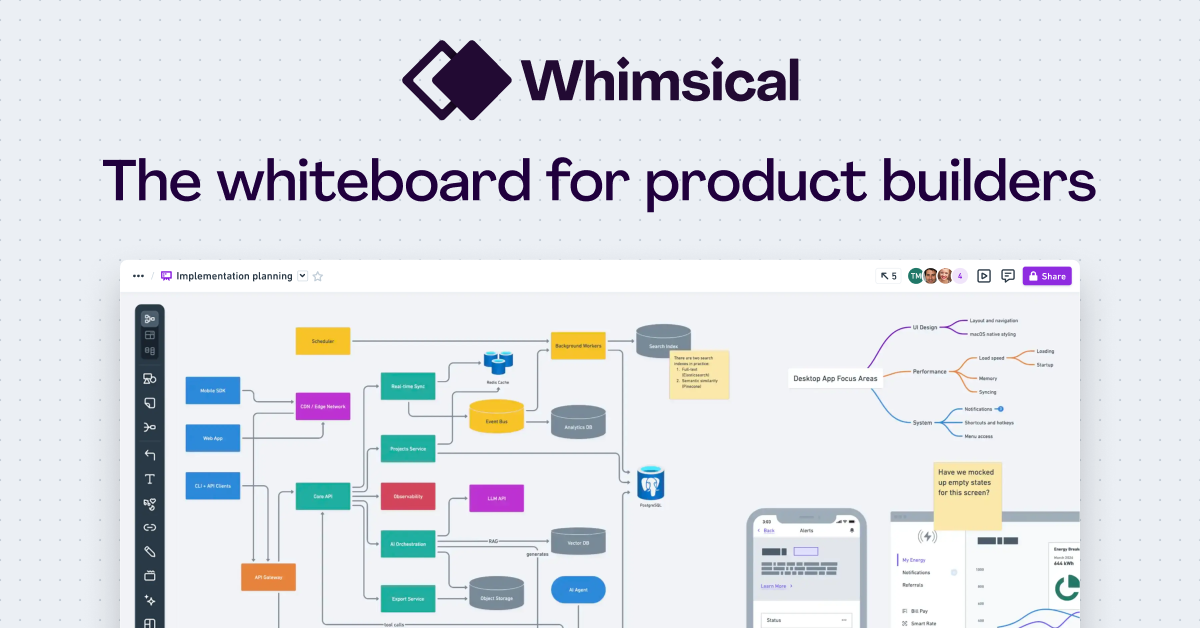

User reviews (0)