Website profiles · Technology insights · Alternatives

codebeautify.org

Free Online Tools like Code Beautifiers, Code Formatters, Editors, Viewers, Minifier, Validators, Converters for Developers: XML, JSON, CSS, JavaScript, Java, C#, MXML, SQL, CSV, Excel

Paid content
Visit website
Profile views 8 Outbound visits 1 Normal
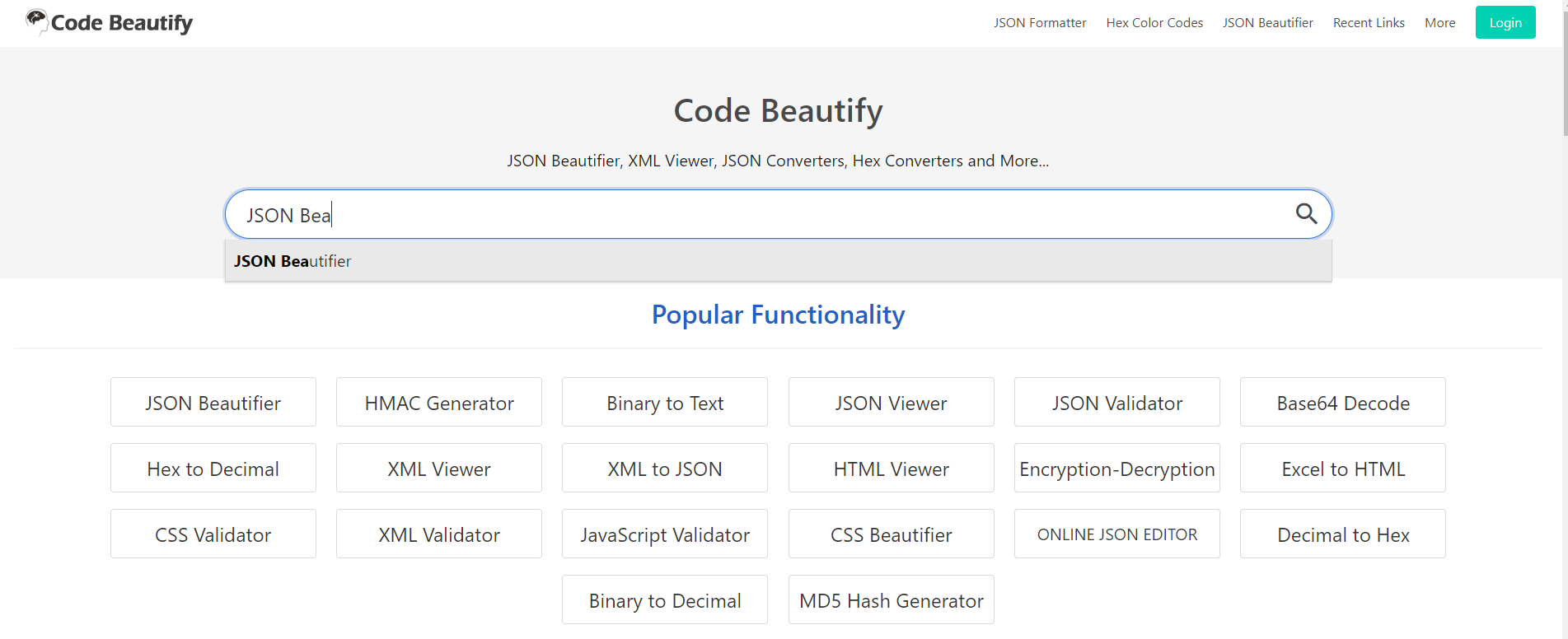
Code Beautify and Code Formatter For Developers Full homepage screenshot

At a glance

Category
Resources & Utilities
Language
English
Paid-content signal
Paid contentObserved
Registered
2013
Hosting
CloudflareInferred
HTTPS certificate trusted
PassedObserved
Last updated

Website review

This review may include AI-generated content and is not individually verified. Domain, certificate and other facts come from the observed data on this page.

What is Code Beautify?

Code Beautify is a free online collection of browser-based utilities for developers, grouped around formatting, validating, minifying, and converting code and data. Its stated focus is tools for XML, JSON, CSS, JavaScript, Java, C#, MXML, SQL, CSV, and Excel, along with editors, viewers, and converters. The site's own heading is simply "Code Beautify," with a subheading listing a code formatter, JSON beautifier, XML viewer, and hex converters.

H3 Practical uses

  • Reformatting a messy JSON or XML response into readable, indented output before debugging.
  • Minifying CSS or JavaScript for a quick size check.
  • Validating a snippet to catch a stray bracket or malformed tag.
  • Converting between data formats such as CSV and Excel-style tables.

H3 Who it suits and the trade-offs It fits developers, students, and analysts who need a quick, no-install fix for a snippet. The main trade-off is that pasting code or data into a web page sends it to a third party, so avoid confidential or proprietary content. For large projects, a local formatter integrated into your editor is usually faster and safer.

H3 Next step Pick the specific tool matching your format rather than the general homepage, paste a small sample first to confirm the output style, and keep a local formatter for anything sensitive. The site also lists a Billing Postal Code Generator, a reminder that its catalog extends well beyond code tools.

Related references: JSON for the JSON specification, and MDN Web Docs for CSS and JavaScript syntax guidance.

How do I format and beautify JSON or XML code online?

Use an online formatter when you need to read or debug a blob of JSON or XML quickly, without installing an editor extension. Paste the code, choose the format action, and copy the indented result back into your file or ticket.

Code Beautify is one option for this: it presents itself as a browser-based collection of beautifiers, formatters, viewers, minifiers, validators and converters covering JSON, XML, HTML, CSS, JavaScript, SQL, CSV and Excel. Its own tagline lists a "Code Formatter, JSON Beautifier, XML Viewer, Hex Converters and more." That breadth is the main draw — one site for several formats instead of a different tool per file type.

Typical workflow

  1. Paste or upload the JSON/XML into the editor.
  2. Run the beautify/format action to add indentation and line breaks.
  3. Read the error message if the tool reports a parse failure — malformed JSON usually means a trailing comma, unquoted key, or single quotes.
  4. Copy the formatted output back, or use the minify action if you need the opposite.

When a web formatter is the right call

  • You're on a machine where you can't install tooling.
  • You want to eyeball a small-to-medium payload from an API response.
  • You need a one-off conversion (for example, JSON to CSV) rather than a repeatable build step.

When it isn't

  • Sensitive data. Pasting production payloads with tokens, personal data or internal hostnames into any third-party site is a real risk. Use a local formatter instead.
  • Large files. Browser editors get sluggish on very big documents; command-line tools handle them better.
  • Repeatable work. If you format the same way on every commit, wire it into your editor or CI rather than doing it by hand.

A quick decision rule

If the snippet is under a few hundred lines and contains nothing confidential, a browser tool is the fastest path. If either condition fails, format locally.

For a local alternative that handles both formats, jq for JSON and xmllint --format for XML are standard command-line choices.

Can I minify or validate JavaScript, CSS, and HTML files with this tool?

Yes. Code Beautify is built around exactly that pair of jobs: it offers JavaScript, CSS, and HTML formatters/beautifiers alongside minifiers and validators, so you can paste or upload code, clean it up, and check it for problems in the same place. The site also covers JSON, XML, SQL, CSV, and Excel, which makes it a reasonable one-stop utility for mixed front-end work.

H3 What each task looks like in practice

  • Minify — compresses JavaScript, CSS, or HTML by stripping whitespace, comments, and line breaks, producing a smaller file for production. Useful when you want a quick size reduction without running a build tool.
  • Validate — checks the code against syntax rules and reports errors. This is most valuable for catching a stray bracket or malformed tag before it reaches a browser.
  • Beautify/format — the reverse of minifying: re-indents and re-wraps code so it is readable again.

H3 Choosing between this and your editor

Situation Online tool is a good fit Local tooling is a better fit
One-off snippet, unfamiliar machine Yes — nothing to install Overkill
Full project with many files Awkward, file-by-file Yes — bundlers and linters
Sharing a formatted result with a colleague Yes — copy and paste Requires setup
Sensitive or proprietary code Avoid pasting into any web tool Yes — keeps code local

That last row is the real trade-off. Browser-based utilities are convenient, but anything you paste leaves your machine. For private or client code, run the same operations locally through your editor's formatter or a command-line linter.

H3 A practical next step

If you are debugging a broken page, paste the CSS or HTML into the validator first to rule out syntax errors, then paste the JavaScript separately — mixing them in one pass makes error messages harder to read. For production, minify only after validating, since a minifier can obscure the original line where a problem lives.

Alternatives worth knowing: Prettier for consistent formatting across a project, and JSONLint if JSON validation is your main need.

What file formats can I convert between, such as Excel, CSV, or SQL?

Code Beautify is a browser-based toolbox for converting and reformatting code and data files. Based on the site's own description, its converters cover formats such as JSON, XML, CSV, Excel, SQL, HTML, CSS, and JavaScript—so the realistic conversions are between structured data formats (Excel ↔ CSV ↔ JSON ↔ XML ↔ SQL), plus formatting/minifying of web code rather than true file-type conversion.

Typical conversions you can expect

  • Spreadsheet ↔ text data: Excel to CSV, CSV to Excel, CSV to JSON, CSV to XML.
  • JSON ↔ XML: useful when an API returns JSON but a legacy system expects XML.
  • Data ↔ SQL: converting CSV/JSON/Excel into SQL INSERT statements, or exporting SQL query results into CSV/JSON.
  • Code formatting: beautifying or minifying JSON, XML, HTML, CSS, and JavaScript.

How to choose

Your situation Best starting point
One-off cleanup of a messy data file CSV or JSON beautifier/converter
Moving data into a database CSV/Excel-to-SQL converter
Feeding a spreadsheet into a web app Excel/CSV-to-JSON converter
Integrating with an older enterprise system JSON-to-XML or CSV-to-XML converter

A practical next step: open the specific converter page that matches your source and target format (for example, search the site for "CSV to JSON" or "Excel to SQL") rather than the general formatter, since each tool handles one direction and its own options for delimiters, headers, and quoting. For a quick sanity check, paste a small sample of your data first to confirm the output structure before running the full file. If you need broader format support or batch processing, compare with a dedicated converter such as Convertio or CloudConvert.

Is Code Beautify free to use, and are there any paid features or limits?

Code Beautify is presented as a free online toolbox: its own description lists beautifiers, formatters, editors, viewers, minifiers, validators and converters as free tools, and there is no pricing page, subscription plan or payment platform indicated in the supplied page information. The visible page content is essentially a tool index, so it does not document paid tiers or usage limits.

What that means in practice:

  • No stated paid features. Nothing in the supplied information describes premium tools, accounts or upgrades.
  • No stated limits. There is no published cap on file size, number of conversions per day, or history retention.
  • Free tools often have soft limits. Browser-based formatters and converters typically slow down or fail on very large files, and some may truncate output. Treat that as general advice about this category of tool, not as a documented Code Beautify policy.

Code Beautify

A useful next step: paste a representative sample of your real data — a large JSON payload, a messy XML file, a full stylesheet — into the relevant tool and check the output before relying on it for a batch job. If you routinely handle sensitive data, prefer a tool that runs entirely in the browser, or use a local formatter instead.

How do I use a code beautifier to clean up messy code for debugging or sharing?

A code beautifier reformats messy code—adding indentation, line breaks and consistent spacing—without changing what the code does. That makes it easier to read during debugging and safer to hand to a teammate, since inconsistent formatting often hides real logic problems. On a site like Code Beautify, this is typically a paste-in, pick-language, format-out workflow rather than something you install.

The basic workflow

  1. Paste your messy code into the tool's input box, or paste a snippet rather than the whole file if only one function is causing trouble.
  2. Choose the correct language or format (JSON, XML, HTML, CSS, JavaScript, SQL, CSV and similar). If you pick the wrong one, the output will look scrambled or the tool will throw an error.
  3. Run the formatter and check the output for anything that looks wrong—not just indentation, but missing brackets or quotes.
  4. Copy the result back into your editor, or use it as a temporary clean version while you hunt the bug.

Why it helps with debugging

  • Misaligned braces and nested blocks are a common source of confusion in JavaScript, Java and C#. Proper indentation shows you which block a line actually belongs to.
  • For JSON and XML, formatting exposes structural errors: a missing comma or an unclosed tag becomes obvious once each level is on its own line.
  • Minified code is nearly impossible to read; a beautifier turns a single long line into something you can step through mentally.

Why it helps with sharing

When you paste code into a chat, ticket or forum, unformatted code gets mangled. Formatting first makes your snippet readable and shows you've isolated the relevant part. Many beautifiers also include a minify option, which is useful in the opposite direction—shrinking code before shipping it.

Trade-offs to keep in mind

Situation Beautifier is a good fit Better to use something else
Quick look at a pasted snippet Yes —
Whole project with many files — An editor or IDE with a formatter
Code containing secrets or client data — A local tool, since pasting into a website sends it to a server
Enforcing a team style — A config-driven formatter in your build

A practical starting point: next time a bug is hard to spot, paste just the suspect function into Code Beautify, format it, and read the indented version before changing anything. If you find yourself doing this often, set up formatting inside your editor so it happens automatically on save, and reserve the online tool for one-off snippets and formats your editor doesn't handle well.

Related questions

More questions →
How to Beautify Code Online: What It Does and How to Pick a Tool

An online code beautifier rewrites the whitespace in your code — indentation, spacing, and line breaks — so it's easier to read. It does not fix logic, catch every syntax error, or change what your program does. Use one when you have a snippet, a minified file, or a messy paste and you want it readable in seconds without installing anything. Skip it when the code is proprietary and you can't paste it into a browser, or when your project already has a formatter configured.

What a beautifier actually changes

A beautifier is a whitespace rewriter. It parses your code into a structure, then re-emits it with consistent formatting rules.

It changes:

  • Indentation (spaces vs. tabs, depth per nesting level)
  • Line breaks (where statements wrap, how attributes stack)
  • Spacing around operators, commas, and braces
  • Alignment of related lines, such as object keys or CSS properties

It does not change:

  • Program logic or behavior
  • Variable names, values, or structure
  • Syntax errors — malformed input usually stays malformed, or the tool refuses to run
  • Semantics of strings, comments, or regex literals

That distinction matters. If your JSON won't parse, beautifying won't rescue it. If your JavaScript has a missing bracket, a formatter may produce odd output or throw an error rather than fix it.

How to beautify code online, step by step

The flow is nearly identical across tools, including Code Beautify:

  1. Paste or upload your code into the input area. Some tools accept a file upload instead of a paste.
  2. Select the language or format — JSON, XML, HTML, CSS, JavaScript, SQL, Java, and so on. Choosing the wrong one is the most common cause of bad output.
  3. Run the beautify action (usually a button labeled Beautify, Format, or similar).
  4. Check the result in the output pane. Confirm indentation depth and that nothing was dropped.
  5. Copy or download the formatted code back into your editor.

Expected result: the same code, same content, readable indentation. If the output looks scrambled or truncated, the input was probably malformed or the language selection was wrong.

Check language support before you commit

Not every tool handles every language well. Before pasting, confirm the tool lists the format you need.

Format Typical support Watch for
JSON Very common Strict parsing — one trailing comma breaks it
XML / HTML Very common Self-closing tags, embedded scripts
CSS Common Vendor prefixes, nested syntax
JavaScript Common Modern syntax (optional chaining, JSX) may not parse
SQL Common Dialect differences (MySQL vs. PostgreSQL)
Java, C#, and others Varies Less consistent across free tools

Code Beautify advertises formatters and viewers across XML, JSON, CSS, JavaScript, Java, C#, MXML, SQL, CSV, and Excel, plus converters and minifiers. That breadth is useful, but breadth isn't depth — test your specific syntax rather than assuming.

Privacy: the part people skip

When you paste code into a browser-based formatter, that code leaves your machine. For a public snippet or a learning exercise, that's fine. For proprietary source, internal configs, or anything under an NDA, it isn't.

Before pasting, ask:

  • Does this code contain secrets, API keys, or credentials?
  • Is it proprietary or client-owned?
  • Does my employer's policy allow sending it to a third-party site?

If any answer is yes or unsure, use a formatter that runs locally — your editor's built-in formatter, a CLI tool like Prettier, or an offline extension. The formatting result is identical; only the exposure differs.

Common failures and how to troubleshoot

Unsupported syntax. The tool parses an older version of the language and chokes on newer features. Fix: try a different tool, or format that file locally.

Malformed input. A missing brace, an unclosed tag, or a stray comma. Fix: the tool usually reports an error — read it, fix the source, then re-run. Beautifying is not a validator.

Mixed languages. HTML with embedded CSS and JavaScript, or a template file. Fix: format each language separately, or use a tool that explicitly supports mixed content.

Wrong language selected. Output looks mangled. Fix: re-select the correct format and run again.

Output looks unchanged. The input may already be formatted, or the tool silently failed. Fix: check for an error message and confirm the language.

Online beautifier vs. your editor or CLI

Situation Better choice
One-off snippet, quick read Online beautifier
Shared or public code Online beautifier
Proprietary or sensitive code Editor or CLI formatter
Whole project, consistent style Editor or CLI formatter
Enforcing team formatting rules CLI formatter with a config file
No install allowed, unfamiliar machine Online beautifier

The trade-off is simple: online tools win on convenience and zero setup; local tools win on privacy, consistency, and project-wide rules. If you format the same project repeatedly, configuring a formatter once pays off. If you just need to read a minified blob right now, an online tool is the faster path.

Quick decision checklist

  • Need it readable fast, code isn't sensitive? Paste into an online beautifier, pick the language, format, copy back.
  • Code is proprietary or contains secrets? Use your editor or a local CLI formatter instead.
  • Tool errors out? Check the language selection first, then look for malformed syntax in the input.
  • Formatting a whole project? Use a project-configured formatter, not a browser tool.
  • Unfamiliar syntax? Verify the tool supports it before trusting the output.
What Is a Code Formatter and How Do You Use One?

A code formatter rewrites source code so its layout is consistent—indentation, line breaks, spacing, and other style rules—without changing what the code does. Use one whenever you want readable, diff-friendly code: paste or upload a file into an online formatter, run a built-in formatter in your editor, or call a command-line tool in a build step. The main caveat is that formatters need syntactically valid code; a missing bracket or stray character will usually stop formatting and surface an error instead.

Formatter, beautifier, minifier: what's the difference?

These three terms get used loosely, but they do different jobs:

Tool What it changes Typical use
Formatter Whitespace and layout, following a style ruleset Keeping a codebase consistent, cleaning up messy code
Beautifier Whitespace and layout, usually with a "make it pretty" default Quick readability fix on pasted or minified code
Minifier Removes whitespace, shortens names where safe Shipping smaller files to a browser

In practice, "beautifier" and "formatter" overlap heavily—many tools labeled "beautify" apply a fixed style, while a formatter lets you configure rules. A minifier does the opposite of both: it strips the layout a formatter adds, so you'd minify for production and format for reading or editing.

What a formatter actually controls

Formatting decisions are mostly mechanical, but the rules differ by language and by project:

  • Indentation — spaces vs. tabs, and how many. JavaScript projects often standardize on 2 spaces; some other ecosystems default to 4.
  • Line breaks — where long expressions wrap, and whether the tool enforces a maximum line length.
  • Spacing — around operators, after commas, inside braces and parentheses.
  • Language-specific style — for example, brace placement, trailing commas, or quote style in JavaScript; attribute wrapping in HTML; selector and property layout in CSS.

Because these are conventions rather than correctness rules, the same code can be "correctly formatted" in several ways. That's why teams pick one config and apply it everywhere.

Choosing between online, editor, and CLI formatters

Each option fits a different situation:

  • Online formatters (like the tools on codebeautify.org) are best for one-off cleanup: paste code, pick the language, format, copy the result. No install, but you're sending code to a third party—avoid pasting anything sensitive.
  • Editor/IDE built-ins format on save or on demand, so style stays consistent without leaving your workflow. Best for day-to-day editing.
  • CLI tools run in scripts and CI, so every commit or pull request is checked the same way. Best for enforcing style across a team.

A common setup combines the last two: format locally while editing, and run the CLI check in CI so nothing unformatted gets merged.

Step-by-step: formatting code in an online tool

  1. Open the formatter and select the target language (JSON, XML, JavaScript, CSS, HTML, and others are commonly supported).
  2. Paste your code into the input area, or upload a file if the tool offers it.
  3. Trigger formatting — usually a button labeled "Format" or "Beautify."
  4. Check the output. The tool should return the same code with normalized indentation and spacing.
  5. Copy the result back into your editor or file.

Expected result: the logic is identical, but the layout is consistent and easy to scan.

If it fails: most tools show an error message rather than partial output. That almost always means a syntax problem in the input—an unclosed brace, bracket, or quote, or a stray character. Fix the syntax first, then format again.

Common formatting failures and how to handle them

  • Syntax errors block formatting. Formatters parse code before rewriting it, so invalid code can't be formatted. Validate or fix the error first.
  • Unsupported language or dialect. A tool may not recognize a newer syntax version or a niche language. Try a tool that explicitly lists your language.
  • Lost or moved comments. Some formatters reposition comments or, in rare cases, drop them. Always compare the output against the input before committing.
  • Style disagreements. If the tool's default style clashes with your project, use an editor or CLI formatter with a config file instead of an online default.
  • Large files. Very large inputs can be slow or truncated in browser-based tools; a CLI tool handles them more reliably.

Why consistent formatting is worth the effort

Formatting isn't cosmetic. When every file follows the same rules:

  • Diffs stay meaningful. Without consistent style, a one-line change can show up as dozens of whitespace-only diff lines, hiding the real edit in review.
  • Reviews focus on logic. Reviewers stop arguing about spacing and look at behavior.
  • Onboarding is faster. New contributors don't have to guess the local style.

The practical takeaway: pick one formatter and one config, apply it automatically where you can, and use an online beautifier for quick, non-sensitive cleanups when you don't want to set up tooling.

What Can You Actually Do With a Free Hosted REST API Like ReqRes?

A free hosted REST API like ReqRes gives you a real HTTP endpoint you can call immediately—no signup, no local server, no database setup. You get predictable JSON responses for users, resources, login, and registration, which makes it useful for front-end demos, integration tests, learning HTTP clients, and prototyping. What it is not is a production backend for your app: the data is shared, resets periodically, and you don't control the schema. If you need persistent, private data with auth and logs, that's where an account-based backend or a commercial licence comes in.

What "free REST API for testing and prototyping" actually means

The phrase sounds vague, so it helps to separate two things people often conflate:

  • A mock/sample API — a public, hosted service with fixed or semi-fixed endpoints that return realistic-looking JSON. You don't own the data. It exists so you can point code at a URL and get a response.
  • A real backend you configure — a service where you define collections, schemas, authentication, and logging, and where your data persists and belongs to you.

ReqRes's landing page describes both: a free REST API for testing and prototyping with real responses and no signup, plus an option to build your own backend with collections, auth, and logs at app.reqres.in. Those are different products with different trade-offs. The free public endpoints are the "point and go" part; the account-based backend is the "own your data" part.

What you can do with the no-signup public endpoints

1. Front-end demos without a backend

If you're building a UI and need data to render, you can fetch from a public endpoint instead of hardcoding arrays. This keeps your demo code closer to real fetch logic:

async function loadUsers(page = 1) {
  const res = await fetch(`https://reqres.in/api/users?page=${page}`);
  if (!res.ok) throw new Error(`HTTP ${res.status}`);
  const { data, total, page: current } = await res.json();
  return { users: data, total, page: current };
}

You get pagination fields, a data array, and support metadata—enough to build list views, loading states, and empty states.

2. Integration and contract tests

You can assert that your HTTP layer handles status codes, headers, and JSON shapes correctly. Typical checks:

  • GET /api/users/2 returns 200 with a data object.
  • GET /api/users/23 returns 404 (a non-existent user).
  • POST /api/login with valid credentials returns a token; with missing fields returns 400.

This is useful for testing your client wrapper, retry logic, error handling, and serialization—without spinning up your own server.

3. Learning HTTP clients and tooling

If you're new to fetch, Axios, curl, Postman, or HTTPie, a hosted API is a low-friction target. You can practice:

  • Sending query parameters (?page=2, ?delay=3).
  • Setting headers and reading response headers.
  • Handling POST, PUT, PATCH, DELETE.
  • Observing status codes for success and failure.

4. Deliberate failure and latency testing

Endpoints that return 404 on purpose, or that accept a delay parameter, let you test how your app behaves when things go wrong or slow down. That's hard to do reliably against a happy-path local mock.

What the public endpoints are not good for

Use case Public sample endpoints Account-based backend
Persistent, private data No — shared and reset Yes
Custom schema/collections No Yes
Authentication you control Limited (demo login) Yes
Request logs and debugging No Yes
Production traffic Not intended Depends on plan/licence
Team collaboration No Yes

The key limitation: you don't own the data, and other people are hitting the same endpoints. Treat responses as illustrative, not authoritative.

When you'd move to an account-based backend

Consider app.reqres.in (collections, auth, logs) when any of these are true:

  • You need your own collections and fields, not the fixed demo schema.
  • You need data to persist between sessions and belong only to you.
  • You need real authentication flows you can rely on in a demo or internal tool.
  • You need request logs to debug what your client actually sent.
  • You're working with a team and need shared, stable endpoints.

The trade-off is setup and, eventually, cost. The public endpoints require none; the backend requires an account and configuration.

Where pricing and licensing become relevant

The site signals a commercial licence and an upgrade path (with Stripe as the payment platform), but specific prices, plan tiers, and limits aren't stated here—so don't assume numbers. What you can reason about:

  • Prototyping and learning → free public endpoints are usually enough.
  • Internal tools, demos for clients, or anything you don't want reset → an account-based backend is the natural next step.
  • Production or commercial use → check the licence terms and any paid plan, because "free for testing" and "free for commercial production" are not the same thing.

Before committing, read the current terms on the site rather than relying on secondhand summaries, since pricing and licence scope change.

A quick decision checklist

  1. Do you need data that persists and is private? If yes → account-based backend.
  2. Do you need a custom schema? If yes → account-based backend.
  3. Are you only testing HTTP behavior, UI rendering, or learning a client? If yes → free public endpoints.
  4. Will this touch real users or revenue? If yes → review the licence and any paid plan first.
  5. Do you need logs and team access? If yes → account-based backend.

If you answer "no" to 1, 2, 4, and 5, the free hosted API is likely all you need. If you answer "yes" to any of them, plan for the account-based path.

What Is a Code Beautifier and How Do You Use One?

A code beautifier is a tool that re-indents and re-spaces source code so it's easier to read, without changing what the code does. You use one by pasting or uploading your code, selecting the language, running the beautify action, then copying the cleaned-up result back into your editor. This works well for quick cleanups of pasted snippets, but for code you edit daily, an editor or CI-based formatter is usually the better long-term choice.

What "beautifying" actually changes

Beautification is purely cosmetic at the syntax level. The tool parses your code, then rewrites it with consistent:

  • Indentation — nested blocks get aligned so structure is visible at a glance
  • Line breaks — long lines and chained expressions get split at sensible points
  • Spacing — operators, commas, and braces get consistent surrounding whitespace
  • Blank lines — some tools normalize or collapse excessive gaps

The logic, variable names, and execution order stay the same. If a beautifier changes behavior, that's a bug or a sign your original code relied on formatting-sensitive syntax (rare, but possible in some languages).

Beautifier vs. formatter vs. minifier

These three get used interchangeably, but they aim at different outcomes:

| Tool | Goal | Typical output | When to use | |---|---|---|---|---| | Beautifier | Make code readable | Expanded, indented, spaced | Cleaning up pasted or legacy code | | Formatter | Enforce a style standard | Consistent per a ruleset (e.g., team config) | Ongoing development, pre-commit, CI | | Minifier | Shrink file size | Compressed, whitespace stripped | Production assets (JS, CSS) |

A beautifier and a formatter overlap heavily — many tools do both. The practical difference is intent: a beautifier is a one-off readability fix, while a formatter applies a defined, repeatable style across a project. A minifier does the opposite of beautifying, trading readability for smaller files.

How to beautify code with an online tool

Online beautifiers like those on Code Beautify follow a similar flow:

  1. Paste or upload your code into the input area. Some tools accept a file upload instead of a paste.
  2. Select the language (JSON, XML, JavaScript, CSS, HTML, SQL, and others). Picking the wrong language is the most common cause of a failed or garbled result.
  3. Run the beautify action. The tool parses and reformats the input.
  4. Check the output for correctness — confirm nothing was dropped or mangled.
  5. Copy the result back into your editor or file.

The site's own description lists support for JSON, XML, JavaScript, CSS, HTML, Excel, and more, along with related validators and converters. If your language isn't in the list, the tool won't parse it correctly.

Common pitfalls and how to fix them

  • Syntax errors block beautification. Most beautifiers need valid code to parse. If your input has a missing brace or bracket, the tool may return an error or partial output. Fix the syntax first, then beautify.
  • Mixed tabs and spaces. If your source mixes both, the beautified result can look misaligned. Decide on one and let the tool normalize it.
  • Wrong language selected. Feeding CSS into a JavaScript beautifier produces nonsense. Match the language to the content.
  • Unsupported languages. If the tool doesn't list your language, it likely can't parse it. Use an editor plugin instead.
  • Large files. Very large inputs may be slow or truncated in a browser-based tool.

When to beautify automatically instead

An online beautifier is convenient for a quick paste, but it's a manual step you'd have to repeat. For code you work on regularly, automate it:

  • In your editor — most editors beautify or format on save, so you never paste into a browser.
  • In CI or pre-commit hooks — a formatter runs automatically, keeping the whole team consistent and catching style drift before it's committed.

Use an online beautifier when you have a one-off snippet, a file from someone else, or a machine where you can't install tooling. Use an editor or CI formatter when the code is part of an ongoing project.

What Does Code Beautify Mean and How Do You Use a Beautifier?

Code beautify means reformatting source code — adding consistent indentation, spacing, and line breaks — so it is easier to read, without changing what the code does. You use a beautifier when you inherit messy or minified code, before a code review, or when you want a quick look at a JSON or XML payload. Online tools like Code Beautify handle this in the browser; for repeatable, project-wide formatting, an editor or command-line formatter is usually the better fit.

What beautification actually changes

A beautifier parses your code and reprints it with a consistent style. It typically adjusts:

  • Indentation — spaces or tabs, and how many per nesting level
  • Line breaks — splitting long lines, or expanding minified code back into readable lines
  • Spacing — around operators, after commas, inside braces
  • Quote and bracket style — in some tools, converting between single and double quotes

The key promise is that behavior stays the same. That holds for well-formed input, but it is not automatic — see the risks section below.

Why it matters

  • Readability — minified or inconsistently indented code is hard to scan for logic errors.
  • Debugging — line numbers and structure become meaningful when code is expanded.
  • Code review — reviewers spend time on logic instead of whitespace noise.
  • Team consistency — everyone formats the same way, so diffs show real changes only.

What formats beautifiers commonly handle

Code Beautify advertises formatters, viewers, validators, minifiers, and converters across a range of languages and data formats, including:

Category Examples
Data / markup JSON, XML, HTML, CSV, Excel
Styles CSS
Programming JavaScript, Java, C#, SQL, MXML

The same site also offers related utilities such as minifiers (the reverse operation) and converters between formats.

How to use an online beautifier

  1. Paste or upload your code into the input area.
  2. Pick the correct language or format — feeding JSON into an HTML formatter, or vice versa, produces garbage or an error.
  3. Set options if offered — indent size, tabs vs. spaces, line width.
  4. Run the beautify action and check the output for obvious breakage.
  5. Copy the result back into your editor or file.

If the tool returns an error message instead of formatted code, the input is usually malformed — a missing brace, trailing comma, or unclosed tag. Fix the syntax first; a beautifier is not a validator that repairs broken code.

Risks to watch for

  • Sensitive code in online tools. Pasting proprietary or credential-bearing code into a web service sends it to someone else's server. Use a local editor or CLI formatter for anything confidential.
  • Malformed or minified input. Beautifiers assume valid syntax. Minified code with a subtle error can produce output that looks fine but behaves differently.
  • Settings that alter semantics. Some options — quote conversion, semicolon insertion or removal in JavaScript — can change behavior in edge cases. Review the diff, not just the output.
  • One-off vs. repeatable. A web tool is fine for a quick look. For a whole project, a formatter configured in your editor or build pipeline keeps formatting consistent automatically.

When to use a web beautifier vs. an editor or CLI

Situation Better choice
Quick look at a JSON/XML response Online beautifier
One-off cleanup of a pasted snippet Online beautifier
Formatting a whole repository Editor or CLI formatter
Code containing secrets or proprietary logic Local tool
Enforcing team style on every commit Editor/CLI with a config file

The rule of thumb: use the web tool for inspection and one-off jobs, and a local formatter when formatting needs to be repeatable, private, or applied across many files.

Website Overview

An established domain and managed infrastructure suggest continuity of operations and may support dependable delivery, although neither guarantees service quality. Several search or sharing settings need attention. Together they may make snippets, preview images or preferred URLs less consistent across platforms.

Domain and Registration

Registered in 2013, this domain has about 13 years of history. That suggests continuity, although ownership and purpose may have changed. Transfer-protection status is present, helping reduce the risk of unauthorized domain transfers. The registrar is Cloudflare, Inc., a widely used domain service provider. The domain uses the common .org extension, which is not an independent safety signal.

DNS and Email

The observed email authentication setup is incomplete: DMARC is missing. Nameservers are provided by Cloudflare, indicating managed DNS hosting. MX records point to the Zoho Mail email service. CAA records restrict which certificate authorities are authorized to issue certificates. No CNAME was found; the observed records resolve directly to addresses.

TLS and Certificates

The public key uses EC with 256 bits. The server supplied a complete certificate chain. No organization name is present in the certificate; the available fields are consistent with domain validation. The certificate was issued by Let's Encrypt, commonly associated with automated certificate services. The certificate's total validity is about 89 days, consistent with a short renewal cycle.

HTTP and Browser Security

The response lacks these common security headers: CSP, X-Content-Type-Options, Referrer-Policy, Permissions-Policy, clickjacking protection. No X-Powered-By header was found, reducing one common source of backend fingerprinting information. The cf-ray response header indicates a CDN or caching proxy in the delivery path. No obvious internal addresses or debug information were found in the headers. The Server header identifies cloudflare without an exact version.

Technology Stack Analysis

The public page identifies Google Analytics, Cloudflare without precise versions, leaving fewer clues for version-specific scanning.

Search and Social Sharing

The title has 129 characters and may be truncated in search results. The meta description has 184 characters and may be shortened in search results. Twitter Card metadata is configured. The observed directives allow indexing and link following. No Generator meta tag is publicly exposed.

Hosting and Email

DNSCloudflare
HostingCloudflare
EmailZoho Mail
Approximate IP geolocation (inferred; a CDN or proxy may differ from the origin server) Location unknown Inferred 104.20.47.205

Registration details

RDAP / WHOIS

RegistrarCloudflare, Inc.
Registered2013-09-25
Expires2029-09-25
Domain statusclient transfer prohibited
Nameserversbonnie.ns.cloudflare.com、max.ns.cloudflare.com
DNSSECunsigned

DNS records

DNS

TypeNameValueTTLPriority
Acodebeautify.org104.20.47.205235—
Acodebeautify.org172.66.151.149235—
AAAAcodebeautify.org2606:4700:10::6814:2fcd300—
AAAAcodebeautify.org2606:4700:10::ac42:9795300—
MXcodebeautify.orgmx.zoho.com30010
MXcodebeautify.orgmx2.zoho.com30020
NScodebeautify.orgbonnie.ns.cloudflare.com86400—
NScodebeautify.orgmax.ns.cloudflare.com86400—
TXTcodebeautify.orgbrave-ledger-verification=8c1b765ab307c663c9a5c798e6e8aa069ec63cb45418ffff2477eaa3f85d1269300—
TXTcodebeautify.orgezoic-domain-verification=F8hJ1Re1OwP11A9eS4hzJ5koarcijD300—
TXTcodebeautify.orgv=spf1 include:zoho.com ~all300—
CAAcodebeautify.org0 issue "comodoca.com"3600—
CAAcodebeautify.org0 issue "digicert.com; cansignhttpexchanges=yes"3600—
CAAcodebeautify.org0 issue "letsencrypt.org"3600—
CAAcodebeautify.org0 issue "pki.goog; cansignhttpexchanges=yes"3600—
CAAcodebeautify.org0 issue "ssl.com"3600—
CAAcodebeautify.org0 issuewild "comodoca.com"3600—
CAAcodebeautify.org0 issuewild "digicert.com; cansignhttpexchanges=yes"3600—
CAAcodebeautify.org0 issuewild "letsencrypt.org"3600—
CAAcodebeautify.org0 issuewild "pki.goog; cansignhttpexchanges=yes"3600—
CAAcodebeautify.org0 issuewild "ssl.com"3600—

TLS and certificates

TLS / SSL

AssessmentNormal configuration
Supported protocolsTLSv1.2、TLSv1.3
Negotiated protocolTLSv1.3
Certificate subjectcodebeautify.org
IssuerLet's Encrypt
Valid until2026-11-06T18:59 · Remaining when checked: 44 days
Verification detailsCertificate trust: Passed · Hostname match: Passed

HTTP response headers

HTTP

HeaderValue
content-typetext/html; charset=UTF-8
cache-controlpublic, max-age=691200
servercloudflare
strict-transport-securitymax-age=2592000; preload

Identified technologies

Google AnalyticsCloudflare

Pages, Search and Sharing

Meta descriptionFree Online Tools like Code Beautifiers, Code Formatters, Editors, Viewers, Minifier, Validators, Converters for Developers: XML, JSON, CSS, JavaScript, Java, C#, MXML, SQL, CSV, Excel
Canonical URLhttps://codebeautify.org/
LanguageEnglish (default)
Twitter Cardsummary
All bots 8 allowed · 2 disallowed
  • Allow/ads/preferences/
  • Allow/gpt/
  • Allow/pagead/show_ads.js
  • Allow/pagead/js/adsbygoogle.js
  • Allow/pagead/js/*/show_ads_impl.js
  • Allow/static/glade.js
  • Allow/static/glade/
  • Allow/tag/js/
  • Disallow/cgi-bin/
  • Disallow/stickmanfld/

User reviews (0)

  • No reviews yet.