Website profiles · Technology insights · Alternatives

jrnl.sh

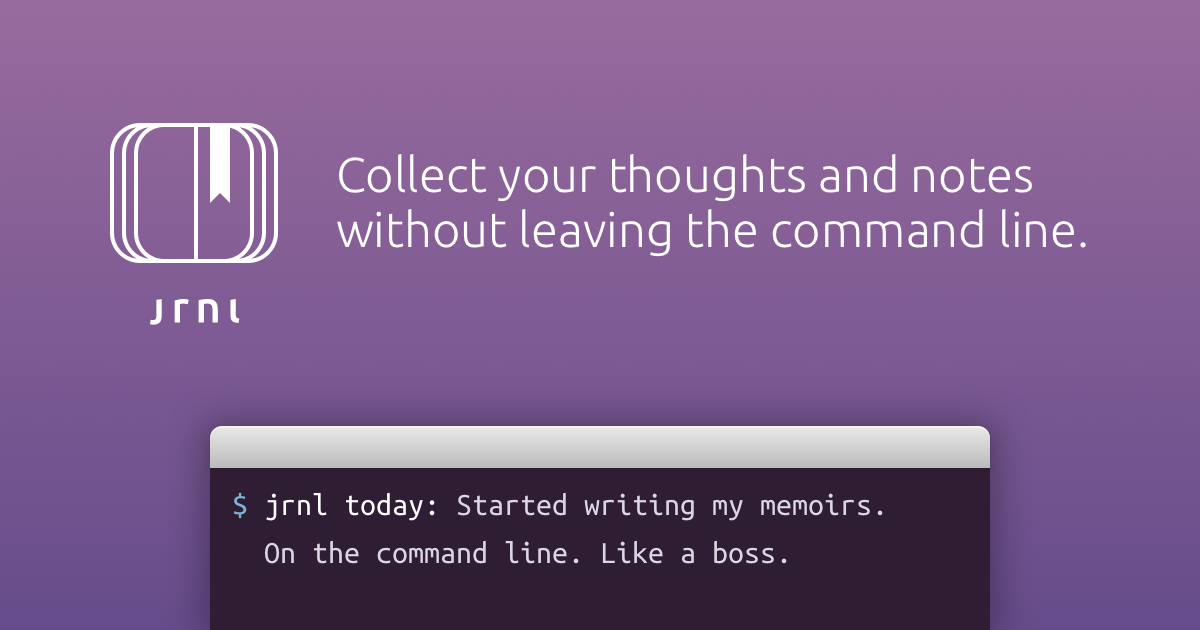
Collect your thoughts and notes without leaving the command line.

No paid content found
Visit website
Profile views 4 Outbound visits 1 Normal
jrnl Full homepage screenshot

At a glance

Category
News
Language
English
Paid-content signal
No paid content foundObserved
Registered
2014
Hosting
CloudflareInferred
HTTPS certificate trusted
PassedObserved
Last updated

Website review

This review may include AI-generated content and is not individually verified. Domain, certificate and other facts come from the observed data on this page.

What is jrnl?

jrnl is a command-line journaling tool that lets you write dated entries by typing a sentence into your terminal instead of opening a separate app. Its defining feature is a natural-language interface: you write something like "Went for a run today. Feeling good." and jrnl files it as a timestamped entry, so you don't have to memorize formatting commands for routine writing.

What it does well

  • Plain-text storage. Entries live in readable text files rather than a proprietary database, so you can open, search, back up, or edit them with ordinary tools.
  • Multiple journals. You can keep separate journals for work, personal life, travel, or a specific project, and switch between them.
  • Encryption. Journals can be protected with AES encryption, which matters if you keep sensitive material on a shared or synced machine.
  • Sync-friendly. Because entries are just files, you can place them in a synced folder (Dropbox, a Git repository, or similar) to reach them from more than one computer.
  • Free and open source. The project is community-maintained.

Who it suits

It fits people who already spend the day in a terminal — developers, sysadmins, researchers — and anyone who wants to capture a thought without breaking focus or switching windows. It also suits writers who care about longevity: plain text is likely to remain readable long after a niche note-taking app shuts down.

It is a poorer fit if you want rich formatting, images, handwriting, mobile-first capture, or a graphical timeline. Command-line entry is fast for text and awkward for anything else.

A practical way to start

Pick one narrow use first — a work log you append to once a day — and keep the journal file in a folder you already back up or sync. If the habit sticks, add a second journal for personal notes. If typing a command feels like friction after a week, that is a clear signal a graphical app will serve you better.

For a different balance of convenience and portability, Obsidian stores notes as local Markdown files with a graphical editor, and Simplenote offers quick plain-text capture with syncing across devices.

How do I install and set up jrnl for the first time?

jrnl is installed with a package manager, then configured by creating a journal file and adding an entry. The official documentation at jrnl is the authoritative source for current commands, since installation methods and defaults change between releases.

Typical first-time path

  1. Install it. The common routes are pipx install jrnl (or pip install jrnl) for a Python-based install, or a system package manager such as Homebrew on macOS. Pick one method and stick with it, so upgrades stay predictable.
  2. Create your first journal. Running jrnl for the first time with no journal configured prompts you to set one up. You choose a name and a file location; jrnl writes a small config file (by default under ~/.config/jrnl/) pointing at a plain-text journal file.
  3. Write an entry. jrnl today: Went for a run. Felt good. creates a dated entry. The natural-language tags (today:, yesterday:, or a date) are what make jrnl feel like writing rather than filling in a form.
  4. Read it back. jrnl -n 5 shows the last five entries; jrnl -from "last week" filters by date. Search works with plain words, e.g. jrnl run.
  5. Add more journals if you want. You can define several journals — work, personal, travel — and target one with jrnl work: ... or by passing -journal work.

Decisions worth making early

Choice Why it matters
Plain text vs. encrypted jrnl stores entries in plain-text files by default; AES encryption is available if the content is sensitive. Encryption means losing the password means losing the journal.
Local file vs. synced folder Putting the journal file in Dropbox, Syncthing or a Git repo gives you access from multiple machines, but sync conflicts can corrupt a file if two devices write at once.
One journal vs. several A single journal is simpler to search; separate journals keep work and personal notes from mixing in results.

A practical scenario: a developer keeps a work journal in a synced folder for standup notes and a local encrypted personal journal, then searches each separately. That split costs nothing and avoids leaking private entries into a work-wide search.

Your useful next step is to run jrnl --help after setup — it lists the date filters and journal flags you will actually use day to day — and to check the jrnl documentation for the current install command for your platform before copying anything from an older tutorial.

How can I encrypt my journal entries with jrnl?

Encryption in jrnl is set per journal, not per entry. You point jrnl at an encryption method for a whole journal file, and from then on everything written to that journal is stored encrypted. There is no per-entry toggle, so the practical decision is which journal you want protected.

How it works in practice

jrnl supports AES encryption and can also hand off to a GPG key. You choose the method when you create the journal, or by editing the journal's configuration. Once a journal is encrypted, jrnl asks for your password (or uses your GPG agent) when reading or writing that journal.

A typical setup looks like this:

  1. Open your jrnl config file (usually ~/.config/jrnl/jrnl.yaml).
  2. Find the journal you want to protect, or add a new one.
  3. Add an encrypt key to that journal with the method you want, for example encrypt: password for AES with a password you type, or encrypt: gpg to use a GPG key.
  4. Save the file and run any jrnl command that touches that journal. jrnl will prompt for the password or GPG passphrase and rewrite the file in encrypted form.

Choosing between password and GPG

Method Best for Trade-off
Password (AES) A single person on one or a few machines You must remember the password; lose it and the journal is unreadable
GPG People already using GPG, or teams with shared keys More setup; depends on your GPG keyring and agent

The password route is the simplest. The GPG route makes sense if you already sign commits or encrypt email, because the key management is already in place.

A concrete scenario

Suppose you keep two journals: work for meeting notes and personal for private reflections. You would leave work unencrypted so you can grep it quickly, and set encrypt: password only on personal. When you run jrnl personal: today I..., jrnl prompts once and writes the entry encrypted. Reading it back with jrnl personal -n 5 prompts again.

What to watch out for

  • Encryption applies to the whole journal file, so you cannot mix plain and encrypted entries in one journal.
  • If you sync the file with Dropbox or a similar service, the synced copy is encrypted, but the password is not stored there. Keep it somewhere you can recover.
  • Back up the password or GPG key separately. Losing it means losing the journal, as the project itself notes.
  • If you already have a plain-text journal, test the encryption step on a copy first, since the file is rewritten.

A useful next step is to read the encryption section of the official documentation at jrnl and check the exact encrypt values your installed version expects, then try it on a throwaway journal before converting one you care about.

How do I sync my jrnl journals across multiple devices?

jrnl itself doesn't run a sync service. Its journals are ordinary plain-text files, so syncing means putting those files in a folder that another tool already keeps in sync across your machines. The page evidence explicitly suggests syncing your journal files with tools like Dropbox, and its "Accessible anywhere" point frames this as the intended path.

The basic setup

  1. Find your journal file. jrnl stores journals as plain-text files, so locate the file (or files) behind your journal name — jrnl supports multiple journals for different parts of your life, so you may have several.
  2. Move it into a synced folder, or point jrnl at a journal that already lives there. jrnl's documentation covers configuration for choosing journal file locations.
  3. Install the same sync client on each device and let it replicate the folder.
  4. Verify on the second device by opening the journal and checking that recent entries appear.

Choosing a sync tool

Option Good fit when Main trade-off
Dropbox or similar consumer file sync You want the least setup and already pay for storage Sync client must run on every device; conflicts are handled by the service, not jrnl
Self-hosted sync (e.g. Nextcloud) You want to keep journals on your own infrastructure You maintain the server and clients
Git repository You want full history and diffs of a plain-text file Manual commits and merge conflicts; awkward on phones

Dropbox is the concrete example named in jrnl's own material. Nextcloud is the usual pick if self-hosting matters. GitHub works if you prefer version control over continuous sync.

Two things worth deciding first

Conflict risk. Plain-text files synced by a file service can produce conflicted copies when you edit the same journal on two devices before syncing. If you journal on a phone and a laptop in the same hour, expect occasional duplicate files and plan to merge them. Editing on one device at a time largely avoids this.

Encryption. jrnl can encrypt journals with AES, which matters more once files leave your machine and sit in someone else's cloud. Note the page's own warning: lose the password and the content is unreadable, including to you. Decide whether you want encryption before you start syncing, since switching later means re-encrypting existing files.

A practical next step: open your journal's config, confirm exactly which file path each journal name points to, and move only those files into the synced folder. Then add one test entry per device and confirm it lands everywhere before trusting it with anything you'd hate to lose.

Can I use jrnl to manage separate journals for work and personal life?

Yes. jrnl is explicitly built for multiple journals, so you can keep work and personal entries apart while using the same command-line tool.

How separation works in practice

You create or name a journal, then direct each entry to it. A typical workflow looks like this:

  • Write a work note: jrnl work: Met with the design team about Q3 scope.
  • Write a personal note: jrnl personal: Booked the dentist for Tuesday.
  • Read only one stream: jrnl work -n 10 to see the last ten work entries.

Because journals are stored as separate plain-text files, the two streams do not bleed into each other. You can also encrypt one journal and leave another unencrypted, or sync only the personal one to a service like Dropbox while keeping work local.

Choosing between one journal and several

Approach Best for Trade-off
One journal with tags People who search across everything and want a single timeline Requires discipline with tags; work and personal content sit in the same file
Separate journals Clear work/life boundaries, different encryption or sync rules per journal You must remember which journal name to use on each entry

A practical middle ground: use separate journals for the big split, then tags inside each one for projects or moods.

A concrete setup to try

Start with two journals, work and personal. For the first week, write at least one entry in each daily. If you find yourself constantly searching across both, consider merging them and relying on tags instead. If you never cross-search, keep them separate and consider encrypting the personal one.

For the exact syntax for creating, listing and configuring journals, see the official documentation at jrnl.

What are the advantages of jrnl's plain-text storage over proprietary journal apps?

Plain-text storage is jrnl's core design bet: your entries are ordinary files on your disk, not records locked inside a vendor's database. That changes what you can do with years of writing.

What plain text buys you

  • Longevity. A text file needs no particular company to stay readable. Proprietary journal apps can shut down, drop formats, or force migrations; a .txt or Markdown file opens in any editor decades from now.
  • Portability and no lock-in. You can move entries between machines, back them up, or switch tools without an export tool that may or may not exist. jrnl also points out you can sync the files with services like Dropbox.
  • Search, diff and script. Standard tools like grep, diff, Git and your editor's search work on journals directly. You can version entries, build your own reports, or pipe text into other programs.
  • Transparency. You can read exactly what is stored. There is no hidden schema, and no risk that a sync conflict silently discards an entry you cannot inspect.
  • Composability with encryption. jrnl supports AES encryption for journals, so plain text does not automatically mean exposed text — you get readable files plus the option to protect sensitive ones.

The trade-offs are real: plain files have no built-in rich formatting, no mobile app with a polished UI, and no automatic conflict resolution. Syncing via a file service can create merge conflicts if you edit on two devices at once, and losing an encryption password means losing the journal.

A practical way to decide

If your priority is a durable, greppable archive you control, plain text wins. If you need embedded images, structured templates, or a polished mobile experience, a proprietary app may fit better. A common middle path: keep sensitive material in an encrypted jrnl journal and sync the files with a service you already trust.

For a concrete scenario, a developer who journals about debugging sessions can search years of entries with grep, commit the journal to a private Git repo, and read it in the same terminal used for work — without exporting anything. If you want to compare approaches, see jrnl for the plain-text model and Evernote or Day One for app-centric journaling.

Related questions

More questions →
Does jrnl Support Encryption for Private Journal Entries?

Yes. jrnl can encrypt your journals with AES encryption, described on its site as "industry-strength." That makes it a reasonable choice for private entries, with one hard condition: if you lose your password, the content is unrecoverable — the site states that nobody will be able to read your secrets, "not even you, if you lose your password."

What jrnl's encryption covers

jrnl is a command-line journal: you write entries in natural language without leaving the terminal, and the files are stored as plain text. Encryption is the layer you add when plain text isn't acceptable for the content you're recording.

Aspect What jrnl provides
Cipher AES
Strength claim "Industry-strength" (per the project site)
Recovery if password is lost None — content becomes unreadable
Storage format Plain-text files (encrypted when you enable encryption)
Portability Files can be synced with tools like Dropbox

Why the plain-text design matters here

jrnl's stated design goal is future-proofing: journals live in plain-text files that "will still be readable in 50 years," in contrast to proprietary apps. Encryption doesn't contradict that — it's applied to the journal file rather than replacing the format with a proprietary database. So you keep the ability to move, sync, and back up your journal files yourself, while the contents stay protected.

The trade-off is the same one every local-encryption tool has: you hold the only key.

Who this fits

  • Good fit: you want to record private thoughts from the terminal, you're comfortable managing your own files and backups, and you accept that password loss means permanent loss.
  • Poor fit: you need password recovery, a hosted service that can reset access for you, or you want to read entries on a device where you can't install or run jrnl.

Practical points before you rely on it

  1. Decide what needs encrypting. jrnl supports multiple journals for different parts of your life, so you can keep a work journal in plain text and encrypt only the personal one.
  2. Treat the password as the only copy of the key. Store it in a password manager or another offline location you control. There is no reset path described.
  3. Check your sync setup. If you sync journal files through Dropbox or a similar tool, the encrypted file is what travels — but confirm your sync client isn't keeping separate unencrypted local copies or version history you didn't intend.
  4. Verify on your own machine. Encryption behavior, commands, and configuration details are documented on jrnl.sh; confirm the current syntax there rather than relying on secondhand instructions, since the project is open source and evolves.

For the broader question of what jrnl is and how entries are stored, see the related explainers on jrnl's storage model and its general use cases.

How does jrnl store journal entries, and are they future-proof?

jrnl stores your journal entries as plain-text files, which is the main reason it can credibly claim to be future-proof. Because the format is plain text rather than a proprietary database, the files remain readable without jrnl itself and can be opened, searched, backed up, or moved with ordinary tools. The one important exception is encryption: if you encrypt a journal, readability depends on having the password, and losing it means losing access to the contents.

What "plain-text files" means in practice

When you write an entry, jrnl saves it to a text file on your own machine. There is no hidden binary format and no vendor-controlled cloud store required to read it. That has a few practical consequences:

  • You can open entries in any text editor. If jrnl ever stops being maintained or you move to another operating system, the content is still there.
  • You can search and process entries with standard tools. Command-line utilities, scripts, or a text editor's search function all work on the files directly.
  • You can back up or migrate by copying files. Moving your journal to another machine is a file copy, not an export/import procedure.

This is the sense in which the format is "future-proof": the data does not depend on a specific application continuing to exist. The site's own framing is that plain-text journals "will still be readable in 50 years," in contrast to proprietary apps that may disappear.

Multiple journals, still just files

jrnl supports keeping several journals for different parts of your life — for example, one for work and one for personal notes. Each of these is still stored as plain text, so having more journals does not change the underlying storage model. You get separation of content without giving up portability.

Encryption changes the picture

jrnl can encrypt journals using AES encryption. This is a deliberate trade-off:

Situation What it means for access
Unencrypted journal Readable by any text editor, indefinitely, with no dependency on jrnl
Encrypted journal Readable only with the correct password

The site is explicit that with encryption, "nobody will be able to read your dirty secrets—not even you, if you lose your password." So encryption strengthens privacy but weakens the pure future-proofing argument: the file survives, but its contents are inaccessible without the key. If long-term readability without any secret is your priority, keep the journal unencrypted; if confidentiality matters more, encrypt and treat the password as something you must not lose.

Syncing and accessing entries anywhere

Because entries are just files, you can sync them with other tools such as Dropbox to capture thoughts from different devices. This works precisely because jrnl is not locking your data into its own service — the sync layer is separate from the journal format. The same property that makes the files portable also makes them easy to sync and back up with whatever file-sync tool you already use.

What to check before relying on it

  • Confirm where your journal file lives so you know what to back up or sync.
  • Decide on encryption up front, since it determines whether you need a password to read the files later.
  • Test readability yourself: open the journal file in a plain text editor to verify the content is stored as readable text.

jrnl is free and open source, so the storage behavior described here is not tied to a paid tier or a hosted account — the files are yours, in a format you can read without the app.

What is jrnl and what can it be used for?

jrnl is a command-line journaling tool that lets you write notes and diary entries without leaving the terminal. It is aimed at people who already work in a shell and want a fast, low-friction way to capture thoughts, with journals stored as plain-text files and optional AES encryption. It is free and open source.

How jrnl works

jrnl's defining feature is a natural-language interface. Instead of memorizing flags or subcommands for every action, you type an entry the way you would write it, and jrnl parses the date, time, and tags from the text. That lowers the cost of starting an entry, which matters most when you are capturing something quickly.

Two design choices shape how you use it:

  • Plain-text storage. Your journals are ordinary text files, so they remain readable without jrnl and can be opened, searched, or version-controlled by other tools.
  • Encryption. Journals can be encrypted with AES. The trade-off is explicit: if you lose the password, the content is not recoverable.

What you can use it for

Because jrnl supports multiple journals, the same tool covers several distinct habits:

Use case How it fits
Work log A separate journal for daily progress, decisions, and blockers
Personal diary Dated entries written in natural language
Quick notes Short captures that stay in the terminal instead of a browser tab
Multiple contexts Different journals for different parts of your life

The "for work and play" framing on the project site reflects this: you are not limited to one stream of entries.

Where it fits and where it doesn't

jrnl is a good match if you:

  • Spend most of your day in a terminal and want to avoid switching apps
  • Value portable, future-proof files over a proprietary format
  • Want encryption available without a separate tool

It is a weaker match if you need rich formatting, embedded images, a graphical interface, or mobile-first capture. The project suggests syncing journal files with tools like Dropbox to reach your notes from other devices, which is a workaround rather than a built-in sync feature.

Getting started

The project points to its documentation and a "Get Started" entry point, with the source available on GitHub. Since jrnl is open source and community-maintained, checking the current documentation is the reliable way to confirm installation steps and the exact syntax your version accepts.

Is jrnl Free and Open Source, and How Do You Get It?

Yes. jrnl is free and open source, and the official site describes it as "made by a bunch of really friendly and remarkably amazing people." You get it by following the Get Started link in the documentation on jrnl.sh, and the source code is hosted on GitHub, where you can inspect it or contribute. The same site also states the core design promises: a natural-language interface, plain-text journal files, AES encryption, and syncing through tools like Dropbox.

What "free and open source" means here

The jrnl homepage lists Free & Open Source as one of its main features. Two practical consequences follow from that:

  • No license fee is described on the site. The page presents jrnl as free software rather than a paid product, and no pricing, subscription, or payment platform is mentioned in the available site material.
  • The code is publicly available. The site links to GitHub ("Fork on GitHub"), so you can read the source, file issues, or contribute changes. The project is presented as community-built, with the site inviting readers to become contributors ("Maybe even you?").

If you need a formal license name or commercial-use terms, check the repository itself — the homepage excerpt does not state a specific license.

How to get started with jrnl

The site's own path to installation is the Get Started link in the documentation. The general flow for a command-line tool like this is:

  1. Open jrnl.sh and follow Documentation → Get Started.
  2. Install jrnl using the method given there for your platform.
  3. Run jrnl and write an entry in natural language — the site emphasizes you don't have to memorize cryptic shortcuts.
  4. Confirm where your entries are stored, since jrnl keeps journals as plain-text files.

Expected result: you have a working jrnl command and at least one journal file you can open in any text editor.

Common snag: installation commands differ by operating system and package manager. Use the exact command from the Get Started page rather than a generic one, and verify the install by running the command with no arguments before writing a real entry.

What you get once it's installed

Feature (from jrnl.sh) What it means for you
Natural-language interface Write entries the way you'd phrase them; no shortcut memorization
Plain-text storage Journals stay readable in ordinary text files for decades
AES encryption You can encrypt journals with industry-strength AES
Sync via other tools Point Dropbox (or similar) at your journal files to use them across devices
Multiple journals Keep separate journals for work and personal life

The encryption point comes with a warning worth repeating: the site notes that if you lose your password, nobody can read the journal — "not even you."

Who maintains it, and how to contribute

jrnl is maintained by its community of contributors rather than a single vendor, based on the site's description and its GitHub link. If you want to get involved, the two entry points the homepage offers are Fork on GitHub and the documentation. Forking lets you propose changes; the docs are where behavior and configuration are explained.

Quick answers

  • Is jrnl free? Yes — the site lists it as Free & Open Source, with no pricing mentioned.
  • Is it open source? Yes — source is on GitHub and can be forked.
  • How do I get it? Through the Get Started guide in the documentation at jrnl.sh.
  • Who makes it? A community of contributors, described on the site as friendly and amazing people.
  • Where are my notes kept? In plain-text files, optionally AES-encrypted and syncable via tools like Dropbox.
Who is jrnl for, and what makes it different from typical note-taking apps?

jrnl is for people who already work in a terminal and want to capture notes without switching to a separate app. Its main differences from typical note-taking apps are a natural-language command interface, plain-text storage, optional AES encryption, and support for multiple journals. If you prefer a graphical editor, rich media embeds, or a hosted sync service, jrnl is probably not the right fit.

Who jrnl is for

jrnl fits you if most of these describe your habits:

  • You spend much of your day in a shell and dislike context-switching to a notes app.
  • You want to write an entry in one line, without picking a notebook, a template, or a tag first.
  • You care about owning your data as files you can read, copy, grep, and back up yourself.
  • You want separate journals for separate parts of your life, such as work and personal notes.
  • You are comfortable installing and running a command-line tool.

It is a poor fit if you need a mobile-first app, WYSIWYG formatting, image attachments, or a built-in sync account. jrnl's own documentation points to syncing journal files with other tools like Dropbox rather than providing sync itself.

What makes it different from typical note-taking apps

A natural-language interface instead of shortcuts

The site describes jrnl as having a "natural-language interface so you don't have to remember cryptic shortcuts when you're writing down your thoughts." The practical difference: in a typical app you navigate menus or memorize keybindings to create and file a note; in jrnl you type a sentence-like entry and let the tool interpret it. That lowers the cost of a quick capture, which is the main reason people stick with a journaling habit.

Plain-text files instead of a proprietary database

jrnl stores your journals in plain-text files. The site frames this as "future-proof": the files "will still be readable in 50 years when your fancy proprietary apps will have gone the way of the dodo."

What this means in practice:

Concern jrnl Typical note-taking app
File format Plain text Often a proprietary database or cloud format
Readable without the app Yes, with any text editor Usually not
Works with existing tools Yes — grep, diff, version control, backup scripts Limited
Long-term readability Depends only on plain text remaining readable Depends on the vendor continuing to support the format

The trade-off is that you give up app-managed features like rich formatting, embedded media, and built-in search UI. You gain portability and control.

Optional AES encryption

jrnl supports encrypting journals with AES encryption, described on the site as "industry-strength." This matters if you keep private entries in a synced folder: the plain-text convenience and the privacy requirement pull in opposite directions, and encryption is how jrnl resolves that. Note the site's own caveat — if you lose your password, you lose access to the entries. There is no recovery path described.

Multiple journals for work and play

jrnl is built to let you "effortlessly access several journals for all parts of your life." If you already separate work notes from personal notes, this maps onto that habit directly rather than forcing everything into one stream.

Free and open source

The site states jrnl is "Free & Open Source," made by contributors. That means you can inspect the code and that the project does not depend on a paid subscription to keep your data accessible — your entries are plain files regardless of what happens to the project.

How to decide

Choose jrnl if your priority is fast capture from the terminal and long-term ownership of plain-text files. Choose a typical note-taking app if your priority is a polished graphical interface, mobile capture, or built-in sync and collaboration.

A quick test: if you can picture yourself typing a one-line entry into a terminal and later reading it with cat or a text editor, jrnl matches how you work. If that sounds like friction rather than convenience, the plain-text model is working against you rather than for you.

Website Overview

An established domain and managed infrastructure suggest continuity of operations and may support dependable delivery, although neither guarantees service quality. An active inbound-mail setup with incomplete authentication may leave the domain more open to impersonation. Provider hosting alone does not close that gap.

Domain and Registration

Registered in 2014, this domain has about 12 years of history. That suggests continuity, although ownership and purpose may have changed. Transfer-protection status is present, helping reduce the risk of unauthorized domain transfers. The domain uses the common .sh extension, which is not an independent safety signal.

DNS and Email

The observed email authentication setup is incomplete: DMARC is missing. Nameservers are provided by Cloudflare, indicating managed DNS hosting. MX records point to the Fastmail email service. No CNAME was found; the observed records resolve directly to addresses. DNSSEC signatures were not detected, so this additional DNS authenticity protection is not confirmed.

TLS and Certificates

The public key uses EC with 256 bits. The server supplied a complete certificate chain. No organization name is present in the certificate; the available fields are consistent with domain validation. The certificate was issued within the Google Trust Services cloud or CDN ecosystem. The certificate's total validity is about 90 days, consistent with a short renewal cycle.

HTTP and Browser Security

The response lacks these common security headers: HSTS, CSP, Permissions-Policy, clickjacking protection. CORS permits any origin to read this response. This is common for public resources; sensitive responses need narrower handling. No X-Powered-By header was found, reducing one common source of backend fingerprinting information. The cf-ray response header indicates a CDN or caching proxy in the delivery path. No obvious internal addresses or debug information were found in the headers.

Technology Stack Analysis

The public page identifies Cloudflare without precise versions, leaving fewer clues for version-specific scanning.

Search and Social Sharing

No homepage canonical URL was detected. If duplicate URLs exist, consolidation may be less explicit. Twitter Card metadata is configured. The title has 31 characters, within a common display range. A meta description is present, with 65 characters. The observed directives allow indexing and link following.

Hosting and Email

DNSCloudflare
HostingCloudflare
EmailFastmail
Approximate IP geolocation (inferred; a CDN or proxy may differ from the origin server) Location unknown Inferred 104.21.64.141

Registration details

RDAP / WHOIS

Registrar1API GmbH
Registered2014-06-30
Expires2027-06-30
Domain statusclientTransferProhibited https://icann.org/epp#clientTransferProhibited
Nameserverslangston.ns.cloudflare.com、sonia.ns.cloudflare.com
DNSSECunsigned

DNS records

DNS

TypeNameValueTTLPriority
Ajrnl.sh104.21.64.141300—
Ajrnl.sh172.67.151.56300—
AAAAjrnl.sh2606:4700:3032::6815:408d300—
AAAAjrnl.sh2606:4700:3035::ac43:9738300—
MXjrnl.shin1-smtp.messagingengine.com30010
MXjrnl.shin2-smtp.messagingengine.com30020
NSjrnl.shlangston.ns.cloudflare.com86400—
NSjrnl.shsonia.ns.cloudflare.com86400—
TXTjrnl.shv=spf1 include:spf.messagingengine.com ?all300—

TLS and certificates

TLS / SSL

AssessmentNormal configuration
Supported protocolsTLSv1.2、TLSv1.3
Negotiated protocolTLSv1.3
Certificate subjectjrnl.sh
IssuerGoogle Trust Services
Valid until2026-11-16T21:10 · Remaining when checked: 41 days
Verification detailsCertificate trust: Passed · Hostname match: Passed

HTTP response headers

HTTP

HeaderValue
content-typetext/html; charset=utf-8
cache-controlmax-age=1800, stale-if-error=86400, public
servercloudflare
x-content-type-optionsnosniff
referrer-policyno-referrer-when-downgrade
access-control-allow-origin*

Identified technologies

Cloudflare

Pages, Search and Sharing

Meta descriptionCollect your thoughts and notes without leaving the command line.
Canonical URLNot detected
LanguageEnglish (default)
Twitter Cardsummary
All bots 0 allowed · 1 disallowed
  • Disallow/en/1.9.8/

User reviews (0)

  • No reviews yet.