
 简体中文
简体中文 English
Website review
This review may include AI-generated content and is not individually verified. Domain, certificate and other facts come from the observed data on this page.
What is Layoutit Voxels?
Layoutit Voxels is a browser-based voxel editor that builds 3D models out of HTML cuboids using CSS grid and 3D transforms rather than a WebGL or canvas engine. The page describes it as a "CSS Voxel Editor," and its toolbar reflects that focus: shape tools (cube, slab, wedge, spike), fill/paint/erase modes, palettes (Endesga 32, DB32, Pico8), textures, and a grid/camera config.
What you can do with it
- Model block by block on a rows/cols/depth grid, with each voxel counted and the file size estimated as you go.
- Style the result with preset palettes and texture sets, which suits small, deliberately limited color schemes.
- Move work in and out via import/export in VOX, CSS, VOX TXT and PNG, plus "Copy," "Embed," "Open Codepen" and "Download Code."
- Iterate safely with undo/redo, restart, and a save-to-gallery option.
Who it fits
It is most useful to people who want the output as CSS/HTML — front-end developers prototyping CSS 3D scenes, or anyone making lightweight decorative models for a web page — and to hobbyists making small low-poly-style props. Because the export is code rather than a binary asset, the models are easy to paste into a page and tweak by hand.
The trade-off is scale and rendering approach: CSS cuboids are charming for compact models but are not a substitute for a full 3D modeling suite when you need high polygon counts, animation rigs or complex materials.
A practical next step: build one small object (a tree, a chair) using a single palette, then export both CSS and PNG to compare how the model behaves as code versus as an image before committing to a larger scene.
How do I export a voxel model as CSS or PNG from Layoutit Voxels?
In Layoutit Voxels, exporting is handled from the toolbar at the top of the editor. The export controls sit next to Import and Undo/Redo, and the page shows a set of output options: VOX, CSS, TXT, PNG, Copy, Embed, Open Codepen, and Download Code. So for a CSS or PNG export, you use the toolbar's Export area rather than a separate menu.
Choosing the right format
| What you want | Likely option | Practical use |
|---|---|---|
| A PNG image of your model | PNG | Screenshots, docs, sharing a static preview |
| CSS/HTML for a web page | CSS (or Download Code) | Embedding the voxel model in a site |
| Quick paste into another tool | Copy | Moving code without downloading a file |
| A live editable example | Open Codepen | Testing or tweaking the code in a browser |
| Embedding in a page | Embed | Dropping the model into a blog or demo page |
Practical notes
- CSS export gives you the HTML/CSS cuboid structure, which is useful if you want the model to render directly with CSS grid and 3D transforms rather than as a flat image. The toolbar's Download Code and Copy options are the likely ways to get that code out, while Open Codepen lets you inspect it immediately.
- PNG export is best when you only need a visual snapshot. The editor's status bar reports size and facet counts, so check those before exporting if file weight matters.
- If you plan to keep editing the model elsewhere, the VOX export is the format to choose; CSS and PNG are output formats, not editable model files.
Next step: build or open your model, open the Export controls, and pick PNG for an image or CSS/Download Code for web use. If you want to test the result first, use Open Codepen before downloading.
Can I embed my Layoutit Voxels model on a website or open it in CodePen?
Yes. The editor includes Embed and Open CodePen controls, and it can also Export the model as VOX, CSS, VOX TXT, PNG, or copied code. So you can either embed a shareable version or take the generated code into CodePen and edit it there.
Practical uses
- Embed: best for a portfolio, blog post, or product page where visitors should see and rotate the model without downloading anything.
- CodePen: best for experimenting with the generated CSS, sharing a reproducible demo, or teaching how CSS grid and 3D transforms build voxel shapes.
- Export: best when you need the asset in another tool (VOX/PNG) or want to inspect and adapt the CSS yourself.
Decision guide
| Goal | Use | Trade-off |
|---|---|---|
| Show the model on your site | Embed | Least control over surrounding page styling |
| Tweak and share the code | Open CodePen | CodePen account and workspace conventions apply |
| Use the model elsewhere | Export VOX, PNG, or CSS | You manage hosting and integration yourself |
| Keep a local copy | Download Code | No live embed; you maintain updates |
Example workflow
Build the model in Layoutit Voxels, save it to the gallery if you want a reference, then choose Embed for the live version and Open CodePen for a code copy. For a client site, export the CSS and host it yourself so the model's appearance is not tied to the editor's page.
What palettes and textures does Layoutit Voxels include for coloring voxel models?
Layoutit Voxels includes three built-in palettes and two texture sets for coloring voxel models. The palette options are labeled Endesga 32, DB32 and Pico8, and the texture options are Kenney and Astropoodle. Beyond choosing a palette or texture, the editor's toolbar offers add, fill, paint and erase tools, so you can block out a shape quickly with fill, then switch to paint for per-voxel color changes.
A practical next step is to start with a palette that matches your output context. Pico8 suits small, retro-style models with a tight, recognizable color set; Endesga 32 and DB32 give you more colors to work with when a model needs shading or distinct material areas. Use the texture options when you want surface variation rather than flat palette colors. If you plan to export, test one model with each palette you're considering, since the same voxel shape can read very differently depending on how limited the colors are.
How do I import an existing VOX file into Layoutit Voxels?
The page evidence shows an Import button in the toolbar alongside Export, VOX, CSS, TXT and PNG options, but it does not document the exact import steps or file requirements. Treat the following as the practical approach rather than confirmed behavior.
How to try importing a VOX file
- Open Layoutit Voxels and start with a small model or a fresh scene, so an unexpected result doesn't overwrite work you care about.
- Use Export → VOX first on a simple test model to produce a reference file in the format the editor writes. This gives you a known-good file to compare against if your own VOX file fails.
- Click Import and select your
.voxfile through the file picker. - Check the voxel and facet counters in the status area (the page shows "voxels" and "facets" counts). A count of zero after import means the file wasn't read as expected.
- If the import fails, try the other import formats the toolbar lists (CSS, TXT) to narrow down whether the problem is the file or the format.
What to expect when it works
Layoutit Voxels builds models from HTML cuboids arranged on a CSS grid with 3D transforms, so imported geometry becomes editable voxels you can paint, fill, erase and reshape with the cube, slab, wedge and spike tools. Palette and texture choices are editor settings, not necessarily stored in the VOX file, so colors may need reassigning after import.
Decision criteria
- For quick web-friendly models: importing, editing and re-exporting as CSS or HTML fits embedding on a page.
- For detailed or large voxel scenes: a CSS-transform editor is likely to struggle with high voxel counts; check the counters and performance early.
- For round-tripping between tools: test with a small file first, and keep your original VOX file as the source of truth.
If the import button doesn't accept your file, the most reliable next step is to export a model from this editor and inspect that file's structure, then compare it with yours.
What shapes and grid settings can I use to build a voxel model in Layoutit Voxels?
Layoutit Voxels lets you build models from four basic shapes on a configurable 3D grid. According to the editor's interface, you choose a shape before placing voxels: cube, slab, wedge or spike. These cover the common building blocks of voxel art — full blocks for mass, flat slabs for floors and steps, wedges for slopes and roofs, and spikes for pointed details.
Grid and camera settings
The interface exposes rows, cols and depth controls, so you can set the working volume's dimensions and reset them to defaults. A grid toggle and camera settings are also listed, letting you change how the workspace is displayed while you build. Beyond geometry, the editor offers palettes (Endesga 32, DB32, Pico8) and a texture option (Kenney Astropoodle), plus fill, paint and erase tools for working on placed voxels.
A practical starting point
If you are making a small prop such as a lamp or a crate, start with a modest grid and mostly cubes, then use slabs for bases and wedges for chamfered edges. For architecture or terrain, a larger depth setting helps, with wedges doing the work on roofs and ramps. The live counters for voxels, facets and approximate size are useful for keeping a model lightweight before you export it as VOX, CSS, TXT or PNG, or copy the code out.
For a complementary browser-based approach to the same idea, see Layoutit.
 Amazon Route 53
 Netlify
 Google Workspace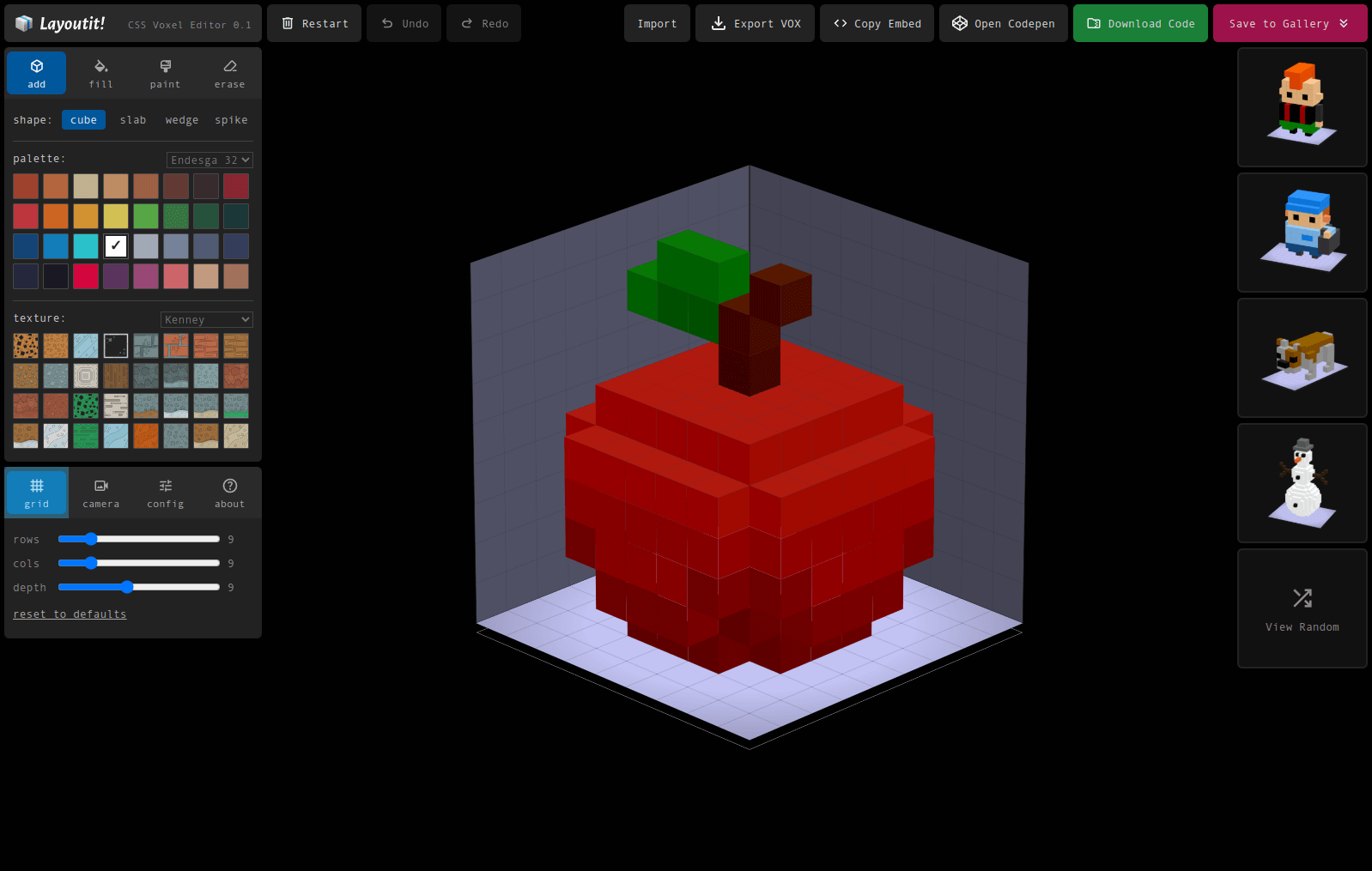
User reviews (0)