
 简体中文
简体中文 English
Website review
This review may include AI-generated content and is not individually verified. Domain, certificate and other facts come from the observed data on this page.
What is Built At Lightspeed?
Built At Lightspeed is a directory of website themes, templates, starters, and UI kits for modern development stacks. It gathers both open-source and premium options in one browsable catalog, aimed at developers and designers who need a head start on a landing page, SaaS product, portfolio, or blog.
The catalog spans frameworks and tools including Next.js, Astro, Framer, React, Vue, and Nuxt, with Tailwind and other styling approaches represented. Entries are credited to independent creators and studios, and the site organizes browsing through filters such as platform and UI/styling.
Who it suits
- Developers who want a ready-made starting point rather than a blank project.
- Designers comparing visual styles and component kits across frameworks.
- Indie makers shipping a marketing site or MVP quickly.
- Anyone weighing free, open-source templates against paid premium ones.
A practical next step
Start with the platform filter that matches your stack, then narrow by UI or styling preference. If you are prototyping, an open-source starter lets you test the structure at no cost; if you need a polished, distinctive look and ongoing updates, a premium template from an independent creator may save design time. Check the license and included components before committing, since those determine how much customization work remains.
For broader inspiration beyond this directory, established galleries such as ThemeForest and framework-specific showcases like Next.js can complement what you find here.
How do I find the right template for my Next.js or Astro project?
Use Built At Lightspeed as a filterable starting point when you already know your framework but haven't chosen a design direction. Its directory organizes templates by stack (Next.js, Astro, Framer, React, Vue) and by styling or blueprint type, so you can narrow from hundreds of options to a shortlist in a few clicks rather than scrolling generic marketplaces.
A practical way to choose
- Lock the framework first. If your project runs on Next.js, filter to Next.js and ignore Astro or Framer results. The framework you pick determines routing, data-fetching patterns and deployment, and swapping later is expensive.
- Decide open-source vs premium. The directory mixes both. Open-source templates are easier to audit and modify freely; premium ones tend to include more polished design, documentation and support. Match this to whether you're prototyping or shipping to a client.
- Match the blueprint to your page type. Landing page, SaaS product, portfolio and blog templates solve different layout problems. A SaaS template usually includes pricing tables and auth-adjacent sections; a portfolio template prioritizes project grids and case-study pages.
- Check the styling layer. Tailwind-based templates are quick to restyle if you already know utility classes; component libraries like Nuxt UI suit teams that want prebuilt accessible components instead of hand-rolled CSS.
- Look at who built it. The listing shows the creator (for example, Lexington Themes, Cruip, Anvod Studio). Independent creators often maintain a consistent design language across several templates, so if you like one, their others are worth a look.
Trade-offs to weigh
| Choice | Better when | Watch out for |
|---|---|---|
| Open-source | You need to customize deeply or avoid licence costs | Varying code quality and sparse docs |
| Premium | You want polish, updates and support | Per-project licensing and less freedom to strip branding |
| Single-purpose template | You want a fast launch | Harder to extend beyond its original page type |
| Multi-page starter | You're building a fuller product | More unused sections to remove |
Concrete scenario
Suppose you're building a SaaS marketing site with a blog. Filter to Next.js, then compare a SaaS-focused template against a blog-focused one. The SaaS template likely gives you hero, features and pricing sections but a thin blog; the blog template gives you article layouts but no pricing page. Pick whichever covers the harder half of your build, and add the missing pages yourself.
Next step
Shortlist three templates, open each one's live demo and repository, and check the last commit date and open issues. A template that looks good but hasn't been touched in a year will cost you more in fixes than a slightly plainer one that's actively maintained.
How can I tell if a template is free and open source or premium?
Check the template's own listing and repository rather than assuming from the directory. On Built At Lightspeed, both free/open-source and premium templates appear side by side, and the site explicitly describes itself as covering "premium and open-source templates." So the directory label alone doesn't tell you the license or price.
How to verify a template's status
- Open the template's detail page on Built At Lightspeed and look for a price, "buy," or "premium" marker versus a link to a public repository.
- Follow the link to the creator's own site or repo. A public GitHub/GitLab repository with a license file (MIT, Apache 2.0, GPL) usually means open source.
- Read the license file itself. "Open source" is not the same as "free to use commercially" — some licenses require attribution or share-alike terms.
- For premium templates, check what the purchase includes: one project or unlimited, updates, support, and whether a license key or account is required.
Quick comparison
| Signal | Likely free/open source | Likely premium |
|---|---|---|
| Price shown | None, or "free" | A price or "buy" button |
| Code access | Public repository link | Download after purchase, or demo only |
| License | Named license file in repo | Commercial license terms in checkout |
| Support | Community issues | Vendor support or updates included |
Practical example: If you're building a SaaS landing page and want to modify the code freely, start with templates that link to a public repo. If you need design polish, ongoing updates, and don't want to maintain the code yourself, a premium template may be worth the cost — but confirm the license covers your use case before buying.
A useful next step: shortlist two or three templates, open their source links, and compare the license terms side by side. That takes a few minutes and prevents a costly mistake later.
Which templates work best for a SaaS landing page versus a portfolio or blog?
For a SaaS landing page, prioritize templates built around conversion sections—hero, feature grid, pricing table, testimonials, FAQ and CTA—rather than around long-form reading. For a portfolio or blog, prioritize templates with strong typography, image or post layouts, and content collections. Built At Lightspeed's directory lets you filter by framework (Next.js, Astro, Framer, React, Vue) and by type, so the framework choice often narrows the field before design does.
Quick comparison
| Need | SaaS landing page | Portfolio / blog |
|---|---|---|
| Core sections | Hero, features, pricing, social proof, CTA | Work grid, about, post list, article page |
| Content model | Mostly static marketing pages, light CMS | Collections of projects or posts, often MDX/CMS |
| Design priority | Clear hierarchy and conversion flow | Visual presentation and readable long-form text |
| Framework fit | Next.js or Astro for fast static marketing pages | Astro or Next.js with content collections; Framer if you want visual editing |
| Common pitfall | Pretty hero with no pricing or proof sections | Beautiful homepage that makes individual posts hard to read |
How to choose in practice
- Decide the primary goal: sign-ups (SaaS) or showcasing work and writing (portfolio/blog).
- Filter the directory by your framework first, then by type, and shortlist three candidates.
- Check whether the template already includes the sections you need. Adding a pricing table or a blog index yourself is extra work.
- Open the live demo and test a real page on mobile before committing.
A concrete scenario: a solo developer launching a small SaaS would likely get further with a Next.js or Astro starter that ships pricing and feature sections, while a designer building a personal site is better served by a template with a project grid and MDX-ready post pages.
If you want to see how these categories are organized, browse the directory at Built At Lightspeed and filter by framework and type before comparing individual demos.
What UI kits and styling frameworks are available, such as Tailwind or Nuxt UI?
Built At Lightspeed lists UI kits and styling frameworks as filterable categories alongside its template listings. On the page, "UI & Styling" appears as one of the main filter headings, and the visible inventory includes a Nuxt UI UI Kit by Nuxt Ui Community, while Tailwind is named directly in the site's description as one of the stacks its templates target. The directory also names Next.js, Astro, Framer, React, and Vue as platforms, so styling choices are presented as part of the stack rather than as a separate store.
How to use the filters
- Open the UI & Styling filter to narrow results to kits and styling systems rather than full page templates.
- Combine it with Platform (for example Next.js or Vue) if you need a kit that matches your framework.
- Check the Type & Blueprint filter to separate UI kits from starters, landing pages, or full templates.
Choosing between a UI kit and a styling framework
A UI kit such as the Nuxt UI kit gives you ready-made components and patterns, which suits teams that want consistent interfaces quickly. Tailwind is a utility-first styling framework: it gives you primitives and conventions rather than finished components, so it fits teams that want design control and don't mind composing their own components.
| Option | What it gives you | Better for |
|---|---|---|
| UI kit (e.g. Nuxt UI) | Prebuilt components and styling conventions | Fast, consistent UI with less custom CSS |
| Tailwind | Utility classes and design tokens | Custom designs, full control over markup |
| Framework-specific templates | Page layouts built for Next.js, Astro, Vue, etc. | Starting a landing page or SaaS front end |
If you already use Nuxt or Vue, the Nuxt UI kit is the most direct match. If you use React or Next.js and want to control the design system yourself, a Tailwind-based template is usually the more flexible starting point. For a concrete next step, filter by your framework first, then by UI & Styling, and open two or three listings to compare how much component code you'd inherit versus write yourself.
How do I choose between templates from different independent creators or studios?
The directory itself doesn't rank or review creators, so the practical approach is to treat each listing as a starting point and compare on project fit rather than reputation. Built At Lightspeed groups entries by platform, UI and styling, and blueprint type, which lets you filter to creators working in the stack you already use before comparing the finer details.
What to compare across creators
- Framework match first. A Next.js template from one studio and an Astro template from another solve different problems; pick the platform row that matches your deployment and team skills before judging design.
- Blueprint type. Landing page, SaaS starter, portfolio and blog templates carry very different amounts of pre-built logic. A SaaS starter usually includes auth and billing scaffolding; a portfolio template is mostly layout.
- Styling system. Tailwind-based kits are easier to extend if your team already uses utility classes; Framer or Vue entries may suit designers or teams with different tooling.
- Update and support signals. Independent creators vary widely in how actively they maintain a template. Check the creator's own site for changelogs, issue trackers or documentation depth.
- Licensing terms. Open-source and premium entries carry different reuse rules. Read the license before you build a client project on top of one.
A concrete scenario
If you're launching a small SaaS marketing site and already use Next.js with Tailwind, filter to that combination, shortlist two or three creators, then compare their demo sites for the sections you actually need — pricing tables, docs layouts, changelog pages. A template that ships those saves you days; one that only looks good on the homepage saves you hours.
Decision criterion
Choose the creator whose template gets you closest to your real page inventory, not the one with the most polished demo. Then verify maintenance and licensing on the creator's own site before committing.
 vercel-dns.com
 Google Workspace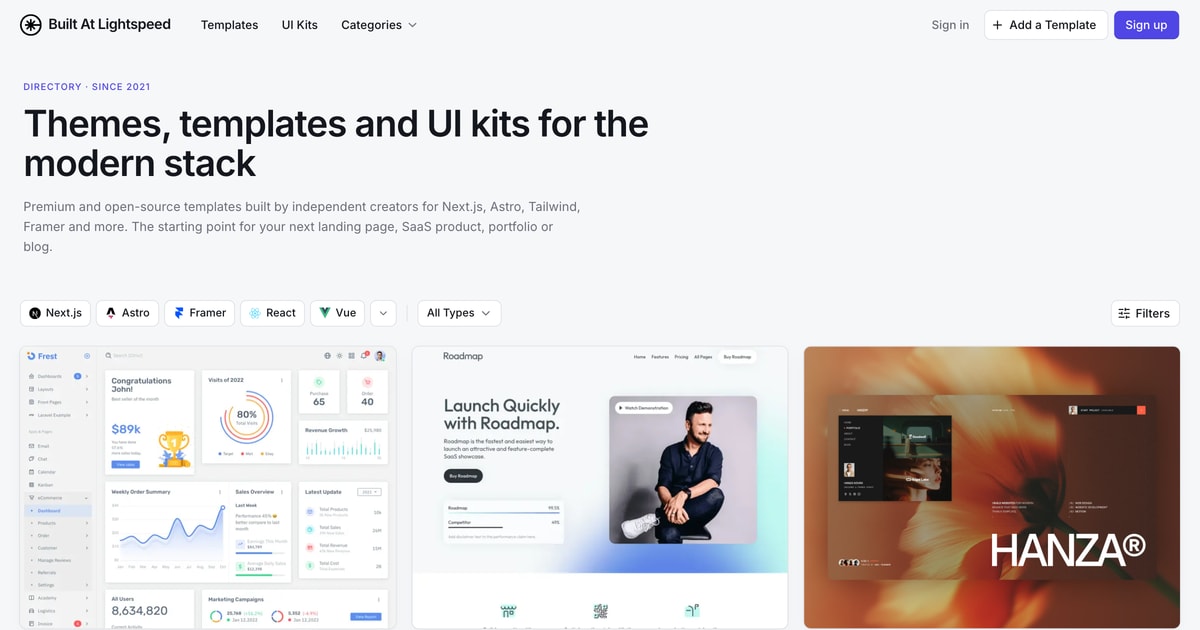

User reviews (0)