
 简体中文
简体中文 English
Website review
This review may include AI-generated content and is not individually verified. Domain, certificate and other facts come from the observed data on this page.
What is feedbackr?
feedbackr is a browser-based audience response tool for live polls, Q&As, quizzes and instant feedback during events, meetings, seminars and classes. Participants join a session from their own device; the product's page states no app is needed, so a speaker can run interaction without asking an audience to install anything.
Its page presents three main uses:
- Teaching: live polls and interactive questions to hold student attention and check understanding mid-session.
- Events: Q&As, mood meters and quizzes for audiences of varying sizes.
- Meetings and workshops: quick votes and feedback to reduce silence, surface opinions and guide discussion.
The intended users are speakers, moderators, lecturers, event agencies, companies and universities. The page also mentions a Campus License option, which signals that institutions can buy beyond a single presenter's use.
A useful next step is to decide by session format: if you mainly need quick votes and questions in a room or video call, a browser-based tool fits; if you need graded assessment, attendance records or deep LMS integration, check those specific capabilities before committing. For a concrete trial, run one real poll and one Q&A in your next meeting and see whether joining is smooth for non-technical attendees.
For comparison, Mentimeter Mentimeter and Slido Slido are established alternatives in the same category, while Poll Everywhere Poll Everywhere is often used in classrooms. The trade-off is usually breadth of question types and integrations versus simplicity and speed of setup.
How can I use feedbackr to engage students in a classroom?
Use feedbackr to turn a lecture into a series of short, low-stakes interactions: pose a question, let students answer from their phones in the browser, then discuss the results while they are still on screen. Because no app install is required, the barrier for a room of mixed devices is low, and students can join a session by code or link.
A practical classroom loop
- Create a session before class and add a few questions — one warm-up, one or two checks for understanding, and one exit ticket.
- Show the question on the projector and give a fixed time limit (30–60 seconds works for most recall questions).
- Display the live results and ask students to explain the spread, especially when answers split.
- Use a mood meter or open question at the end to gauge confidence and collect questions you did not have time to answer.
Where it fits best
- Large lectures: live polls give every student a voice without cold-calling, and the aggregate view shows you whether to re-explain a concept.
- Seminars and workshops: Q&As let quieter participants submit questions, and quizzes can break the ice at the start.
- Online or hybrid meetings: the same session works for remote attendees, which helps avoid the silence that follows "any questions?"
Trade-offs to plan for
Real-time polling rewards speed, so students may answer before thinking carefully; give a moment of silent reflection first. Anonymity can increase honesty but also off-task responses, so review open text before projecting. Also decide in advance whether responses are graded or purely formative — the tool's value in class is usually the discussion it triggers, not the score.
Next step: run one session with three questions in your next class and note where the results surprised you. That tells you more about pacing and question wording than any setup guide. For a broader comparison of live polling tools, see Wooclap and Mentimeter.
What interactive features does feedbackr offer for events and meetings?
feedbackr centres on live, browser-based interaction: participants join a session without installing an app, and the host runs polls, Q&As and instant feedback in real time. The page presents it across four settings — classrooms, events, meetings, and seminars or workshops — so the same feature set is pitched at lecturers, event hosts, moderators and meeting facilitators.
Core interactive features described
- Live polls and voting — the host adds interactive questions to a session, and the audience responds while the session is running.
- Q&A — attendees can put questions to the speaker rather than waiting for a discussion slot.
- Mood meters — a quick way to read the room's sentiment during an event.
- Interactive quizzes — used for knowledge checks and to keep attention during longer sessions.
- Instant feedback capture — the stated aim is honest, immediate responses rather than delayed surveys.
How a session is set up
The described flow is short: create a session, add interactive questions in a few clicks, then run live voting with the audience. That low setup cost matters most when you are hosting recurring meetings or a lecture you repeat each term — you can reuse the structure instead of rebuilding it each time.
Matching the feature to the situation
| Situation | Feature that earns its place | Why |
|---|---|---|
| Lecture or training | Quizzes and polls | Checks comprehension while attention is still high |
| Conference talk | Q&A | Collects questions without a queue at the microphone |
| Team meeting | Mood meter, quick polls | Surfaces disagreement that silence would hide |
| Workshop or seminar | Polls plus Q&A | Ice-breaking and collaborative discussion in one tool |
Trade-offs to weigh
Live interaction rewards a host who is willing to pause and react to results; if your agenda has no slack, polls can feel like an interruption. Q&A also needs light moderation in larger rooms to keep duplicate or off-topic questions from crowding the screen. And because participation is browser-based, a reliable connection and a clear joining instruction matter more than any single feature.
Next step
Pick the one moment in your next session where you currently get no signal from the audience — the point where you ask "any questions?" and hear nothing — and put a single poll or mood meter there. If that works, expand to quizzes and a moderated Q&A. For a broader comparison of audience-response tools, see Mentimeter and Slido.
How do I set up a live poll or Q&A session with feedbackr?
Create a session first, add your questions, then share the session link or code so the audience can join from a browser—no app install required. That is the core workflow described on feedbackr: create a session, add interactive questions, run live voting, and collect instant feedback.
A practical setup sequence
- Create a session. From the feedbackr dashboard, start a new session for your lecture, meeting, or event. Give it a clear name so you can find it later.
- Add your questions. Build polls, Q&As, quizzes, or mood-meter items. Keep the first poll simple and low-stakes; it warms up the room and confirms everyone can vote.
- Share access. The site states no app is needed, so participants join through a browser using the session link or code you display. Put the link or code on your slide before you need it.
- Run it live. Open voting when you are ready, watch responses arrive in real time, and close the poll when the discussion has served its purpose.
- Debrief and export. Show the results, talk through the spread of answers, and save or export the feedback if you need it for notes or reporting.
Polls versus Q&A: which to use when
| Format | Best for | Watch out for |
|---|---|---|
| Live poll | Quick temperature checks, quizzes, decisions with fixed options | Poorly worded options skew results; test the wording first |
| Q&A | Collecting open questions, surfacing concerns, anonymous input | Needs moderation so the queue stays useful |
| Mood meter | Fast sentiment reads during a long session | Less precise than a structured poll |
A useful rule: use polls when you want a number, Q&A when you want language, and mood meters when you want a quick pulse without interrupting flow.
A concrete scenario
Imagine a 60-person workshop. You open with a two-option poll to see how familiar the group is with the topic, run a short quiz midway to check understanding, and keep a Q&A open throughout so quieter participants can submit questions without raising a hand. You close with a mood meter to gauge how the session landed. This mix keeps energy up and gives you evidence to adjust on the fly.
Decision criteria before you commit
- Audience size and device mix. Browser-based joining lowers the barrier for mixed-device rooms.
- Moderation needs. If you expect a large volume of questions, plan who will curate the Q&A queue.
- Data handling. Check how responses are stored and whether you need exports for reporting.
- Plan fit. The site lists Basic, Advanced, and Custom tiers, plus a Campus License option for educational institutions. Compare those against your expected participant numbers and frequency of use before choosing.
Next step: run a five-minute test session with two colleagues, confirm the join link works on a phone and a laptop, then build your real session from that template.
What are the pricing options for feedbackr?
feedbackr's website shows three pricing tiers—Basic, Advanced, and Custom—but the page evidence provided does not include the actual prices, limits, or feature breakdown for each tier. The site also mentions a free start option ("Start now for free") and a separate Campus License track for educational institutions, which suggests pricing is partly segmented by audience type rather than a single flat rate.
What this means in practice
- If you only need simple live polls and Q&A for occasional meetings, the free entry point and Basic tier are likely the relevant starting place.
- If you run recurring events, larger sessions, or want more question types and reporting, Advanced is the tier to compare against Basic.
- If you are a university, school, or institution buying across departments, the Campus License route is likely the correct path rather than per-session pricing.
- If you need branding, integrations, or unusual volume, the Custom tier implies negotiated pricing.
Next step
Open the pricing page on feedbackr and check three things for each tier: participant limit per session, number of sessions or events allowed, and whether export or reporting is included. Those three factors usually decide whether Basic is enough or whether you need Advanced. For institutional buying, ask directly about the Campus License rather than comparing consumer tiers.
Can feedbackr be used for online meetings without requiring participants to download an app?
Yes. feedbackr is explicitly designed for browser-based participation, so attendees join a session through a link and interact without installing a separate app. The site markets this as “no app, just insights,” and its meeting use case covers online meetings as well as in-person events.
H3 Practical uses for online meetings
- Live polls to get a quick read on opinions or decisions.
- Q&A so remote participants can submit and upvote questions instead of interrupting.
- Mood meters or quizzes to break up long calls and keep attention.
H3 What to check before relying on it
- Join flow: confirm how participants enter a session (link, room code, or similar) and test it with one external guest.
- Accessibility: browser-based tools still depend on a stable connection and a modern browser.
- Free vs. paid limits: the page mentions a free start and Basic, Advanced, and Custom tiers, but the details of participant limits or question counts are not visible in the supplied information. Verify those on the pricing page before a large meeting.
A useful next step is to run a two-minute test poll in your usual meeting platform with one colleague joining from a different network. That reveals whether the browser join works smoothly for your audience before you use it in a real session.
 Cloudflare
 Google Workspace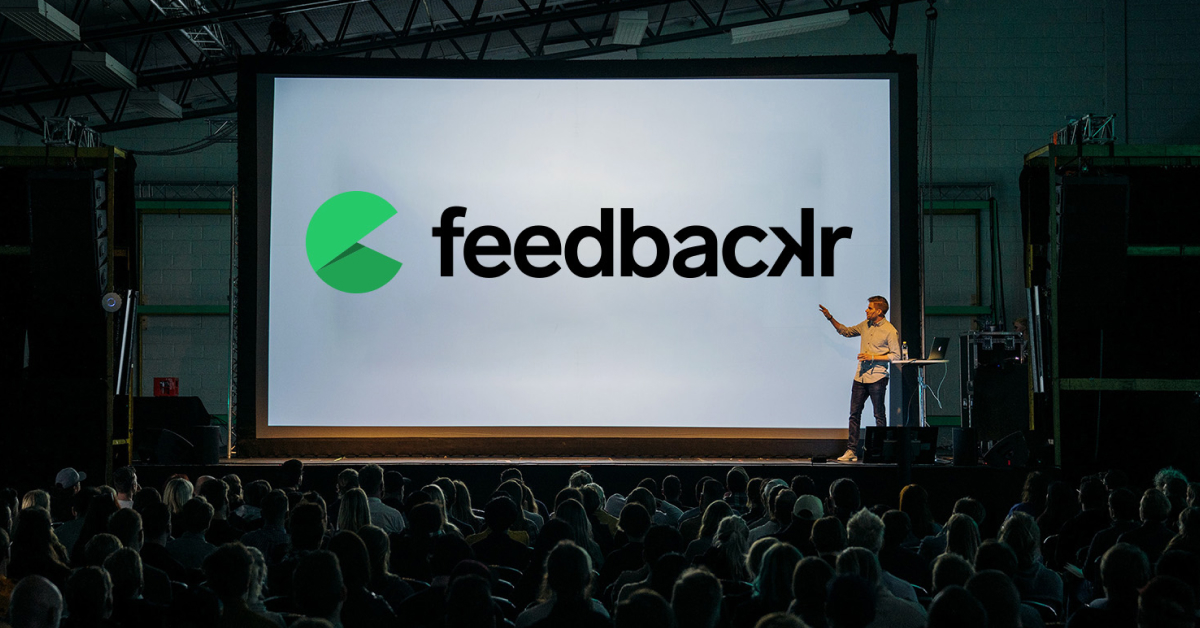

User reviews (0)