Website profiles · Technology insights · Alternatives

gendesigns.ai

The AI mobile app designer that turns your ideas into stunning UI. Describe your app, get polished screens instantly. No Figma skills needed.

Paid content
Visit website
Profile views 1 Outbound visits 0 Normal
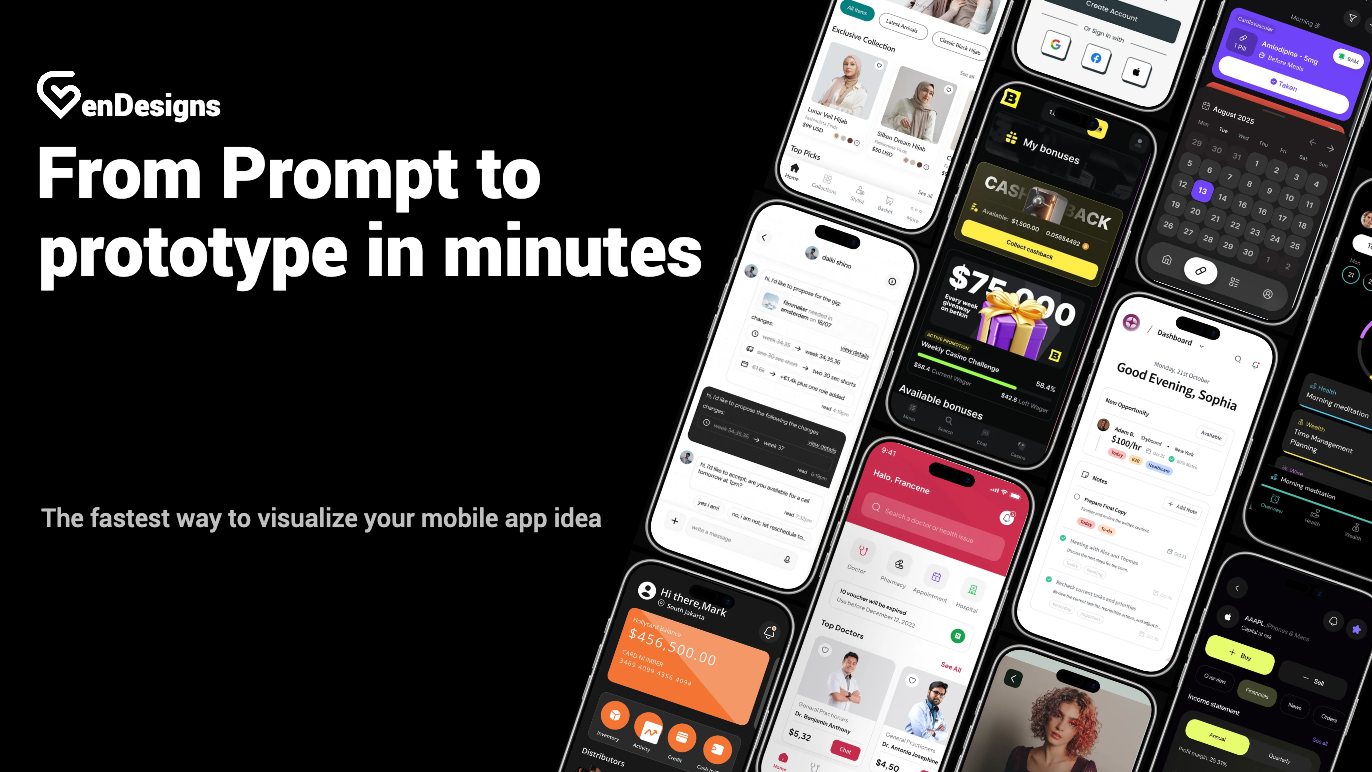
GenDesigns Full homepage screenshot

At a glance

Category
Design & Creativity
Language
English
Paid-content signal
Paid contentObserved
Registered
2025
Hosting
VercelInferred
HTTPS certificate trusted
PassedObserved
Last updated

Website review

This review may include AI-generated content and is not individually verified. Domain, certificate and other facts come from the observed data on this page.

What is GenDesigns?

GenDesigns is an AI mobile app designer: you describe the app you want in plain language and it generates polished mobile UI screens, without requiring Figma skills. Its stated goal is to take an app idea to finished-looking interface screens in minutes rather than through hand-drawn mockups.

What it does

  • Turns a written description into mobile app screens.
  • Offers community projects and templates as starting points, so you can browse existing examples instead of beginning from a blank prompt.
  • Targets the mockup/UI stage — the look of screens — rather than building a working, shippable app.

Who it suits

It fits founders, product managers and developers who need to show an app concept quickly, or anyone who wants a visual draft before committing to a design tool or a designer. It is less suited to teams needing precise design systems, developer handoff specs or interactive prototypes with real logic.

A practical next step

Pick one screen you already have in mind — a sign-up flow or a booking screen — and describe it in a few sentences, then compare the result against a template from the public gallery. That comparison tells you quickly whether the output is close enough to refine or whether you still need a dedicated design tool such as Figma.

How do I create a mobile app UI with GenDesigns without any design experience?

Describe your app in plain language, then refine the generated screens rather than designing from scratch. GenDesigns is built around that workflow: the page frames it as an AI mobile app designer that turns a description into polished mobile screens, with no Figma skills required.

A realistic first pass

  1. Write a short brief in ordinary words: what the app does, who uses it, and the three or four screens you need first. "A daily expense tracker for students: home summary, add-expense form, monthly chart, settings."
  2. Generate the screens, then review them as a user, not a designer. Ask: can I tell what each screen is for in two seconds? Is the main action obvious?
  3. Fix content before styling. Rename buttons and labels to match how your users actually talk, and delete screens or fields you don't need yet.
  4. Borrow structure from the community gallery. The page lists public apps and templates, including examples like a daily expense tracker, a travel planner, a note app and a booking app design system. Pick the closest match to your category and use it as a starting point instead of an empty canvas.
  5. Keep a simple system: one accent color, one font, consistent button shapes. Consistency reads as competence more than any single clever screen.

What "no design experience" does and doesn't cover

Task Handled by the tool Still your job
Visual styling, layout patterns Generated screens Choosing which screens matter
Starting point and templates Public apps and templates Judging whether it fits your users
Speed to a first draft Minutes, per the page's own framing Testing with real people
Product thinking, wording, flow logic Not covered Entirely yours

The trade-off is control: generated layouts tend to look clean and conventional, which is fine for utility apps and weak if your product's identity depends on an unusual interaction. If you need precise brand alignment, expect to hand off to a designer later.

Next step

Sketch your four core screens on paper before you type anything into the tool. That five-minute step stops you from accepting a polished screen that solves the wrong problem. Then generate, compare against your sketch, and iterate screen by screen.

For broader inspiration on mobile patterns, Dribbble and Mobbin show real app screens you can reference when deciding what "good" looks like in your category.

Can I use GenDesigns to redesign an existing app's interface?

Yes. GenDesigns is positioned as an AI mobile app designer that turns a description into polished mobile screens, and its public gallery includes redesign-oriented examples such as an “LTP Golf UI Redesign,” a “Mobile UI Modernization and Flutter Design,” and an “iOS Profile Redesign.” That makes it a reasonable fit for exploring a new look for an existing app rather than only starting from scratch.

What redesigning with it would look like

  • Describe the current app and the change you want. Instead of “make a fitness app,” give it the existing context: what the app does, who uses it, which screens matter most, and what feels dated or confusing.
  • Rebuild screen by screen. Use the generated output for high-value screens first — onboarding, home/dashboard, profile, checkout, or settings — rather than trying to regenerate everything at once.
  • Use templates as a starting point. The gallery and templates can help you match a style direction before you customize it.
  • Keep your real constraints. Note your platform conventions, brand colors, accessibility needs, and any components your developers already have.

Where it helps and where it doesn't

Situation GenDesigns fit
You want fast visual directions for existing screens Strong — describe and generate polished UI concepts
You have no Figma or design skills Strong — the pitch is explicitly no-Figma, no-design-skills
You need a full design system, tokens, or dev-ready specs Weaker — treat output as a visual starting point, not a handoff package
You need to preserve an exact existing component library Partial — you'll likely need to adapt generated screens to your system
You need to test real user flows Not covered — generated screens are static concepts, not working prototypes

A practical next step

Pick one screen that users complain about, write a short brief describing the current screen, the audience, and the specific problem, then generate a few alternatives. Compare them against your existing interface on clarity, hierarchy, and task completion — not just looks. If you want a second opinion on the visual direction, tools like Figma or Mobbin can help you benchmark patterns before committing.

Decision criterion

Use GenDesigns when speed and visual exploration matter more than system consistency. If your redesign must slot into an existing component library and ship with precise specs, use its output as concept input and plan a separate design-system pass.

What kinds of apps can I design with GenDesigns, such as travel, finance, or games?

GenDesigns is a general-purpose mobile UI generator rather than a tool tied to one app category, so the range of apps you can design is essentially as broad as the ideas you can describe in text. The public gallery on the site illustrates that breadth: community templates and projects include a golf UI redesign, an agricultural value-chain app (AgriShield), a Flutter design modernisation, an AI roleplay platform (PersonaForge), a daily expense tracker (ExpenseEase), a travel planner (Nomadly), an AI plant app, a minimalist note app, a multiplayer chess app, a booking app iOS design system, and an iOS profile redesign.

Which categories that covers

  • Travel and lifestyle — trip planners, booking flows, profile and settings screens.
  • Finance and productivity — expense trackers, note-taking apps, dashboards.
  • Games and social — multiplayer chess, AI roleplay and persona-based apps.
  • Niche or industry apps — agriculture, plant care, and other verticals where you supply the domain logic.

What it is good at, and what it is not

The tool produces polished mobile screens — layouts, components and visual styling — from a written description, without Figma skills. That makes it a strong fit for early exploration: testing whether a travel planner's booking flow reads clearly, or whether a finance app's summary screen feels trustworthy, before committing design time.

It is not a substitute for the parts of an app that are not visual. Game mechanics, real-time multiplayer behaviour, payment logic and backend data are outside what a UI generator produces; the chess and roleplay examples in the gallery are interface concepts, not playable software. Treat output as a design starting point to refine, not a finished product.

A practical next step

Pick the closest template in the community gallery — Nomadly for travel, ExpenseEase for finance, RookRoom for a game-style interface — and use it as a reference point for the screen types you need. If your app is highly specialised, describe the core user journey in plain language first and generate one flow at a time, since narrow prompts tend to produce more coherent screens than broad ones.

For teams already working in a design system, it is worth comparing output against what a dedicated UI tool such as Figma would give you, particularly if developers need production-ready components rather than mockups.

How much does GenDesigns cost and what do the pricing plans include?

GenDesigns lists a pricing page, but the supplied page evidence does not include the actual plan names, prices, or feature breakdowns. So the honest answer is: the cost and inclusions are not stated in the material available here — you need to check the pricing page directly (linked from the site as “Pricing”).

What the page does tell you about value

  • It positions itself as an AI mobile app designer that turns a described idea into polished mobile screens “in minutes,” with no Figma skills required.
  • It shows a public gallery of community apps and templates (for example, a golf UI redesign, an expense tracker, a travel planner, a chess app, and an iOS design system), plus a demo of going from app idea to UI screens in under two minutes.
  • That suggests the core deliverable is generated screen designs and mockups, not a full production codebase — useful for founders, product managers, and solo builders who need to visualize an app before hiring a designer or developer.

How to decide once you see the price

Compare the plan against what you'd otherwise spend on a freelance UI designer or a Figma template pack. If you only need a handful of screens for a pitch or a landing page, a lower tier is likely enough; if you need multiple apps, exports, or team seats, check whether those are gated to higher tiers. Also confirm what you actually receive — image exports, editable files, or code — since that determines whether the output is a final asset or just a starting point.

For context on how this fits alongside other design tools, you can compare with Figma for hands-on editing or Canva for general mockups, though neither is an AI app-screen generator in the same sense.

Can I export or hand off the generated UI to developers for implementation?

Yes, GenDesigns is built for exactly that workflow: you generate mobile UI screens, then pass them to a developer or development team. The site describes the output as polished, professional mobile screens produced from a text description, and positions the tool as an alternative to working in Figma — which matters because Figma files are the usual handoff artifact in app development. GenDesigns' own description does not detail specific export formats or developer-handoff features, so treat the exact handoff mechanics as something to confirm inside the tool.

What "handoff" usually needs

A developer implementing your screens typically wants:

  • Screen-by-screen visuals at consistent dimensions and device sizes, so spacing and hierarchy are unambiguous.
  • A design file or spec (Figma, Sketch, or a documented style reference) showing colors, type styles, and component states.
  • Assets — icons, images, and fonts — in usable formats.
  • Interaction notes for anything not visible in a static screen: transitions, empty states, error states, loading behavior.

GenDesigns covers the first item well by design. The other three depend on what the tool exposes, so check for a Figma export, image export, or shareable project link before committing a project to it.

A practical test before you rely on it

Generate one real screen from your app — a list view with a header, a search field, and at least three item types. Then ask:

  1. Can you get that screen out as an image or file your developer can open?
  2. Are colors and font sizes readable or extractable, or only visible as pixels?
  3. Does the layout survive a second, related screen, so the developer sees a system rather than a one-off?

If the answer to the first two is yes, GenDesigns works as a fast concept-to-spec step, with the developer rebuilding components in code. If export is limited to images only, expect the developer to re-derive measurements manually — fine for a small app, tedious for a large one.

Where it fits versus a full design tool

Situation GenDesigns-style AI generation Traditional design tool
Early concept, few screens Fast, low effort Slower, more control
Large design system, many states Limited by generator output Better suited
Non-designer founder validating an idea Strong fit Requires skill or hiring
Handoff needing precise specs and variants Confirm export support first Standard workflow

If your team already works in Figma, the cleanest path is to generate concepts in GenDesigns and rebuild or import them into your existing Figma library, so developers keep one source of truth. For solo builders shipping a simple app, generated screens plus a developer brief may be enough on their own.

Next step

Open one of the public apps or templates on GenDesigns, generate a single screen from your own app idea, and try to export it. That one attempt tells you more about handoff readiness than any feature list.

Related questions

More questions →
What Is a Mobile App UI Generator and How Does It Turn Ideas into Screens?

A mobile app UI generator is a tool that converts a plain-language description of your app into visual mobile screens, so you can see and refine an interface without opening Figma or hiring a designer. GenDesigns, for example, describes itself as an AI mobile app designer that "transforms your ideas into professional app interfaces" — you describe what you want and get polished mobile screens instantly. This fits best when you need to explore layout and flow early, or produce a mockup fast; it fits less well when you need pixel-exact brand systems or production code.

How the workflow actually runs

The pattern across these tools is consistent, and GenDesigns' page describes the same loop:

  1. Input — you write a description of the app or screen (for example, "a daily expense tracker with a summary chart and a list of recent transactions").
  2. Generation — the tool produces one or more mobile screen mockups matching that description.
  3. Review — you look at the screens and decide what's wrong: spacing, hierarchy, missing states.
  4. Refine — you adjust the description or the generated screens and regenerate.

GenDesigns frames the speed claim directly: "From app idea to polished UI screens in under 2 minutes," and its demo section is titled "Watch AI Design a Mobile App." Treat that as the vendor's stated turnaround, not a guarantee for complex multi-screen flows.

You can also skip the blank page. The site offers "Explore Public Apps & Templates" — community projects and templates you can browse or start from. Its template list includes examples like a Daily Expense Tracker, a Travel Planner, a Booking App iOS Design System, and a Minimalist Note App, which gives you a sense of the range of app types the tool is used for.

What you actually get back

This is the part most people get wrong. A UI generator produces screen mockups — visual representations of your interface — not a finished, shippable app. GenDesigns' own wording is "mobile screens," "app interfaces," and "mobile app designs," and its gallery is labeled "Mobile App Designs Made with AI."

So the realistic output is:

  • Visual screens showing layout, components, and hierarchy
  • A design you can review, share, or use as a reference
  • Not automatically production-ready code, and not a guarantee of a working app

If your goal is a running app, the mockup is an input to development, not a replacement for it.

Where it fits versus Figma or a human designer

Dimension UI generator (e.g., GenDesigns) Figma / human designer
Starting point Text description Blank canvas or brief
Speed to first draft Minutes (vendor claims under 2 min) Hours to days
Skill required None — "no Figma skills needed" Design proficiency
Brand consistency Depends on how well you prompt; harder to enforce Full control via systems and tokens
Custom interactions Limited Fully controllable
Best for Early exploration, mockups, non-designers Polished, brand-critical, production work

GenDesigns positions itself explicitly against the design-tool route: "no Figma, no design skills required." That's the honest dividing line — it lowers the barrier to a first draft, and it doesn't claim to replace a designer for final, brand-sensitive work.

Who benefits most

  • Founders and PMs who need to show an idea before committing design budget.
  • Non-designers who can describe an app but can't build screens.
  • Developers who want a visual reference to build against.
  • Anyone exploring multiple app concepts quickly using templates as a starting point.

If you already have a mature design system, strict brand guidelines, or complex custom interactions, a generator will likely get you a starting point rather than a finished result.

Limits to expect before you commit

  • Brand consistency — keeping colors, type, and spacing identical across many screens is harder to control than in a design system.
  • Custom interactions — animations, gestures, and unusual components are typically out of scope for a mockup generator.
  • Handoff to development — you'll still need to translate screens into code or a spec; the generator doesn't do that step for you.
  • Scope of the speed claim — "under 2 minutes" is the vendor's figure for a demo; multi-screen, state-heavy apps take longer to get right.

How to decide

Use a mobile app UI generator when your bottleneck is getting from an idea to a visible screen fast, and you're comfortable refining from there. Choose Figma or a designer when your bottleneck is precision, brand fidelity, or production-ready output. The two aren't mutually exclusive — generating a first draft and then handing it to a designer is a reasonable middle path.

To try the workflow described here, start from a template or public app on GenDesigns, describe your screen in plain language, and iterate on what comes back.

Does Aldersgate United Methodist Church Have a Mobile App?

As of the information available on the church's website, Aldersgate United Methodist Church in Wichita, Kansas does not advertise a dedicated mobile app. The site presents itself as the primary online hub for the congregation, with its mission of "Making Disciples of Jesus Christ for the Transformation of the World" front and center. If a mobile app exists, it is not prominently featured on the homepage. The most reliable way to confirm is to contact the church office directly or check the website for any new announcements.

That said, "no app advertised" is not the same as "no app at all." Churches sometimes launch apps quietly, link them only in weekly bulletins, or roll them out through a congregation-wide email. This article explains what a church mobile app usually includes, how to verify whether Aldersgate has one, and how to stay connected in the meantime.

What a Church Mobile App Typically Offers

Most church apps are built around a handful of core functions. If Aldersgate launches or already operates one, you can reasonably expect some combination of the following:

  • Sermons and worship — audio or video of past services, sometimes with notes or discussion questions.
  • Events calendar — worship times, Bible studies, youth group meetings, outreach days, and seasonal services.
  • Giving — online donations via credit card, debit card, or bank transfer, often with recurring gift options.
  • Prayer requests — a form or feed where members can submit and pray for needs.
  • Groups and ministries — sign-ups, rosters, and communication for small groups, choirs, or volunteer teams.
  • Push notifications — reminders for services, weather cancellations, or special announcements.
  • Connection cards — a digital way for first-time visitors to share contact information.

Not every app includes all of these. Some churches use a general-purpose platform that bundles them together; others rely on separate tools for giving and communication.

How to Check Whether Aldersgate Has an App

Because app availability changes and the website may not always reflect the latest tools, verify through more than one channel:

  1. Search the website. Look for a menu item labeled "App," "Mobile," "Connect," or "Media." Check the footer, too, since app links are sometimes placed there.
  2. Search your phone's app store. Try terms like "Aldersgate United Methodist," "Aldersgate Wichita," or "Aldersgate Church." Be careful to match the correct city and denomination, since other churches share the Aldersgate name.
  3. Call or email the church office. This is the fastest way to get a definitive answer. Ask specifically: "Do we have a mobile app, and if so, what is it called and where do I download it?"
  4. Ask an usher or greeter on Sunday. They often know about new tools before they appear online.
  5. Check the weekly bulletin or newsletter. App launches are frequently announced there first.

If you find an app, confirm it is officially affiliated with the church before entering any personal or payment information.

If There Is No App: Other Ways to Stay Connected

A dedicated app is convenient, but it is not the only way to remain plugged into church life. These alternatives cover most of what an app would do:

Need Alternative
Worship times and location Church website homepage
Sermons Website media page, podcast, or social media
Events Website calendar, bulletin, or email newsletter
Giving Online giving link on the website, or giving during service
Prayer requests Email, phone call, or prayer chain
Announcements Email newsletter, social media, or Sunday bulletin

For a first-time visitor, the simplest starting point is the website's contact page: send a message introducing yourself and ask how the church prefers to communicate. For a long-time member, the church office can add you to the email list or connect you with the right ministry leader.

A Practical Checklist for Getting Connected

Use this sequence whether or not an app exists:

  1. Visit the church website and note the worship times and address.
  2. Find the "Contact" or "About" page and save the office phone number and email.
  3. Sign up for the email newsletter if a sign-up form is available.
  4. Follow the church on any social media accounts linked from the site.
  5. Ask the office directly about a mobile app, online giving, and prayer request channels.
  6. If an app is confirmed, download it, create an account, and enable notifications for the updates you want.

A Note on Accuracy

App availability, features, and download links can change at any time, and a website may lag behind those changes. Nothing in this article should be treated as a guarantee that Aldersgate United Methodist Church does or does not currently offer an app. Treat the church office as the authoritative source, and confirm details before relying on any tool for giving or personal information.

If you are a member or visitor hoping for an app, it is also reasonable to ask the church whether one is planned. Congregations often gauge interest before investing in a new platform, and a simple question can move the conversation forward.

What Is an AI App Designer and How Does It Generate Mobile App UI?

An AI app designer is a tool that turns a written description of your app into mobile UI screens, without you drawing layouts by hand. GenDesigns, for example, describes itself as an "AI mobile app designer that transforms your ideas into professional app interfaces" — you describe what you want and get polished mobile screens, with no Figma skills required. This approach fits early-stage work: validating an idea, producing a quick mockup, or exploring visual directions before committing to a full design system. It is not a replacement for a designer when you need deep interaction logic, accessibility compliance, or a production-ready design system.

How an AI app designer differs from a traditional design tool

Traditional tools like Figma are canvases: you place every frame, component, and constraint yourself. An AI app designer inverts that — the description is the input, and the layout is generated for you.

Dimension Traditional design tool (e.g., Figma) AI app designer (e.g., GenDesigns)
Starting point Blank canvas or component library Text description of your app
Skill required Layout, spacing, typography, tooling Ability to describe screens and intent
Speed to first screens Hours to days Minutes
Control Pixel-level Prompt-level, then iterate
Best for Production design systems, handoff Idea validation, mockups, direction-setting

The trade-off is control. You gain speed and lose fine-grained precision, which matters more as a project matures.

The flow: from app idea to generated screens

Based on how GenDesigns describes its own process, the path looks like this:

  1. Describe your app. You write what the app does and what screens you need. The more specific the description, the more usable the output.
  2. Generate screens. The tool produces polished mobile screens from that description. GenDesigns frames this as "from app idea to polished UI screens in under 2 minutes."
  3. Review and iterate. You look at what came back and refine. GenDesigns also offers public apps and templates you can browse or start from, which is useful when you want a proven starting point instead of a blank prompt.

The input is your description; the action is generation; the expected result is a set of mobile screens you can evaluate or build on.

What AI handles well — and what it doesn't

Handles well:

  • First-draft screen layouts for common patterns (onboarding, feeds, profiles, trackers)
  • Visual styling and consistency across a small set of screens
  • Fast exploration of multiple directions before you invest in one

Handles poorly or not at all:

  • Complex interaction and state logic (multi-step flows, edge cases, error states)
  • Accessibility requirements and platform-specific guidelines
  • Design systems meant to scale across a large product
  • Anything requiring a documented rationale for design decisions

The public template gallery on GenDesigns shows the realistic range: golf UI redesigns, expense trackers, travel planners, booking app design systems, and profile redesigns. These are recognizable app categories — good evidence that AI output is strongest on established patterns, not novel interaction models.

When you still need a human designer or Figma

Bring in a designer or move to a traditional tool when:

  • You need a production design system with reusable components and tokens.
  • The app depends on novel interactions that don't map to common patterns.
  • You must meet accessibility or platform compliance standards.
  • You're handing off to engineers who need precise specs and assets.
  • Stakeholders need documented design rationale, not just visuals.

A practical middle path: use the AI designer to get to a direction quickly, then hand the winning screens to a designer for refinement and systemization.

Tips for better AI-generated app screens

  • Name the screens you want. "Onboarding, home feed, profile, settings" beats "design my app."
  • State the app category and audience. A fitness tracker for beginners reads differently than one for athletes.
  • Describe the key content on each screen, not just its purpose.
  • Start from a template when your app fits a known category — it anchors the output.
  • Iterate in small steps. Refine one screen at a time rather than regenerating everything.
  • Treat output as a draft. Expect to adjust spacing, hierarchy, and copy before it's usable.

If your goal is a fast, presentable mockup or an early visual direction, an AI app designer gets you there in minutes. If your goal is a shippable, scalable product interface, treat it as step one and plan for human design work after.

What Is an AI Mobile App Designer and How Does It Create Mobile UI?

An AI mobile app designer is a tool that turns a written description of your app into finished-looking mobile UI screens, without you drawing layouts by hand or learning Figma. GenDesigns is one example: you describe what you want, and it returns polished mobile screens, with the site claiming this happens "in minutes" and that no Figma skills are needed. This approach fits early-stage ideas, quick mockups, and concept validation. It fits less well when you need a tightly controlled design system, pixel-exact brand rules, or production-ready handoff with detailed specs.

How the describe-to-screens workflow works

The core loop is simple: input text, get screens.

  1. Describe your app. You write what the app does and what screens you need — for example, a travel planner with a home feed, a trip detail view, and a booking confirmation.
  2. The tool generates UI screens. GenDesigns presents this as "describe what you want, and get polished mobile screens instantly." The output is visual screen layouts, not code you write yourself.
  3. Review and iterate. You look at the result and refine your description or the design to move closer to what you want.

The site frames the speed as going "from app idea to polished UI screens in under 2 minutes," which is the main appeal over manual design.

What the output actually looks like

The result is mobile screen designs — layouts for app interfaces. GenDesigns shows this in two ways:

  • A gallery of AI-made designs. The "Mobile App Designs Made with AI" section describes them as "real mobile apps designed in minutes — no Figma, no design skills required."
  • Community examples and templates. The "Explore Public Apps & Templates" section lets you browse community projects or start from a template. Listed examples include a golf UI redesign, an agricultural value chain app (AgriShield), a Flutter design modernization project, an AI roleplay platform (PersonaForge), a daily expense tracker (ExpenseEase), a travel planner (Nomadly), an AI plant app, a minimalist note app, a multiplayer chess app (RookRoom), and an iOS booking design system.

These examples matter because they show the range the tool is used for — from simple utility apps to design-system-style work — and give you reference points before you start.

Where AI design tools fit — and where they don't

AI app designers are one option among several for creating mobile UI. The right choice depends on your situation.

Your situation AI mobile app designer Traditional tool (e.g., Figma)
Early idea, need quick visuals Strong fit — fast, no design skills Slower; requires learning the tool
Exploring multiple concepts Good for fast iteration on descriptions Manual but fully controllable
Strict brand/design system Limited unless you can steer it precisely Full control
Production handoff with specs Check what the tool exports Standard, well-supported workflow
No designer on the team Useful starting point Harder without design experience

A practical rule: use an AI designer to get from a blank page to something concrete, then bring in a human designer when the work needs precise control, accessibility review, or developer-ready specifications.

Practical limits to plan for

  • Customization depth. Generated screens are a starting point. Expect to refine them, and check how much control the tool gives you over layout, spacing, and components.
  • Iteration is part of the process. The first output rarely matches your mental image exactly; the quality of your description drives the quality of the result.
  • When a human designer is still needed. Complex interactions, brand-critical systems, and detailed developer handoff usually still call for a designer.
  • Pricing and access. GenDesigns has a pricing page, so check current terms there rather than assuming free access.

If your goal is to see your app idea as real screens quickly, an AI mobile app designer is a reasonable first step. If your goal is a fully specified, brand-locked design system, treat it as a starting point and plan for human design work alongside it.

How to Design a Mobile App UI: Steps, Tools, and AI Options

Designing a mobile app UI means working through five stages in order: define purpose and users, map the flow, wireframe core screens, apply visual design, then test and iterate. You can do all five manually in a tool like Figma, or compress the middle stages with an AI app designer such as GenDesigns, which turns a written description into polished mobile screens. The right path depends on how much control you need versus how fast you want to see something real.

Start with purpose, users, and a screen list

Before opening any design tool, write down three things:

  • What the app does in one sentence, and for whom.
  • The single job a user opens it to finish (book a court, log an expense, plan a trip).
  • The screens that job requires, in rough order.

This list becomes your scope. A booking app might need search, results, listing detail, checkout, and confirmation — five screens, not fifty. Skipping this step is the most common reason UI work stalls: you end up polishing a screen that shouldn't exist.

Map the user flow and wireframe

A user flow is the path from entry to goal. Sketch it as boxes and arrows before drawing anything pretty.

Then wireframe each box as a low-fidelity layout: where the header sits, where the primary button goes, what scrolls. Wireframes settle structure and navigation while changes are still cheap. If a flow needs four taps to reach the main action, fix it here rather than after visual design.

Apply visual design fundamentals

Once structure holds, layer on the visual system:

Element What to decide
Layout Grid, margins, safe areas, thumb-reachable placement for primary actions
Typography One or two typefaces, a clear size scale, readable line length
Color A primary action color, neutrals, and semantic states (error, success)
Spacing A consistent scale (e.g., 4/8/16/24) applied everywhere
Platform guidelines Apple's Human Interface Guidelines or Google's Material Design, depending on target

Following platform conventions matters more than originality here — users already know how iOS and Android screens behave, and fighting that costs you clarity.

Choose between manual tools and AI generators

Both routes produce the same deliverable: screens you can hand to a developer or use as a mockup. They differ in speed, control, and required skill.

Manual design tools (e.g., Figma): full control over every pixel, reusable components, and design systems. The cost is time and a learning curve — you need to know layout, type, and color well enough to make good decisions.

AI app designers (e.g., GenDesigns): you describe the app in words and get polished mobile screens back. GenDesigns positions itself as needing no Figma skills, and its site shows community examples across categories — a golf UI redesign, an expense tracker, a travel planner, a note app, a booking app iOS design system. It also states the idea-to-screens step takes under two minutes.

Pick based on your situation:

  • Choose manual if you need a maintained design system, precise brand control, or you're handing off to a team that expects component libraries.
  • Choose AI generation if you need to see a concept fast, you're validating an idea, or you don't have design skills and want a credible starting point.
  • Combine them if speed matters but polish does too: generate screens, then refine the ones you keep in a manual tool.

A practical middle path is to browse existing templates and public projects first — GenDesigns lets you explore community apps and templates — so you start from a structure close to your idea instead of a blank canvas.

Review, test, and iterate

No UI is done on the first pass. Before calling it finished:

  • Walk the flow on a real device, not just in the editor. Tap targets, scroll behavior, and keyboard overlap only show up on hardware.
  • Check accessibility: contrast ratios, text scaling, and labels for icon-only buttons.
  • Get feedback from someone who isn't you and watch where they hesitate.
  • Iterate on the screens that caused friction, not the ones that are easiest to tweak.

If you generated screens with AI, treat the first output as a draft — the value is in how quickly you can reach a reviewable version, then improve it.

A realistic example

Say you want a daily expense tracker. Define the job (log a purchase in under ten seconds), list screens (home with balance, add-expense form, category picker, history), and wireframe the add flow so the amount field and save button are the first things a thumb reaches. Apply a spacing scale and one accent color for the save action. Then either build it in Figma or describe it to an AI designer and refine the generated screens — the GenDesigns template library includes an expense tracker example you can compare against. Test it by logging three real purchases and noting where you fumbled.

What to do next

Write your one-sentence purpose and screen list now — that's the step that makes everything after it faster, whether you design by hand or generate with AI. If you want to see output before committing to a tool, generate a first version from your description and use it as the draft you iterate on.

Website Overview

An active inbound-mail setup with incomplete authentication may leave the domain more open to impersonation. Provider hosting alone does not close that gap.

Domain and Registration

Transfer-protection status is present, helping reduce the risk of unauthorized domain transfers. The domain has about 1 years of registration history; its current configuration provides more context than age alone. The registrar is NameCheap, Inc., a widely used domain service provider. Registration contact information is publicly available through RDAP. The domain uses the common .ai extension, which is not an independent safety signal.

DNS and Email

The observed email authentication setup is incomplete: DMARC is missing. Nameservers are provided by Cloudflare, indicating managed DNS hosting. MX records point to the Google Workspace email service. No CNAME was found; the observed records resolve directly to addresses. TXT records include verification markers for Google. Such markers may also remain after a service stops being used.

TLS and Certificates

The public key uses EC with 256 bits. The server supplied a complete certificate chain. No organization name is present in the certificate; the available fields are consistent with domain validation. The certificate was issued by Let's Encrypt, commonly associated with automated certificate services. The certificate's total validity is about 89 days, consistent with a short renewal cycle.

HTTP and Browser Security

X-Powered-By exposes backend information: Next.js. The response lacks these common security headers: CSP, X-Content-Type-Options, Referrer-Policy, Permissions-Policy, clickjacking protection. The cf-ray response header indicates a CDN or caching proxy in the delivery path. No obvious internal addresses or debug information were found in the headers. The Server header identifies cloudflare without an exact version.

Technology Stack Analysis

The public page identifies Next.js, Cloudflare, Vercel without precise versions, leaving fewer clues for version-specific scanning.

Search and Social Sharing

No homepage canonical URL was detected. If duplicate URLs exist, consolidation may be less explicit. Twitter Card metadata is configured. JSON-LD includes Organization data, helping describe the organization as an entity. The title has 61 characters, within a common display range. A meta description is present, with 141 characters.

Hosting and Email

DNSCloudflare
HostingVercel
EmailGoogle Workspace
Approximate IP geolocation (inferred; a CDN or proxy may differ from the origin server) Location unknown Inferred 104.21.63.195

Registration details

RDAP / WHOIS

RegistrarNameCheap, Inc.
Registered2025-09-14
Expires2027-09-14
Domain statusclient transfer prohibited
Nameserversgrace.ns.cloudflare.com、ignacio.ns.cloudflare.com
DNSSECunsigned

DNS records

DNS

TypeNameValueTTLPriority
Agendesigns.ai104.21.63.195300—
Agendesigns.ai172.67.171.184300—
AAAAgendesigns.ai2606:4700:3032::ac43:abb8300—
AAAAgendesigns.ai2606:4700:3033::6815:3fc3300—
MXgendesigns.aiaspmx.l.google.com3001
MXgendesigns.aialt1.aspmx.l.google.com3005
MXgendesigns.aialt2.aspmx.l.google.com3005
MXgendesigns.aialt3.aspmx.l.google.com30010
MXgendesigns.aialt4.aspmx.l.google.com30010
NSgendesigns.aigrace.ns.cloudflare.com86400—
NSgendesigns.aiignacio.ns.cloudflare.com86400—
TXTgendesigns.aigoogle-site-verification=mU5VY4gJ5RNLPts1Q52BoeF9Du_UeMzpy2AJmwc8XUc300—
TXTgendesigns.aigoogle-site-verification=xcmNrLmX5MN5x9yxXhmhaamvyRdwH_vQBD-FQKD46dA300—
TXTgendesigns.aiv=spf1 include:spf.efwd.registrar-servers.com include:_spf.google.com ~all300—

TLS and certificates

TLS / SSL

AssessmentNormal configuration
Supported protocolsTLSv1.2、TLSv1.3
Negotiated protocolTLSv1.3
Certificate subjectgendesigns.ai
IssuerLet's Encrypt
Valid until2026-12-26T10:55 · Remaining when checked: 76 days
Verification detailsCertificate trust: Passed · Hostname match: Passed

HTTP response headers

HTTP

HeaderValue
content-typetext/html; charset=utf-8
cache-controlprivate, no-cache, no-store, max-age=0, must-revalidate
servercloudflare
strict-transport-securitymax-age=63072000

Identified technologies

Next.jsCloudflareVercel

Pages, Search and Sharing

Meta descriptionThe AI mobile app designer that turns your ideas into stunning UI. Describe your app, get polished screens instantly. No Figma skills needed.
Canonical URLNot detected
LanguageEnglish (default)
Twitter Cardsummary_large_image
All bots 1 allowed · 11 disallowed
  • Allow/
  • Disallow/api/
  • Disallow/canvas/
  • Disallow/preview/
  • Disallow/verify-email
  • Disallow/forgot-password
  • Disallow/test-emails
  • Disallow/_next/
  • Disallow/_next/image*
  • Disallow/private/
  • Disallow*/404
  • Disallow*/500
googlebot 1 allowed · 6 disallowed
  • Allow/
  • Disallow/api/
  • Disallow/canvas/
  • Disallow/preview/
  • Disallow/verify-email
  • Disallow/forgot-password
  • Disallow/test-emails
gptbot 1 allowed · 6 disallowed
  • Allow/
  • Disallow/api/
  • Disallow/canvas/
  • Disallow/preview/
  • Disallow/verify-email
  • Disallow/forgot-password
  • Disallow/test-emails
claudebot 1 allowed · 6 disallowed
  • Allow/
  • Disallow/api/
  • Disallow/canvas/
  • Disallow/preview/
  • Disallow/verify-email
  • Disallow/forgot-password
  • Disallow/test-emails
perplexitybot 1 allowed · 6 disallowed
  • Allow/
  • Disallow/api/
  • Disallow/canvas/
  • Disallow/preview/
  • Disallow/verify-email
  • Disallow/forgot-password
  • Disallow/test-emails
bingbot 1 allowed · 6 disallowed
  • Allow/
  • Disallow/api/
  • Disallow/canvas/
  • Disallow/preview/
  • Disallow/verify-email
  • Disallow/forgot-password
  • Disallow/test-emails

User reviews (0)

  • No reviews yet.