Website profiles · Technology insights · Alternatives

neodisk.app

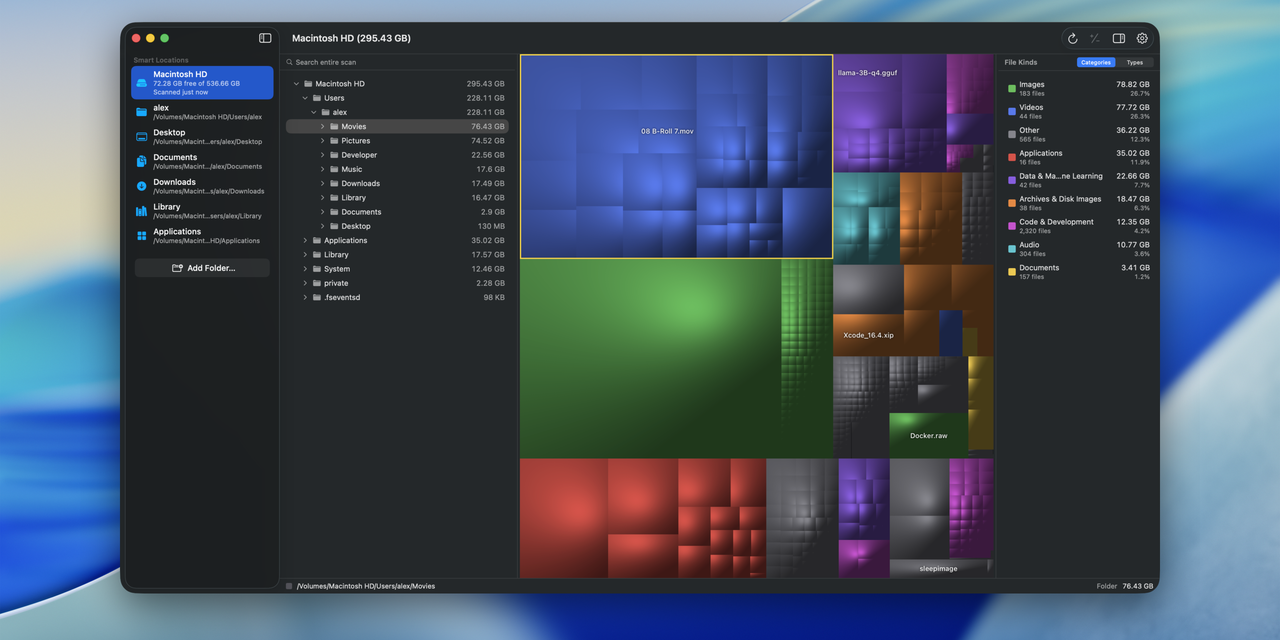
Neodisk shows where your disk space went with interactive treemap and sunburst views. Scans your disks and cloud drives. Read-only by design: it never deletes your files. Free and open source, native to Apple Silicon.

No paid content found
Visit website
Profile views 3 Outbound visits 1 Normal
Neodisk Full homepage screenshot

At a glance

Category
Design & Creativity
Language
English
Paid-content signal
No paid content foundObserved
Registered
2026
Hosting
CloudflareInferred
HTTPS certificate trusted
PassedObserved
Last updated

Website review

This review may include AI-generated content and is not individually verified. Domain, certificate and other facts come from the observed data on this page.

What is Neodisk?

Neodisk is a disk space analyzer for Mac and Linux that visualizes what is using your storage. It scans local disks and cloud drives, then presents the results as an interactive treemap and sunburst chart, so large folders stand out as big blocks or wide arcs rather than rows in a file list. It is free and open source, read-only by design, and native to Apple Silicon.

What it does

  • Finds space hogs visually. Treemap and sunburst views let you drill into folders and spot the few items consuming most of the disk.
  • Covers more than local storage. It scans cloud drives alongside internal and external disks, useful when synced folders quietly duplicate data.
  • Stays hands-off. Read-only means it shows you the problem but never deletes anything; cleanup stays your decision.
  • Fits different machines. Builds are offered for Apple Silicon Macs, Intel Macs, and Linux, plus a web demo and a Homebrew cask install.

Who it suits

A practical scenario: your Mac warns that startup disk is nearly full, and you suspect caches, old exports, or a synced cloud folder. Neodisk gives you the overview first, then lets you click into the biggest region to identify the culprit. It suits developers, photographers, video editors, and anyone maintaining a small fleet of machines who wants a quick, no-cost diagnostic tool without uploading a file index to a third-party service.

The trade-off is scope. A read-only analyzer will not clean up for you, and it is not a duplicate finder, backup tool, or disk-health utility. If you want one-click deletion of "junk," a maintenance suite may feel more convenient; if you want to understand your storage and decide yourself, read-only is the safer default.

Next step

Download the build for your platform or try the web demo, then run one scan on your fullest drive and sort mentally by the largest region. If you prefer package management, the Homebrew cask install is the quickest route. For a second opinion on macOS-specific storage categories, Apple Support explains what System Data and other built-in categories include; for a broader open-source alternative, GrandPerspective offers a similar treemap approach on Mac.

How do I use Neodisk to find what is taking up space on my Mac?

Neodisk is a read-only disk space analyzer for macOS: you point it at a drive, it scans, and it shows what is consuming space as an interactive treemap or sunburst. Because it never deletes anything, you use it purely to investigate, then remove files yourself in Finder or another tool.

A typical workflow

  1. Install it. The page lists a Mac download for Apple silicon and Intel, a Linux build, and a Homebrew cask install command. There is also a web demo if you want to see the interface before installing.
  2. Launch Neodisk and choose the disk or folder to scan. Scanning your whole startup disk gives the complete picture; scanning a single folder such as your home directory is faster and often enough.
  3. Read the treemap. Each rectangle is a file or folder, and its area is proportional to its size, so the biggest blocks are your biggest space consumers. The sunburst view shows the same data as nested rings, which is easier when you want to follow one branch of the hierarchy inward.
  4. Drill into the largest blocks by clicking them until you reach individual files. This is how you get from "my disk is full" to "this specific folder of old video exports is 40 GB."
  5. Decide what to do outside the app. Confirm what a file is before deleting it, then remove or move it in Finder.

Which view to use

View Best for Trade-off
Treemap Spotting the single largest items at a glance Deep nesting gets visually busy
Sunburst Tracing how space is distributed down one path Harder to compare unrelated folders

Practical notes

  • Start with your home folder rather than the entire disk if you only care about personal files; system and cache directories can dominate the map without being things you should touch.
  • Large blocks are not automatically junk. Photo libraries, virtual machines, Xcode derived data, Docker images and Time Machine local snapshots are all legitimately huge.
  • Read-only scanning means there is no undo risk in exploring, but also no cleanup help. Pair it with Finder's own sorting by size for a second opinion.
  • If you want a second tool for comparison, GrandPerspective is a long-standing Mac disk visualizer, and Disk Inventory X covers similar ground.

Next step

Scan your home folder first, screenshot or note the three largest blocks, and check each one in Finder before deciding whether it is worth keeping. That single pass usually recovers more space than hunting through folders manually.

Is Neodisk safe to use, and can it delete my files?

Neodisk is built to be read-only: the app scans your disks and cloud drives and shows where space went, but it does not delete your files. That design choice is the main safety answer. The risk of using it is therefore not that it will remove something on its own; it is that you might act on what it shows and delete files yourself in Finder or another tool.

What “read-only by design” means in practice

  • Scanning and visualization are separate from file operations. Neodisk's job is to map usage with interactive treemap and sunburst views, not to clean up.
  • You keep control of deletion. If you decide a folder or file is unnecessary, you remove it through your normal file manager, with the usual confirmations and Trash behavior.
  • The app is free and open source, so its read-only claim can be checked in the code rather than taken on faith.

Where caution still applies

Read-only scanning does not make every file safe to delete. A large folder may be a system cache, a photo library, a development dependency directory, or a cloud-synced folder whose removal propagates to other devices. Neodisk can help you find the space hogs; it cannot tell you whether a given file is needed.

A useful habit: before deleting anything substantial, confirm what created it and whether it can be regenerated. For cloud drives, check whether deletion syncs. For system or app support folders, prefer the app's own cleanup tools over manual removal.

Practical next step

Install it, run a scan on one drive, and use the treemap to identify the few largest items. Investigate those in Finder before removing anything. If you want a second opinion on a file or folder, search for its exact name plus the app that owns it, or check the project's repository and issue tracker for guidance. For macOS users comparing options, Neodisk is the tool in question, and general disk-usage advice applies the same way across analyzers.

Does Neodisk work on Apple Silicon, Intel Macs, and Linux?

Neodisk is available for Apple Silicon Macs, Intel Macs, and Linux. Its download options list all three, along with a web demo and a Homebrew cask install command, so you can try it before installing or pick the native build for your machine.

What that means in practice

  • Apple Silicon Macs: the native build is the intended experience; the site describes Neodisk as native to Apple Silicon, so expect the smoothest performance there.
  • Intel Macs: a separate download is offered, so older Macs are supported rather than left behind.
  • Linux: a Linux download is listed, making it a cross-platform option if you move between machines.
  • No install needed to evaluate: the web demo and the Homebrew command are alternatives to downloading a package manually.

Choosing your route

Situation Sensible choice
You want the fastest scan on a recent Mac Apple Silicon build
You are on an older Mac Intel build
You use Linux desktops or servers Linux build
You just want to see how the treemap and sunburst look Web demo
You manage Macs with Homebrew brew install --cask neodisk

A practical first step: if you are on a Mac with Homebrew, install the cask and scan a folder you already understand well, such as your Downloads or home directory. You can then judge whether the treemap and sunburst views make large files obvious at a glance. The read-only design matters here too: because it never deletes files, you can explore freely and clean up manually afterward, which suits cautious users and anyone analyzing a drive they cannot afford to damage.

Can Neodisk scan cloud drives as well as local disks?

Yes. Neodisk is described as scanning your disks and cloud drives, so it is not limited to internal or directly attached storage. It presents the results as an interactive treemap or sunburst, and it is read-only by design, meaning it maps usage without deleting anything.

What that means in practice

  • Local disks: useful when a Mac's startup drive is filling up and you want to see which folders dominate.
  • Cloud drives: useful when a synced folder is quietly consuming local space, or when you want a visual breakdown of what is stored there.
  • Read-only: the tool reports and visualizes; cleanup decisions remain yours.

How to decide if it fits

If your goal is to understand where space went before deleting or moving anything, a read-only visualizer is a good fit. If your goal is one-click cleanup, this is not that kind of tool.

A practical first step: scan the drive or cloud folder you are most worried about, then compare the treemap with the sunburst view. The treemap makes large folders easy to spot by area; the sunburst helps trace nested folder depth. For a Mac user with a full drive and a synced cloud folder, that combination answers "what is actually taking the space" without risking files.

For a second opinion on general disk-usage habits, Apple support pages cover macOS storage management, though they are not a review of this tool.

Is Neodisk free and open source, and how do I install it?

Yes. Neodisk is described as private, free and open source, and it is read-only by design: it scans your disks and cloud drives to show where space went using interactive treemap and sunburst views, but it never deletes your files.

Installing Neodisk

  • macOS (Apple silicon or Intel): download the Mac build from the Neodisk site.
  • Linux: download the Linux build from the same downloads section.
  • Homebrew (macOS): run brew install --cask neodisk in Terminal.
  • No install needed: try the web demo in your browser first to see whether the treemap and sunburst views fit how you think.

Which route fits which user

Situation Best route Trade-off
You want to test the interface before committing Web demo Limited to what the browser can access
You manage a Mac and want easy updates Homebrew cask Requires Homebrew and comfort with Terminal
You use Linux or prefer a direct download Download page You handle updates yourself
You are on Apple silicon and want native performance Mac download Intel Macs use a separate build

A practical first scan

If your Mac's storage warning is vague, install via Homebrew, open Neodisk, and scan your startup disk. Start with the treemap to spot the largest blocks, then switch to the sunburst to trace how a big folder breaks down into subfolders. Because the app is read-only, you can explore freely and decide what to remove yourself in Finder or your file manager.

For background on the project and its source, see GitHub.

Related questions

More questions →
What Are Open-Source UI Element Libraries and How Do They Differ From UI Frameworks?

An open-source UI element library is a collection of individual, ready-made interface pieces—buttons, cards, inputs, toggles, loaders—that you copy into your own project and adapt. A UI framework, by contrast, is a structured system of components, conventions, and often a theming layer that governs how your whole interface is built. The practical difference: an element library gives you a snippet; a framework gives you a way of working. If you need a polished button in ten minutes, reach for the element library. If you're building a 40-screen product with a team, you probably want the framework.

What "open-source UI element library" actually means

The term gets used loosely, so it helps to separate the parts:

  • Open-source: the code is publicly available, and the license tells you what you may do with it—copy, modify, redistribute, or use commercially.
  • UI element: a single, self-contained piece of interface, usually small enough to read in one sitting. A button with hover states, a pricing card, a search field.
  • Library: a browsable, searchable collection of those elements, typically contributed by many different people.

On a site like Uiverse, elements are shared by a community and written in plain CSS or Tailwind. You find one you like, copy the markup and styles, paste them into your project, and adjust colors, spacing, and text to fit. There's no package to install and no build step required—which is exactly the appeal, and also the source of most of the confusion.

Element library vs. UI framework: the core differences

Dimension Open-source UI element library UI framework / design system
Unit of reuse A single snippet you copy A component you import or call
Installation None; paste into your code Package install, config, sometimes a provider
Consistency Depends on you; each element may look different Enforced by shared tokens and APIs
Theming Manual edits per element Central theme/config file
Updates You own the copy; no upstream updates Version bumps bring fixes and changes
Accessibility Varies per contributor; must be checked Usually tested and documented
Best for Prototypes, landing pages, small sites, one-off needs Multi-page apps, teams, long-lived products
Learning curve Low—read the CSS Higher—learn the API and conventions

The table isn't a verdict. It's a map of trade-offs. Element libraries win on speed and freedom; frameworks win on consistency and maintenance.

Licensing and attribution: what to check before you paste

This is where people get into trouble, and it's worth slowing down for.

  1. Find the license. Every element or collection should state one. Common open-source licenses include MIT, Apache-2.0, and BSD. Some projects use copyleft licenses like GPL, which can impose obligations if you redistribute your code.
  2. Understand what the license permits. MIT and Apache-2.0 are permissive: you can typically use the code in commercial and closed-source projects. Copyleft licenses may require you to release derivative source under the same terms.
  3. Check attribution requirements. Permissive licenses usually require you to keep the copyright notice and license text somewhere in your project. That's a real obligation, not a formality.
  4. Look for per-element terms. On community sites, the site's overall terms and the individual contributor's stated wishes may differ. If a contributor asks for credit, honor it.
  5. When in doubt, ask or avoid. If a snippet has no license at all, you don't have clear permission to reuse it. Treat "no license" as "not open source," even if the code is publicly visible.

This article is general information, not legal advice. For commercial products with real exposure, have someone qualified review the licenses you're relying on.

How to use a community element in your project: a practical workflow

Here's a repeatable process that avoids most of the usual mess.

1. Start from a real need, not a browsing session

Decide what you need first—"a compact primary button with a loading state"—then search. Browsing aimlessly produces a pile of pretty snippets that don't fit together.

2. Copy the smallest version that works

Take the markup and the styles. Strip anything you don't need: demo wrappers, extra animations, decorative layers. Less code means fewer surprises.

3. Convert it to your conventions

If your project uses design tokens or CSS variables, replace hard-coded values:

/* Before: hard-coded */
.button { background: #4f46e5; border-radius: 8px; }

/* After: token-based */
.button { background: var(--color-primary); border-radius: var(--radius-md); }

This one step is what keeps a copied element from looking like a foreign object in your UI.

4. Check accessibility before you ship

Community elements vary widely here. Verify at minimum:

  • Keyboard focus is visible and the element is reachable by Tab.
  • Color contrast meets WCAG AA (4.5:1 for normal text).
  • Interactive elements use semantic HTML (<button>, not a clickable <div>).
  • Form inputs have associated labels.
  • Motion respects prefers-reduced-motion.

5. Test in context

Paste it into a real page with real content. Long labels, small screens, and dark mode break more copied elements than anything else.

6. Note where it came from

Keep a short comment or an internal credits file: source, license, date. Future you—and your legal reviewer—will be grateful.

Where element libraries genuinely shine

  • Prototypes and demos: you need something clickable today, not a design system.
  • Landing pages and marketing sites: a handful of distinctive elements, each custom.
  • Filling gaps: your framework lacks one specific component, and you don't want to build it from scratch.
  • Learning: reading well-made CSS is one of the fastest ways to improve.
  • Small projects: a personal site doesn't need a theming architecture.

Where they fall short

  • Consistency at scale: ten elements from ten contributors rarely look like one product.
  • Maintenance: you own every copy. When your design changes, you edit each one.
  • Accessibility debt: you inherit whatever the contributor did or didn't do.
  • No upstream fixes: a bug fixed in the original won't reach your copy.
  • Integration friction: different naming conventions, different units, different assumptions about resets.

When to choose which

Choose an element library when the scope is small, the timeline is short, or you need a few distinctive pieces rather than a whole system.

Choose a framework or design system when multiple people build multiple screens over months, when consistency is a product requirement, or when accessibility and theming need to be guaranteed rather than checked.

A hybrid works well for many teams: adopt a framework for the structural components—forms, navigation, layout—and borrow individual elements for the places where you want personality. Just route every borrowed element through the same token and accessibility checks, so it lands as part of your system rather than beside it.

The short version: open-source UI element libraries are a fast, flexible way to get good-looking interface pieces into a project. They are not a substitute for a design system, and the license and accessibility details are the part worth reading carefully.

How Neodisk's Treemap and Sunburst Views Differ

Neodisk's treemap and sunburst views show the same disk-usage data in two different layouts. The treemap uses nested rectangles, where each rectangle's area is proportional to the space a file or folder takes up — best for quickly spotting what is eating the most space. The sunburst uses concentric rings, where each ring is a folder level and each wedge is a child item — best for following a deep folder path and understanding how a directory is structured. You can switch between them, so the practical answer is: use the treemap to find the big offenders, then switch to the sunburst to trace exactly where they live.

What each view is good at

Treemap: find the biggest space consumers fast

In a treemap, the whole disk (or the folder you're scanning) is a rectangle, and every file and folder inside it is drawn as a smaller rectangle sized to its share of the space. Big rectangles are big files or folders.

This makes the treemap the better view when your question is "what is taking up all my space?" You don't need to read labels carefully — your eye goes straight to the largest blocks. It's also compact: a lot of items fit on screen at once, so you can compare many folders side by side.

Trade-off: because rectangles are packed to fill space, the visual nesting can get hard to follow several levels deep. A small rectangle inside a big one doesn't obviously tell you the full path it sits on.

Sunburst: trace the folder hierarchy

In a sunburst, the center is the root, and each ring outward is one level deeper in the folder tree. Each wedge within a ring is a child of the folder it sits under, and the wedge's angle reflects its size.

This makes the sunburst the better view when your question is "where exactly is this, and how is this folder organized?" Because every ring is a level, you can follow a path from the center outward and see the chain of parent folders that leads to a large item. Deep nesting is much easier to read here than in a treemap.

Trade-off: as you go outward, wedges get thinner and harder to compare, and a sunburst shows fewer items legibly at once than a treemap.

Side-by-side comparison

Dimension Treemap Sunburst
Layout Nested rectangles Concentric rings
Size encoding Rectangle area Wedge angle
Best for Spotting the largest files/folders at a glance Following folder depth and parent-child paths
Depth readability Weaker past a few levels Strong — each ring is one level
Items visible at once Many Fewer, and outer rings get crowded
Typical use "What's eating my disk?" "Where does this large item actually live?"

How to use them together

A practical workflow, given that Neodisk lets you switch views:

  1. Start in the treemap to scan for the largest blocks — that's your shortlist of space hogs.
  2. Switch to the sunburst and follow the rings outward to confirm the exact folder path of an item you flagged.
  3. Move back to the treemap to compare that folder against others at the same level.

Both views are read-only by design — Neodisk scans and visualizes, and per the site it never deletes your files — so you can explore freely without risk to your data.

Choosing based on your task

  • If you just want to know what's using the most space, the treemap is the faster starting point.
  • If you need to know how a folder is structured or where a large item sits in the tree, the sunburst answers that more directly.
  • If you're unsure, the treemap is the more common entry point, and the sunburst is the natural follow-up for drilling into a specific path.

Neodisk is described as private, free, and open source, with downloads for Mac (Apple silicon and Intel) and Linux, plus a web demo and a Homebrew install (brew install --cask neodisk). Those details come from the site itself; the view behavior above reflects how treemaps and sunbursts encode data generally.

Can Neodisk scan cloud drives and which platforms does it support?

Yes. Neodisk scans both local disks and cloud drives, so you can see where space went across everything in one place. It runs natively on Apple Silicon and also ships builds for Intel Mac and Linux. It is free and open source, and it is read-only by design, meaning it never deletes your files.

What Neodisk scans

  • Local disks — internal and attached drives on your machine.
  • Cloud drives — synced cloud storage is included in the scan, so cloud usage shows up alongside local usage rather than in a separate tool.

The point of covering both is a single, unified view: instead of checking a local analyzer and then a cloud provider's own storage page, you get one picture of where space went.

Supported platforms

Platform Availability
Mac (Apple Silicon) Native build
Mac (Intel) Build provided
Linux Build provided

If you are on an Apple Silicon Mac, you get the native version. Intel Mac and Linux users are not left out — separate downloads are listed for those.

How to get it

  1. Go to neodisk.app.
  2. Choose the download for your platform (Mac Apple Silicon, Mac Intel, or Linux).
  3. Install and run it, then point it at the disks and cloud drives you want to scan.

There is also a web demo if you want to see the interface before installing, and a Homebrew option for Mac:

brew install --cask neodisk

What you get in the views

Neodisk presents results as an interactive treemap and a sunburst view. The treemap uses nested rectangles sized by how much space each item takes, which makes large consumers stand out at a glance. The sunburst uses concentric rings to show the same hierarchy in a radial layout, which some people find easier for tracing a path down through folders.

Cost and safety

  • Free and open source — the core analysis features are available without paying.
  • Read-only by design — it never deletes your files, so scanning is a look, not a change.

If your goal is simply to find out what is eating your disk and cloud space, and you want that answer without risking your data, Neodisk covers the platforms above and includes cloud drives in the same scan as your local disks.

Is Neodisk Safe to Use on Your Files?

Yes, within the scope of what it does. Neodisk is described as read-only by design: it scans your disks and cloud drives to show where space went, and it never deletes your files. That makes it safe to point at any drive you want to analyze. The important caveat is that "safe" here means safe to scan — Neodisk is an analyzer, not a cleaner, so any actual deletion or modification happens in some other tool, under your control.

What "read-only by design" actually covers

The safety claim rests on a single design decision: the app reads file metadata and sizes, and does not write, move, or delete anything. According to the site, this is not a setting you toggle — it is how the tool is built.

That distinction matters because most disk-cleanup anxiety comes from tools that combine analysis with deletion. Neodisk separates those steps entirely:

Concern Neodisk's behavior
Deleting files during a scan Does not happen — read-only by design
Modifying file contents Not part of scanning
Cleaning up space for you Not offered; you clean up elsewhere
Access needed Read access to the disks and cloud drives you scan

So the risk profile is closer to opening a folder in Finder than to running a cleanup utility. If you are comfortable letting a program enumerate your files, you are comfortable with Neodisk's core operation.

Why open source and privacy claims are checkable

Neodisk is described as private, free, and open source. For a tool that indexes your entire disk, that combination is the part worth weighing:

  • Open source means the code can be inspected rather than taken on trust. If you or someone you rely on wants to verify that no write or delete calls exist, that is possible in principle.
  • Private in this context means the analysis stays local — the app shows you a treemap and sunburst view of your own storage rather than shipping a file listing somewhere.
  • Free removes the usual trade-off where a "free" analyzer monetizes by nudging you toward paid deletion features.

None of these are guarantees on their own. Open source only helps if someone actually reviews the code, and "private" is a claim you can partly test by watching network activity. But together they make the safety question answerable instead of a matter of faith.

Where the real risk sits — and it isn't Neodisk

The failure mode people worry about is a tool deleting the wrong thing. With Neodisk, that risk moves to whatever you use after the scan. The workflow looks like this:

  1. Run Neodisk and read the treemap or sunburst view to find what is eating space.
  2. Decide what you actually want to remove — caches, old downloads, duplicate media, large unused apps.
  3. Do the deletion in Finder or another tool, where you can see and confirm each item.

Step 3 is where mistakes happen, and it is entirely outside Neodisk. A large block in a treemap might be a system file, a sparse disk image, or a folder you still need. The scan tells you where space went; it does not tell you what is safe to delete. Treat the visualization as a map, not a recommendation.

Practical conditions for using it safely

  • Point it at drives you own or administer. Scanning a shared or work-managed volume may be fine technically but could conflict with local policy.
  • Expect read access, not write access. If a drive is mounted read-only, analysis should still work; cleanup obviously would not.
  • Verify the download source. Since it is open source, prefer the official site or a package manager listing rather than a mirror. The site lists a Homebrew cask install (brew install --cask neodisk) alongside direct downloads for Mac (Apple silicon and Intel) and Linux, plus a web demo.
  • Keep the two phases separate in your head. Scan in Neodisk, delete elsewhere. If you ever find yourself expecting Neodisk to free space for you, you have crossed into a job it does not do.

Bottom line

Neodisk is safe to run against your files because it does not touch them — it reads and visualizes, nothing more. The residual risk is not in the scan but in what you do with the information afterward, and that risk exists with or without Neodisk. If you want a disk analyzer that cannot delete anything by construction, and you value being able to inspect the code, the read-only, open-source design is the reason to trust it. If you want a tool that also cleans up, you will need a second tool — and that is where you should apply your caution.

What Is Neodisk and What Does It Do?

Neodisk is a free, open-source disk space analyzer that shows where your storage went using interactive treemap and sunburst views. It scans your disks and cloud drives, and it is read-only by design — it never deletes your files. It runs natively on Apple Silicon and is also available for Intel Macs and Linux.

What problem it solves

Standard file managers tell you how big a folder is, but they make it slow and tedious to find the handful of files or directories actually eating your drive. Neodisk answers the question "what is taking up all this space?" by turning your storage into a visual map you can explore, so large items stand out immediately instead of requiring you to drill through folder after folder.

How it works

Neodisk scans a disk or cloud drive and renders the results as two complementary visualizations:

  • Treemap — nested rectangles where each rectangle's area is proportional to the size of a file or folder. Big space hogs become big blocks, so you spot them at a glance.
  • Sunburst — a radial layout that shows the same hierarchy as concentric rings, useful for seeing how space is distributed across nested folders.

Both views are interactive, so you can navigate into a branch of the hierarchy to see what makes up a given chunk of space.

Key characteristics

Attribute Detail
Purpose Disk space analysis and visualization
Views Interactive treemap and sunburst
Scope Local disks and cloud drives
Safety model Read-only by design; never deletes your files
License Free and open source
Platforms Mac (Apple Silicon native, Intel), Linux
Install (macOS) brew install --cask neodisk

Who it's for

Neodisk fits you if you want to understand your storage usage before deciding what to clean up, and you prefer a tool that cannot modify or delete anything on your drives. Because it is read-only, it is a safe first step: you inspect and locate large items, then decide separately what to do about them.

It is less relevant if you want a tool that also cleans, deduplicates, or removes files for you — Neodisk deliberately does not do that.

How to try it

  1. Download the build for your platform (Mac Apple Silicon, Mac Intel, or Linux) from the Neodisk site, or install on macOS with brew install --cask neodisk.
  2. Launch Neodisk and point it at a disk or cloud drive to scan.
  3. Explore the treemap or sunburst view and drill into the largest blocks to see what is consuming space.

A web demo is also available if you want to see the treemap and sunburst views before installing anything.

Website Overview

An active inbound-mail setup with incomplete authentication may leave the domain more open to impersonation. Provider hosting alone does not close that gap.

Domain and Registration

The domain was registered less than a year ago and has limited historical evidence to assess. Transfer-protection status is present, helping reduce the risk of unauthorized domain transfers. The registrar is CloudFlare, Inc., a widely used domain service provider. The domain uses the common .app extension, which is not an independent safety signal.

DNS and Email

The observed email authentication setup is incomplete: DMARC is missing. Nameservers are provided by Cloudflare, indicating managed DNS hosting. MX records point to the Cloudflare Email Routing email service. No CNAME was found; the observed records resolve directly to addresses. TXT records include verification markers for Google. Such markers may also remain after a service stops being used.

TLS and Certificates

The public key uses EC with 256 bits. The server supplied a complete certificate chain. No organization name is present in the certificate; the available fields are consistent with domain validation. The certificate was issued within the Google Trust Services cloud or CDN ecosystem. The certificate's total validity is about 90 days, consistent with a short renewal cycle.

HTTP and Browser Security

The response lacks these common security headers: HSTS, CSP, Permissions-Policy, clickjacking protection. CORS permits any origin to read this response. This is common for public resources; sensitive responses need narrower handling. No X-Powered-By header was found, reducing one common source of backend fingerprinting information. The cf-ray response header indicates a CDN or caching proxy in the delivery path. No obvious internal addresses or debug information were found in the headers.

Technology Stack Analysis

The public page identifies Cloudflare without precise versions, leaving fewer clues for version-specific scanning.

Search and Social Sharing

The meta description has 217 characters and may be shortened in search results. Twitter Card metadata is configured. The title has 7 characters, within a common display range. The observed directives allow indexing and link following. No Generator meta tag is publicly exposed.

Hosting and Email

DNSCloudflare
HostingCloudflare
EmailCloudflare Email Routing
Approximate IP geolocation (inferred; a CDN or proxy may differ from the origin server) Location unknown Inferred 104.21.26.222

Registration details

RDAP / WHOIS

RegistrarCloudFlare, Inc.
Registered2026-07-13
Expires2027-07-13
Domain statusclient transfer prohibited
Nameserverskolton.ns.cloudflare.com、lindsey.ns.cloudflare.com
DNSSECunsigned

DNS records

DNS

TypeNameValueTTLPriority
Aneodisk.app104.21.26.222300—
Aneodisk.app172.67.168.145300—
AAAAneodisk.app2606:4700:3035::6815:1ade300—
AAAAneodisk.app2606:4700:3037::ac43:a891300—
MXneodisk.approute2.mx.cloudflare.net3008
MXneodisk.approute1.mx.cloudflare.net30023
MXneodisk.approute3.mx.cloudflare.net30039
NSneodisk.appkolton.ns.cloudflare.com86400—
NSneodisk.applindsey.ns.cloudflare.com86400—
TXTneodisk.appgoogle-site-verification=73wl5JSTcBTrKKcwVY9aOSGsPfMLzvwoC3Hk-ztIb_8300—
TXTneodisk.appv=spf1 include:_spf.mx.cloudflare.net ~all300—

TLS and certificates

TLS / SSL

AssessmentNormal configuration
Supported protocolsTLSv1.2、TLSv1.3
Negotiated protocolTLSv1.3
Certificate subjectneodisk.app
IssuerGoogle Trust Services
Valid until2026-12-09T20:53 · Remaining when checked: 55 days
Verification detailsCertificate trust: Passed · Hostname match: Passed

HTTP response headers

HTTP

HeaderValue
content-typetext/html; charset=utf-8
cache-controlpublic, max-age=0, must-revalidate
servercloudflare
x-content-type-optionsnosniff
referrer-policystrict-origin-when-cross-origin
access-control-allow-origin*

Identified technologies

Cloudflare

Pages, Search and Sharing

Meta descriptionNeodisk shows where your disk space went with interactive treemap and sunburst views. Scans your disks and cloud drives. Read-only by design: it never deletes your files. Free and open source, native to Apple Silicon.
Canonical URLhttps://neodisk.app/
LanguageEnglish (default)
Twitter Cardsummary_large_image

Unknown

No sitemaps found

User reviews (0)

  • No reviews yet.