
 简体中文
简体中文 English
Website review
This review may include AI-generated content and is not individually verified. Domain, certificate and other facts come from the observed data on this page.
What is NotesOnline.org?
NotesOnline.org is a browser-based notepad for quick, private writing. You open the page and start typing immediately; notes are saved in your browser rather than on a server, and you can export them to TXT, Markdown or HTML whenever you want a backup or a finished file.
It sits between a scratchpad and a full word processor. The page evidence shows rich-text formatting (headings, fonts, alignment), multiple notes with tabs, autosave, find and replace, checkboxes, link insertion, dark mode and a focus mode, plus a word-count and word-goal display. That makes it useful for drafting a blog post, outlining meeting notes or keeping a running to-do list without installing anything.
Who it suits, and the trade-off:
- Quick capture and drafts: good for people who want to write in the browser and export later. The trade-off is that features are deliberately lightweight—this is not a document editor for complex layouts or collaboration.
- Privacy-minded users: because content stays in the browser, notes aren't synced across devices by default. Treat exports as your backup and don't rely on it for anything you can't afford to lose if browser data is cleared.
- Markdown and plain-text writers: the TXT, Markdown and HTML exports mean you can move a draft into another tool without retyping.
As a next step, test it with one real task: draft a short piece, set a word goal, then export to Markdown and confirm the formatting survives. If you need cross-device sync or shared editing, a dedicated notes app such as Obsidian or Notion will fit better.
Does NotesOnline.org upload or store my notes on a server, and can I verify my writing stays private?
According to the site's own description, your note content stays in your browser: NotesOnline.org presents itself as a local, in-browser notepad rather than a cloud service, with autosave happening on your device and exports to TXT, Markdown or HTML serving as your backup. The page's "Your note content stays in your browser" section and its "Saved in your browser; export anytime to back up" wording both point to local storage rather than server-side accounts.
How to verify it yourself
The site's claim is a design statement, not something you should take purely on trust. A quick, concrete check:
- Write a distinctive test phrase in a new note.
- Open your browser's developer tools (F12), go to the Network tab, and watch for requests while you type and while autosave triggers.
- Reload the page and confirm the note reappears — that shows persistence is working, and where it lives.
- In your browser's site-data settings, inspect what NotesOnline.org has stored locally (typically Local Storage or IndexedDB). Your note text should appear there.
- Clear that site data and reload: if the note is gone, storage was local, not on a server.
Practical implications
Local storage is genuinely private in the sense that no account or upload is involved, but it carries trade-offs worth planning around:
- Device-bound: notes won't follow you to another computer or phone unless you export and move the files yourself.
- Fragile: clearing browser data, using private/incognito windows, or switching browsers can lose notes. Regular exports to TXT or Markdown are the real safety net.
- Shared computers: anyone using the same browser profile can likely open the site and see stored notes, so treat it as private from the internet, not from someone at your keyboard.
For a writer drafting a sensitive memo or journal entry, that combination — no upload, manual exports, no cross-device sync — is a reasonable fit. If you need sync across devices with end-to-end encryption, a dedicated encrypted notes app is the better comparison point; if you just want a fast, offline-friendly scratchpad, this model works well as long as you export.
Next step: before relying on it for anything important, run the Network-tab check above once, then set a habit of exporting to Markdown at the end of each session.
How do I export a note from NotesOnline.org to Markdown or HTML for use in another app?
Open the note you want, then use the export controls to choose Save as Markdown (.md) or Save as HTML (.html); the exported file lands in your browser's normal downloads so you can open or import it in another app. If you need a copy of everything at once, use Export All Notes rather than repeating the step note by note.
Choosing between the two formats
| Format | What you get | Best for | Trade-off |
|---|---|---|---|
Markdown (.md) |
Plain text with lightweight formatting markers | Obsidian, Joplin, static-site tools, Git-tracked notes | Some formatting (colors, fonts, alignment) is lost |
HTML (.html) |
A ready-to-view page that keeps structure and styling | Pastes into web editors, wikis, CMS drafts, or opens directly in a browser | Bulkier to read and edit by hand than plain text |
Plain text (.txt) |
Unformatted text only | Quick sharing, scripts, plain archives | No formatting survives |
Practical next step
Export the same note in both Markdown and HTML once, then open each in your target app. That single test tells you which one keeps the headings, links and lists you actually rely on—Markdown usually wins for note apps and version control, while HTML wins when the destination expects a formatted page.
Things to watch
- Back up before switching apps. The page states note content stays in your browser, so the exported file is your portable copy.
- Export All Notes is the safer move before clearing browser data or moving to a new machine.
- Check formatting after import. Rich text details like label colors, font choice and alignment are unlikely to carry into a Markdown editor; verify headings and links first.
For a Markdown-based workflow, a paired editor such as Obsidian or Joplin is a natural destination for the .md file.
Can I recover a note I accidentally closed or deleted in NotesOnline.org?
Yes, in two different ways, depending on what happened. NotesOnline.org lists a Reopen Last Closed action and a Trash, so a note you closed by mistake or deleted can be brought back from within the app. Because the site states that note content stays in your browser and is saved there, recovery depends on that same browser and device: reopening the site in the same browser profile is the first thing to try. If you cleared site data, used private browsing, or switched browsers or devices, there is no server-side copy to fall back on.
What to try, in order
- Closed the tab or note by accident: open the app again and use Reopen Last Closed.
- Deleted the note: check the Trash and restore it from there.
- Still missing: look for an earlier export (TXT, Markdown or HTML) you saved to your device.
A habit that makes loss unlikely
Export important notes regularly with Save as TXT, Save as Markdown, Save as HTML or Export All. Treat the browser copy as the working draft and the exported file as the backup. For a writing session you care about, export at the end rather than relying on autosave alone.
If you want a second safety net, a plain-text editor such as Notepad++ on Windows or a synced notes app gives you a file that lives outside browser storage. The trade-off is convenience: NotesOnline.org is faster to open and keeps everything local, while a desktop or synced tool adds a durable copy at the cost of an extra step.
What keyboard shortcuts does NotesOnline.org support for faster writing and editing?
NotesOnline.org supports a focused set of shortcuts for creating, saving, formatting and editing notes. The page lists them in its Help/Shortcuts area; the ones shown are:
| Action | Shortcut |
|---|---|
| New note | Ctrl+Alt+N |
| Open file | Ctrl+O |
| Save as TXT | Ctrl+S |
| Undo / Redo | Ctrl+Z / Ctrl+Y |
| Cut / Copy / Paste | Ctrl+X / Ctrl+C / Ctrl+V |
| Select all | Ctrl+A |
| Find & Replace | Ctrl+F |
| Fullscreen | F11 |
The save shortcut is worth noting: Ctrl+S is tied to saving as plain text, while Markdown and HTML are separate export choices in the menu. If your notes rely on formatting, use the export menu rather than the shortcut so you keep the right file type.
For a practical routine, start a note with Ctrl+Alt+N, write in Focus Mode, use Ctrl+F to jump between sections, then export to Markdown or HTML from the menu when you need to share or back up. Since notes are stored in the browser, exporting regularly is the safer habit. The page does not list shortcuts for every menu item, so check the in-app Shortcuts panel for the current, complete set.
Is NotesOnline.org suitable for long-form writing like drafts or blog posts, and which features help keep me focused?
Yes, with one caveat. NotesOnline.org suits long-form drafting well: it offers rich text formatting, multiple tabs, autosave in the browser, and exports to TXT, Markdown or HTML. The caveat is that notes stay on your device in the browser, so a cleared cache or a different browser could lose them. For a blog post you care about, export a copy as you go.
Features that support focus
- Focus Mode and Fullscreen (F11) strip away surrounding interface so the page fills your view.
- Dark Mode reduces glare for long evening sessions.
- Readable Width constrains line length, which matters most in long drafts where wide lines tire the eye.
- Word goal and live stats (lines, words, characters) give a visible target without a separate tracker.
- Find & Replace (Ctrl+F) helps when revising a repeated phrase or checking a term across a draft.
Features that support drafting and revision
- Headings (H1/H2), alignment and a font picker let you rough out structure as you write.
- Checkboxes and horizontal lines work for outlines, section breaks or a to-do list inside the draft.
- Insert Link and Insert Date & Time save small interruptions.
- Tabs and Duplicate Note let you keep a working draft beside an outline or an earlier version.
- Reopen Last Closed and Trash soften accidental deletions.
- Export to Markdown is the practical route if your blog runs on a Markdown-based system; HTML export suits pasting into a CMS.
Where it fits and where it doesn't
| Need | NotesOnline.org | Better fit |
|---|---|---|
| Quick draft, outline, single post | Strong: fast, private, distraction-free | — |
| Long reference document with cross-links | Workable but limited | A dedicated notes app |
| Collaborative editing or comments | Not supported | Shared document tools |
| Safekeeping without manual exports | Weak: browser-local storage | Cloud-synced editors |
A sensible workflow: draft in Focus Mode with a word goal set, use tabs for outline and draft, then export to Markdown or HTML before closing the browser. If you want a second opinion on long-form tools generally, see Obsidian for linked local notes or Notion for collaborative documents.
 NS1
NS1 Netlify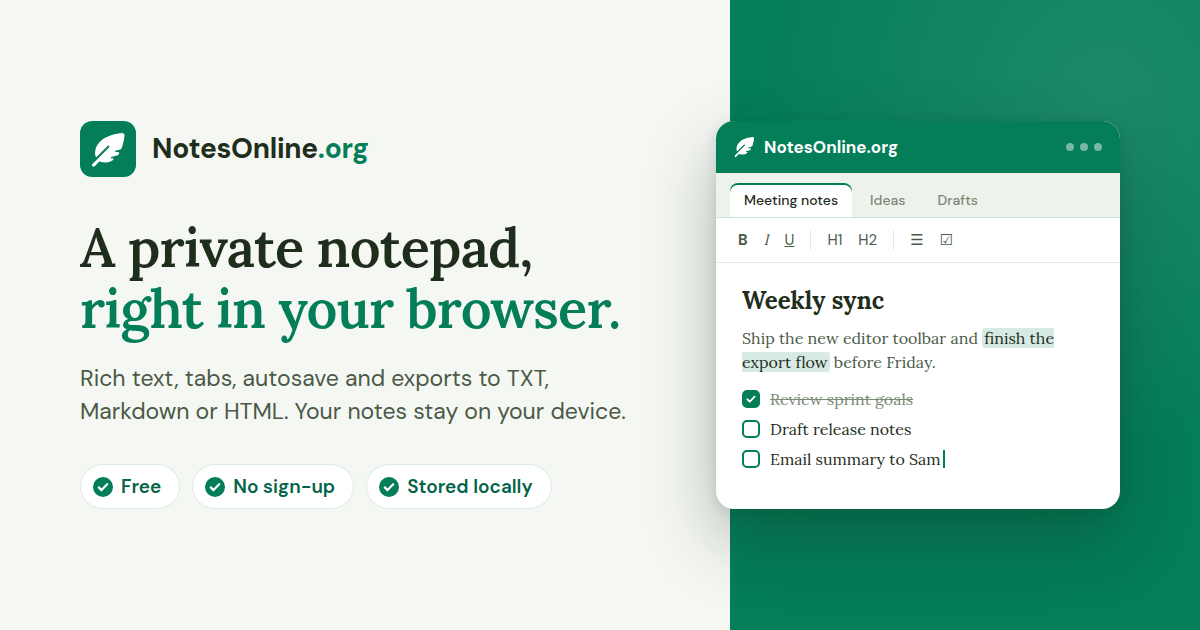

User reviews (0)