
 简体中文
简体中文 English
Website review
This review may include AI-generated content and is not individually verified. Domain, certificate and other facts come from the observed data on this page.
What is Web Whiteboard?
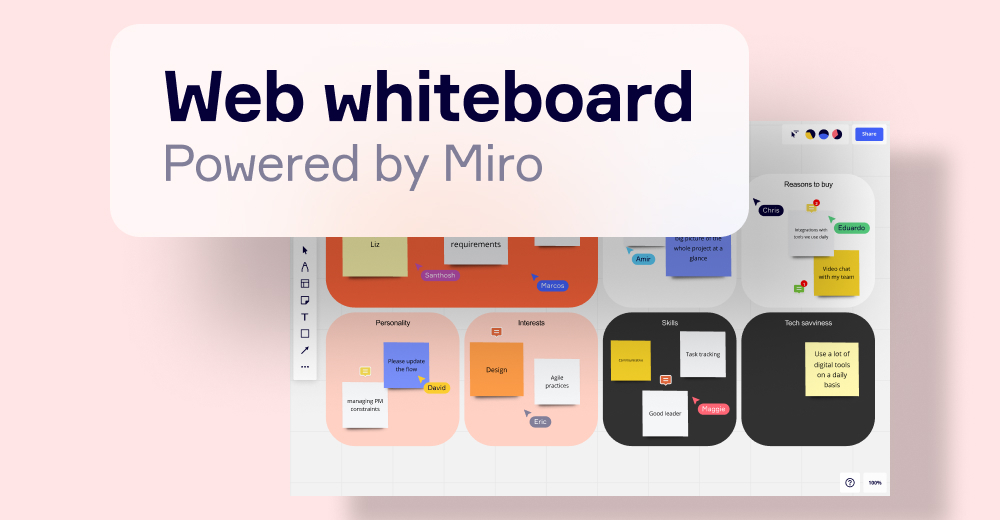
Web Whiteboard is a browser-based online whiteboard built for instant, no-sign-up collaboration. You open it, sketch or brainstorm on a shared canvas, and invite others by sending a board link — they can join and edit without creating an account.
What you can do
- Draw and sketch freely on a shared canvas.
- Collaborate in real time with colleagues, co-workers or students.
- Invite anyone via the "share board" button and a board link.
- Export a board as JPG or PDF.
- Save work to your boards if you are a registered Miro user.
Key trade-offs
- Speed vs. persistence: the appeal is getting straight to work with no login. The catch is that unregistered boards last only 24 hours — if you don't save or export, the board is permanently deleted.
- Open editing vs. control: anyone with the link gets full editing rights, the same as the board creator. That's ideal for quick, trust-based sessions; it's a poor fit when you need to manage who can change what.
- Free instant tool vs. fuller platform: more functionality and edit-rights management require signing up for a free Miro plan.
Who it suits A teacher running a spontaneous brainstorming session, or a small team sketching ideas in a meeting, can share a link and start immediately. If the work needs to survive past a day or be permission-controlled, plan to sign up or export before the 24 hours are up.
Next step: decide up front whether the board is throwaway or worth keeping. For quick sessions, share the link and work freely; for anything you'll revisit, export it or sign in and save it before the day ends. You can try it at Web Whiteboard.
How do I share my whiteboard with others?
On Web Whiteboard, sharing is link-based: click Share board in the top-right corner and send the board link to anyone. Recipients open it in a browser, with no sign-up or account required on their side.
What collaborators can do
- Edit in real time — Anyone with the link gets the same editing rights as the board creator, so co-workers, classmates or students can draw and change content alongside you.
- Export the board — Anyone you have shared it with can use the Export this board icon to save a JPG or PDF copy. The icon sits next to the board name in the upper-left corner.
- Keep or lose the board — Boards made without an account are available for 24 hours. If nobody saves or exports the board, it is permanently deleted after that window.
Sharing vs. saving
| Goal | What to do | Trade-off |
|---|---|---|
| Quick, one-off session with guests | Share the board link | No sign-up for guests, but edit rights are open to anyone with the link |
| Keep the board beyond 24 hours | Sign up for a free Miro Plan, log in and save | Requires an account; registered Miro users can also save via Save to my boards |
| Control who can edit | Sign up for the free Miro Plan to manage edit rights | The instant link-sharing flow does not offer per-person permissions |
Practical next step
If you are running a short workshop, share the link at the start and export the board to PDF as soon as the session ends — that way the 24-hour limit never matters. If the board is an ongoing project or contains sensitive material, create it under a free Miro Plan instead, since link access gives every recipient full editing rights.
For a broader set of collaboration options, compare with Miro and Mural, both of which focus on team whiteboarding with account-based boards.
Can multiple people edit the whiteboard at the same time?
Yes. Web Whiteboard is built for real-time collaboration: once you share the board link, anyone who opens it gets the same editing rights as the board creator, so multiple people can sketch, write, and move things at the same time.
Web Whiteboard
H3 What to keep in mind
- Sharing is the whole mechanism. There is no separate permission step by default — the link is the invitation, and everyone who has it can edit.
- Guests don't need accounts. People you invite can join and contribute without signing up.
- Anyone with the link can also export. Shared users can export the board as a JPG or PDF, not just view it.
- Unregistered boards are temporary. Boards made without an account stay available for 24 hours, and are permanently deleted if you don't save or export them in that window.
- Finer control needs an account. If you want to manage individual edit rights or unlock more functionality, the page points to signing up for a free Miro plan.
H3 A practical scenario A teacher or team lead opens a board, pastes the link into a chat, and everyone starts adding sticky-note-style ideas immediately — no invitations, no waiting. That's ideal for a quick session, but it also means a leaked link lets a stranger draw on and export your board. For a short brainstorm, share freely; for anything sensitive, export or save the board before the 24-hour window closes, and move to an account-based tool if you need per-person permissions.
How long are my whiteboards saved?
Web Whiteboard keeps boards for 24 hours. After that, an unsaved, unexported board is permanently deleted.
What that means in practice
- For a quick meeting, class, or brainstorming session, the 24-hour window is usually enough: share the link, sketch together, then export before you close the tab.
- If the board matters beyond the day, treat exporting as part of the session, not a later task. Download it as a JPG or PDF while everyone is still there, or sign up for the free Miro Plan and save the board to your account.
A concrete scenario
You run a 45-minute remote workshop and the board fills with sticky notes and diagrams. Before ending the call, click “Export this board” and save the file, then send it to participants. If you want the board itself to stay editable and reopenable, save it to a Miro account instead of relying on the link.
Next step
Decide up front whether the board is disposable or a keeper. Disposable: share, collaborate, export if needed. Keeper: sign up and save it, because the shared link alone will not preserve it past 24 hours.
How do I export my whiteboard as an image or PDF?
On Web Whiteboard, export is a built-in board action, not a separate download page: open the board, then click the “Export this board” icon next to the Web Whiteboard name in the upper-left corner of the screen. Choose JPG or PDF as the file type; the exported file is your snapshot or copy of the board.
A few practical details matter:
- Anyone with the board link can export it. Once a board is shared, other users get the same editing rights as the creator, and they can also use “Export this board.” That is convenient for a class or workshop, but it means an export is not a private owner-only action.
- Export before the board expires. Web Whiteboard boards are available for 24 hours. If you do not save or export a board, it is permanently deleted after that window. Exporting as JPG or PDF is the straightforward way to keep a copy.
- Exporting is not the same as saving to an account. If you want to keep working on the board later, the page points to signing up for a free Miro Plan, logging in, and saving the work. Registered Miro users see a “Save to my boards” button at the center top, and can export in additional formats such as spreadsheet, embed, and Google Drive, according to the page.
For a concrete example: a teacher runs a 40-minute brainstorming session, shares the board link with students, and at the end clicks “Export this board” to save a PDF for the class record. That works without anyone signing up. If the same teacher wants to reopen and edit the board the next week, the export alone will not do it; saving to an account is the relevant step.
If you only need a quick copy, export as PDF for a fixed, easy-to-share document or JPG for an image you can drop into slides or a chat. If you need to keep editing, decide before the 24-hour window whether to save the board to an account.
What are the limitations of Web Whiteboard compared to a registered Miro account?
Web Whiteboard is built for instant, no-signup sessions, so its limits are mostly about persistence and control rather than drawing ability. Compared with a registered Miro account, the key differences are:
| Area | Web Whiteboard | Registered Miro account |
|---|---|---|
| Saving | Boards last 24 hours; unsaved/unexported boards are permanently deleted | Boards can be saved and kept in your account |
| Editing rights | Anyone with the link gets full editing rights, the same as the board creator | You can invite people to a project and manage their edit rights |
| Functionality | Basic whiteboard tools for sketching and brainstorming | More features and board management options |
| Export | JPG or PDF | Image, PDF, spreadsheet, embed and Google Drive export |
| Access | No sign-up needed for you or collaborators | Requires a free Miro plan or paid account |
The practical trade-off: Web Whiteboard removes friction, but you give up durable storage and permission control. If you just need a quick shared canvas for a meeting or class, that is often enough. If the board is a project artifact you need to revisit, protect, or restrict, a registered account is the better fit.
A useful next step is to decide before you start: if the session is disposable, use Web Whiteboard and export anything worth keeping before the 24-hour window closes. If it is ongoing work with different levels of access, sign up for a free Miro plan and save the board there instead. For broader comparisons, see Miro and Web Whiteboard.
 Amazon Route 53
 Mailgun
 Dublin, Leinster, Ireland

User reviews (0)